1. Киришүү
This manual provides essential instructions for setting up, operating, maintaining, and troubleshooting your Apple iPad Air (Model MD785LL/A). Please read this guide thoroughly to ensure proper use and to maximize your device's capabilities. The iPad Air is a versatile tablet designed for various tasks, including web browsing, email, media consumption, and app usage.
2. Продукт бүтүп калдыview
The Apple iPad Air features a 9.7-inch Retina display, a powerful A6 processor, and a lightweight design. Familiarize yourself with the device's physical components.

Сүрөт 2.1: Алдыңкы View of iPad Air. This image shows the front of the iPad Air, featuring its 9.7-inch display with the home screen visible. App icons for FaceTime, Camera, Contacts, Notes, Reminders, App Store, Settings, Safari, Google, Calendar, Messages, Mail, and Clock are arranged on the screen. The Home button is located below the display.

2.2-сүрөт: Каптал View of iPad Air. This image illustrates the thin profile of the iPad Air, highlighting its sleek design. The side buttons, typically for volume control and mute/rotation lock, are visible along the edge.
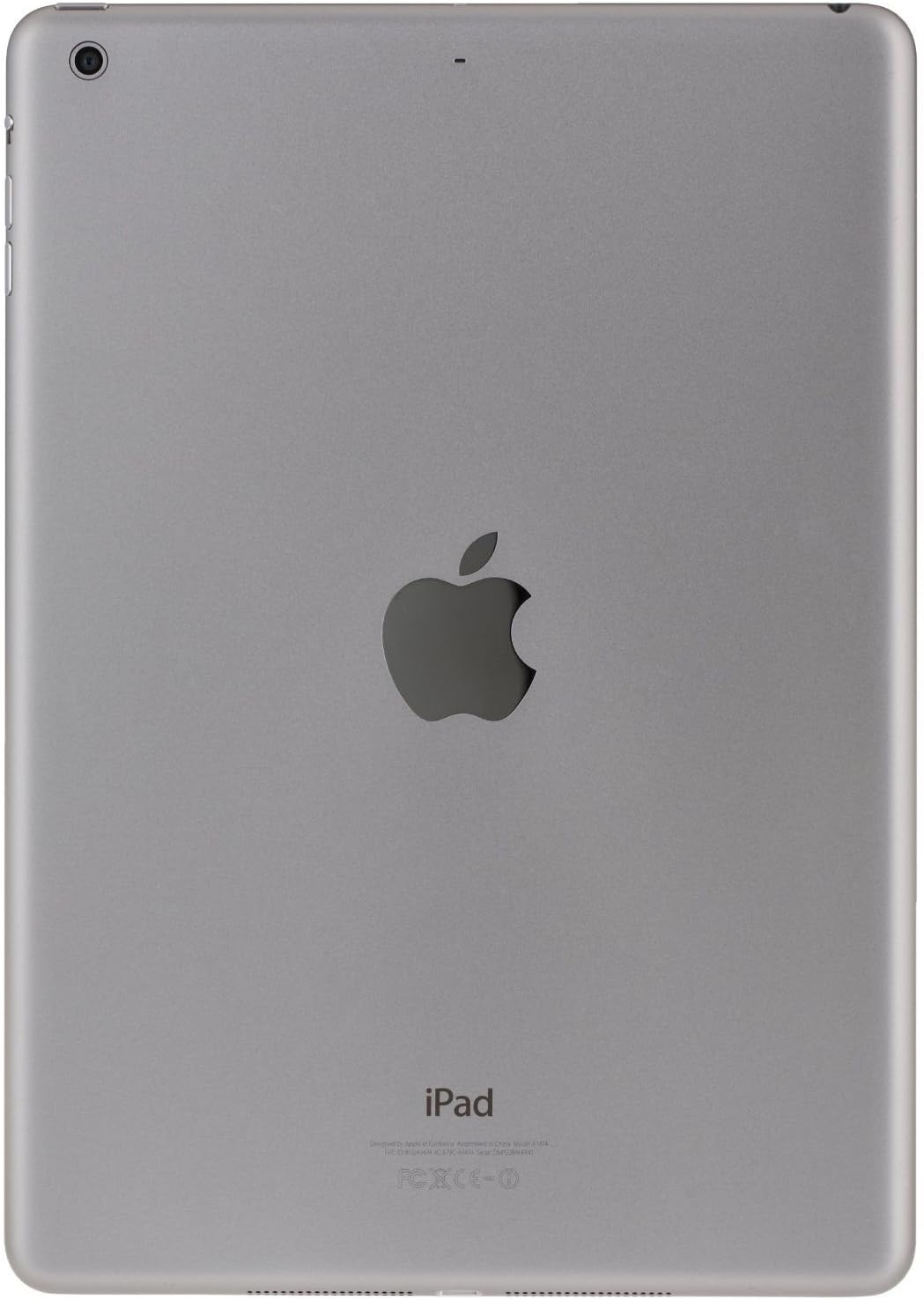
2.3-сүрөт: Арткы View of iPad Air. This image displays the back of the iPad Air, featuring the prominent Apple logo in the center. The rear camera lens is visible in the upper left corner, and regulatory information is printed at the bottom.
3. Орнотуу
3.1 Баштапкы күйгүзүү
- басып, кармап туруңуз Power/Sleep/Wake button (located on the top right edge) until the Apple logo appears.
- Follow the on-screen instructions to begin the setup process.
3.2 Негизги конфигурация
- Тил жана аймак: Select your preferred language and country/region.
- Wi-Fi тармагы: Connect to a Wi-Fi network. This is required for activation and many features.
- Жайгашкан жерди аныктоо кызматтары: Choose whether to enable or disable Location Services.
- Set Up iPad: You can choose to set up as a new iPad, restore from an iCloud backup, or restore from an iTunes backup.
- Apple ID: Sign in with your existing Apple ID or create a new one. An Apple ID is necessary for downloading apps, using iCloud, and other Apple services.
- Өткөрүүчү код: Түзмөгүңүздүн коопсуздугун камсыз кылуу үчүн сырсөз түзүңүз.
- iCloud & Find My iPad: Configure iCloud settings and enable Find My iPad for security.
4. Иштөө нускамалары
4.1 Негизги жаңсоолор
- таптаңыз: Touch the screen briefly with one finger to select an item or activate a button.
- Серпүү: Drag one finger across the screen to scroll, navigate between home screens, or reveal hidden options.
- Чымчуу: Use two fingers to pinch in or out to zoom in or out of photos, web pages, or maps.
- Мульти-сенсордук жаңсоолор: Depending on your settings, you can use four or five fingers to pinch to the Home screen, swipe up to reveal the multitasking bar, or swipe left/right to switch between apps.
4.2 Home Button Functions
- Жалгыз басуу: Башкы экранга кайтып келет.
- Кош басуу: Opens the multitasking bar, showing recently used apps.
- Үч жолу басуу: Activates Accessibility Shortcut (if configured in Settings).
- Басып кармап туруңуз: Activates Siri (if enabled).
4.3 Control Center and Notification Center
- Башкаруу борбору: Swipe up from the bottom edge of the screen to access quick settings like Wi-Fi, Bluetooth, brightness, and media controls.
- Кабарлоо борбору: Экрандын жогорку четинен ылдый сүрүңүз view эскертмелер жана виджеттер.
4.4 App Store and Applications
Access the App Store icon on your Home screen to browse, search, and download applications. Many apps are free, while others require purchase. Ensure you are signed in with your Apple ID.
5. Техникалык тейлөө
5.1 Cleaning Your iPad Air
- Use a soft, lint-free cloth (e.g., microfiber cloth) to clean the screen and exterior.
- Avoid using abrasive materials, aerosols, solvents, or ammonia-based cleaners.
- Dampen the cloth slightly with water if necessary, but avoid getting moisture into any openings.
5.2 Программалык камсыздоо жаңыртуулары
Сиздин iPad Air'иңизде эң акыркы функциялар, коопсуздук өркүндөтүлгөн жана иштеши жакшырганын текшерүү үчүн программалык камсыздоо жаңыртууларын дайыма текшерип, орнотуп алыңыз. барыңыз Орнотуулар > Жалпы > Программаны жаңыртуу.
5.3 Камдык көчүрмөлөө процедуралары
It is recommended to regularly back up your iPad Air to iCloud or your computer using iTunes. This protects your data in case of device loss or damage.
6. Кыйынчылыктарды
6.1 Түзмөк жооп бербей жатат
If your iPad Air becomes unresponsive, perform a force restart:
- экөөнү тең басып, кармап туруңуз Башкы бет баскычы жана Кубат/Уйку/Ойготуу баскычы simultaneously until the Apple logo appears. Release both buttons once the logo is visible.
6.2 Wi-Fi туташуу маселелери
- Wi-Fi күйгүзүлгөнүн текшериңиз Орнотуулар > Wi-Fi.
- Wi-Fi роутериңизди өчүрүп күйгүзүп көрүңүз.
- барыңыз Settings > General > Reset > Reset Network Settings. This will clear all network settings, including Wi-Fi passwords.
6.3 Колдонмо бузулат же катып калат
- Close the app by double-pressing the Home button, then swiping the app's preview card upwards.
- iPad Air'иңизди өчүрүп күйгүзүңүз.
- Check for app updates in the App Store.
- If the issue persists, delete and reinstall the app.
7. Техникалык шарттар
| Модель аты | iPad Air |
| Модель номери | MD785LL/A |
| Дисплей | 9.7-inch Retina display |
| Резолюция | 2048 x 1536 пиксел |
| Процессор | Apple A6 1.4 GHz |
| Сактоо сыйымдуулугу | 16 ГБ Flash эстутум |
| RAM эс тутуму | 1 ГБ |
| Операция системасы | Apple iOS 5 (initial release, upgradable) |
| Батареянын иштөө мөөнөтү | 10 саатка чейин |
| Салмагы | 1.00 фунт (болжол менен 453 грамм) |
| Өлчөмдөрү (L x W x Y) | 9.4 x 6.6 x 0.29 дюйм (болжол менен 240 x 169.5 x 7.5 мм) |
8. Important Information and Support
8.1 Legal Disclaimer for Returns
If you wish to return the iPad: You must erase all your content, which will remove any activation lock from iCloud. Failure to remove activation lock from the iPad will result in no refund or exchange. To erase content, go to: Орнотуулар > Жалпы > Кайра коюу > Бардык мазмунду жана жөндөөлөрдү өчүрүү.
8.2 Warranty and Technical Support
For detailed warranty information, technical support, or service, please refer to the official Apple support website or contact Apple customer service directly. Information regarding your specific warranty coverage can typically be found by entering your device's serial number on the Apple support portal.
You can visit the official Apple Support webкошумча жардам үчүн сайт: support.apple.com


