1. Киришүү
This manual provides essential information for setting up, operating, maintaining, and troubleshooting your Alienware 17 R3 laptop. This high-performance gaming laptop features an Intel Core i7-6820HK processor, a 17.3-inch UHD (3840x2160) IPS-Panel Anti-Glare Display, NVIDIA GeForce GTX 980M graphics with 8GB GDDR5, 32GB DDR4 RAM, and a dual storage solution with a 256GB PCIe SSD and a 1TB 7200rpm HDD. It comes pre-installed with Windows 10 (64Bit) English.
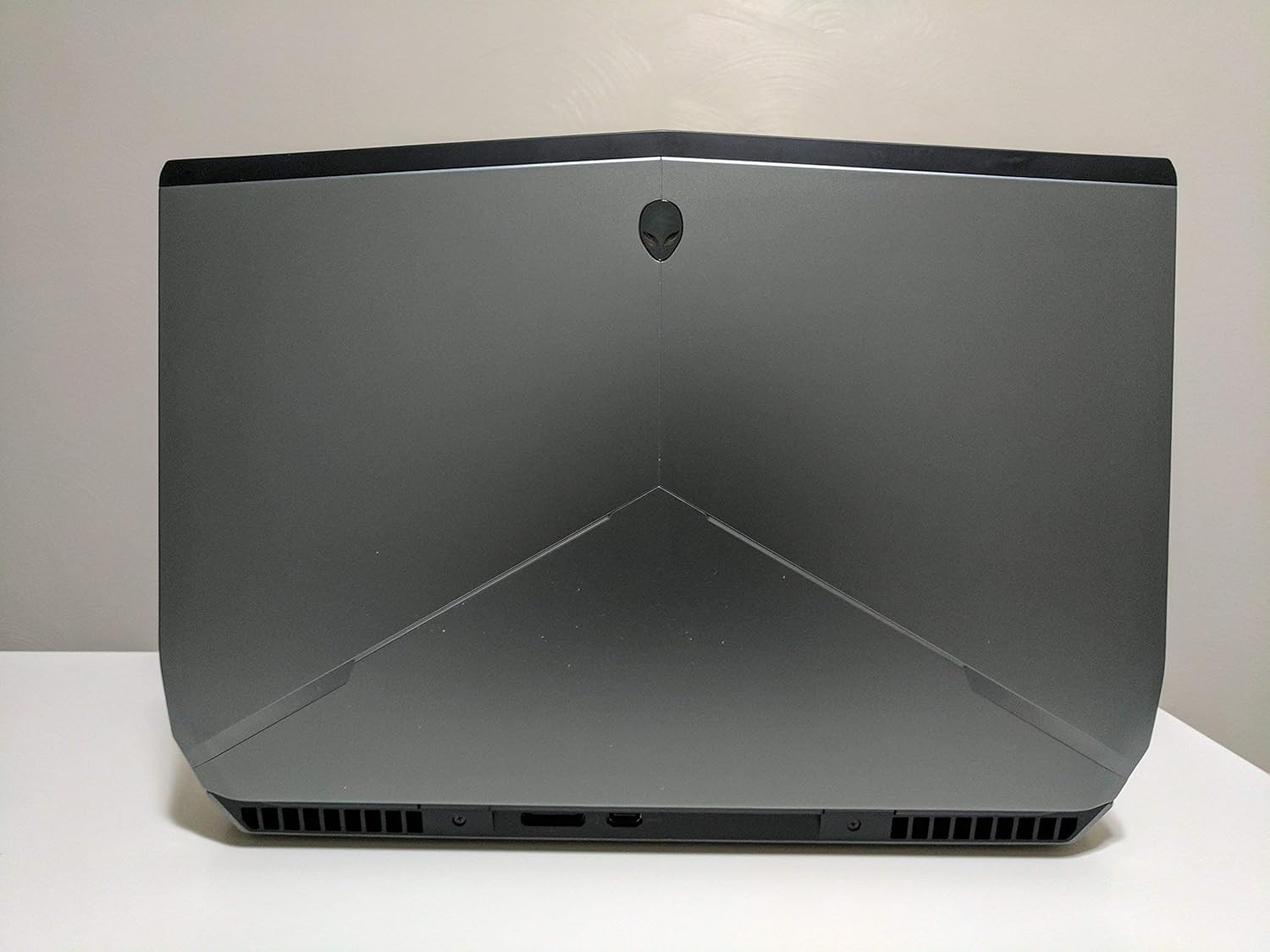
1-сүрөт: Арткы view of the Alienware 17 R3 laptop, highlighting its distinctive design and cooling vents.
2. Орнотуу
2.1 Кутудан чыгаруу жана алгачкы текшерүү
Carefully remove your Alienware 17 R3 laptop and its accessories from the packaging. Ensure all components listed below are present:
- Alienware 17 R3 Laptop
- Alienware 240W AC Adapter
- Электр кабели
- 8 Cell 92W Hour Battery (may be pre-installed)
- Документтер (Ыкчам баштоо колдонмосу, коопсуздук маалыматы)
2.2 Кубат адаптерин туташтыруу
Connect the Alienware 240W AC Adapter to the power input port on the laptop, typically located at the rear or side. Plug the power cord into the AC adapter and then into a grounded electrical outlet. The laptop can be operated on battery power, but it is recommended to connect the AC adapter for initial setup and optimal performance.

Сүрөт 2: Алдыңкы view of the Alienware 17 R3 laptop, ready for initial power-on.
2.3 Initial Boot-up and Windows 10 Setup
Press the power button, usually located on the top right of the keyboard deck or a dedicated button. The laptop will power on and guide you through the Windows 10 initial setup process. Follow the on-screen instructions to configure language, region, network settings, and user accounts.
2.4 Зымсыз тармакка туташуу
During the Windows 10 setup, you will be prompted to connect to a Wi-Fi network. Select your desired network from the list and enter the password if required. The laptop features Killer 1535 802.11ac 2x2 WiFi for robust wireless connectivity.
3. Operating Your Alienware 17 R3
3.1 Баскычтоп жана сенсордук такта
The Alienware 17 R3 features an English keyboard with Alienware's signature design and backlighting. It also includes 6 programmable Macro module keys, which can be customized for various functions using Alienware's software. The precision touchpad supports multi-touch gestures for intuitive navigation.
3.2 Дисплей орнотуулары
Your laptop is equipped with a 17.3-inch UHD (3840x2160) IPS-Panel Anti-Glare Display. To adjust display settings such as resolution, brightness, and color profiles, right-click on the desktop and select 'Display settings' or access them via the Windows Settings menu.
3.3 Тышкы түзмөктөрдү туташтыруу
The Alienware 17 R3 offers various ports for connecting peripherals:
- USB порттору: Тышкы сактагычты, чычкандарды, клавиатураларды жана башка USB түзмөктөрүн туташтыруу үчүн.
- HDMI/Дисплей порту: For connecting external monitors or projectors.
- Ethernet порту: Зымдуу тармак байланыштары үчүн.
- Аудио уячалары: For headphones, microphones, or external speakers.

Figure 3: Left side of the Alienware 17 R3, illustrating available connectivity ports.

Figure 4: Right side of the Alienware 17 R3, showing additional connectivity options.
4. Техникалык тейлөө
4.1 Ноутбугуңузду тазалоо
To maintain optimal performance and appearance, regularly clean your laptop. Use a soft, lint-free cloth slightly dampened with water or a specialized screen cleaner for the display. For the chassis and keyboard, use a dry, soft cloth. Avoid harsh chemicals or abrasive materials.
4.2 Батареяга кам көрүү
The Alienware 17 R3 is equipped with an 8 Cell 92W Hour Battery. To prolong battery life, avoid extreme temperatures and allow the battery to discharge partially before recharging. For long-term storage, ensure the battery is charged to approximately 50%.
4.3 Программалык камсыздоо жаңыртуулары
Regularly update your Windows 10 operating system and device drivers to ensure security, stability, and optimal performance. Windows Update can be accessed through the Settings menu. Alienware Command Center or Dell SupportAssist can help manage driver updates.
4.4 Сактагычты башкаруу
Your laptop features a 256GB PCIe SSD for fast boot times and application loading, complemented by a 1TB 7200rpm SATA HDD for mass storage. Regularly manage your files, uninstall unused programs, and consider disk cleanup tools to maintain storage efficiency.
5. Кыйынчылыктарды
This section addresses common issues you might encounter with your Alienware 17 R3.
5.1 Электр энергиясы маселелери
- Ноутбук күйбөйт: Электр адаптери ноутбукка жана иштеп жаткан розеткага бекем туташтырылганын текшериңиз. Розетка иштеп жатканын текшериңиз. Башка розетканы колдонуп көрүңүз.
- Батарея кубатталбай жатат: Verify the AC adapter connection. Check the battery status in Windows. If the issue persists, contact support.
5.2 Дисплей көйгөйлөрү
- Экранда сүрөт жок: Ensure the laptop is powered on. Try connecting an external monitor to check if the issue is with the laptop's display or the graphics card.
- Incorrect resolution or flickering: Update your graphics drivers. Adjust display settings in Windows.
5.3 Тармакка туташуу маселелери
- Wi-Fi'га туташпай жатат: Ensure Wi-Fi is enabled. Restart your router and modem. Check network adapter drivers.
- Интернеттин ылдамдыгы жай: Check your internet service provider. Ensure no other devices are consuming excessive bandwidth.
5.4 Ишти аткаруу маселелери
- Ноутбук жай иштеп жатат: Керексиз тиркемелерди жабыңыз. Процессорду же оперативдүү эстутумду талап кылган фон процесстерин текшериңиз. SSDде жетиштүү бош орун камсыз кылыңыз.
- Ашыкча ысып кетүү: Ensure ventilation grilles are not blocked. Clean dust from vents. Consider using a cooling pad.
6. Техникалык шарттар
Detailed technical specifications for the Alienware 17 R3 (Model 6820HK):
| Өзгөчөлүк | Спецификация |
|---|---|
| Процессор | Intel Core i7-6820HK (8M Cache, unlocked up to 4.10 GHz) |
| Дисплей | 17.3-inch UHD (3840x2160) IPS-Panel Anti-Glare Display |
| Графика | NVIDIA GeForce GTX 980M with 8GB GDDR5 |
| RAM | 32GB Dual Channel DDR4 2133MHz (2 x 16GB) |
| Сактагыч | 256GB PCIe SSD + 1TB 7200rpm SATA 6Gb/s HDD |
| Операция системасы | Windows 10 (64Bit) English |
| Зымсыз байланыш | Killer 1535 802.11ac 2x2 WiFi and Bluetooth 4.1 |
| Батарея | 8 Cell 92W Hour Battery |
| Электр камсыздоо | Alienware 240W AC Adapter |
| Баскычтоп | English Keyboard with 6 programmable Macro module keys |
| Элемент Салмагы | Болжол менен 15 фунт (6.8 кг) |
| Өлчөмдөр | Approximately 7.87 x 6.69 x 1.97 inches (20 x 17 x 5 cm) - Package Dimensions |
7. Кепилдик жана колдоо
7.1 Чектелген Кепилдик
Your Alienware 17 R3 comes with a 1 жылдык Чектелген Кепилдик. This warranty covers manufacturing defects and hardware failures under normal use conditions. Please refer to the warranty documentation included with your product for full terms and conditions.
7.2 Кызмат жана колдоо
продукт камтыйт:
- In-Home Service after Remote Diagnosis: Parts and Labor On-Site Response, Initial Year.
- Dell Hardware Warranty Plus On-Site Service: Initial Year.
- Кепилдик колдоо: Initial Year.
For technical assistance, troubleshooting, or to initiate a warranty claim, please visit the official Alienware or Dell support website. You will typically need your service tag or express service code, found on a label on your laptop, to access personalized support resources.
Эскертүү: Бул колдонмого кыстаруу үчүн берилген маалыматтарда расмий продукт видеолору жок.


