1. Продукт бүтүп калдыview
The Polycom RealPresence Trio 8800 is an advanced IP conference phone designed for superior audio and collaboration experiences in modern meeting spaces. It combines a sleek design with powerful features to ensure clear communication and easy content sharing.
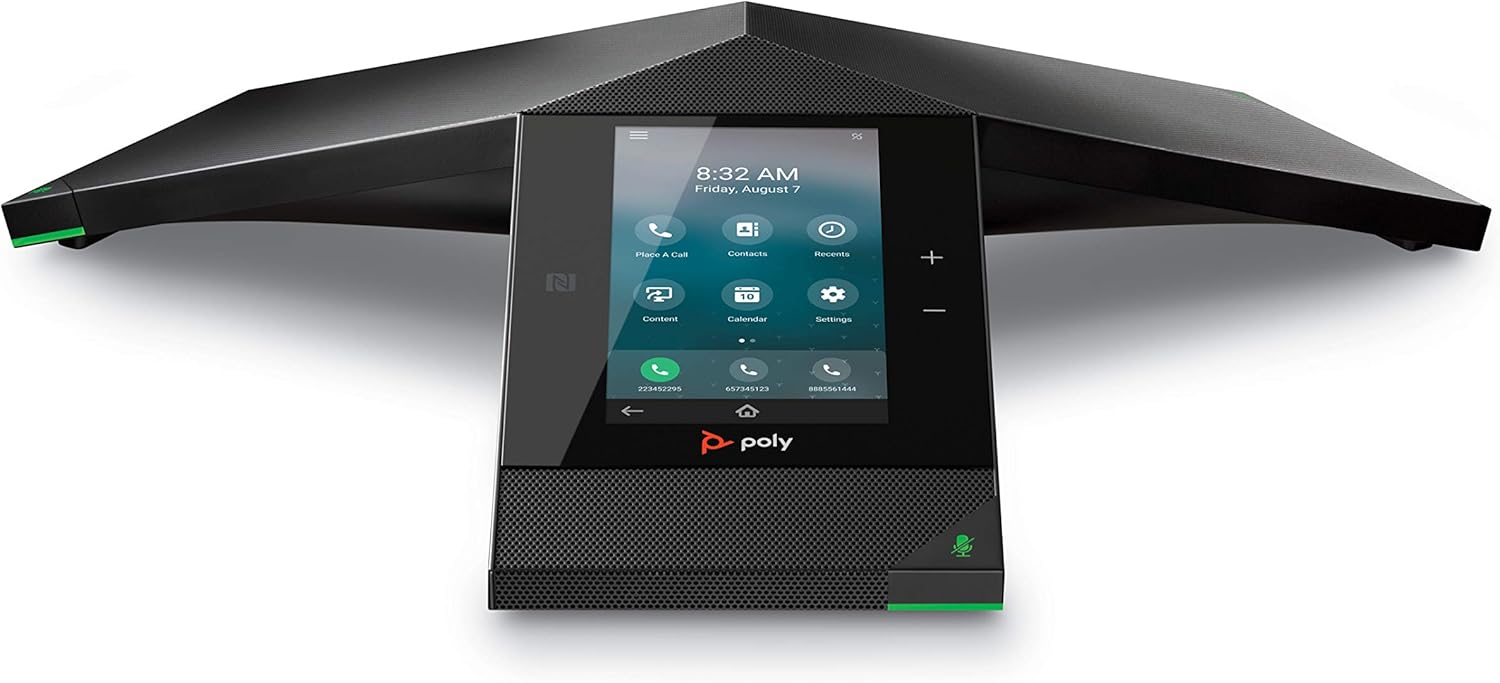
Figure 1: Polycom RealPresence Trio 8800 IP Conference Phone, front view.
Негизги өзгөчөлүктөрү:
- Конференциялык телефондун ийкемдүүлүгү: Video conferencing and content sharing can be easily added, ensuring future-proof flexibility. USB and Bluetooth are built-in for device connectivity.
- Мыкты аудио: Experience clear audio with industry-leading full duplex, echo cancellation, and noise reduction. Microphones are tuned for larger rooms, offering up to a 20-foot pickup range.
- Сенсордук дисплей: A 5-inch color touch display provides intuitive access to familiar icons and user controls.
- Платформа интеграциясы: Connect seamlessly to various communication platforms, including Microsoft Teams, Skype, Zoom, Cisco, 8x8, Vonage, Avaya, Ribbon, Ring Central, Metaswitch, and Alcatel-Lucent.

Figure 2: The Polycom Trio 8800 is designed for large room conferences.
2. Орнотуу
Follow these steps to set up your Polycom RealPresence Trio 8800 conference phone.
2.1 Пакеттен чыгаруу
Carefully remove all components from the packaging. The box should contain the Polycom RealPresence Trio 8800 conference phone and necessary cables.
2.2 Кубат менен тармакты туташтыруу
- Connect the Ethernet cable from your network switch or router to the LAN port on the Polycom Trio 8800. This device supports Power over Ethernet (PoE). If your network switch does not provide PoE, you will need to use a Polycom-approved PoE injector kit for full functionality.
- If not using PoE, connect the power adapter (sold separately or included with specific bundles) to the power port on the phone and then to a power outlet.
2.3 Баштапкы конфигурация
Upon first boot, the phone will guide you through initial setup steps on its 5-inch touch display. This may include network settings, date and time, and registration with your VoIP service or communication platform.

Figure 3: The Polycom Trio 8800 offers built-in Wi-Fi, USB, and Bluetooth connectivity for versatile setup.
3. Иштөө нускамалары
The Polycom RealPresence Trio 8800 is designed for intuitive operation through its touch display.
3.1 Сенсордук дисплейди колдонуу
The 5-inch color touch display provides access to all phone functions. Navigate through menus by swiping and tapping icons. The home screen typically displays options for making calls, accessing contacts, viewing call history, and adjusting settings.
3.2 Чалууларды кабыл алуу жана кабыл алуу
- Чалуу үчүн: Tap the 'Phone' or 'Call' icon, enter the number using the on-screen dial pad, and tap the call button.
- Чалууну кабыл алуу үчүн: When the phone rings, tap the 'Answer' icon on the display.
- Үнсүз: Tap the microphone icon on the display or the physical mute button on the device to mute/unmute the microphones. The LED indicators on the device will change color to indicate mute status.
3.3 Аудио өзгөчөлүктөрү
The Trio 8800 features advanced audio technologies for clear communication:
- Толук дуплекс: Allows both parties to speak and be heard simultaneously without interruption.
- Эхо жокко чыгаруу: Eliminates echoes to ensure clear audio.
- Ызы-чууну азайтуу: Minimizes background noise for focused conversations.
- Микрофонду алуу: Microphones are optimized to capture voices up to a 20-foot range, suitable for large conference rooms.

Figure 4: The Polycom Trio 8800's microphones are designed to pick up voices from a significant distance.
3.4 USB and Bluetooth Connectivity
The phone supports USB and Bluetooth for enhanced flexibility:
- USB: Connect the phone directly to a computer via USB to use it as a high-quality microphone and speaker for PC-based conferencing applications like Zoom.
- Bluetooth: Pair your mobile device or laptop via Bluetooth to use the Trio 8800 for audio calls or media playback.

Figure 5: The Polycom Trio 8800 facilitates easy integration for video conferencing and content sharing.
3.5 Platform Integration
The Polycom Trio 8800 is compatible with a wide range of communication platforms, allowing for seamless integration into your existing infrastructure. Refer to your service provider's documentation for specific setup instructions for your chosen platform.

Figure 6: The Polycom Trio 8800 integrates with various leading communication platforms.
4. Техникалык тейлөө
Туура техникалык тейлөө Polycom RealPresence Trio 8800 түзмөгүңүздүн узак мөөнөттүү иштешин жана оптималдуу иштешин камсыз кылат.
4.1 Тазалоо
To clean the device, gently wipe the surfaces, including the touch screen, with a soft, lint-free cloth. For stubborn marks, slightly dampen the cloth with water or a mild, non-abrasive cleaner. Avoid using harsh chemicals or abrasive materials that could damage the finish or screen.
4.2 Микропрограмма жаңыртуулары
Regularly check for and install firmware updates. Firmware updates often provide performance improvements, bug fixes, and new features. Consult your IT administrator or Polycom's official support website for information on available updates and installation procedures.
5. Кыйынчылыктарды
Бул бөлүмдө Polycom RealPresence Trio 8800 менен кездешиши мүмкүн болгон жалпы көйгөйлөр каралат.
5.1 No Power or Display
- Бардык электр кабелдери коопсуз туташтырылганын текшериңиз.
- If using PoE, verify that your network switch provides sufficient power. If not, use a Polycom-approved PoE injector.
- Электр розеткасынын иштешин текшериңиз.
5.2 Тармакка туташуу маселелери
- Verify the Ethernet cable is properly connected to the LAN port and the network switch.
- Confirm that your network is providing an IP address to the phone. If the phone is not pulling an IP address over Ethernet, check network settings or try connecting via Wi-Fi if available and configured.
- Restart the phone and your network equipment (router/switch).
5.3 Аудио сапаты көйгөйлөрү
- Ensure the microphones are not muted (check LED indicators).
- Adjust the volume using the on-screen controls.
- Check for any physical obstructions around the microphones.
- If using Bluetooth, ensure the connected device is within range and there is no interference. Note that some Bluetooth integrations may not support all features like muting directly from the phone.
5.4 Accidental Hang-ups
Due to the sensitive touch screen, be mindful when moving the phone during a call to avoid accidentally pressing the hang-up button. Handle the device by its base or sides.
5.5 Жалпы кеңеш
If issues persist, try restarting the device. For complex network or configuration problems, consult your IT department or a qualified VoIP technician.
6. Техникалык шарттар
| Өзгөчөлүк | Деталь |
|---|---|
| Продукциянын өлчөмдөрү | 15.08 x 2.95 x 13.07 дюйм |
| Элемент Салмагы | 2.09 фунт (950 грамм) |
| Модель номери | 2200-66070-001 |
| Бренд | Polycom |
| Түс | Кара боз |
| Телефон түрү | жоон |
| Материал | Пластик |
| Power Source | Электр зымдары |
| Жооп берүү системасынын түрү | Санарип |
| Шайкеш түзмөктөр | Computer systems, VoIP services |
| Телефон менен сүйлөшүү убактысы | 22 minutes (as per specification, actual usage may vary) |
7. Кепилдик жана колдоо
For warranty information and technical support, please refer to the official Polycom website or contact your authorized Polycom reseller. Keep your purchase receipt and product serial number handy when seeking support.
Optional protection plans may be available for extended coverage. Please check with your retailer for details on 3-Year or 4-Year protection plans.


