1. Бүттүview
The MoKo Bluetooth Wireless Keyboard is designed to enhance your Microsoft Surface Pro experience, offering a comfortable typing solution with advanced features. This keyboard provides a seamless wireless connection, a practical trackpad, and customizable 7-color backlighting, making it suitable for various environments and tasks.

Image: MoKo Bluetooth Wireless Keyboard attached to a Microsoft Surface Pro tablet, showcasing анын кооз дизайны жана интеграциясы.
2. Пакеттин мазмуну
Сураныч, пакетте төмөнкү нерселерди текшериңиз:
- MoKo Bluetooth Wireless Keyboard
- USB заряддоо кабели
- Колдонуучунун Колдонмосу (бул документ)

Image: A USB Type-C charging cable, included for recharging the keyboard's internal battery.
3. Шайкештик
This keyboard is designed for specific Microsoft Surface Pro models. Please verify your device model before use.
- Microsoft Surface Pro 7 Plus (2021)
- Microsoft Surface Pro 7 (2019)
- Microsoft Surface Pro 6
- Microsoft Surface Pro 5 (Pro 2017)
- Microsoft Surface Pro 4
- Microsoft Surface Pro 3
Note: This keyboard is NOT compatible with Surface Go (2018) or Surface Go 2.
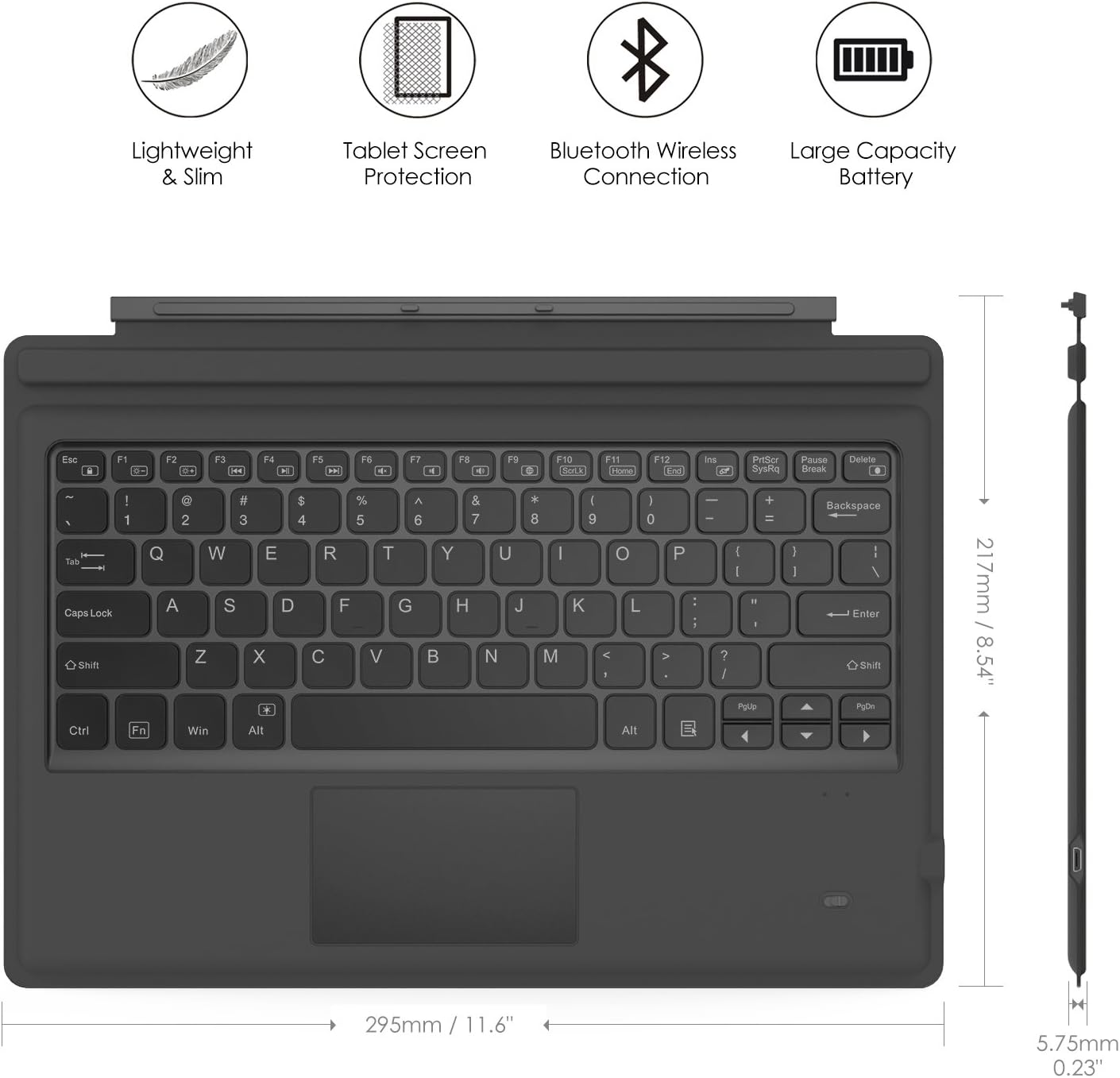
Image: A visual guide indicating compatible Microsoft Surface Pro models (Pro 7 Plus, Pro 7, Pro 6, Pro 5, Pro 4, Pro 3, Pro LTE) and incompatible models (Surface Go, Surface Go 2).
4. Орнотуу
4.1. Баскычтопту заряддоо
Before initial use, fully charge the keyboard. Connect the provided USB charging cable to the keyboard's charging port and a USB power source. The charging indicator light will show the charging status.
- Battery Capacity: 750mAh (rechargeable lithium battery)
- Заряддоо убактысы: Болжол менен 2-3 саат
- Working Time (backlight off): Up to 180 hours
- Working Time (backlight on): Up to 5 hours
- Күтүү убактысы: 180 күнгө чейин

Image: An illustration depicting the keyboard's battery and charging specifications, including charge time and standby duration.
4.2. Bluetooth Жупташтыруу
Follow these steps to pair your keyboard with your Microsoft Surface Pro:
- Кубат өчүргүчтү 'ON' абалына жылдырып, клавиатураны күйгүзүңүз. Индикатор жарыгы күйөт.
- басыңыз Fn + C keys simultaneously to activate Bluetooth pairing mode. The Bluetooth indicator light will start blinking rapidly.
- Microsoft Surface Pro түзмөгүңүзгө өтүңүз Орнотуулар > Түзмөктөр > Bluetooth жана башка түзмөктөр.
- Ensure Bluetooth is enabled and select Bluetooth же башка аспапты кошуңуз.
- Тандоо Bluetooth варианттардан.
- Select the keyboard (usually named "Bluetooth Keyboard" or similar) from the list of available devices.
- Follow any on-screen prompts to complete the pairing process. Once paired, the Bluetooth indicator light on the keyboard will stop blinking.

Image: A diagram illustrating the Bluetooth wireless connection process, showing the keyboard both attached and detached from the tablet, with a note on connection distance.
5. Иштөө нускамалары
5.1. Арткы жарыкты башкаруу
The keyboard features a 7-color LED backlight with adjustable brightness levels.
- To turn the backlight ON/OFF: Press the Электр лампасы ачкыч.
- Арткы фондун түсүн өзгөртүү үчүн: баскычын басыңыз Alt + Light Bulb key. Cycle through 7 different colors.
- Арткы жарыктын жарыктыгын тууралоо үчүн: баскычын басыңыз: fn+alt keys. This will cycle through different brightness modes.

Image: Instructions on how to change the backlight color by pressing Alt + Light Bulb key.

Image: Instructions on how to adjust backlight brightness by pressing Fn + Alt keys.
5.2. Using the Trackpad
The integrated trackpad provides precise cursor control, similar to a mouse. It supports multi-touch gestures for enhanced navigation.
- To activate/deactivate the trackpad: Press Fn + Trackpad icon ачкыч.
- Left Click: Press the left side of the trackpad or tap once.
- Right Click: Press the right side of the trackpad or tap with two fingers.
- Scrolling: Use two fingers to scroll up or down.

Image: An illustration highlighting the responsive trackpad with left and right click areas, and the scissor switch mechanism of the keys for comfortable typing.
5.3. Dual-Angle Adjustment
The keyboard features a magnetic attachment stripe that allows for two different typing angles, providing ergonomic comfort for various uses.
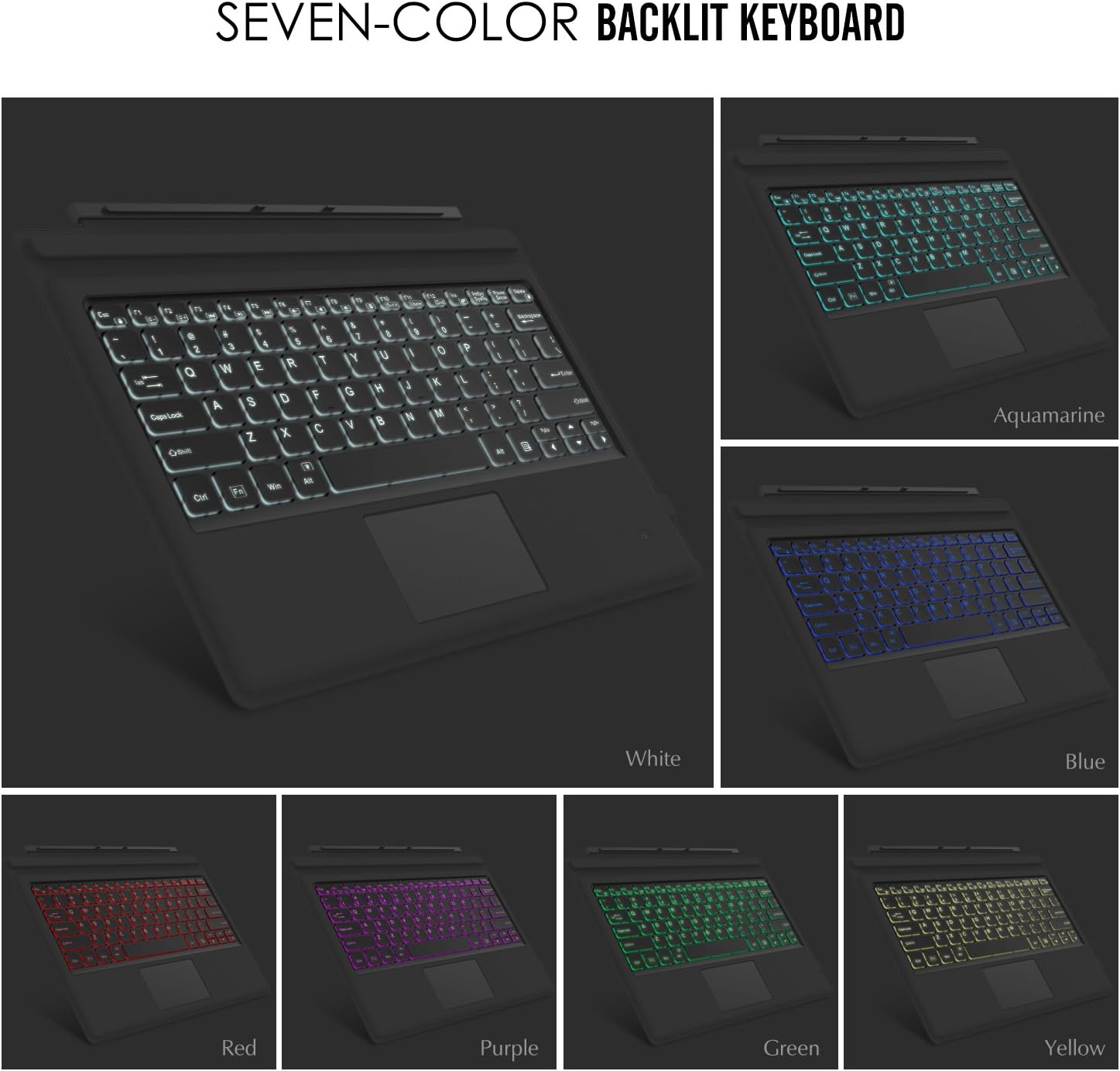
Image: A visual representation of the keyboard's dual-angle adjustment, showing two distinct positions for typing comfort.
6. Техникалык тейлөө
- Клавиатураны суюктуктардан жана өтө жогорку температуралардан алыс кармаңыз.
- Clean the keyboard with a soft, damp кездеме. Катуу химиялык заттардан алыс болуңуз.
- Кепилдикти жокко чыгарышы мүмкүн болгондуктан, клавиатураны бөлүп алууга аракет кылбаңыз.
- Узак мөөнөткө колдонулбаганда кургак жерде сактаңыз.
7. Кыйынчылыктарды
7.1. Баскычтоп Bluetooth аркылуу туташпай жатат
- Баскычтоп толук кубатталганын текшериңиз.
- Make sure the keyboard's power switch is ON.
- Verify that Bluetooth is enabled on your Surface Pro.
- Re-enter pairing mode on the keyboard (Fn + C) and attempt to pair again from your Surface Pro's Bluetooth settings.
- If previously paired, try 'forgetting' the device on your Surface Pro and then re-pairing.
7.2. Арткы жарык иштебейт
- Баскычтоп жетиштүү заряддалганын текшериңиз.
- Press the Light Bulb key to toggle the backlight.
- Adjust brightness using Fn + Alt keys.
7.3. Сенсордук панель жооп бербей жатат
- Ensure the trackpad is activated by pressing Fn + Trackpad icon key.
- Кирди же таштандыларды кетирүү үчүн сенсордук панелдин бетин тазалаңыз.
- Restart the keyboard and your Surface Pro.
8. Техникалык шарттар
| Өзгөчөлүк | Деталь |
|---|---|
| Бренд | MoKo |
| Модель номери | LYSB01AJOX7LU-ELECTRNCS |
| Түс | Боз |
| Байланыш технологиясы | Bluetooth |
| Keyboard Description | Ergonomic, QWERTY US International |
| Өзгөчөлүктөр | Wireless, Magnetic, Backlit (7 Colors), Trackpad |
| Power Source | Battery (Rechargeable Lithium) |
| Батарея сыйымдуулугу | 750mAh |
| Батарея Voltage | 3 вольт |
| Продукциянын өлчөмдөрү | 29.49 x 21.69 x 0.58 см (11.6 x 8.54 x 0.23 дюйм) |
| Продукт Салмагы | 500 г |
| Шайкеш түзмөктөр | Microsoft Surface Pro 7 Plus (2021) / Pro 7 (2019) / Pro 6 / Surface Pro 5 (Pro 2017) / Pro 4 / Pro 3 |
| Операция системасы | Windows |

Image: A diagram illustrating the precise dimensions of the MoKo Bluetooth Wireless Keyboard.
9. Кепилдик жана колдоо
For warranty information and technical support, please refer to the product packaging or contact MoKo customer service directly. Keep your purchase receipt for warranty claims.


