Introduction
This manual provides instructions for the installation and operation of your Satechi Aluminum USB-C 2.5-inch HDD/SSD Enclosure. This enclosure allows you to convert any 2.5-inch SATA hard drive (HDD) or solid-state drive (SSD) into a portable external storage device, utilizing a USB-C connection for data transfer speeds up to 10 Gbps.
Пакеттин мазмуну
- Satechi Aluminum USB-C 2.5-inch HDD/SSD Enclosure
- USB-C - USB-C кабели
- Мини бурагыч
- Монтаждоо бурамалар
Орнотуу жана орнотуу
Follow these steps to install your 2.5-inch HDD or SSD into the enclosure:
- Корпусун ачыңыз: Use the provided mini screwdriver to remove the two small screws located on the side of the enclosure. Carefully slide the internal tray out from the aluminum casing.
- Дискти салыңыз: Align your 2.5-inch SATA HDD or SSD with the SATA connector on the internal tray. Gently push the drive into the connector until it is firmly seated.
- Дискти коопсуздандырыңыз: Use the provided mounting screws to secure the HDD/SSD to the internal tray. Ensure the drive is stable and does not move.
- Корпусун жабуу: Carefully slide the internal tray, with the installed drive, back into the aluminum casing. Re-insert and tighten the two small screws to secure the enclosure.

Image: Enclosure disassembled, revealing the internal tray and screws.
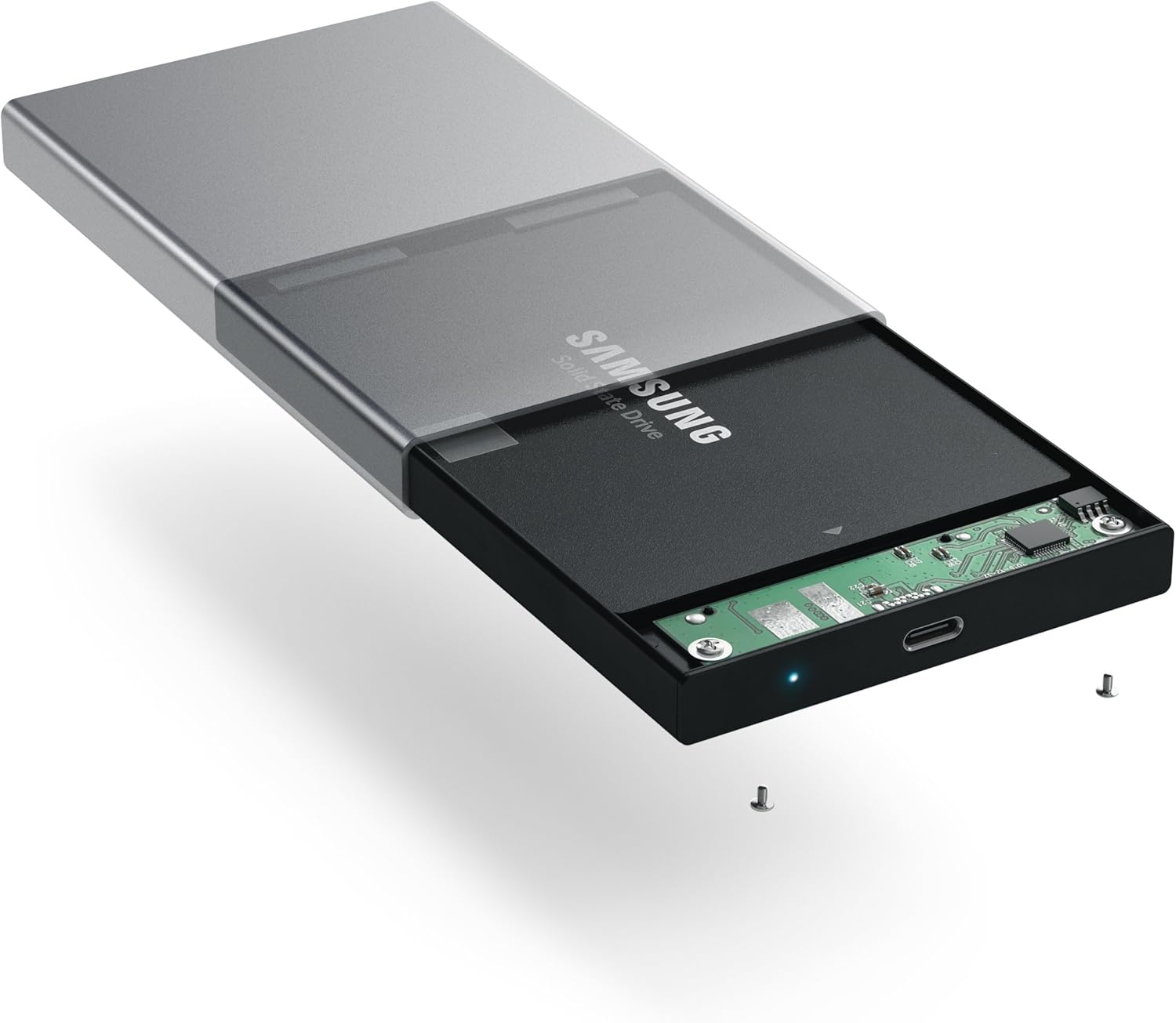
Image: Inserting a 2.5-inch SSD into the internal tray.

Image: SSD fully inserted and secured in the tray.
Иштөө нускамалары
- Компьютерге туташуу: Use the included USB-C to USB-C cable to connect the enclosure to an available USB-C port on your computer.
- Күч көрсөткүчү: A blue LED indicator light on the enclosure will illuminate when connected and powered, indicating readiness for use. The LED will blink during data transfer activity.
- Дискке кирүү: Your computer should automatically detect the external drive. If it is a new drive, you may need to format it before use. Refer to your operating system's documentation for drive formatting procedures.
- Маалыматтарды өткөрүү: Сүйрөп барып таштаңыз files to and from the external drive as you would with any other storage device. The enclosure supports data transfer speeds up to 10 Gbps, depending on your drive and computer's USB-C port capabilities.
- Коопсуз алып салуу: Always safely eject the external drive from your operating system before disconnecting the cable to prevent data corruption.

Image: Enclosure connected to a laptop.

Image: Enclosure with cable connected, showing the blue LED.
Техникалык тейлөө
- Корпусту таза жана чаңсыз кармаңыз. Тазалоо үчүн жумшак, кургак чүпүрөк колдонуңуз.
- Аппаратты экстремалдык температурага, нымдуулукка же тике күн нуруна тийгизүүдөн сактаңыз.
- Do not attempt to disassemble the enclosure beyond the initial drive installation, as this may void the warranty.
Проблемаларды чечүү
- Диск аныкталган жок:
- USB-C кабели корпуска да, компьютериңизге да бекем туташып турганын текшериңиз.
- Компьютериңиздеги башка USB-C портуна туташып көрүңүз.
- Verify that the HDD/SSD is correctly seated within the enclosure's SATA connector.
- If it is a new drive, ensure it has been formatted for your operating system.
- Жай өткөрүү ылдамдыгы:
- Ensure your computer's USB-C port supports USB 3.1 Gen 2 (10 Gbps) for optimal performance.
- The performance of the drive itself (HDD vs. SSD) will impact transfer speeds.
- Consider using a high-quality, certified USB-C cable, especially if experiencing intermittent disconnections or slower-than-expected speeds.
- Корпус кокусунан ажыратылат:
- This can sometimes be caused by an incompatible or low-quality USB-C cable. Try using a different, certified USB-C cable.
- Компьютериңиздин кубат жөндөөлөрү кубаттуулукту үнөмдөө үчүн USB портторун өчүрүүгө конфигурацияланбаганын текшериңиз.
Техникалык шарттар
| Модель номери | ST-TCDEM |
| UPC | 879961006242 |
| Материал | Алюминий |
| Дал келген Диск түрү | 2.5 дюймдук SATA HDD/SSD |
| Колдоого алынган түзмөктөрдүн максималдуу саны | 1 |
| Маалыматтарды өткөрүү ылдамдыгы | Секундасына 10 гигабитке чейин (USB 3.1 2-муун) |
| Байланыш технологиясы | USB-C |
| Элемент Салмагы | 6.4 унция (181 грамм) |
| Түс | Space Gray |
Кепилдик жана колдоо
For warranty information and technical support, please refer to the official Satechi webсайтка же түздөн-түз кардарларды тейлөөгө кайрылыңыз. Кепилдик дооматтар үчүн сатып алуу дүмүрчөгүңүздү сактаңыз.


