Introduction
Бул колдонмодо SiriusXM Sound Station интернет радиоңуздун GDI-SXTTR2 моделин орнотуу, иштетүү, техникалык тейлөө жана мүчүлүштүктөрдү оңдоо боюнча кеңири көрсөтмөлөр берилген. Түзмөгүңүздү колдонуудан мурун, анын туура иштешин камсыз кылуу жана угуу тажрыйбаңызды максималдуу түрдө жогорулатуу үчүн, бул колдонмону кылдаттык менен окуп чыгыңыз.
SiriusXM үн станциясы сизге Wi-Fi тармагыңыз аркылуу SiriusXM түз эфирдеги жаңылыктарына, баарлашууларына, спортко, аба ырайына жана музыкалык каналдарына, жекелештирилген каналдарга жана суроо-талап боюнча көрсөтүүлөргө кирүүгө мүмкүндүк берет. SiriusXM агымдык жазылуусу же All Access жазылуу планы талап кылынат жана өзүнчө сатылат.
Кутуда эмне бар:
- SiriusXM үн станциясы (GDI-SXTTR2)
- Алыстан башкаруу
- AC кубат адаптери
- Quick Start Guide
Жайгашуу
1. Power Connection
Берилген AC кубат адаптерин үн станциясынын арткы жагындагы DC IN портуна туташтырып, андан кийин адаптерди стандарттуу электр розеткасына сайыңыз. Түзмөк автоматтык түрдө күйөт же күтүү режимине өтөт.
2. Тармактык туташуу (Wi-Fi)
SiriusXM мазмунуна кирүү үчүн Sound Station WEP же WPA коопсуздугу бар Wi-Fi 802.11 b/g/n зымсыз байланышын талап кылат. Эгерде зымдуу байланыш артыкчылыктуу болсо, кошумча Ethernet адаптери өзүнчө сатылат.
- Алгач күйгүзүлгөндө, түзмөк сизге тармакты орнотуу процессинде көрсөтмө берет.
- Жеткиликтүү Wi-Fi тармактарын издөө үчүн навигацияны башкаруу элементтерин (адатта айланма тергич жана тандоо баскычы) колдонуңуз.
- Тизмеден үйүңүздүн Wi-Fi тармагын тандаңыз.
- Экрандагы клавиатураны жана навигацияны башкаруу элементтерин колдонуп, Wi-Fi сырсөзүңүздү киргизиңиз. Бул процесс айланма терүү ыкмасынан улам тажатма болушу мүмкүн.
- Туташууну ырастаңыз. Түзмөк ийгиликтүү туташууну көрсөтүшү керек.

Сүрөт: SiriusXM Sound Station интернет радиосу пульт менен көрсөтүлгөн. Радио санарип дисплей, башкаруу баскычтары жана динамиктин торчосу менен жабдылган.
3. SiriusXM аккаунтун орнотуу
Интернетке туташкандан кийин, SiriusXM аккаунтуңуздун маалыматы менен киришиңиз керек болот. SiriusXM Streaming же All Access жазылууңуз активдүү экенин текшериңиз.
- SiriusXM колдонуучу атыңызды жана сырсөзүңүздү киргизүү үчүн экрандагы көрсөтмөлөрдү аткарыңыз.
- Символдорду киргизүү үчүн айланма тергич жана тандоо баскычын колдонуңуз.
- Киргенден кийин, Sound Station мазмунду агылтууга даяр болот.
Иштөө нускамалары
Негизги башкаруу элементтери
Үн станциясында навигация жана ойнотуу үчүн интуитивдик башкаруу элементтери бар:
- Айланма тергич (күүлөө/жылдыруу): Менюларды, каналдарды карап чыгуу жана жөндөөлөрдү тууралоо үчүн колдонулат.
- Тандоо баскычы: Тандоолорду ырастайт.
- Үн баскычы: Аудио чыгаруу деңгээлин тууралайт.
- Үй баскычы: Негизги менюга кайтат.
- Артка баскычы: Мурунку экранга же менюга өтөт.
- Сан баскычтары (0-9): Түз каналга кирүү же алдын ала орнотууларды кайра чакырып алуу үчүн.
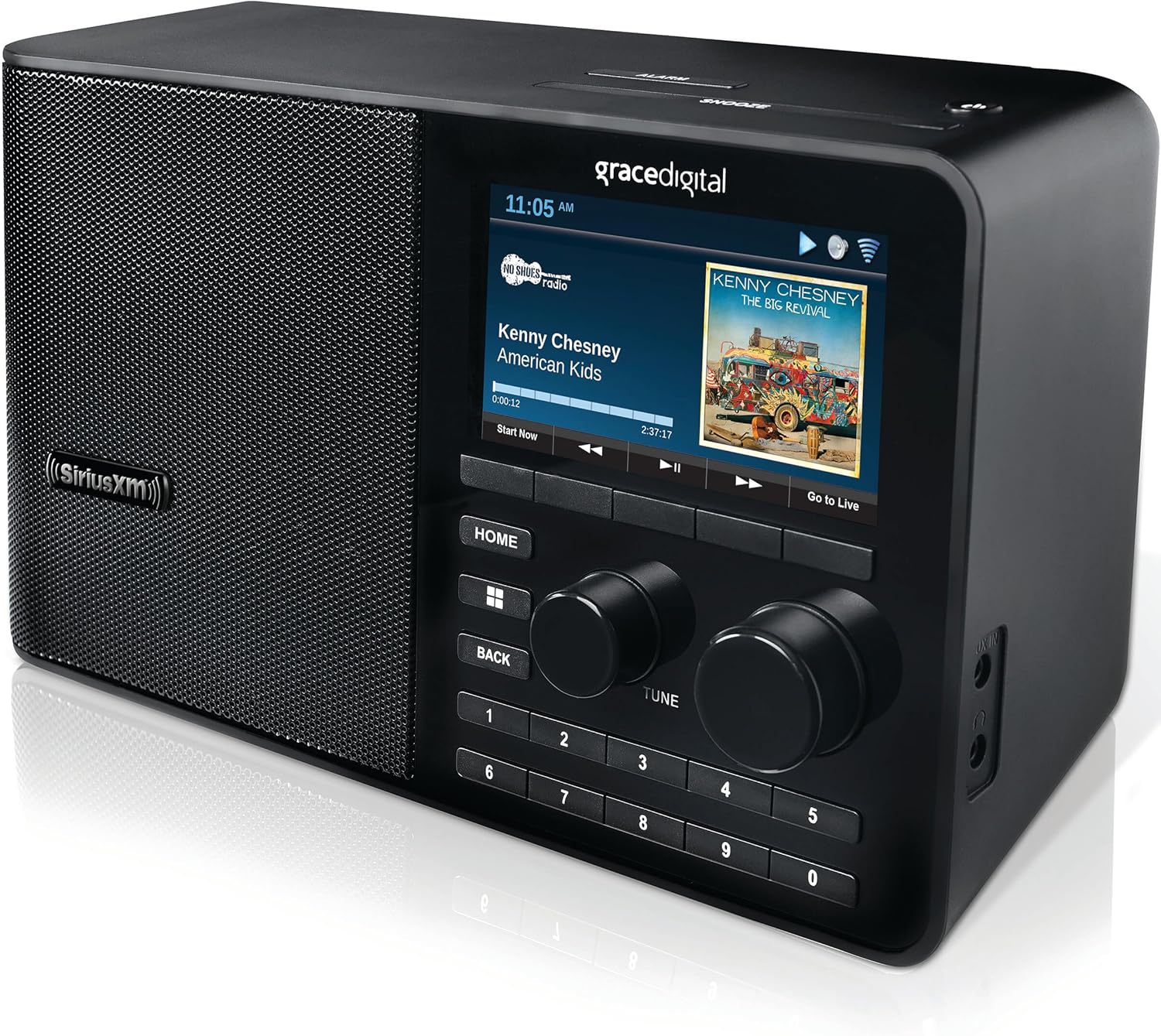
Сүрөт: жакын план view SiriusXM үн станциясынын дисплейинде канал жөнүндө маалымат, альбомдун сүрөтү жана башкаруу баскычтары көрсөтүлөт.
Каналды тандоо жана алдын ала орнотуулар
- Каналдарды карап чыгуу: SiriusXM каналдарынын тизмесин жылдыруу үчүн айланма тергичти колдонуңуз. Коюу үчүн Тандоо баскычын басыңыз.
- Түз каналга кирүү: Каналдын номерин түз киргизүү үчүн түзмөктөгү же алыстан башкаруу пультундагы сан баскычтарын колдонуңуз.
- Алдын ала орнотууларды орнотуу: Каалаган каналыңызга коюңуз. Дисплей алдын ала коюлган жөндөөлөрдүн сакталганын ырастаганга чейин сан баскычтарынын бирин (1-10) басып туруңуз.
- Алдын ала орнотууларды эстөө: Сакталган алдын ала коюлган каналга заматта тууралоо үчүн тиешелүү сан баскычын (1-10) кыскача басыңыз.
Ойнотуу өзгөчөлүктөрү
- Тыныгуу, артка түрүү, кайра ойнотуу: Үн станциясы түз эфирдеги радио мазмунун тындырууга, артка түрүүгө жана кайра ойнотууга мүмкүндүк берет. Түзмөктөгү же пульттагы атайын ойнотуу башкаруу элементтерин колдонуңуз.
- Азыр баштоо функциясы: Тандалган каналдарда, кечигип кошулсаңыз да, көрсөтүүлөрдү башынан угуу үчүн "Азыр баштоо" функциясын колдоно аласыз.
- Суроо-талап боюнча көрсөтүлүүчү көрсөтүүлөр: Түзмөктүн менюсу аркылуу суроо-талап боюнча мазмундун китепканасына кириңиз.
Сигнал системасы
Үн станциясы өркүндөтүлгөн санариптик сигнализация системасын камтыйт:
- Негизги меню аркылуу ойготкучтун жөндөөлөрүнө кириңиз.
- Жумалык, дем алыш күндөрү, жумуш күндөрү же бир жолку иштетүү үчүн 5ке чейин ыңгайлаштырылган ойготкучту орнотуңуз.
- Тынчтандыруу узактыгын жана уйку таймеринин жөндөөлөрүн конфигурациялаңыз.
Көмөкчү киргизүү
Түзмөктүн кошумча киргизүү уячасы бар, ал сизге тышкы аудио түзмөктөрдү (мисалы, MP3 ойноткучтар, смартфондор) 3.5 мм аудио кабелин (кошулбаган) колдонуп туташтырууга мүмкүндүк берет. Туташкан түзмөктөн аудиону ойнотуу үчүн түзмөктүн менюсунан кошумча киргизүү булагын тандаңыз.
Техникалык тейлөө
Тазалоо
Үн станцияңыздын көрүнүшүн жана функционалдуулугун сактоо үчүн:
- Тазалоодон мурун блокту розеткадан сууруп алыңыз.
- Сырткы беттерди сүртүү үчүн жумшак, кургак чүпүрөктү колдонуңуз.
- Суюк тазалоочу каражаттарды, абразивдүү тазалоочу каражаттарды же эриткичтерди колдонбоңуз, анткени алар жасалгасына зыян келтириши мүмкүн.
- Тазалоочу каражаттарды түз эле шайманга чачуудан алыс болуңуз.
Орнотулган программаны жаңыртуу
Үн станциясы иштөөнү жакшыртуу же жаңы функцияларды кошуу үчүн мезгил-мезгили менен микропрограмма жаңыртууларын алып турушу мүмкүн. Түзмөк, адатта, жаңыртуу жеткиликтүү болгондо сизге кабарлайт. Адатта, жаңыртууларды орнотуу сунушталат, бирок кээ бир жаңыртуулар күтүлбөгөн көйгөйлөрдү жаратышы мүмкүн экенин эске алыңыз. Ар кандай жаңыртуу процессинде туруктуу электр кубатына туташууну камсыз кылыңыз.
Проблемаларды чечүү
Эгерде сиз SiriusXM үн станцияңыз менен көйгөйлөргө туш болсоңуз, төмөнкү кеңири таралган көйгөйлөрдү жана чечимдерди караңыз:
| Көйгөй | Мүмкүн болгон себеп / Чечим |
|---|---|
| Күч жок |
|
| Wi-Fi байланышы жок / Тармакка туташуу мүмкүн эмес |
|
| "Ойнотуу токтотулду - Жараксыз сессия (208)" катасы |
|
| Үн сапаты начар / Чартылдаган үн |
|
| Пульт иштебейт |
|
Эгер бул чечимдер көйгөйүңүздү чечпесе, кошумча жардам алуу үчүн Колдоо бөлүмүнө кайрылыңыз.
Техникалык шарттар
| Өзгөчөлүк | Деталь |
|---|---|
| Модель номери | GDI-SXTTR2 |
| Продукциянын өлчөмдөрү | 5.25 x 10.75 x 6 дюйм |
| Элемент Салмагы | 3 фунт |
| Байланыш технологиясы | Wi-Fi (802.11 б/г/н) |
| Tuner Technology | Интернет радио |
| Power Source | AC (Киргизүү: 100-240 VAC, 50/60 Гц, 0.2 A) |
| Өзгөчө өзгөчөлүк | Ойготкуч |
| Түс | КАРА |
| Камтылган компоненттер | SiriusXM үн станциясы, пульт, AC кубат адаптери, тез баштоо боюнча колдонмо |
Кепилдик жана колдоо
SiriusXM үн станцияңыз үчүн кепилдик маалыматы, адатта, сатып алуу документтериңиз менен бирге берилет. Камтуу жана шарттар жөнүндө кененирээк маалымат алуу үчүн кепилдик картасын же түпнуска таңгагын караңыз.
Техникалык колдоо, кардарларды тейлөө же SiriusXM жазылууңуз боюнча кошумча жардам алуу үчүн, SiriusXM менен түздөн-түз байланышыңыз. Колдоо байланыш маалыматын көп учурда расмий SiriusXM сайтынан таба аласыз. webсайтында же аккаунтуңуздун чоо-жайында.
Жабдууга байланыштуу продукт боюнча суроолор боюнча, сиз Grace Digital компаниясынын колдоо ресурстарына да кайрылсаңыз болот, анткени алар бул түзмөктүн өндүрүүчүсү.
Онлайн ресурстар:


