Introduction
This manual provides comprehensive instructions for the setup, operation, and maintenance of your Sonnet Echo Express SE1 Thunderbolt 3 Expansion Chassis. Please read this manual thoroughly before using the device to ensure proper functionality and safety.

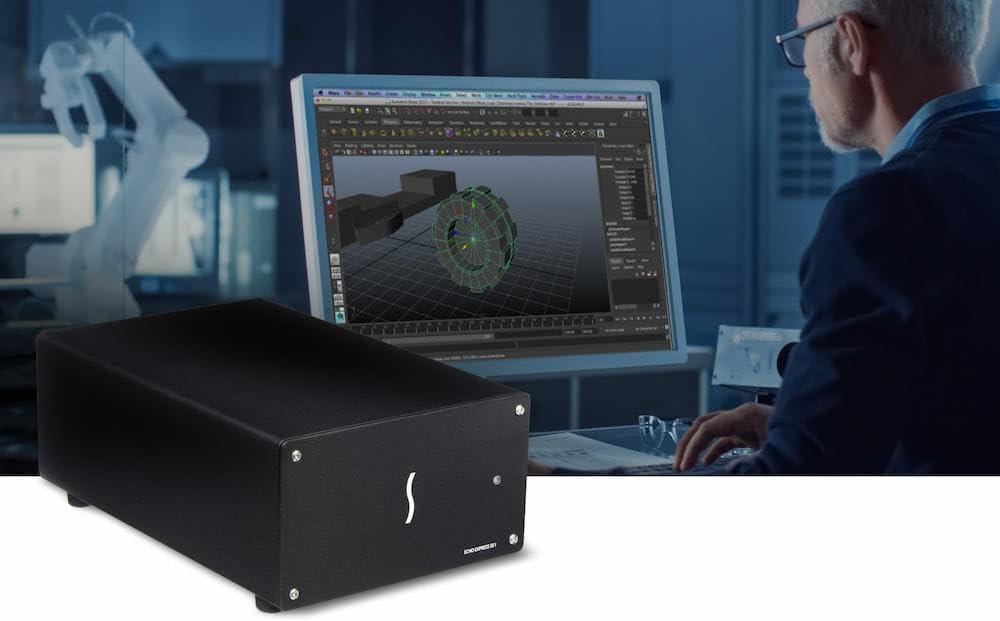
Image: The Sonnet Echo Express SE1 Thunderbolt 3 Expansion Chassis, a compact black enclosure designed to house a single PCIe card.
Жайгашуу
Пакеттин мазмуну
Бардык компоненттер бар экендигин текшериңиз:
- Sonnet Echo Express SE1 Thunderbolt 3 Expansion Chassis
- Thunderbolt 3 кабели
- Кубаттуу адаптер
- Документтер (бул колдонмо)
Installing a PCIe Card
- Шассиди даярдаңыз: Ensure the chassis is powered off and disconnected from your computer.
- Шассиди ачыңыз: Carefully remove the screws securing the chassis cover.
- PCIe картасын салыңыз: Align your half-length+, full-height, single-width PCIe card (or a card with a daughter card) into the x8 PCIe 3.0 slot. Press firmly until it is seated correctly.
- Картаны коргоо: Use the provided screw to secure the PCIe card's bracket to the chassis.
- Шассиди жабуу: Капкакты ордуна коюп, аны бурамалар менен бекитиңиз.
Сүрөт: ички view of the Echo Express SE1 chassis showing a PCIe card installed in the slot, with cables connected to its ports. This illustrates the process of inserting and securing a PCIe card.
Эскертүү: The chassis supports one half-length+ (up to 7.75 inches long), full-height, single-width PCIe card, plus one daughter card if applicable. It is not designed for use as a GPU chassis.
Компьютериңизге туташуу
- Туташуу кубаты: Plug the power adapter into the chassis and then into a power outlet.
- Connect Thunderbolt 3 Cable: Use the supplied Thunderbolt 3 cable to connect one of the chassis's Thunderbolt 3 (USB-C) ports to a Thunderbolt 3 port on your Mac or Windows PC.
- Ромашка чынжырын токуу (милдеттүү эмес): The second Thunderbolt 3 port can be used to daisy-chain up to five additional Thunderbolt devices, connect a single USB peripheral, or connect up to two 4K displays or one 5K display.
Иштөө нускамалары
Күйгүзүү/өчүрүү
The Echo Express SE1 features an Energy Saver Mode, automatically powering on/off with your connected computer. There is no manual power switch on the unit.
Драйверди орнотуу
Ensure that the necessary drivers for your installed PCIe card are installed on your computer. Refer to the PCIe card manufacturer's documentation for driver installation instructions.
Ишти кароо
- The 40Gbps Thunderbolt 3 interface provides 2750 MB/s of PCIe bandwidth, ensuring full performance for compatible PCIe cards.
- The chassis is compatible with Apple M series Macs (with PCIe cards that have compatible drivers), Intel Macs with Thunderbolt 3 ports, and Windows computers with Thunderbolt 3 ports. Linux compatibility is also supported.

Image: The Sonnet Echo Express SE1 chassis positioned next to a MacBook Pro, illustrating its compact size and connectivity with a modern laptop. The laptop screen displays vibrant colors, suggesting use in creative or professional environments.
Техникалык тейлөө
Тазалоо
Wipe the exterior of the chassis with a soft, dry cloth. Do not use liquid cleaners or solvents. Ensure the device is powered off and disconnected before cleaning.
Күйөрмандарды тейлөө
The chassis includes a temperature-controlled, variable-speed fan for cooling. Periodically check the fan vents for dust accumulation. If necessary, use compressed air to gently clear dust from the vents while the unit is powered off.
Проблемаларды чечүү
- Түзмөк таанылган жок:
- Ensure the Thunderbolt 3 cable is securely connected to both the chassis and your computer.
- Verify that your computer's Thunderbolt 3 port is functional.
- Check if the PCIe card is properly seated in the chassis slot.
- Confirm that the necessary drivers for the installed PCIe card are installed on your operating system.
- Компьютериңизди өчүрүп күйгүзүңүз.
- Кубат жок:
- Ensure the power adapter is securely connected to the chassis and a working power outlet.
- Розетка иштеп турганын текшериңиз.
- The unit powers on automatically with the computer; ensure your computer is powered on.
- Желдетүүчү ызы-чуу:
- The fan is temperature-controlled and its speed varies. Increased fan noise may indicate higher internal temperatures.
- Ensure adequate airflow around the chassis and that vents are not obstructed.
- Clean any dust accumulation from the fan vents.
- Аткаруу маселелери:
- Verify that your computer's Thunderbolt 3 port is operating at full speed.
- Ensure the PCIe card is compatible with the Thunderbolt 3 interface and the chassis. Refer to Sonnet's compatibility list on their webсайт.
Техникалык шарттар
| Өзгөчөлүк | Деталь |
|---|---|
| Модель аты | ECHO-EXP-SE1-T3 |
| Бренд | Сонет |
| Интерфейс | Thunderbolt 3 (40Gbps) |
| PCIe Slot | Бир PCIe 3.0 x8 оюгу |
| Карта шайкештиги | One half-length+ (up to 7.75 inches long), full-height, single-width PCIe card (plus one daughter card) |
| Thunderbolt порттору | Two (one for host connection, one for daisy-chaining/peripherals) |
| Power for Peripherals | Up to 15W via daisy chain port |
| Операциялык системанын шайкештиги | macOS (Apple M series, Intel), Windows, Linux |
| Өлчөмдөрү (LxWxH) | 8.25 x 4 x 2.8 дюйм |
| Элемент Салмагы | 2.6 фунт |
| Муздатуу | Temperature-controlled, variable-speed fan |
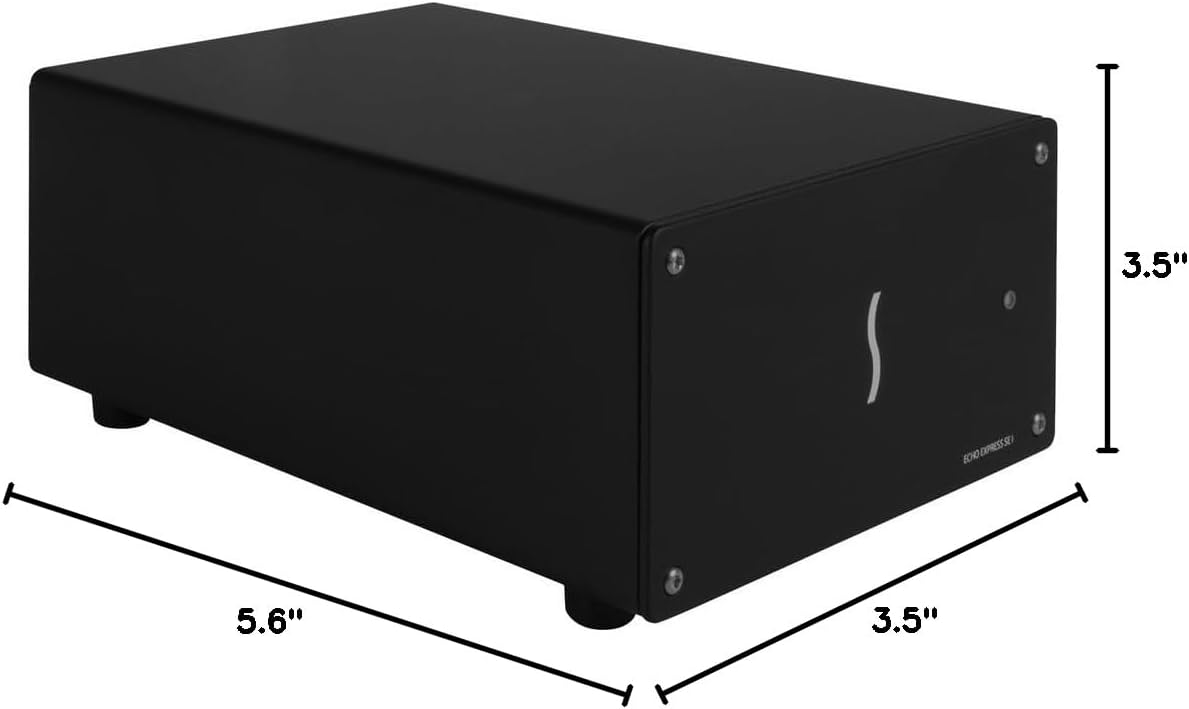
Image: A diagram showing the physical dimensions of the Sonnet Echo Express SE1 chassis, indicating its length, width, and height for reference.
Кепилдик маалымат
For detailed warranty information, please refer to the official Sonnet Technologies webсайтка же продуктуңузга кошулган кепилдик картасы. Кепилдик дооматтар үчүн сатып алганыңыздын далилин сактаңыз.
Колдоо жана Байланыш
For technical support, driver downloads, or further product information, please visit the official Sonnet Technologies support webсайт:
You can also contact Sonnet customer service through the contact information provided on their webсайт.


