Продукт бүттүview
The Hunter PRO-HC PHC-1200 is a professional-grade, outdoor Wi-Fi irrigation controller designed for residential use. It integrates with Hydrawise web-based software, allowing for smart water management, remote control, and weather-based scheduling. This 12-station controller helps optimize water usage and maintain a healthy landscape.
Орнотуу жана орнотуу
Proper installation is crucial for the optimal performance of your PRO-HC controller. Ensure all power is disconnected before beginning any wiring.
1. Контроллерди орнотуу
Select a suitable outdoor location that is protected from direct sunlight and extreme weather conditions. Use appropriate mounting hardware to secure the controller firmly to a wall or sturdy surface. Ensure the controller is mounted vertically with the wiring compartment facing downwards for proper drainage.
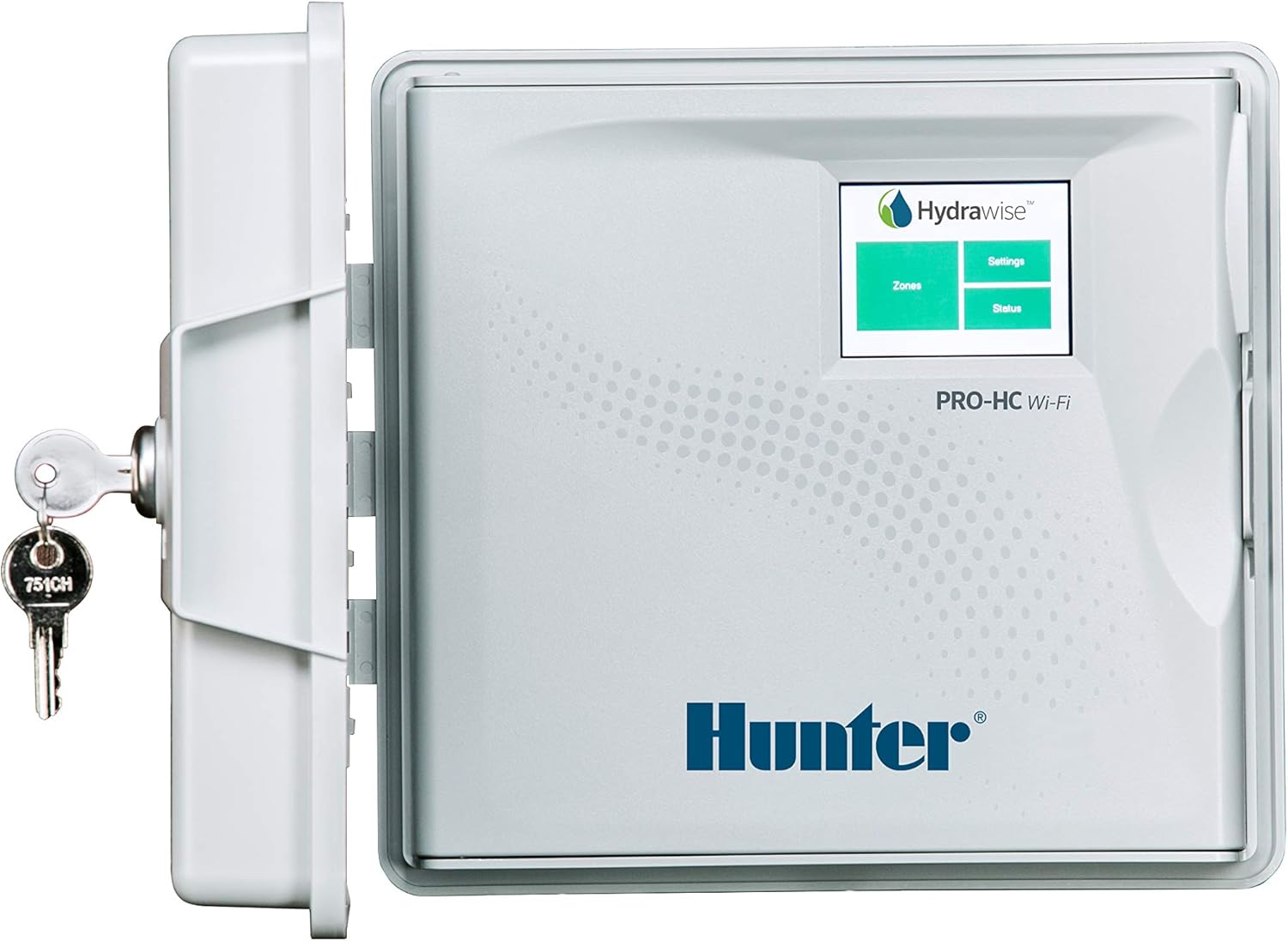
Figure 1: Hunter PRO-HC PHC-1200 controller with its protective door open, displaying the Hydrawise screen and an attached key for security. This image shows the overall design and the user interface.
2. Зымдарды туташтыруу
The PRO-HC controller requires connection to AC power, zone valves, and a common wire. Optional sensor connections are also available.
- AC кубаттуулугу: Connect the 120V AC power supply wires to the terminals labeled AC-1 жана AC-2. Ensure the power is off before making this connection.
- Жалпы зым: Connect the common wire from your irrigation valves to the terminal labeled COM. All valves share this common connection.
- Зона зымдары: Connect each individual zone valve wire to its corresponding numbered terminal (1, 2, 3, ... 12).
- Sensor Wires (Optional): If using a rain or flow sensor, connect its wires to the SEN-1 жана SEN-2 terminals. Refer to your sensor's manual for specific wiring instructions.

2-сүрөт: Детальдуу view of the wiring compartment, showing the connection points for individual zone wires (numbered terminals) and the common wire (COM). The AC power input is also visible at the top left.

Figure 3: A closer look at the AC power input terminals (AC-1, AC-2) and the sensor input terminals (SEN-1, SEN-2) within the Hunter PRO-HC controller's wiring compartment.
3. Wi-Fi and Hydrawise App Setup
Once wired, power on the controller. Follow the on-screen prompts to connect the controller to your local Wi-Fi network. Download the Hydrawise app from your device's app store (iOS or Android) or access the web интерфейс hydrawise.com. Create an account and add your controller by following the in-app instructions. This will enable remote control and smart watering features.
Контроллерди иштетүү
The Hydrawise software provides comprehensive control over your irrigation system.
Кол менен сугаруу
To manually run a zone or all zones, use the "Quick Run" feature in the Hydrawise app or directly on the controller's touchscreen. Select the desired zones and set the run time.
Creating and Managing Programs
Programs define when and how long your zones will water. You can create multiple programs with different start times, run durations, and watering days. Hydrawise offers flexible scheduling options, including daily, weekly, or cyclic schedules.
Predictive Watering™
Leverage the Predictive Watering feature by linking your controller to a local weather station. This allows the system to automatically adjust watering schedules based on real-time and forecasted weather conditions, such as temperature, rainfall, humidity, and wind speed. This feature helps conserve water and ensures optimal plant health.
Техникалык тейлөө
Regular maintenance ensures the longevity and efficiency of your PRO-HC controller.
- Тазалоо: Periodically wipe down the exterior of the controller with a soft, damp кездеме. Катуу химиялык заттарды колдонуудан алыс болуңуз.
- Программалык камсыздоо жаңыртуулары: Ensure your Hydrawise app and controller firmware are up-to-date. Updates are typically managed automatically through the Hydrawise platform when connected to Wi-Fi.
- Кыштоо: In regions with freezing temperatures, it is recommended to winterize your irrigation system, including the controller. Disconnect power and drain any water from the system to prevent freeze damage.
Проблемаларды чечүү
If you encounter issues with your PRO-HC controller, refer to the following common troubleshooting steps:
| Көйгөй | Мүмкүн себеп | Чечим |
|---|---|---|
| Контролдордун күчү жок. | No AC power, tripped breaker, faulty transformer. | Check power outlet, reset circuit breaker, verify transformer output. |
| Zone not watering. | Faulty valve, broken wire, incorrect programming, master valve issue. | Check valve solenoid, inspect wiring, verify program settings, check master valve operation. |
| Wi-Fi туташуу көйгөйлөрү. | Weak signal, incorrect password, router issues. | Move controller closer to router, re-enter Wi-Fi password, restart router, check network settings. |
| "No Flow" or "Flow Error" message. | Flow sensor issue, low water pressure, closed main valve. | Check flow sensor connection, verify water supply, ensure main shut-off valve is open. |
For more detailed troubleshooting, consult the Hydrawise online support resources or contact Hunter customer service.
Техникалык шарттар
| Модел | PHC-1200 |
| Бренд | Hunter |
| Станциялардын саны | 12 |
| Продукциянын өлчөмдөрү | 10"L x 4"W x 9"H (25.4 см x 10.16 см x 22.86 см) |
| Элемент Салмагы | 5.44 фунт (2.47 кг) |
| Тtage | 120 Вольт |
| Түс | Ак |
| Дисплей түрү | LCD же LED |
Кепилдик жана колдоо
Hunter Industries provides a limited warranty for the PRO-HC controller. For specific warranty terms and conditions, please refer to the documentation included with your product or visit the official Hunter Industries webсайт.
For technical support, product inquiries, or warranty claims, please contact Hunter Industries customer service or visit their support portal:
- Hunter Industries Official Webсайт: www.hunterindustries.com
- Hydrawise Support: support.hydrawise.com
Always provide your product model number (PHC-1200) and serial number when contacting support for faster assistance.


