Introduction
This manual provides detailed instructions for the ZIDOO V5 Wireless Keyboard Air Mouse. It covers setup, operation, maintenance, and troubleshooting to ensure optimal performance and user experience. The ZIDOO V5 combines a wireless keyboard, air mouse, and voice input functionality, designed for use with various devices including Google Android TV/Box, IPTV, HTPC, Windows, Mac OS, and Xbox.
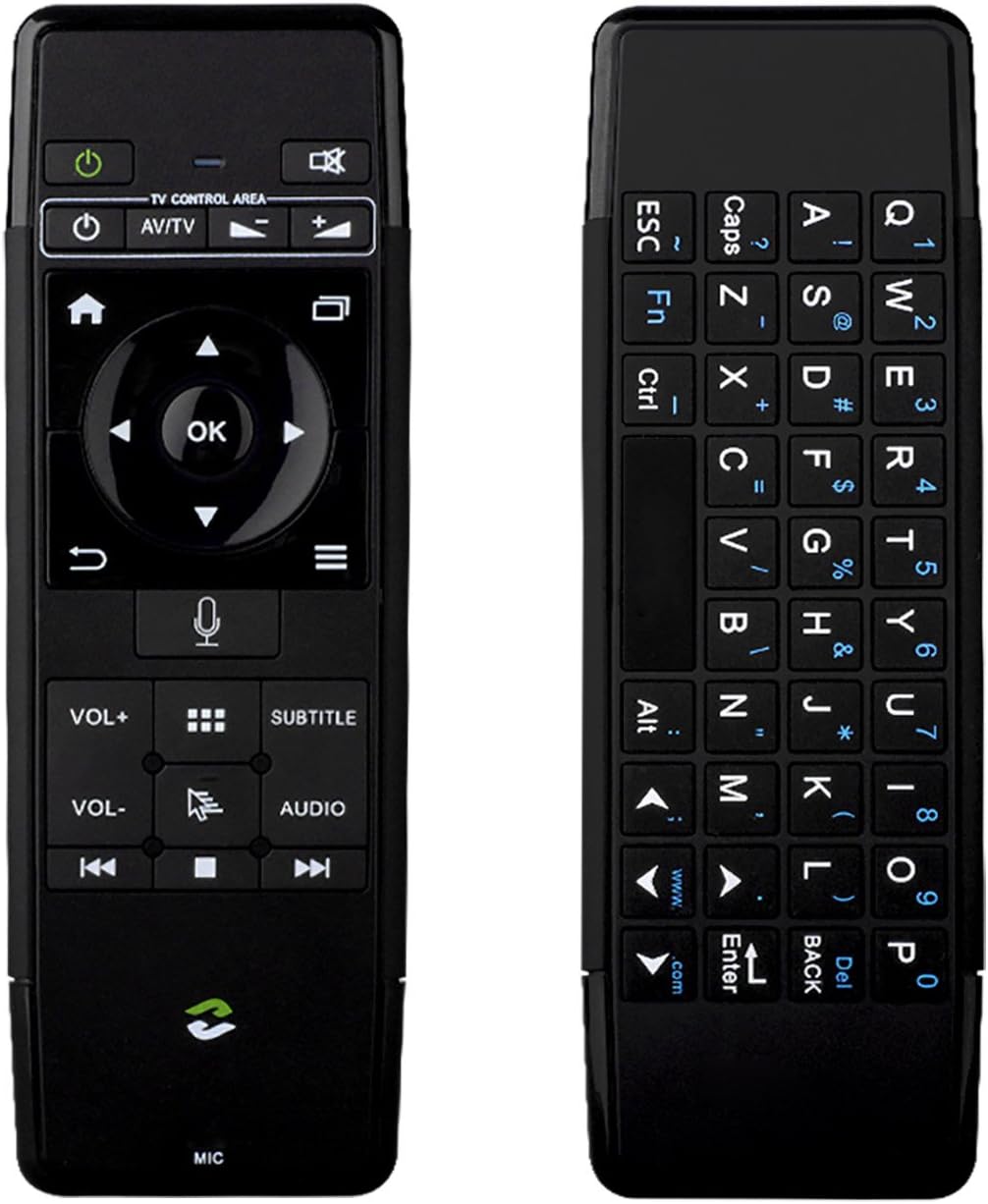
Сүрөт: алдыңкы жана арткы view of the ZIDOO V5 Wireless Keyboard Air Mouse, showcasing its dual-sided design with a remote control layout on one side and a QWERTY keyboard on the other.
1. Орнотуу
1.1 Пакеттин мазмуну
- ZIDOO V5 Wireless Keyboard Air Mouse
- USB кабыл алгыч
- USB заряддоо кабели
- Колдонуучунун Колдонмосу (бул документ)
1.2 Аппаратты заряддоо
The ZIDOO V5 has a built-in rechargeable battery. Before first use, fully charge the device.
- Connect the small end of the USB charging cable to the micro-USB port on the ZIDOO V5.
- Connect the standard USB end of the cable to a USB power adapter (not included) or a powered USB port on your computer or device.
- The indicator light on the device will illuminate during charging and turn off when fully charged.

Сүрөт: каптал view of the ZIDOO V5 Wireless Keyboard Air Mouse, highlighting the micro-USB charging port located on the top edge.
1.3 USB кабылдагычты туташтыруу
The ZIDOO V5 connects wirelessly via a 2.4G USB receiver.
- Locate the USB receiver, typically stored within the battery compartment or a dedicated slot on the device.
- Plug the USB receiver into an available USB port on your target device (e.g., Android TV box, HTPC, computer).
- The device should automatically recognize the receiver and install necessary drivers. No manual pairing is usually required.
2. Иштөө нускамалары
2.1 Күйгүзүү/өчүрүү
басыңыз Power Switch button (usually located at the top left of the remote side) to turn the device on or off.
2.2 Remote Control Side Functions

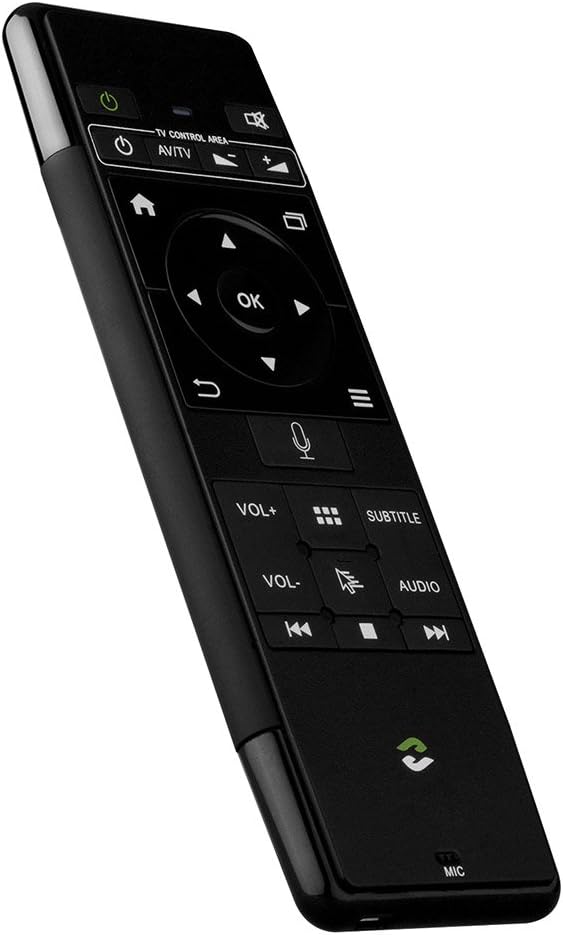
Сүрөт: деталдуу view of the ZIDOO V5 remote control side, with labels for each button's function, including Power Switch, Muting, TV Control Area, Home, APP Switch, Direction Key, OK, Enter, Return, Menu, Voice Input, Volume Up/Down, APP Management, Subtitle, Cursor Switch, Audio Track, Previous, Stop, and Next.
- Кубат которгучу: Аппаратты күйгүзөт же өчүрөт.
- Үнсүз: Аудионун үнүн өчүрөт же ачат.
- TV Control Area: Dedicated buttons for basic TV functions (e.g., input, power for TV).
- Үй: Returns to the main screen or home interface.
- APP Switch: Switches between applications.
- Direction Key (Up, Down, Left, Right): Менюлар жана параметрлер боюнча чабыттайт.
- OK: Тандоолорду ырастайт.
- Киргизүү: Киргизүүнү же тандоону ырастайт.
- Кайтуу: Мурунку экранга же менюга кайтып келет.
- Меню: Контекстке сезгич менюларды ачат.
- Үн киргизүү: Activates voice command or search (requires compatible software/device).
- VOL+ / VOL-: Үндү өйдө же ылдый тууралайт.
- Колдонмону башкаруу: Accesses application management settings.
- Субтитр: Toggles or selects subtitle options.
- Cursor Switch: Toggles between air mouse mode and D-pad navigation.
- Аудио трек: Selects different audio tracks.
- Previous / Stop / Next: Медиа ойнотууну башкаруу.
2.3 Air Mouse Function
The ZIDOO V5 features a 3-Gyro + 3-Gsensor for precise air mouse control.
- To activate the air mouse, ensure the cursor switch is enabled.
- Hold the device in your hand and move your wrist to control the on-screen cursor.
- басыңыз OK button to click.
- To recalibrate the air mouse, place the device on a flat surface for a few seconds until the cursor stabilizes.
2.4 Keyboard Side Functions
Сүрөт: Жакын план view of the ZIDOO V5 keyboard side, displaying a full QWERTY layout with alphanumeric keys, function keys (Fn, Ctrl, Alt), and special characters.
The reverse side of the ZIDOO V5 features a full QWERTY keyboard for easy text input.
- Терүү: Баскычтарды стандарттуу клавиатура сыяктуу колдонуңуз.
- Функция (Fn) баскычы: басып, кармап туруңуз Fn key to access secondary functions printed in blue on certain keys (e.g., numbers, symbols).
- Caps Lock: Toggles uppercase and lowercase letters.
- Артка: Acts as a backspace key.
- Киргизүү: Confirms text input.
2.5 Voice Input
The ZIDOO V5 supports voice input functionality.
- Ensure your connected device supports voice input and has the necessary applications installed (e.g., Google Assistant, voice search).
- басыңыз Үн киргизүү button (microphone icon) on the remote control side.
- Speak clearly into the microphone located at the bottom of the device.
- Сүйлөп бүткөндөн кийин баскычты коё бериңиз.
3. Техникалык тейлөө
3.1 Тазалоо
- Аппараттын бетин тазалоо үчүн жумшак, кургак чүпүрөктү колдонуңуз.
- Do not use liquid cleaners, aerosols, or abrasive materials, as these may damage the device.
3.2 Сактоо
- Аппаратты түз күн нурунан жана экстремалдык температурадан алыс салкын, кургак жерде сактаңыз.
- Узак мөөнөткө сактасаңыз, анын иштөө мөөнөтүн узартуу үчүн батареянын жарым-жартылай заряддалганын (болжол менен 50%) текшериңиз.
3.3 Батареяга кам көрүү
- Батареяны бат-баттан толук кубаттап калуудан алыс болуңуз.
- Батареянын иштөө мөөнөтүн сактоо үчүн, тынымсыз колдонулбаса дагы, түзмөктү үзгүлтүксүз кубаттап туруңуз.
4. Кыйынчылыктарды
| Көйгөй | Мүмкүн себеп | Чечим |
|---|---|---|
| Түзмөк жооп бербей жатат | Low battery; USB receiver not connected; Device turned off; Out of range. | Charge the device; Ensure USB receiver is securely plugged in; Turn on the device; Move closer to the receiver (within 10 meters). |
| Air mouse cursor erratic or not moving | Needs calibration; Interference; Air mouse mode disabled. | Place the device on a flat surface for a few seconds to recalibrate; Ensure no strong electromagnetic interference; Press the Cursor Switch button to enable air mouse mode. |
| Voice input not working | Device/application does not support voice input; Microphone blocked; Software issue. | Verify host device/application compatibility; Ensure microphone is clear; Restart the host device. |
| Keyboard input incorrect | Caps Lock enabled; Fn key usage; Language settings. | Check Caps Lock status; Ensure correct use of Fn key for secondary characters; Verify language settings on the host device. |
5. Техникалык шарттар
- Бренд: Zidoo
- Модел: V5 (zidooV517420)
- Байланыш: 2.4G зымсыз (радио жыштык)
- Сенсорлор: 3-Gyro + 3-Gsensor
- Өзгөчөлүктөрү: Wireless Keyboard, Air Mouse, Voice Input, Rechargeable Battery
- Шайкеш операциялык системалар: Android, Mac OS, Windows
- Шайкеш түзмөктөр: Google Android TV/Box, IPTV, HTPC, Windows PCs, Mac OS devices, Xbox
- Кубат булагы: Камтылган кайра заряддалуучу батарея
- Өлчөмдөрү: Болжол менен 21.2 x 11.4 x 1.8 см
- Салмагы: Болжол менен 200 г
6. Кепилдик маалыматы
Specific warranty details for the ZIDOO V5 Wireless Keyboard Air Mouse may vary by region and retailer. Please refer to the warranty card included with your purchase or contact your point of sale for detailed information regarding warranty coverage and terms.
7. Колдоо
For technical support or further assistance, please visit the official Zidoo website or contact their customer service department. Contact information can typically be found on the product packaging or the Zidoo official webсайт.
Эскертүү: Продукциянын мүнөздөмөлөрү жана функциялары алдын ала эскертүүсүз өзгөртүлүшү мүмкүн.


