1. Киришүү
This manual provides detailed instructions for the setup, operation, maintenance, and troubleshooting of your Lexmark XC4140 Multifunction Color Laser Printer. Please read this manual thoroughly before using the device to ensure proper and safe operation.
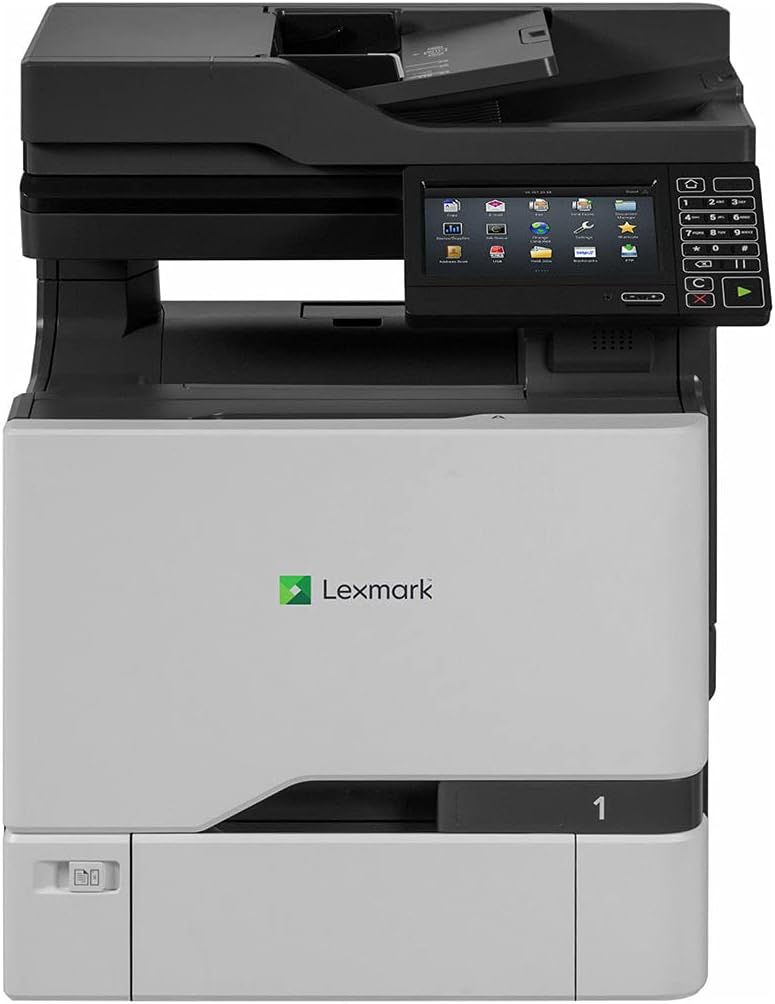
Сүрөт 1: Алдыңкы view of the Lexmark XC4140 Multifunction Color Laser Printer. This image shows the printer's main body, the control panel with a touchscreen display, and the paper output tray.
2. Орнотуу
2.1 Пакеттен чыгаруу жана жайгаштыруу
Carefully remove the printer from its packaging. Ensure all packing materials and protective tapes are removed. Place the printer on a stable, level surface with adequate ventilation. Avoid direct sunlight and areas with extreme temperature fluctuations.
2.2 Кубатты туташтыруу
Connect the power cord to the printer's power input and then to a grounded electrical outlet. Do not use extension cords or power strips unless absolutely necessary and ensure they are rated for the printer's power requirements.
2.3 Тонер картридждерин орнотуу
- Принтердин алдыңкы кирүү эшигин ачыңыз.
- Remove the new toner cartridges from their packaging.
- Shake each cartridge gently to distribute the toner.
- Ар бир картридж ордуна чыккыча тиешелүү уячасына салыңыз. Түстөр этикеткаларга дал келишин текшериңиз.
- Алдыңкы кирүү эшигин жабыңыз.
2.4 Кагазды жүктөө
The Lexmark XC4140 supports various paper sizes, including up to 11x17 inches (A3). Open the paper tray and adjust the guides to fit the paper size. Load the paper stack face down, ensuring it does not exceed the maximum fill line.
2.5 Тармак жана USB туташуусу
- Ethernet: Принтердин Ethernet портунан Ethernet кабелин тармак роутериңизге же коммутаторуңузга туташтырыңыз.
- USB: Connect a USB 2.0 cable from the printer's USB port to your computer.
After connecting, power on the printer. The control panel will guide you through initial setup, including language selection and network configuration.
3. Принтерди иштетүү
3.1 Башкаруу панелинин үстүнөview
The Lexmark XC4140 features a color touchscreen display and a numeric keypad for navigation and input. Common functions like Copy, Scan, and Print are accessible directly from the main screen.
3.2 Документтерди басып чыгаруу
- Ensure the printer is connected to your computer or network and drivers are installed.
- Компьютериңизде басып чыгаргыңыз келген документти ачыңыз.
- Колдонмонун менюсунан "Басып чыгарууну" тандаңыз.
- Choose "Lexmark XC4140" as your printer.
- Adjust print settings (e.g., color/monochrome, duplex, paper size) as needed.
- "Басып чыгаруу" баскычын чыкылдатыңыз.
The printer supports duplex (two-sided) printing automatically. Print speeds are up to 40 pages per minute (ppm) for both black and color documents.
3.3 Документтерди сканерлөө
The XC4140 includes a flatbed scanner. You can scan documents to a computer, network folder, or email.
- Place the document face down on the scanner glass or use the automatic document feeder (ADF).
- Принтердин башкаруу панелинен "Скандоо" функциясын тандаңыз.
- Choose your scan destination (e.g., Scan to Network, Scan to Email, Scan to USB).
- Adjust scan settings such as resolution (up to 1200 x 1200 dpi), color mode, and file формат.
- "Сканирлөөнү баштоо" баскычын басыңыз.
3.4 Документтерди көчүрүү
To make copies using the Lexmark XC4140:
- Документтин түпнускасын сканер айнегине же ADFке салыңыз.
- Башкаруу панелинен "Көчүрүү" функциясын тандаңыз.
- Enter the number of copies desired using the numeric keypad.
- Adjust copy settings such as color/monochrome, reduction/enlargement, and duplex options.
- Press the "Start" button (green play icon).
Maximum copy speed for both black and white is 40 ppm.
4. Техникалык тейлөө
4.1 Тонер картридждерин алмаштыруу
The printer will display a message when a toner cartridge is low or empty. To replace:
- Алдыңкы кирүү эшигин ачыңыз.
- Grasp the handle of the empty cartridge and pull it out.
- Unpack a new Lexmark toner cartridge (Cyan, Magenta, Yellow, or Black).
- Shake the new cartridge gently.
- Insert the new cartridge into the correct slot until it locks into place.
- Алдыңкы кирүү эшигин жабыңыз.
4.2 Принтерди тазалоо
Үзгүлтүксүз тазалоо басып чыгаруу сапатын сактоого жардам берет жана принтериңиздин иштөө мөөнөтүн узартат.
- Сырткы: Сырткы беттерин жумшак менен сүртүңүз, гamp, түксүз кездеме. Абразивдүү тазалагычтарды колдонбоңуз.
- Сканер айнек: Сканер айнегин айнек тазалагычка нымдалган жумшак чүпүрөк менен тазалаңыз.
- Ички компоненттери: Refer to the printer's on-screen prompts or Lexmark support for specific internal cleaning procedures, such as cleaning the fuser or transfer roller.
5. Кыйынчылыктарды
This section addresses common issues you might encounter with your Lexmark XC4140 printer.
| Көйгөй | Мүмкүн себеп | Чечим |
|---|---|---|
| Принтер жооп бербей жатат | Power cable disconnected, network issue, driver problem. | Check power connections. Verify network cable or USB connection. Reinstall printer drivers. |
| Басып чыгаруу сапаты начар | Low toner, incorrect paper type, dirty components. | Replace low toner cartridges. Ensure correct paper settings. Clean internal components as per maintenance section. |
| Кагаз тыгындары | Improperly loaded paper, foreign objects, worn rollers. | Remove jammed paper carefully. Reload paper correctly. Inspect for foreign objects. |
| Сканер иштебей жатат | Программалык камсыздоодо көйгөй, туташуу көйгөйү. | Restart the printer and computer. Check network/USB connection. Ensure scanner drivers are installed. |
For more complex issues, refer to the Lexmark support webсайтка же кардарларды тейлөөгө кайрылыңыз.
6. Техникалык шарттар
Key technical specifications for the Lexmark XC4140 Multifunction Color Laser Printer:
- Модель аты: XC4140
- Басып чыгаруу технологиясы: Лазер
- Функциялары: Басып чыгаруу, көчүрүү, сканерлөө
- Print Speed (Black & Color): 40 промиллеге чейин
- Print Resolution (Max): 1200 x 1200 dpi (Color & Black)
- Дуплекстүү басып чыгаруу: Автоматтык
- Сканер түрү: Планшет
- Макс көчүрүү ылдамдыгы (ак жана кара): 40 промилле
- Киргизүү барагынын максималдуу сыйымдуулугу: 500 барак
- Колдоого алынган медиа өлчөмдөрү: Up to 11x17 inches (A3)
- Байланыш: Гигабит Ethernet, USB 2.0
- Башкаруу ыкмасы: Touch (Touchscreen Display)
- Сыя Түсү: Көгүлтүр, кызгылт көк, сары, кара (тонер)
- Элемент Салмагы: 141 фунт
- Модель номери: 40ZV9720
- UPC: 734646622974
7. Кепилдик маалыматы
The Lexmark XC4140 Multifunction Color Laser Printer comes with a чектелген кепилдик. For specific terms, conditions, and duration of the warranty, please refer to the warranty card included with your product or visit the official Lexmark support webсайт. Кепилдик дооматтар үчүн сатып алганыңыздын далилин сактаңыз.
8. Кардарларды колдоо кызматы
For technical assistance, driver downloads, or further information regarding your Lexmark XC4140 printer, please visit the official Lexmark support webсайтка же кардарларды тейлөө бөлүмүнө кайрылыңыз.
- Lexmark Official Webсайт: www.lexmark.com
- Колдоо баракчасы: Refer to the support section on the Lexmark webКөп берилүүчү суроолор, көйгөйлөрдү жоюу колдонмолору жана байланыш параметрлери үчүн сайт.


