1. Орнотуу
1.1 Мониторду таңгактан чыгаруу
Бардык компоненттерди таңгактан кылдаттык менен алып салыңыз. Төмөндө саналып өткөн нерселердин бардыгы бар экенин текшериңиз:
- BenQ EX3501R Monitor
- Монитор стенд (негизги жана моюн)
- Кубаттуу адаптер
- Электр кабели
- HDMI кабели
- DisplayPort кабели
- USB-C Cable
- Колдонуучунун Колдонмосу (бул документ)
1.2 Стендди чогултуу
Стендди мониторуңузга бекитүү үчүн бул кадамдарды аткарыңыз:
- Чийип кетпеши үчүн мониторду жумшак, таза чүпүрөккө каратып кой.
- Тирөөчтүн мойнун монитордун артына бекитиңиз. Ал ордуна бекем орнотулганын текшериңиз.
- Connect the stand base to the neck, tightening any screws as indicated in the quick start guide.

Сүрөт 1: Алдыңкы view of the BenQ EX3501R monitor with its stand.
1.3 Туташтыруучу кабельдер
Connect the necessary cables to the monitor and your computer. The monitor supports various input options:
- Күч: Кубат адаптерин мониторго, андан кийин розеткага туташтырыңыз.
- Video Input: Use either the HDMI, DisplayPort, or USB-C cable to connect your computer to the monitor.
- USB-C: The USB-C port supports video, data transfer, and power delivery, allowing for a single-cable connection with compatible devices.
- USB 3.0 порттору: Utilize the integrated USB 3.0 ports for connecting peripherals.
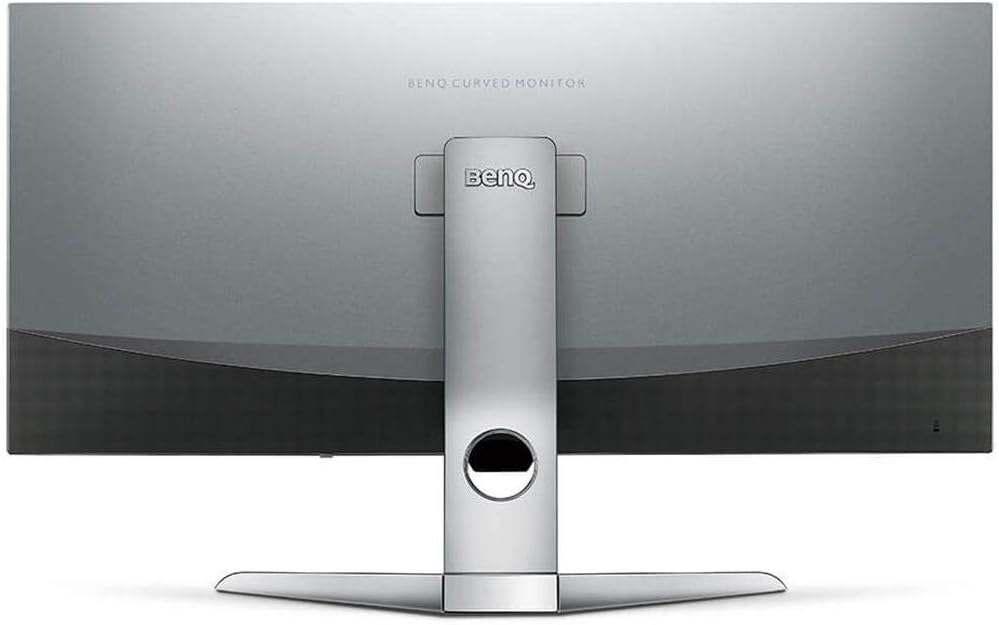
2-сүрөт: Арткы view of the monitor displaying the connectivity ports.
2. Мониторду иштетүү
2.1 Күйгүзүү/өчүрүү
Press the power button, usually located on the bottom right side of the monitor, to turn it on or off. The power indicator light will illuminate when the monitor is active.
2.2 Экрандагы дисплей (OSD) навигациясы
Use the joystick or buttons located on the monitor's underside to navigate the On-Screen Display (OSD) menu. This menu allows you to adjust various settings such as brightness, contrast, color modes, and input sources.
2.3 Display Features and Eye-Care Technology
The BenQ EX3501R incorporates several technologies designed to enhance viewing experience and reduce eye strain:
- Brightness Intelligence Plus (B.I.+): This patented technology automatically senses ambient lighting conditions and adjusts the screen's brightness and color temperature to provide optimal viewing comfort and protect your eyes during extended use.
- Төмөн көк жарык: Filters out harmful blue light emissions to reduce eye fatigue. Multiple levels of blue light reduction are available.
- ZeroFlicker™: Eliminates screen flickering at all brightness levels, further reducing eye strain and discomfort.
- HDR (жогорку динамикалык диапазон): Offers enhanced brightness and contrast, bringing greater detail and vibrancy to HDR video content.
Видео 1: Бүттүview of BenQ's Eye-Care technology, including Low Blue Light, ZeroFlicker, and Brightness Intelligence Plus, demonstrating how these features work to reduce eye strain and adjust screen settings automatically based on ambient light.
2.4 Resolution and Refresh Rate
The monitor features a QHD (3440x1440) resolution and a 100Hz refresh rate, providing a smooth and detailed visual experience. The 21:9 ultrawide aspect ratio offers ample screen space for multitasking, such as viewing multiple documents side-by-side without needing a second monitor.
2.5 AMD FreeSync
For a fluid gaming experience, the monitor supports AMD FreeSync technology, which synchronizes the monitor's refresh rate with your graphics card's frame rate to eliminate screen tearing and stuttering.
3. Техникалык тейлөө
3.1 Мониторду тазалоо
To maintain optimal performance and appearance, regularly clean your monitor:
- Экран: Gently wipe the screen with a soft, lint-free cloth. For stubborn smudges, use a monitor-specific cleaning solution applied to the cloth, not directly to the screen.
- Сырткы: Use a soft, dry cloth to wipe dust and debris from the monitor casing and stand.
Avoid using abrasive cleaners, waxes, or solvents as they can damage the monitor's surface.
3.2 Жалпы кам көрүү боюнча кеңештер
- Монитордогу желдетүү тешиктерин жаппаңыз.
- Мониторду күн тийген жерге же жылуулук булактарынын жанына коюудан алыс болуңуз.
- Физикалык зыянды болтурбоо үчүн мониторду этияттык менен колдонуңуз.
4. Кыйынчылыктарды
If you encounter issues with your BenQ EX3501R monitor, refer to the following common troubleshooting steps:
4.1 Дисплей жок же кара экран
- Кубат кабели мониторго да, розеткага да бекем туташтырылганын текшериңиз.
- Verify that the video cable (HDMI, DisplayPort, or USB-C) is firmly connected to both the monitor and your computer.
- Монитордун OSD менюсунда туура киргизүү булагы тандалганын текшериңиз.
- Компьютериңизди өчүрүп күйгүзүңүз.
4.2 Flickering or Unstable Image
- Ensure the ZeroFlicker™ feature is enabled in the OSD menu.
- Бошогон видео кабелдик байланыштарды текшериңиз.
- Графикалык карта драйверлерин эң акыркы версияга жаңыртыңыз.
- If using AMD FreeSync, ensure it is properly configured in your graphics card settings.
4.3 Color or Brightness Issues
- OSD менюсу аркылуу жарыктык, контраст жана түс жөндөөлөрүн тууралаңыз.
- Enable or disable Brightness Intelligence Plus (B.I.+) to see if it resolves the issue.
- Perform a factory reset through the OSD menu.
5. Техникалык шарттар
Key technical specifications for the BenQ EX3501R monitor:
| Өзгөчөлүк | Спецификация |
|---|---|
| Screen Size | 35 дюйм |
| Max Screen Resolution | 3440 x 1440 Pixels (QHD Ultrawide) |
| Аспект катышы | 21:9 |
| Жаңыртуу ылдамдыгы | 100 Гц |
| Ийрилик | 1800R |
| Панел түрү | VA (вертикалдуу тегиздөө) |
| Байланыш | USB-C, HDMI, DisplayPort |
| Өзгөчөлүктөр | AMD FreeSync, Brightness Intelligence Plus, Low Blue Light, ZeroFlicker |
| Элемент Салмагы | 21.3 фунт |
| Продукциянын өлчөмдөрү | 6.88 x 3.47 x 12.93 дюйм |
6. Кепилдик жана колдоо
6.1 Продукциянын кепилдиги
The BenQ EX3501R monitor typically comes with a 3-year manufacturer's warranty. Please refer to the warranty card included in your product packaging for specific terms and conditions, or visit the official BenQ webтолук кепилдик маалымат алуу үчүн сайт.
6.2 Кардарларды колдоо
For further assistance, technical support, or warranty claims, please contact BenQ customer service. You can find contact information and support resources on the official BenQ webсайт: www.benq.com/en-us/support.html


