1. Киришүү
This manual provides essential information for the installation, operation, maintenance, and troubleshooting of your Juniper Networks EX3400-48P Ethernet Switch. The EX3400-48P is designed to deliver a high-performance, flexible, and cost-effective solution for demanding data, voice, and video enterprise access environments. It supports Juniper Networks Virtual Chassis technology for simplified network operations.
2. Коопсуздук маалыматы
Please read and understand all safety instructions before installing or operating the device. Failure to follow these guidelines may result in injury or damage to the equipment.
- жабдууларды туура жерге туташтырууну камсыз кылуу.
- Которгучту нымдуу жерде иштетпеңиз же damp шарттар.
- Use only the power supply provided or approved by Juniper Networks.
- Ашыкча ысып кетүүнүн алдын алуу үчүн вентиляция тешиктерин жабуудан качыңыз.
- Refer to qualified service personnel for any servicing not described in this manual.
3. Продукт бүтүп калдыview
The Juniper Networks EX3400-48P is a 48-port Power over Ethernet (PoE+) capable Ethernet switch. It features a compact design suitable for rack mounting and offers various connectivity options.
3.1. Физикалык компоненттер
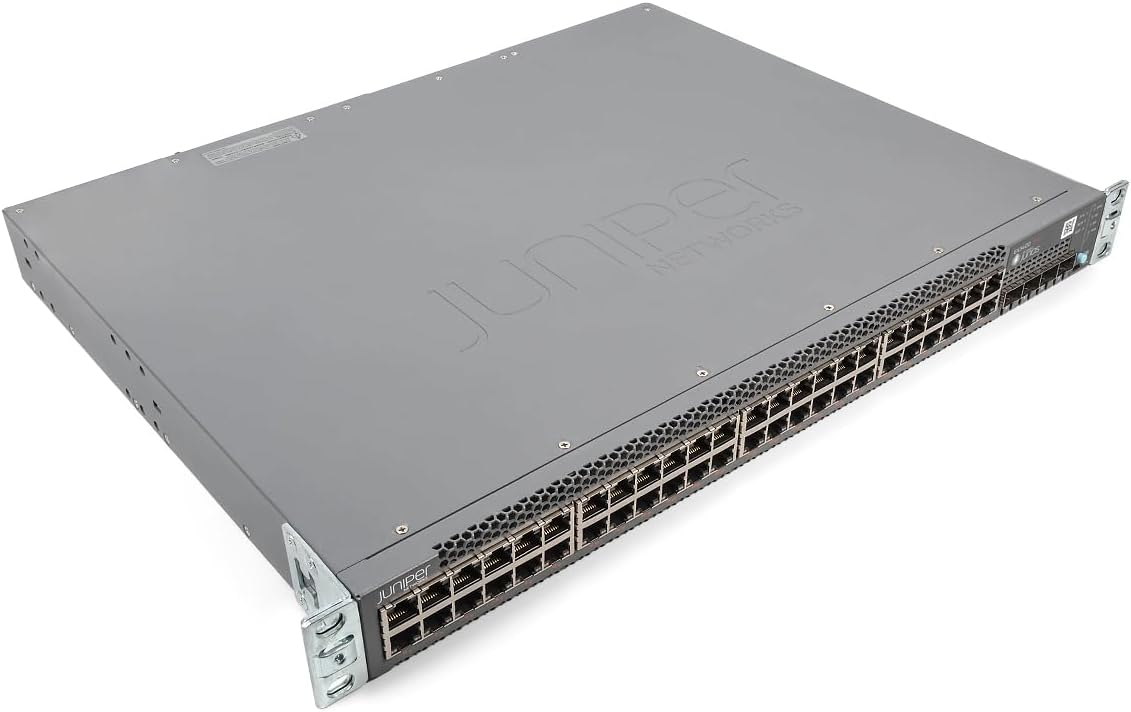
1-сүрөт: Бурчтуу view of the Juniper EX3400-48P Ethernet Switch, showing the top and front panels with the Juniper Networks logo.

2-сүрөт: Фронт view of the EX3400-48P switch, highlighting the 48 Ethernet ports, uplink ports, and status LEDs.

3-сүрөт: Арткы view of the EX3400-48P, displaying the modular power supply bay, fan modules, management (MGMT) port, and console (CON) port.

4-сүрөт: Бурчтуу арткы view of the EX3400-48P, showing the power supply unit partially extracted, illustrating its modular design.
3.2. Алдыңкы панелдин өзгөчөлүктөрү
- 48 x 10/100/1000BASE-T Ethernet порттору: For connecting network devices.
- Uplink порттору: SFP/SFP+ ports for high-speed connections to other switches or routers.
- Статус диоддору: Indicators for system status, port activity, and PoE status.
3.3. Rear Panel Features
- Power Supply Bay: Houses the modular power supply unit.
- желдеткич модулдары: Provide cooling for the system.
- Management (MGMT) Port: An out-of-band Ethernet port for device management.
- Console (CON) Port: For local serial console access.
4. Орнотуу
4.1. Таңгактан чыгаруу жана текшерүү
Carefully remove the switch from its packaging. Inspect the device for any signs of physical damage. Report any damage to your supplier immediately.
4.2. Rack Монтаждоо
The EX3400-48P is designed for standard 19-inch rack installation. Use the provided rack-mount brackets and screws to secure the switch in the rack. Ensure adequate space for airflow around the unit.
4.3. Power Connection
- Арткы панелдеги кубат которгучу ӨЧҮРҮҮ абалында экенин текшериңиз.
- Connect the power cord to the power supply unit on the rear of the switch.
- Кубат шнурунун экинчи учун жерге туташтырылган AC розеткасына сайыңыз.
- Flip the power switch to the ON position. The system status LED should illuminate.
4.4. Баштапкы конфигурация
For initial configuration, connect a console cable from your computer to the console port on the rear of the switch. Use a terminal emulation program (e.g., PuTTY, Tera Term) with the following settings:
- Бод ылдамдыгы: 9600
- Маалымат биттери: 8
- Паритет: Жок
- Токтотуу биттери: 1
- Агымды башкаруу: Жок
Follow the on-screen prompts to set up basic network parameters such as IP address, subnet mask, and default gateway.
5. Иштөө
5.1. Күйгүзүү / Өчүрүү
- Күйгүзүү: After connecting the power cord, press the power switch to the ON position. The switch will perform a power-on self-test (POST).
- Өчүрүү: To power off, press the power switch to the OFF position. For a controlled shutdown, it is recommended to save the configuration and issue a shutdown command via the command-line interface (CLI) before physically powering off.
5.2. LED көрсөткүчтөрү
The front panel LEDs provide visual status of the switch's operation:
- SYS LED: Indicates overall system status (e.g., green for normal operation, amber for warning, red for critical error).
- ALM LED: Ойготкучтун абалын көрсөтөт.
- PoE LED: Indicates Power over Ethernet status.
- Порт диоддору: Indicate link status and activity for each Ethernet port.
5.3. Тармак конфигурациясы
The EX3400-48P can be configured via its command-line interface (CLI) or a web-based graphical user interface (GUI) if enabled. Common configurations include:
- VLAN creation and assignment.
- Port security settings.
- Routing protocols.
- Quality of Service (QoS) settings.
- Spanning Tree Protocol (STP) configuration.
Refer to the Juniper Networks documentation for detailed configuration guides specific to Junos OS.
6. Техникалык тейлөө
6.1. Микропрограмманы жаңыртуу
Juniper Networks колдоо кызматын үзгүлтүксүз текшерип туруңуз website for the latest Junos OS firmware updates. Keeping the firmware up-to-date ensures optimal performance, security, and access to new features. Follow the instructions provided with the firmware package for the update procedure.
6.2. Тазалоо
Keep the switch clean and free of dust. Use a soft, dry cloth to wipe the exterior. For ventilation openings, use compressed air to remove dust buildup. Ensure the switch is powered off before cleaning.
6.3. Modular Component Replacement
The EX3400-48P features modular power supplies and fan trays. If a component fails, it can be replaced without powering down the entire switch (hot-swappable). Refer to the Juniper Networks hardware guide for specific replacement procedures.
7. Кыйынчылыктарды
Бул бөлүмдө сиз кабылышы мүмкүн болгон жалпы маселелерди чечүү жолдору каралган.
7.1. Күч жок
- Электр шнурунун өчүргүчкө да, розеткага да бекем туташтырылганын текшериңиз.
- Электр розеткасынын иштешин текшериңиз.
- Ensure the power switch on the rear panel is in the ON position.
- Inspect the power supply unit for any fault indicators.
7.2. No Link on Port
- Ethernet кабелинин туташуусун эки учунан тең текшериңиз.
- Туташкан аппараттын күйгүзүлгөнүн жана туура иштегенин текшериңиз.
- Try a different port on the switch.
- Verify the cable is not damaged and meets specifications (e.g., Cat5e or higher).
7.3. Тармакка туташуу маселелери
- Verify IP address, subnet mask, and gateway settings on the switch and connected devices.
- Check VLAN configurations if applicable.
- Use diagnostic tools like
pingжанаtraceroutefrom the switch CLI. - Consult system logs for error messages.
8. Техникалык шарттар
The following table outlines the technical specifications for the Juniper Networks EX3400-48P Ethernet Switch:
| Өзгөчөлүк | Спецификация |
|---|---|
| Модель номери | EX3400-48P |
| Порттардын саны | 48 |
| Interface Type | SFP/SFP+ |
| Маалыматтарды өткөрүү ылдамдыгы | Секундасына 336 Гигабит |
| Тtage | 48 вольт (ток) |
| Иштин материалы | Металл |
| Жогорку температура рейтинги | 50 градус |
| Продукциянын өлчөмдөрү | 17.2 x 13.78 x 1.73 дюйм |
| Элемент Салмагы | 12.65 фунт |
| Өндүрүүчү | Арча |
| UPC | 832938071001 |
9. Кепилдик жана колдоо
9.1. Продукцияга кепилдик
This product is typically covered by a manufacturer's warranty. Please refer to the specific warranty terms provided at the time of purchase or on the official Juniper Networks website. A 30-day return policy may apply depending on the vendor.
9.2. Техникалык колдоо
For technical assistance, documentation, software downloads, and further support, please visit the official Juniper Networks support website. You may also contact your authorized Juniper Networks reseller for local support options.


