1. Киришүү
This user manual provides detailed instructions for the installation, operation, and maintenance of your Vstarcam C38S Full HD 1080p WiFi IP Camera. This camera is designed for home security and surveillance, offering high-definition video, night vision capabilities, and flexible connectivity options.
2. Продукциянын өзгөчөлүктөрү
- Full HD 1080p токтому: Так жана деталдуу видеону тартатtage.
- 2.0 мегапикселдик сенсор: Ensures high-quality image capture.
- WiFi байланышы: Ийкемдүү жайгаштыруу үчүн зымсыз байланышты колдойт.
- ONVIF & P2P Support: Compatible with various network video recorders (NVRs) and offers easy remote access.
- H.264 Видео кысуу: Efficient video encoding for optimized storage and bandwidth usage.
- Түнкү көрүнүш: Equipped with IR LEDs for clear monitoring in low-light or no-light conditions.
- Wired & Wireless Connectivity: Offers both Ethernet and Wi-Fi options for network connection.
- iOS Control: Compatible with iOS devices for remote viewжана контролдоо.
3. Пакеттин мазмуну
Төмөндө тизмеленген нерселердин баары пакетиңизге камтылганын текшериңиз. Эгерде кандайдыр бир буюмдар жок же бузулуп калса, сатуучуга кайрылыңыз.
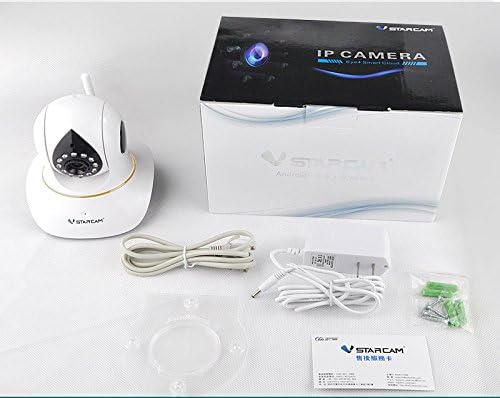
Сүрөт: The Vstarcam C38S camera, its retail box, power adapter, USB cable, mounting bracket, screws, and a small instruction card.
- Vstarcam C38S IP Camera
- Кубаттуу адаптер
- USB кубат кабели
- Кронштейн орнотуу
- Монтаждоо бурамалар жана дубал сайгычтар
- Quick Start Guide / Warranty Card
4. Камера бүткөнview
Familiarize yourself with the various components and ports of your Vstarcam C38S camera.
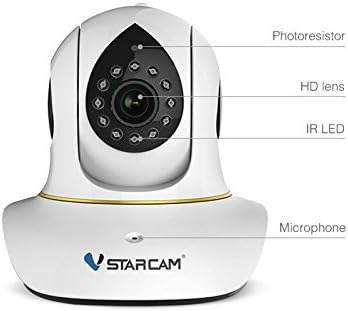
Сүрөт: Фронт view of the Vstarcam C38S camera with labels pointing to the Photoresistor (light sensor), HD lens, IR LEDs (for night vision), and Microphone.

Сүрөт: Арткы view of the Vstarcam C38S camera, highlighting the DC 5V power input, audio input/output ports, reset button, microSD card slot, and Ethernet (LAN) port.
- HD объектив: Видео тартуу үчүн негизги камеранын линзасы.
- IR Диоддордон: Түнкү көрүү үчүн инфракызыл жарыктар.
- Photoresistor: Light sensor to detect ambient light levels and activate night vision.
- Микрофон: Аудио киргизүү үчүн.
- DC 5V порт: Power input for the camera.
- Аудио порттор: For external audio input/output (if supported).
- Калыбына келтирүү баскычы: Заводдук жөндөөлөрдү калыбына келтирүү үчүн колдонулат.
- SD карта уячасы: For local video storage (microSD card, not included).
- Ethernet порту: Зымдуу тармак туташуусу үчүн.
- Антенна: For Wi-Fi signal reception.
5. Орнотуу
5.1 Баштапкы кубаттуулук
- Connect the power adapter to the camera's DC 5V port.
- Plug the power adapter into a wall outlet. The camera will power on and begin its self-test.
5.2 Тармактык туташуу
The Vstarcam C38S supports both wired and wireless network connections.
Wired Connection (Recommended for initial setup)
- Connect one end of an Ethernet cable (not included) to the camera's Ethernet port.
- Connect the other end of the Ethernet cable to your router or network switch.
Зымсыз туташуу (Wi-Fi)
- Камера күйгүзүлгөнүн текшериңиз.
- Download the official Vstarcam mobile application (e.g., Eye4 or similar, refer to your quick start guide for the exact app name) from the App Store (for iOS) or Google Play Store (for Android).
- Follow the in-app instructions to add your camera. This typically involves scanning a QR code on the camera or entering its UID, and then configuring Wi-Fi settings through the app.
5.3 Камераны орнотуу
The camera can be placed on a flat surface or mounted to a wall or ceiling using the provided mounting bracket and screws.
- Оптималдуу жер үчүн ылайыктуу жерди тандаңыз viewing angle and network signal strength.
- Use the mounting bracket as a template to mark drill holes on the desired surface.
- Эгерде гипсокартонго же кышка орнотуп жатсаңыз, тешиктерди бургулап, дубалга сайгычтарды киргизиңиз.
- Secure the mounting bracket to the surface using the screws.
- Камераны монтаждоо кронштейнине бекитип, анын бекем бекитилгенин текшериңиз.
6. Иштөө нускамалары
6.1 Мобилдик тиркемени колдонуу
The primary method for operating your Vstarcam C38S is through the dedicated mobile application.
- Live View: Open the app and select your camera from the device list to view жандуу видео каналы.
- Жаздыруу: The app allows for manual recording, scheduled recording, and motion-triggered recording. Ensure a microSD card is inserted for local storage, or configure cloud storage if available.
- Ойнотуу: Жазылган footagколдонмонун ойнотуу функциясы аркылуу.
- Кыймылды аныктоо: Configure motion detection sensitivity and alert notifications (e.g., push notifications, email alerts) within the app settings.
- Эки тараптуу аудио: If your camera model supports it, use the microphone and speaker icons in the app to listen to the camera's environment or speak through the camera.
- Түнкү көрүнүш: The camera automatically switches to night vision mode in low light. This can usually be manually toggled in the app settings as well.
6.2 ONVIF/NVR Integration
For advanced users, the Vstarcam C38S supports the ONVIF protocol, allowing integration with compatible Network Video Recorders (NVRs) or third-party surveillance software.
- Refer to your NVR's or software's manual for instructions on adding an ONVIF IP camera.
- You will typically need the camera's IP address, ONVIF port (default is often 8899), and login credentials (default username/password can be found in the quick start guide or on the camera label).
7. Техникалык тейлөө
- Тазалоо: Камеранын линзасын жана корпусун тазалоо үчүн жумшак, кургак чүпүрөктү колдонуңуз. Катуу химиялык заттарды же абразивдүү тазалагычтарды колдонбоңуз.
- Программалык камсыздоонун жаңыртуулары: Regularly check for firmware updates through the mobile application. Firmware updates can improve performance, add new features, and enhance security.
- Power Cycle: If the camera becomes unresponsive, disconnect the power adapter for a few seconds and then reconnect it to perform a power cycle.
- Заводдук жөндөөлөргө кайтаруу: If you encounter persistent issues or wish to reconfigure the camera from scratch, press and hold the reset button for approximately 5-10 seconds until the camera indicates a reset (e.g., a voice prompt or LED change).
8. Кыйынчылыктарды
| Көйгөй | Мүмкүн болгон себеп / Чечим |
|---|---|
| Camera is offline / Cannot connect to Wi-Fi. |
|
| Сүрөттүн сапаты начар. |
|
| No recording / SD card not detected. |
|
| Түнкү көрүү иштебейт. |
|
9. Техникалык шарттар
| Өзгөчөлүк | Деталь |
|---|---|
| Модел | C38S |
| Бренд | VSTARCAM |
| Натыйжалуу Video Resolution | 1080 пиксел |
| Видеонун резолюциясы жазылууда | 1080p, 720p, 360p |
| Байланыш технологиясы | Зымдуу, зымсыз (Wi-Fi) |
| Өзгөчө өзгөчөлүк | Түнкү көрүнүш |
| Controller Type | iOS |
| Материал | Пластик |
| Күч | 7 Ватт |
| Тtage | 5 вольт |
| Продукциянын өлчөмдөрү (L x W x Y) | 20.8 x 15.4 x 13.7 см |
| Продукт Салмагы | 603.28 грамм |
| Сунушталган Колдонуулар | Үй коопсуздугу |
10. Кепилдик жана колдоо
Vstarcam products typically come with a limited warranty. Please refer to the warranty card included in your package or visit the official Vstarcam webдеталдуу кепилдик шарттары жана шарттары үчүн сайт.
For technical support, troubleshooting assistance, or product inquiries, please contact Vstarcam customer service through their official webсайт же продукт документациясында көрсөтүлгөн байланыш маалыматы.


