1. Киришүү
This manual provides comprehensive instructions for the setup, operation, and maintenance of your ELECOM DEFT PRO Trackball Mouse, model M-DPT1MRBK. This high-performance trackball mouse offers versatile connectivity options including wired, 2.4GHz wireless, and Bluetooth, designed for enhanced precision and ergonomic comfort across various operating systems.

The ELECOM DEFT PRO Trackball Mouse, showcasing its ergonomic design and prominent red trackball.
2. Пакеттин мазмуну
Продукцияңыздын таңгагында бардык элементтер бар экенин текшериңиз:
- ELECOM DEFT PRO Trackball Mouse (M-DPT1MRBK)
- USB-A to USB-C Cable (for wired connection and charging)
- USB зымсыз кабыл алгыч (2.4 ГГц)
- Lithium Polymer Battery (pre-installed or included separately)
- Колдонуучунун Колдонмосу (бул документ)

The trackball mouse accompanied by its USB-A to USB-C cable for wired connection and charging, and a USB wireless receiver for 2.4GHz wireless mode.
3. Продукт бүтүп калдыview
Familiarize yourself with the components of your ELECOM DEFT PRO Trackball Mouse:
- Трекбол: For cursor movement.
- Сол/оң баскычтары: Стандарттык чычкан функциялары.
- Жылдыруу дөңгөлөгү: For vertical scrolling and tilt for horizontal scrolling.
- DPI которуу баскычы: Adjusts cursor speed.
- Function Buttons (Fn1, Fn2, Fn3, etc.): Programmable buttons for custom actions.
- Connectivity Mode Switch: Selects Wired, Wireless (2.4GHz), or Bluetooth mode.
- Кубат которгучу: Аппаратты күйгүзөт/өчүрөт.
- USB-C порту: For wired connection and battery charging.
- Wireless Receiver Storage: Compartment for the USB wireless receiver.
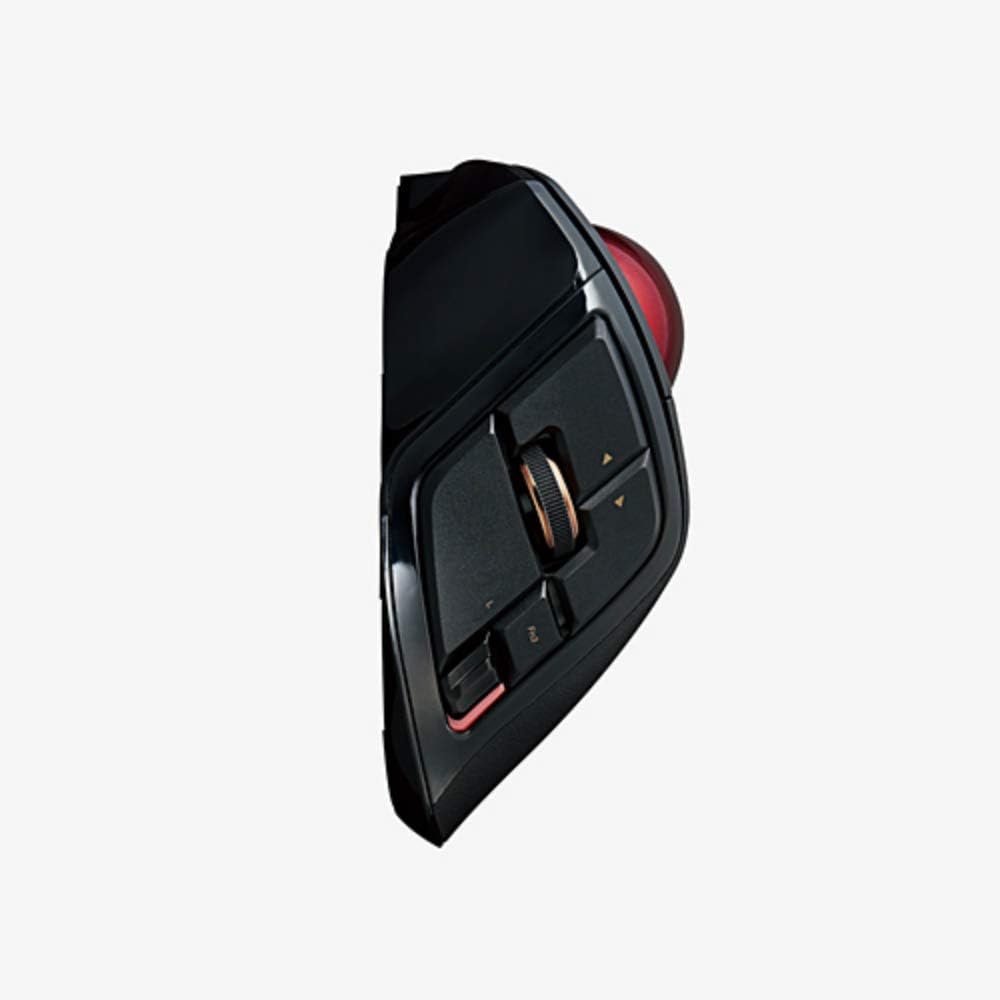
А тарап проfile of the trackball mouse, illustrating the placement of the scroll wheel, tilt functions, and programmable side buttons.

А деталдуу view of the ELECOM DEFT PRO's buttons, including the main click buttons, scroll wheel, and additional programmable function buttons.
4. Орнотуу
4.1. Батареяны орнотуу жана заряддоо
The ELECOM DEFT PRO uses a Lithium Polymer battery. If not pre-installed, open the battery compartment and insert the battery according to the polarity indicators. To charge, connect the mouse to a USB power source using the provided USB-A to USB-C cable. The LED indicator will show charging status.
4.2. Байланыш параметрлери
The mouse supports three connection methods:
- Зымдуу туташуу: Connect the mouse directly to your computer using the USB-A to USB-C cable.
- 2.4 ГГц зымсыз туташуу:
- USB зымсыз кабыл алгычты компьютериңиздеги жеткиликтүү USB портуна салыңыз.
- Set the connectivity mode switch on the mouse to the 'Wireless' position.
- Turn on the mouse using the power switch. The mouse should automatically connect.
- Bluetooth байланыш:
- Set the connectivity mode switch on the mouse to the 'Bluetooth' position.
- Чычканды өчүргүчтү колдонуп күйгүзүңүз.
- Компьютериңизде же түзмөгүңүздө Bluetooth жөндөөлөрүнө өтүп, жаңы түзмөктөрдү издеңиз.
- Select 'ELECOM DEFT PRO' from the list of available devices to pair.
4.3. Software Installation (ELECOM Mouse Assistant)
For full customization of buttons and advanced settings, download and install the ELECOM Mouse Assistant software from the official ELECOM website. This software allows you to remap buttons, adjust DPI settings, and configure other functions specific to your workflow. Ensure you download the correct version for your operating system (Windows or macOS).
5. Операция
5.1. Курсорду башкаруунун негизги каражаттары
Use your fingers to roll the red trackball to move the cursor on the screen. The optical tracking technology provides precise and smooth cursor movement.

An illustration of a hand comfortably resting on the ELECOM DEFT PRO Trackball Mouse, showing the natural finger placement for operating the trackball and buttons.
5.2. Баскыч функциялары
The ELECOM DEFT PRO features 8 physical buttons and scroll wheel tilt functionality. Default functions are:
- Сол/оң чыкылдатуу: Standard primary and secondary click actions.
- Жылдыруу дөңгөлөгү: Вертикалдуу сыдыруу.
- Scroll Wheel Tilt (Left/Right): Horizontal scrolling.
- DPI которуу: DPI жөндөөлөрү (500, 1000, 1500) аркылуу өтөт.
- Programmable Buttons (Fn1, Fn2, Fn3, etc.): Customizable via ELECOM Mouse Assistant.
5.3. DPI тууралоо
Press the DPI switch button located near the trackball to cycle through the available cursor speeds: 500 DPI, 1000 DPI, and 1500 DPI. Select the sensitivity that best suits your task or preference.
6. Техникалык тейлөө
6.1. Трекболду тазалоо
Regular cleaning of the trackball and its bearings is essential for optimal performance. Dust and debris can accumulate and affect cursor smoothness.
- Кубат баскычын колдонуп, чычканды өчүрүңүз.
- Locate the small hole on the underside of the mouse.
- Gently push the trackball out from the bottom using a pen or similar blunt object.
- Трэкболду жумшак, мамыксыз чүпүрөк менен сүртүңүз.
- Clean the three ruby ball bearings inside the trackball housing with a cotton swab lightly dampened with isopropyl alcohol. Ensure no residue remains.
- Трэкболду кайра корпусуна салыңыз.
7. Кыйынчылыктарды
- Курсор кыймылдабайт же туруксуз:
- Ensure the mouse is powered on and the correct connectivity mode (Wired, Wireless, Bluetooth) is selected.
- Батареянын деңгээлин текшерип, керек болсо заряддаңыз.
- For wireless, ensure the USB receiver is securely plugged in. For Bluetooth, verify pairing in your device's settings.
- Clean the trackball and its bearings as described in Section 6.1.
- Баскычтар жооп бербейт:
- Verify the mouse is connected and powered on.
- If using custom button assignments, check the ELECOM Mouse Assistant software for correct configuration.
- Software issues (ELECOM Mouse Assistant):
- Ensure you have downloaded the latest version of the software for your operating system.
- Орнотуудан кийин компьютериңизди өчүрүп күйгүзүңүз.
- Эгерде көйгөйлөр чечилбесе, программалык камсыздоону кайра орнотуп көрүңүз.
8. Техникалык шарттар
| Өзгөчөлүк | Деталь |
|---|---|
| Модель номери | M-DPT1MRBK |
| Байланыш | Wired (USB), 2.4GHz Wireless (USB Receiver), Bluetooth |
| DPI орнотуулары | 500 / 1000 / 1500 count (switchable) |
| Buttons | 8 physical buttons + Scroll Wheel Tilt |
| Кыймылды аныктоо | Optical, Trackball |
| Өлчөмдөрү (W x L x H) | 3.6" x 5.3" x 2.3" (91.4 мм x 133.4 мм x 57.3 мм) |
| Салмагы | 5.7 унция (батарейкасыз) |
| Батарея | 1 Литий Полимердик батарейка (кошулган) |
| Системалык талаптар | Windows 7, 8, 10 же андан кийинки версиялары; macOS 10.13 же андан кийинки версиялары |

An image comparing the dimensions of various ELECOM trackball mouse models, with the DEFT PRO (M-DPT1MRBK) positioned in the center, showing its length, width, and height.
9. Кепилдик жана колдоо
Кепилдик жөнүндө маалымат, техникалык колдоо же андан аркы жардам алуу үчүн, расмий ELECOM компаниясына кайрылыңыз. website or contact ELECOM customer service. Keep your proof of purchase for warranty claims.


