1. Киришүү
This manual provides comprehensive instructions for the installation, operation, maintenance, and troubleshooting of your Seagate Barracuda 2TB 3.5-inch SATA III Internal Hard Drive (Model ST2000DM008). Designed for desktop computers, this drive offers reliable storage for your data, applications, games, and media files.

Сүрөт 1.1: Алдыңкы view of the Seagate Barracuda 2TB Internal Hard Drive, showcasing its sleek design and the Barracuda branding.
2. Орнотуу жана орнотуу
The Seagate Barracuda ST2000DM008 is an internal hard drive designed for desktop computer systems. Proper installation is crucial for optimal performance and data integrity.
2.1. Системалык талаптар
- Available 3.5-inch drive bay in your desktop computer.
- Available SATA data port on your motherboard.
- Available SATA power connector from your power supply unit (PSU).
- Compatible operating system (e.g., Windows, macOS, Linux).
2.2. Физикалык орнотуу
- Өчүрүү жана өчүрүү: Ensure your computer is completely powered off and unplugged from the power outlet.
- Ачык компьютер корпусу: Ички компоненттерге кирүү үчүн компьютериңиздин каптал панелин алып салыңыз.
- Drive Bay жайгашкан: Identify an available 3.5-inch drive bay. Some cases may require a drive caddy.
- Дискти орнотуу: Carefully slide the hard drive into the drive bay. Secure it with screws or the case's tool-less mechanism.
- Кабелдерди туташтыруу:
- Connect one end of the SATA data cable to the hard drive and the other end to an available SATA port on your motherboard.
- Connect a SATA power cable from your PSU to the hard drive's power connector.
- Капты жаап, күйгүзүү: Replace the computer case panel and reconnect the power cable. Power on your computer.
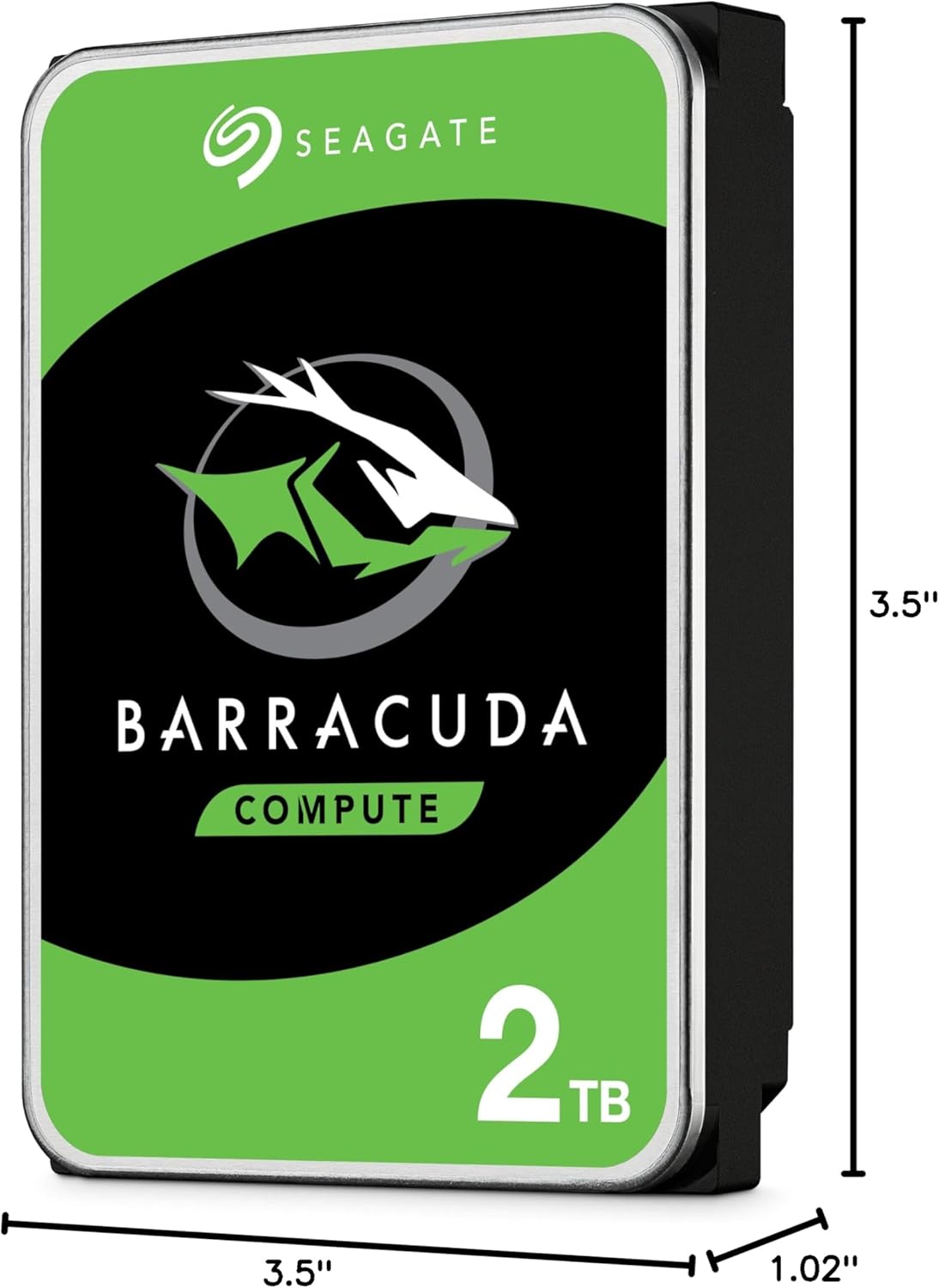
Image 2.1: Dimensions of the Seagate Barracuda 2TB Hard Drive, illustrating its 3.5-inch form factor and physical measurements for compatibility with desktop drive bays.
2.3. Software Setup (Initial Use)
After physical installation, the drive needs to be initialized, partitioned, and formatted by your operating system before it can be used for storage.
- Дискти башкарууга кирүү:
- Windows: Right-click on 'This PC' or 'My Computer', select 'Manage', then 'Disk Management'.
- MacOS: Go to 'Applications' > 'Utilities' > 'Disk Utility'.
- Linux: Use a disk utility like GParted or the 'fdisk'/'parted' command-line tools.
- Дискти инициализациялоо: The new drive should appear as 'Unallocated Space'. You may be prompted to initialize it (e.g., MBR or GPT partition style). GPT is recommended for drives larger than 2TB.
- Create Partition(s): Create one or more partitions on the initialized disk.
- Format Partition(s): Format the partition(s) with a suitable file system (e.g., NTFS for Windows, HFS+ or APFS for macOS, Ext4 for Linux).
- Assign Drive Letter/Mount Point: Assign a drive letter (Windows) or mount point (Linux) to the new partition(s).
3. Катуу дискти иштетүү
Once installed and formatted, your Seagate Barracuda hard drive functions as a standard storage device within your computer system. It is designed for continuous operation in a desktop environment.
3.1. Маалыматтарды сактоо жана мүмкүндүк алуу
- File Башкаруу: Операциялык системаңызды колдонуңуз file explorer (e.g., Windows Explorer, macOS Finder) to save, copy, move, and delete fileдискте.
- Колдонмо орнотуу: Install software applications directly onto the drive.
- Медиа сактагыч: Store large media files such as videos, photos, and music.
- Оюн: Install and run games from the drive to utilize its capacity.
3.2. Performance
The drive utilizes a SATA 6Gb/s interface, providing high-speed data transfer rates for typical desktop usage. Actual performance may vary based on system configuration, file sizes, and workload.

Image 3.1: Illustrates the 'Store More' capability of the Seagate Barracuda drive, highlighting its suitability for storing a large volume of games, movies, and music files.
4. Техникалык тейлөө жана кам көрүү
Туура тейлөө сиздин катуу дискиңиздин узак иштөөсүн жана ишенимдүүлүгүн камсыз кылууга жардам берет.
- Кадимки камдык көчүрмөлөр: Periodically back up important data to another storage device or cloud service. This is the most critical maintenance step to prevent data loss.
- Дефрагментация (HDD үчүн): For Windows users, regularly defragmenting the drive can help optimize performance. macOS and Linux typically handle this automatically.
- Дисктин ден соолугун текшерүү: Use disk utility tools provided by your operating system or third-party software to monitor the drive's S.M.A.R.T. status and overall health.
- Системаны салкын кармаңыз: Ensure adequate airflow within your computer case to prevent the drive from overheating.
- Физикалык соккулардан сактаныңыз: Катуу дисктер физикалык таасирге сезгич. Компьютериңиз иштеп жатканда жылдыруудан же урунуудан качыңыз.
- Программалык камсыздоо жаңыртуулары: Keep your operating system and drivers updated to ensure compatibility and optimal performance.

Image 4.1: Depicts the 'Get Protected' feature, emphasizing Seagate Secure data protection, which contributes to the overall reliability of the drive.
5. Кыйынчылыктарды
If you encounter issues with your Seagate Barracuda hard drive, try the following common troubleshooting steps.
5.1. Диск табылган жок
- Кабелдерди текшерүү: SATA берилиштери жана кубат кабелдери дискке жана энелик платага/ПСУга ишенимдүү туташтырылганын текшериңиз.
- BIOS/UEFI текшерүү: Verify that the SATA port the drive is connected to is enabled in your computer's BIOS/UEFI settings.
- Башка порт/кабелди колдонуп көрүңүз: Test the drive with a different SATA data cable, power cable, or motherboard SATA port.
- Кубат менен камсыздоону текшерүү: Ensure your PSU has sufficient wattage and available connectors.
- Дискти башкаруу: Дискти башкаруу (Windows) же Диск утилитасын (macOS) текшерип, диск аныкталган, бирок инициализацияланбаган же форматталбаган.
5.2. Жай аткаруу
- Check Disk Usage: Ensure the drive is not nearly full. Performance can degrade significantly when a drive is almost at capacity.
- Дефрагментация: Диск катуу фрагментацияланган болсо, дискти дефрагментациялоону (Windows) аткарыңыз.
- SMART абалы: Check the drive's S.M.A.R.T. status for any warnings indicating potential failure.
- Фондук процесстер: Close any unnecessary background applications that might be accessing the drive.
- Драйвер жаңыртуулары: Ensure your motherboard's SATA drivers are up to date.
5.3. Өзгөчө ызы-чуулар
- Clicking/Grinding: Unusual clicking, grinding, or scraping noises often indicate a mechanical failure. Immediately back up any accessible data and consider replacing the drive.
- Дирилдөө: Термелүүнү болтурбоо үчүн, дисктин уясына бекем орнотулганын текшериңиз.
If these steps do not resolve the issue, please refer to the support section or contact Seagate customer support.
6. Техникалык шарттар
Key technical specifications for the Seagate Barracuda 2TB Internal Hard Drive (Model ST2000DM008).
| Өзгөчөлүк | Description |
|---|---|
| Модель номери | ST2000DM008 |
| Санариптик сактоо сыйымдуулугу | 2000 ГБ (2 ТБ) |
| Катуу диск интерфейси | SATA 6 ГБ/сек |
| Форма фактору | 3.5 дюйм |
| Hard Disk Description | Механикалык катуу диск (HDD) |
| Шайкеш түзмөктөр | Үстөл компьютерлери |
| Орнотуу түрү | Ички катуу диск |
| Элемент Салмагы | 7 унция (болжол менен 198 грамм) |
| Продукциянын өлчөмдөрү (LxWxH) | 5.78 x 4.01 x 0.8 дюйм (болжол менен 14.68 x 10.19 x 2.03 см) |
7. Кепилдик маалыматы
The Seagate Barracuda ST2000DM008 Internal Hard Drive typically comes with a 2 жылдык чектелген кепилдик сатып алынган күндөн тартып. Бул кепилдик нормалдуу колдонуудагы материалдардагы жана жасалгадагы кемчиликтерди камтыйт.
For complete details regarding warranty terms, conditions, and limitations, please refer to the official Seagate warranty statement available on their website or contact Seagate customer support. Keep your proof of purchase for warranty claims.

Image 7.1: Highlights the 'Trusted Durability' of the Seagate Barracuda drive, backed by a 2-year limited warranty, ensuring peace of mind for users.
8. Кардарларды колдоо кызматы
For further assistance, technical support, or to register your product, please visit the official Seagate support resources:
- Seagate расмий сайты Webсайт: www.seagate.com/support/
- Seagate Brand Store on Amazon: Visit Seagate Store
You may also find helpful resources, FAQs, and driver downloads on their support pages.


