1. Киришүү
Thank you for choosing the Viotek NB27CB 27-Inch LED Curved Monitor. This monitor is designed to provide a vibrant and immersive visual experience for both work and entertainment. Featuring a bezel-less Samsung VA panel, 75Hz refresh rate, 1080P Full-HD resolution, and FreeSync technology, it offers exceptional clarity and smooth performance. This manual provides detailed instructions for setting up, operating, maintaining, and troubleshooting your new monitor.

2. Орнотуу
2.1. Мониторду таңгактан чыгаруу
Carefully remove all components from the packaging. Ensure all items listed in the 'What's in the Box' section are present. Retain the original packaging for future transport or storage.
2.2. Стендди чогултуу
- Монитордун мойнуна оюктарды тегиздөө жана ал чыкылдаганча акырын түртүп бекитиңиз.
- Secure the base to the stand neck using the provided screw.
- Чогулган мониторду туруктуу, жалпак бетке коюңуз.
2.3. Түзмөккө туташуу
The NB27CB monitor supports both VGA and HDMI 1.4 connections. Choose the appropriate cable for your device and connect it to the corresponding port on the monitor. An HDMI cable is included with your purchase.
- HDMI туташуу: Connect one end of the HDMI cable to the HDMI port on your computer or gaming console, and the other end to the HDMI port on the monitor.
- VGA туташуу: Connect one end of the VGA cable to the VGA port on your computer, and the other end to the VGA port on the monitor.
- Кубат туташуу: Кубат адаптерин монитордун кубат киргизүү булагына туташтырып, андан кийин аны розеткага сайыңыз.

2.4. VESA Mounting (Optional)
The NB27CB is VESA compatible (75x75mm), allowing you to mount it to a wall or a compatible monitor arm. Ensure you use appropriate VESA screws and mounting hardware (not included) that can support the monitor's weight.
3. Мониторду иштетүү
3.1. Күйгүзүү/өчүрүү
Аны күйгүзүү же өчүрүү үчүн монитордо жайгашкан кубат баскычын басыңыз. Монитор активдүү болгондо кубат индикаторунун жарыгы күйөт.
3.2. Экрандагы дисплей (OSD) менюсу
Use the buttons on the monitor's bezel to navigate the OSD menu. This menu allows you to adjust various display settings such as brightness, contrast, color temperature, input source, and more.
3.3. Негизги өзгөчөлүктөрү
- 75 Гц жаңыртуу ылдамдыгы жана 5 мс жооп берүү убактысы: Experience smoother visuals with a 75Hz refresh rate and a rapid 5ms response time, ideal for gaming and fast-paced content.
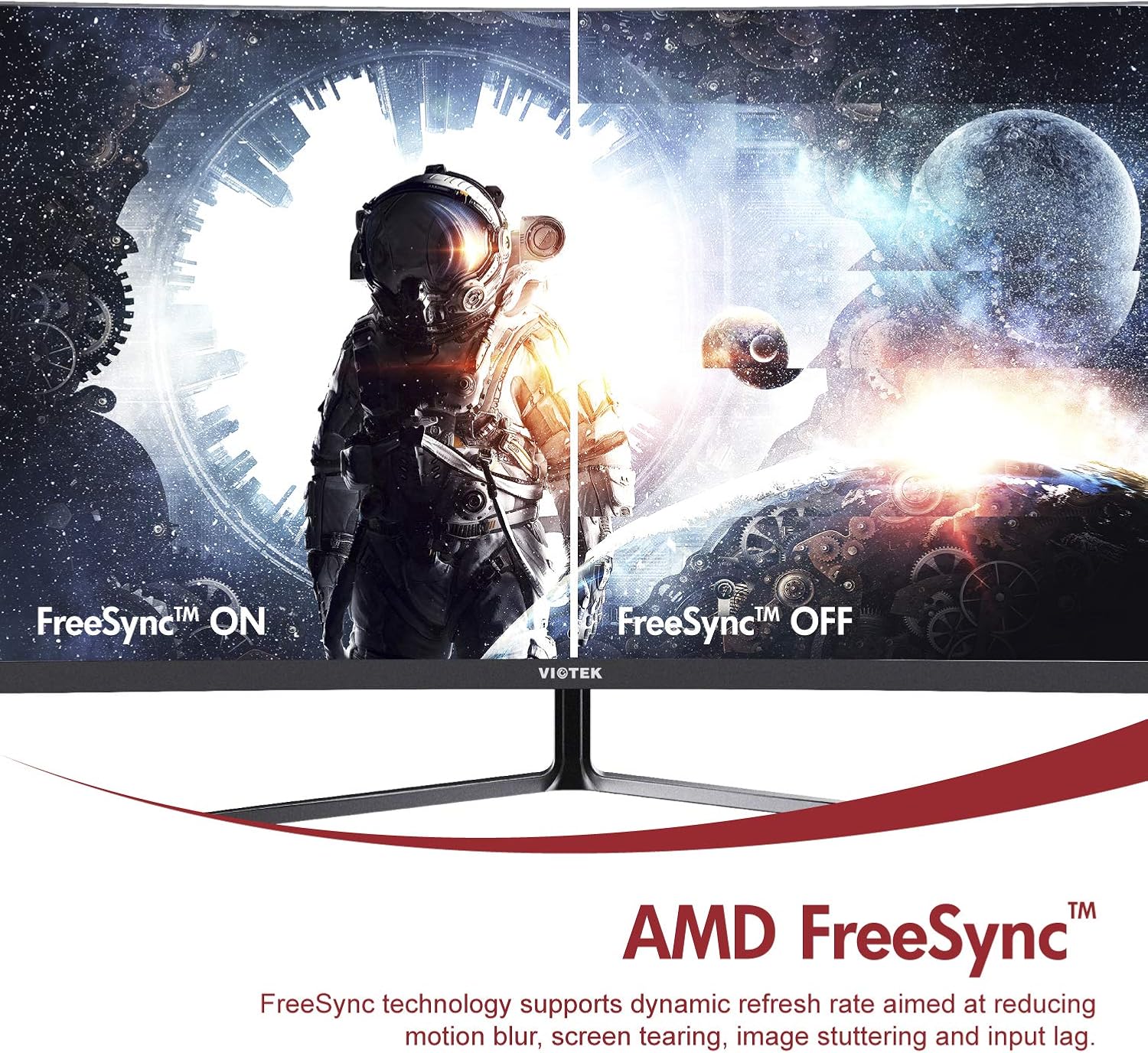
- AMD FreeSync™: Activate FreeSync to synchronize the monitor's refresh rate with your graphics card's frame rate, reducing screen tearing and stuttering for a seamless gaming experience.
- Төмөн көк жарык: Reduce eye strain during prolonged use by enabling the Low Blue Light setting in the OSD menu. This filters out harmful blue light emissions.
- GamePlus Crosshair Functionality: For competitive gaming, activate the GamePlus crosshair overlay to improve aiming accuracy in FPS/RTS games.
- Камтылган динамиктер: The monitor includes integrated speakers for audio output.



4. Техникалык тейлөө
Туура тейлөө мониторуңуздун узак мөөнөттүү жана оптималдуу иштешин камсыз кылат.
- Экранды тазалоо: Экранды жумшак, түксүз чүпүрөк менен акырын сүртүңүз. Кежир тактар үчүн, экранга түз эмес, кездемеге колдонулган монитор үчүн атайын тазалоочу эритмени колдонуңуз.
- Тазалоо Casing: Мониторду тазалоо үчүн жумшак, кургак чүпүрөктү колдонуңуз casinг. Абразивдүү тазалагычтарды же эриткичтерди колдонуудан алыс болуңуз.
- Вентиляция: Ашыкча ысып кетүүнүн алдын алуу үчүн монитордун желдетүү тешиктери жабылбагандыгын текшериңиз.
- Сактагыч: If storing the monitor for an extended period, use the original packaging to protect it from dust and damage.
5. Кыйынчылыктарды
Мониторуңузда көйгөйлөргө туш болсоңуз, төмөнкү жалпы көйгөйлөрдү жана чечимдерди караңыз:
| Көйгөй | Мүмкүн себеп | Чечим |
|---|---|---|
| Экранда сүрөт жок | Кубат кабели ажыратылган; Видео кабели ажыратылган; Туура эмес киргизүү булагы. | Электр жана видео кабелдеринин бекем туташтырылганын текшериңиз. OSD менюсу аркылуу туура киргизүү булагын тандаңыз. |
| Сүрөт бүдөмүк же бурмаланган | туура эмес чечим; Бошогон видео кабели. | Set the display resolution to 1920x1080. Check video cable connection. |
| Динамиктерден үн жок | Volume too low; Audio output not set to monitor; Faulty cable. | Increase monitor volume. Ensure your computer's audio output is set to the monitor. Check HDMI cable. |
| Экрандын бүлбүлдөөсү | FreeSync not enabled (if applicable); Graphics driver issues; Faulty cable. | Enable FreeSync in OSD and graphics card settings. Update graphics drivers. Try a different video cable. |
6. Техникалык шарттар
Detailed technical specifications for the Viotek NB27CB monitor:
| Өзгөчөлүк | Спецификация |
|---|---|
| Screen Size | 27 дюйм |
| Screen Resolution | 1920x1080 (Full HD) |
| Max Screen Resolution | 1920 x 1080 |
| Жаңыртуу ылдамдыгы | 75Hz Max. |
| Жооп убактысы | 5ms |
| Панел түрү | VA панели |
| Ийрилик | 1800R |
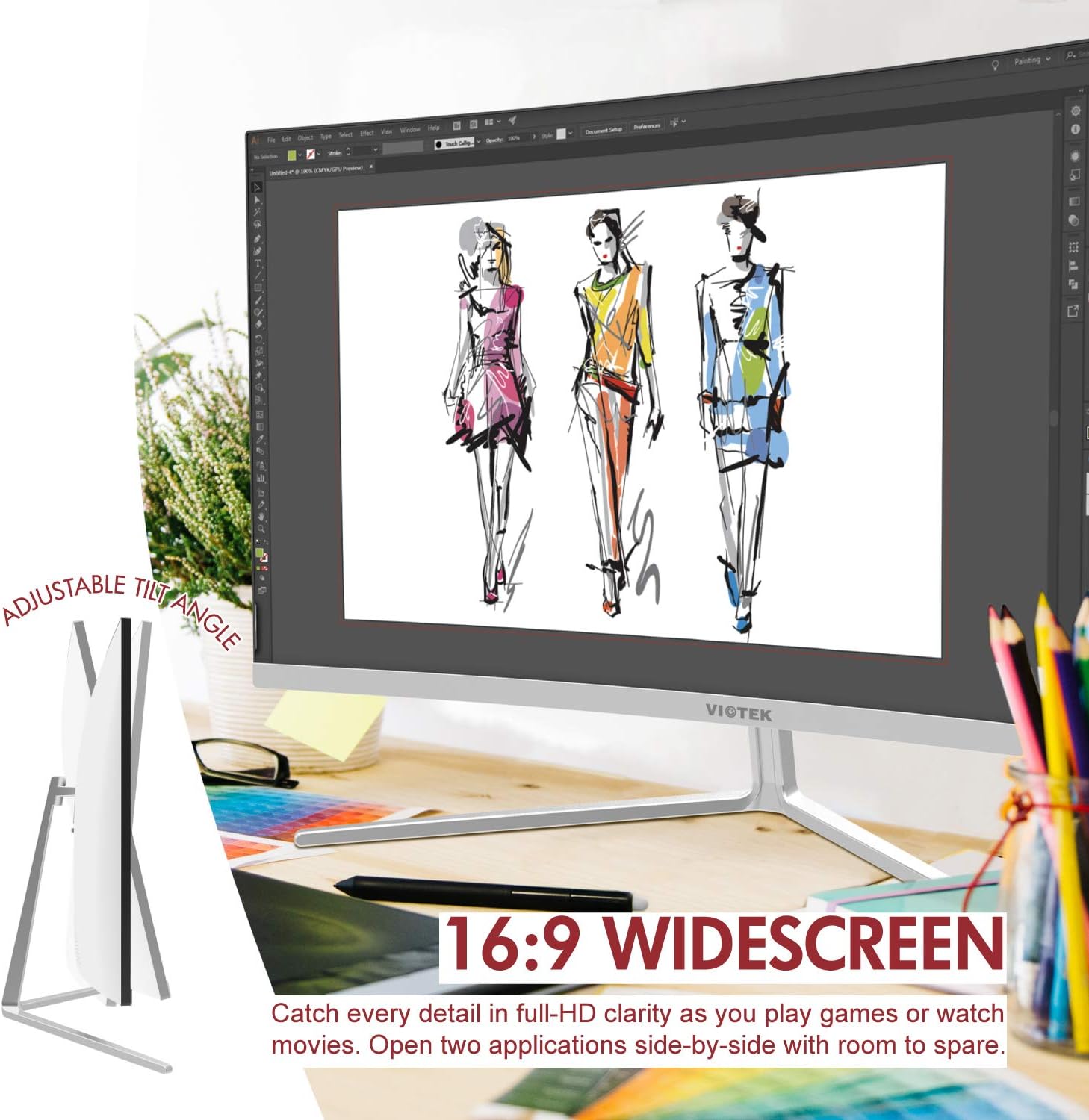
| Аспект катышы | 16:9 |
| Display Colors | 16.7M Түстөр |
| Динамикалык контраст катышы | 1000000:1 |
| VESA шайкештиги | 75x75мм |
| Порттар | 1x VGA / 1x HDMI 1.4 |
| Баяндамачылар | Yes, 2x 4Ω/3W |
| Тилт жөндөлүүчү | Yes, -5° ~ 15° |
| Элемент Салмагы | 10.36 фунт |
| Продукциянын өлчөмдөрү | 24.13 x 8.38 x 17.67 дюйм |
7. Кепилдик жана колдоо
7.1. Продукцияга кепилдик
The Viotek NB27CB monitor comes with a 3 жылдык кепилдик covering parts and labor. This includes Viotek's industry-leading Zero-Tolerance Dead Pixel Policy, ensuring a high-quality display experience.

7.2. Кардарларды колдоо кызматы
Viotek provides 100% U.S.-based customer support, available 7 days a week via live-chat, email, and social media. For assistance, please visit the official Viotek webсайтына кириңиз же продуктуңуздун документтеринде берилген байланыш маалыматын караңыз.


