1. Киришүү
The ATEN CE820 USB HDMI HDBaseT 2.0 KVM Extender is designed to extend HDMI video, stereo audio, USB, Ethernet, and RS-232 signals over a single Cat6 or 2L-2910 Cat 6 cable. Utilizing HDBaseT 2.0 technology, it provides reliable transmission for distances up to 100 meters for 4K resolution and up to 150 meters for 1080P resolution in Long-Reach mode. This extender is suitable for applications requiring remote access, such as control centers, medical facilities, and industrial environments.
2. Пакеттин мазмуну
Бардык компоненттердин бар экенин жана жакшы абалда экенин текшериңиз. Эгерде кандайдыр бир буюмдар жок болсо же бузулуп калса, дилериңизге кайрылыңыз.
- 1x CE820L USB HDMI HDBaseT 2.0 KVM Extender (Local Unit)
- 1x CE820R USB HDMI HDBaseT 2.0 KVM Extender (Remote Unit)
- 1x HDMI KVM Cable Set (HDMI, USB, Audio; 1.8m/6ft)
- 2x Power адаптер
- 2x Mounting Kits
- 1x User Instructions (this document)
3. Техникалык жабдыктар бүттүview
The ATEN CE820 KVM Extender consists of a Local Unit (CE820L) and a Remote Unit (CE820R). Below is an image illustrating the ports and indicators on the units.
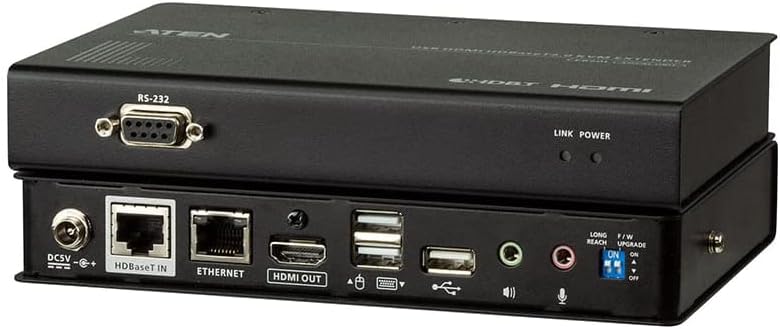
Сүрөт 3.1: Арткы view of the ATEN CE820 KVM Extender units, showing various ports including DC power, HDBaseT In/Out, Ethernet, HDMI, USB, audio jacks, RS-232, and DIP switches for mode selection.
Local Unit (CE820L) Ports:
- DC5V кубат киргизүү: Камтылган кубат адаптерине туташат.
- HDBaseT Чыгуу: Connects to the Remote Unit via Cat6/6a cable.
- Ethernet: RJ-45 port for network connection.
- HDMI Кирүү: Connects to the video source (e.g., computer).
- USB түрү B: Connects to the computer's USB port for KVM functionality.
- Аудио кириш/чыгыш: 3.5mm jacks for audio input and output.
- RS-232: Serial port for control.
Remote Unit (CE820R) Ports:
- DC5V кубат киргизүү: Камтылган кубат адаптерине туташат.
- HDBaseT ичинде: Connects to the Local Unit via Cat6/6a cable.
- Ethernet: RJ-45 port for network connection.
- HDMI Чыгышы: Connects to the display device (e.g., monitor).
- USB Type A (x2): Connects to USB peripherals (e.g., keyboard, mouse).
- Аудио кириш/чыгыш: 3.5mm jacks for audio input and output.
- RS-232: Serial port for control.
- DIP өчүргүчтөр: For selecting operating modes (e.g., Long-Reach mode).
4. Орнотуу жана орнотуу
Follow these steps to set up your ATEN CE820 KVM Extender system:
- Өчүрүү түзмөктөрү: Ensure all devices, including the computer, monitor, and KVM extender units, are powered off and unplugged.
- Connect Local Unit (CE820L):
- Connect the HDMI KVM cable set's HDMI connector to the HDMI Кирүү port on the CE820L and to the HDMI output of your computer.
- Connect the USB connector from the KVM cable set to the USB түрү B port on the CE820L and to a USB port on your computer.
- (Optional) Connect the audio jacks from the KVM cable set to the Аудио кириш/чыгыш ports on the CE820L and to your computer's audio ports.
- (Optional) Connect an Ethernet cable from your network router/switch to the Ethernet port on the CE820L.
- (Optional) Connect an RS-232 cable for serial control.
- Connect Remote Unit (CE820R):
- HDMI кабелин түзмөктөн туташтырыңыз HDMI чыгышы port on the CE820R to the HDMI input of your display device (monitor).
- USB клавиатураңызды жана чычканыңызды туташтырыңыз USB түрү А ports on the CE820R.
- (Optional) Connect speakers/microphone to the Аудио кириш/чыгыш ports on the CE820R.
- (Optional) Connect an Ethernet cable from your network device to the Ethernet port on the CE820R.
- (Optional) Connect an RS-232 cable for serial control.
- Connect Extender Units: Connect a single Cat6 or 2L-2910 Cat 6 cable from the HDBaseT Out port on the CE820L to the HDBaseT In port on the CE820R. Ensure the cable is properly terminated and meets HDBaseT specifications for optimal performance.
- Күчтү колдонуу: Connect the two included power adapters to the DC5V Power Input ports on both the CE820L and CE820R units, then plug them into power outlets.
- Түзмөктөрдү күйгүзүү: Power on your display device, then your computer. The KVM extender system should now be operational.
DIP Switch Configuration (Remote Unit)
The Remote Unit (CE820R) features DIP switches for selecting operating modes. Refer to the labels on the unit for specific switch functions. For example, to enable Long-Reach mode (1080P up to 150m), you may need to set a specific DIP switch to the 'ON' position. Ensure both units are powered off before changing DIP switch settings.
5. Операция
Once properly set up, the ATEN CE820 operates automatically. The KVM extender transparently passes video, audio, USB, Ethernet, and RS-232 signals between the local and remote units.
Видео өткөрүү
- Стандарттык режим: Supports resolutions up to 4K (3840 x 2160) at 30Hz over 100 meters.
- Long-Reach Mode: Supports resolutions up to 1080P (1920 x 1080) over 150 meters. This mode is typically enabled via DIP switches on the remote unit.
- The extender is HDCP 2.2 compliant.
USB функциясы
The USB 2.0 full-speed ports allow for the connection of a keyboard, mouse, and other USB peripherals at the remote location, providing seamless control of the computer connected to the local unit.
Audio and RS-232
The extender supports 2-channel stereo audio transmission and RS-232 serial communication for device control.
6. Техникалык тейлөө
To ensure the longevity and optimal performance of your ATEN CE820 KVM Extender, follow these maintenance guidelines:
- Тазалоо: Use a soft, dry cloth to clean the exterior of the units. Do not use liquid or aerosol cleaners.
- Вентиляция: Ашыкча ысып кетпеши үчүн, шаймандар жакшы желдетилген жерге коюлганын текшериңиз. Желдетүүчү тешиктерди жаппаңыз.
- Кабелдик башкаруу: Keep cables neatly organized and avoid sharp bends or excessive tension, which can damage cables and connectors.
- Электр камсыздоо: Use only the power adapters provided with the unit.
7. Кыйынчылыктарды
If you encounter issues with your ATEN CE820 KVM Extender, refer to the following common troubleshooting steps:
- Видео дисплей жок:
- Check all HDMI cable connections between the source, local unit, remote unit, and display.
- Ensure both local and remote units are powered on.
- Verify the Cat6/6a cable connection between the local and remote units is secure and undamaged.
- Confirm the display is set to the correct input source.
- If using Long-Reach mode, ensure the DIP switch on the remote unit is correctly set.
- Try a different HDMI cable or display to rule out faulty components.
- No USB Functionality (Keyboard/Mouse):
- Ensure the USB cable from the computer to the local unit is securely connected.
- Verify the USB peripherals are correctly plugged into the USB Type A ports on the remote unit.
- Test the USB peripherals directly with the computer to confirm they are functional.
- Аудио жок:
- Бардык 3.5 мм аудио кабелдердин туташууларын текшериңиз.
- Ensure the computer's audio output and the display's audio input are correctly configured.
- Үзүлгүс сигнал:
- Inspect the Cat6/6a cable for damage or poor termination. A high-quality, certified Cat6/6a cable is crucial for stable HDBaseT transmission.
- Ensure the cable length does not exceed the specified maximum for the resolution being used (100m for 4K, 150m for 1080P).
- Minimize electromagnetic interference by keeping the Cat6/6a cable away from power lines or other sources of interference.
8. Техникалык шарттар
| Өзгөчөлүк | Description |
|---|---|
| Модель номери | CE820 |
| Connectivity Protocol | Ethernet, HDBaseT 2.0 |
| Видео киргизүү | 1x HDMI Female (Local Unit) |
| Video Output | 1x HDMI Female (Remote Unit) |
| USB порттору | 1x USB Type B Female (Local Unit), 2x USB Type A Female (Remote Unit) |
| Аудио порттор | 2x Mini Stereo Jack (Local Unit), 2x Mini Stereo Jack (Remote Unit) |
| Ethernet порттору | 1x RJ-45 Female (Local Unit), 1x RJ-45 Female (Remote Unit) |
| Сериялык порт | 1x RS-232 Female (Local Unit), 1x RS-232 Female (Remote Unit) |
| Max. Resolution / Distance (Standard Mode) | 4K (3840 x 2160) @ 30Hz up to 100m (Cat6/6a/2L-2910) |
| Max. Resolution / Distance (Long-Reach Mode) | 1080P (1920 x 1080) up to 150m |
| HDCP шайкештиги | HDCP 2.2 туура келет |
| Энергияны керектөө | 87 watts (total for both units, typical) |
| Өлчөмдөрү (L x W x Y) | 8 x 4 x 2 inches (per unit, approximate) |
| Элемент Салмагы | 1.39 pounds (per unit, approximate) |
| Эл аралык коргоо рейтинги | IP54 |
9. Кепилдик жана колдоо
ATEN is committed to providing high-quality products and customer support.
Кепилдик маалымат
This product comes with a standard manufacturer's warranty. Extended warranty services and variable value-added service packages may be available. Please refer to the official ATEN website or contact your local dealer for detailed warranty terms and conditions.
Техникалык колдоо
ATEN offers free technical support for its products. For assistance, you can typically expect a response within 4 hours. Support services include localized repair centers for RMA (Return Merchandise Authorization) service.

Сүрөт 9.1: Illustration of ATEN's support services, including localized repair centers, extended warranty options, and free technical support with a 4-hour response time.
For further support, please visit the official ATEN webсайт: www.aten.com


