1. Киришүү
This manual provides comprehensive instructions for the installation, operation, and maintenance of your Microsoft Xbox 360 Wireless A/B/G Network Adapter. This adapter enables your Xbox 360 console to connect to a wireless network, facilitating access to Xbox Live, streaming media, and other online features without the need for wired connections.
2. Продукт бүтүп калдыview
The Xbox 360 Wireless A/B/G Network Adapter is designed to integrate seamlessly with your Xbox 360 console, providing wireless connectivity. Key features include:
- Compact, high-performance design: Engineered for efficient wireless communication.
- Broad compatibility: Works with 802.11a, 802.11b, and 802.11g wireless routers and access points.
- Dual-band support: Operates on both 2.4 GHz and 5 GHz frequency bands, offering flexibility for home network environments.
- Optimized for range: Ideal for larger homes, multiple rooms, and environments with wireless interference.
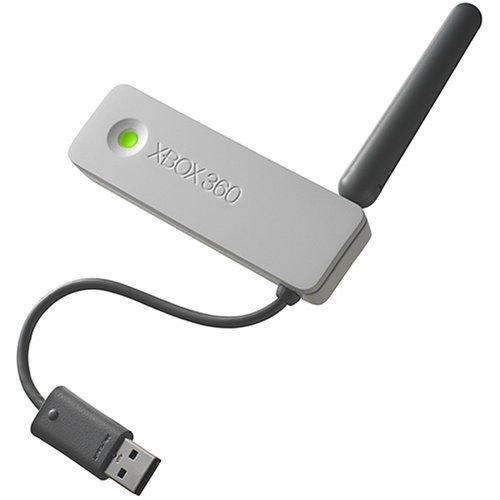
Figure 2.1: The Microsoft Xbox 360 Wireless A/B/G Network Adapter, showing its compact design with a USB connector and an adjustable antenna.

2.2-сүрөт: Каптал view of the Wireless Adapter, illustrating the extended antenna and USB cable.
3. Орнотуу
Follow these steps to connect and configure your Wireless Network Adapter with your Xbox 360 console:
- Өчүрүү консолу: Ensure your Xbox 360 console is powered off before connecting the adapter.
- Адаптерди туташтыруу: Plug the USB connector of the Wireless Network Adapter into an available USB port on the back of your Xbox 360 console. The adapter is designed to attach directly to the back of the console.
- Adjust Antenna: Position the adapter's antenna for optimal signal reception.
- Күйгүзүү консолу: Xbox 360 консолуңузду күйгүзүңүз.
- Тармак орнотууларына кирүү: From the Xbox 360 Dashboard, navigate to the Системалык орнотуулар менюну, анан тандаңыз Тармак орнотуулары.
- Configure Wireless Network:
- Тандоо Зымсыз тармак. The console will scan for available wireless networks.
- Choose your desired wireless network from the list.
- If prompted, enter your network's wireless password (security key). Ensure correct capitalization.
- Confirm the settings. The console will attempt to connect to the network.
- Test Xbox Live Connection: After successful network connection, you can test your Xbox Live connection from the Network Settings menu to ensure full functionality.

Figure 3.1: The Wireless Adapter connected to the rear USB port of an Xbox 360 console, showing the adapter's front with a green indicator light.

Figure 3.2: The Wireless Adapter connected to the Xbox 360, illustrating the cable routing and the antenna adjusted upwards.
4. Иштөө нускамалары
Once the Wireless Network Adapter is successfully configured, your Xbox 360 console will automatically connect to the configured wireless network when powered on. You can then:
- Access Xbox Live for online multiplayer gaming, digital content downloads, and communication.
- Stream photos, music, and videos from compatible devices on your home network, such as a Microsoft Windows XP Media Center based PC.
- Browse the internet using the console's web browser (if available and supported).
To switch between wireless networks or modify network settings, repeat steps 5 and 6 from the Setup section.
5. Техникалык тейлөө
The Wireless Network Adapter requires minimal maintenance. Follow these guidelines to ensure its longevity:
- Тазалоо: Gently wipe the adapter with a soft, dry cloth to remove dust. Avoid using liquid cleaners or abrasive materials.
- Жайгашкан жери: Ensure the adapter is not obstructed by other objects, which could interfere with wireless signal reception.
- Колдонуу: Avoid bending or twisting the antenna excessively, as this may cause damage.
- Сактагыч: If storing the adapter for an extended period, disconnect it from the console and store it in a cool, dry place.
6. Кыйынчылыктарды
If you encounter issues with your Wireless Network Adapter, refer to the following troubleshooting steps:
- Тармак табылган жок:
- Ensure the adapter is securely plugged into a USB port on the Xbox 360.
- Verify that your wireless router is powered on and broadcasting a signal.
- Move the Xbox 360 closer to the wireless router or adjust the adapter's antenna.
- Restart both your Xbox 360 and your wireless router.
- Unable to Connect to Network:
- Double-check the wireless password (security key) for accuracy, paying attention to capitalization.
- Confirm that your wireless router is using a compatible security protocol (WPA, WPA2, WEP). Эскертүү: Some older adapters may have limited support for newer security protocols like WPA2 or WPA3, potentially only supporting WEP. If your router is set to a newer protocol, you may need to adjust its settings (if possible and secure) or consider a different adapter.
- Ensure your router's MAC filtering is not enabled or that the Xbox 360's MAC address is added to the allowed list.
- Slow Connection or Frequent Disconnections:
- Reduce interference by moving other wireless devices (cordless phones, microwaves) away from the Xbox 360 and router.
- Adjust the adapter's antenna position.
- If your router supports it, try changing the wireless channel to one with less congestion.
- Роутериңиздин микропрограммасы жаңыртылганын текшериңиз.
- Адаптердин индикатор жарыгы: A solid green light typically indicates a successful connection. If the light is off or blinking erratically, recheck connections and power.
7. Техникалык шарттар
| Өзгөчөлүк | Деталь |
|---|---|
| Бренд | Microsoft |
| Модел | Xbox 360 Wireless A/B/G Network Adapter |
| Зымсыз стандарттар | IEEE 802.11a, 802.11b, 802.11g |
| Жыштык тилкелери | 2.4 GHz, 5 GHz (Dual Band) |
| Интерфейс | USB |
| Өлчөмдөр | Approximately 9 x 7.25 x 1.25 inches (Product dimensions, likely packaging) |
| Элемент Салмагы | Болжол менен 4.2 унция |
8. Кепилдик жана колдоо
For technical support or warranty inquiries, please refer to the following:
- Өндүрүүчү колдоо: For general product information and support, visit the official Microsoft Xbox support webсайт.
- Кепилдик маалыматы: If this product was purchased as "Renewed" or "Certified Refurbished," it typically comes with a minimum 90-day warranty provided by the seller. Please consult your purchase documentation or contact the seller directly for specific warranty terms and conditions.


