1. Продукт бүтүп калдыview
The GameMax Optical is a mid-tower ATX PC gaming case designed for system builders. It features transparent acrylic panels on the front and both sides, providing a clear view of internal components. The case supports ATX motherboards and includes four pre-installed Rainbow Dual-Ring ARGB fans for cooling and customizable lighting effects. The design prioritizes effective airflow with multiple air intakes and support for up to eight cooling fans.
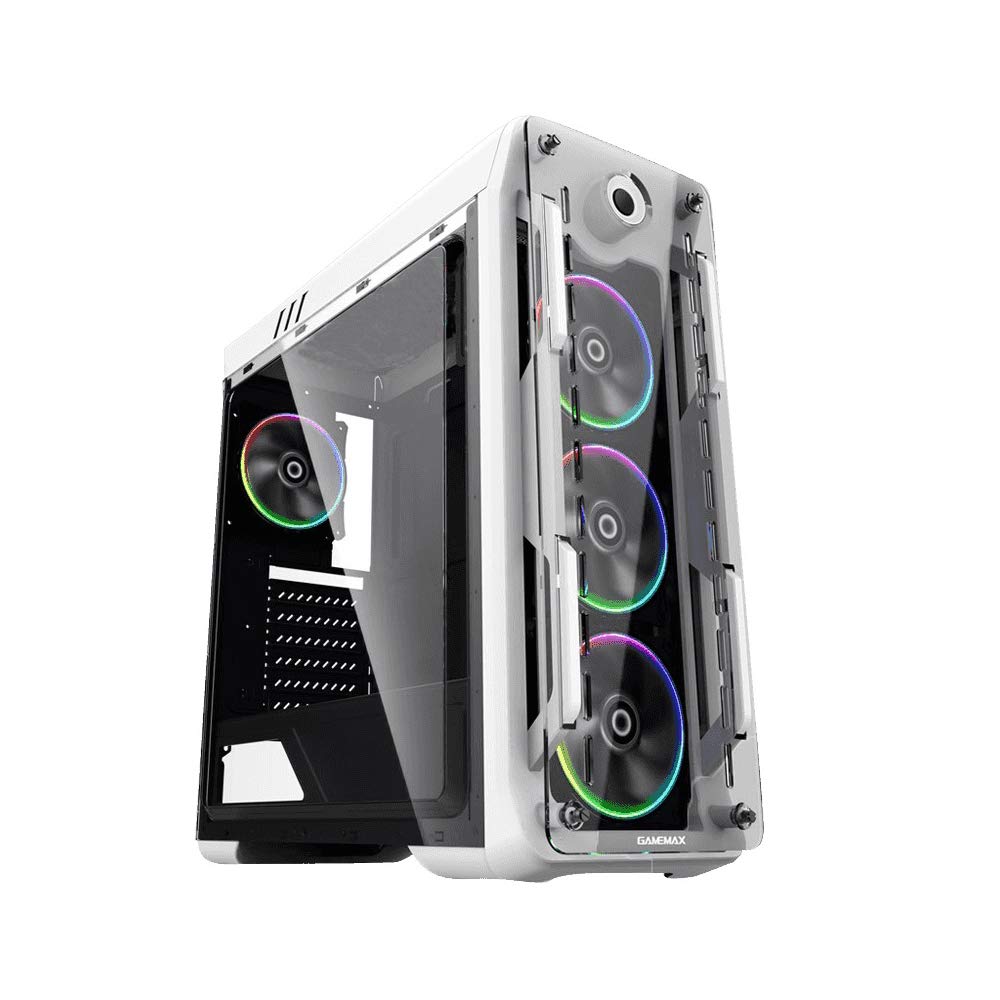
1-сүрөт: алдыңкы жана каптал view of the GameMax Optical PC Gaming Case.
2. Өзгөчөлүктөрү
- Акрил курулуш: Transparent acrylic panels on the front and both sides for component visibility.
- Оптималдуу аба агымы: Designed with multiple air intakes and heat dissipation points, supporting up to eight fans for efficient cooling.
- Муздатуу системасы: Includes four pre-installed Rainbow Dual-Ring ARGB fans. Fan speed and ARGB lighting can be controlled via an RF remote or a manual controller on the top I/O panel.
- Ички түзүлүш: Mid-tower chassis compatible with ATX, Micro-ATX, and Mini-ITX motherboards. Supports four internal hard drives, CPU coolers up to 160mm in height, and graphics cards up to 360mm in length.
3. Пакеттин мазмуну
Пакетте бардык буюмдар бар экенин текшериңиз:
- GameMax Optical PC Case
- 4 x Rainbow Dual-Ring ARGB Fans (pre-installed)
- RF Remote Controller for ARGB Fans
- Кошумча жабдуулар топтому (бурамалар, бекиткичтер, кабелдик байлагычтар)
- Колдонуучунун Колдонмосу (бул документ)
4. Орнотуу жана орнотуу
Before beginning installation, ensure your workspace is clean and static-free. Refer to your motherboard and component manuals for specific installation instructions.
4.1. Даярдоо
- Компьютердин кутучасын ачып, бардык таңгактоочу материалдарды алып салыңыз.
- Корпусту туруктуу, тегиз бетке коюңуз.
- Remove the side acrylic panels by unscrewing the thumb screws.
4.2. Motherboard орнотуу
- Install the necessary motherboard standoffs into the motherboard tray according to your motherboard's form factor (ATX, Micro-ATX, Mini-ITX).
- I/O калканын корпустун арткы тешигине коюңуз.
- Энелик платаңызды тирөөчтөр жана киргизүү/чыгаруу калканы менен кылдаттык менен тегиздеңиз, андан кийин аны акырындык менен ордуна түшүрүңүз.
- Аналык платаны бурамалар менен бекитиңиз. Ашыкча кысып албаңыз.
4.3. Электр энергиясы менен жабдууну орнотуу
- Locate the power supply mounting area at the bottom rear of the case.
- Slide the power supply into the designated bay.
- Secure the power supply with screws from the rear of the case.
4.4. Сактоочу дискти орнотуу
Install 3.5-inch HDDs and 2.5-inch SSDs into the designated drive bays. Refer to the case's internal structure for specific mounting points and methods (e.g., trays, screw-in mounts).

2-сүрөт: Интерьер view showing fan placement and component space.
4.5. Видеокартаны жана кеңейтүү картасын орнотуу
- Корпустун арткы жагынан керектүү PCI-E уячасынын капкактарын алып салыңыз.
- Графикалык картаңызды же башка кеңейтүү карталарын энелик платадагы тиешелүү PCI-E уячаларына салыңыз.
- Карталарды бурамалар менен бекитиңиз.
4.6. Fan and ARGB Connections
The pre-installed ARGB fans are connected to a fan controller. Connect the fan controller to your power supply (usually via SATA power) and to your motherboard's ARGB header (if desired for software control) or use the included RF remote for control.
4.7. Кабелдик башкаруу
Route all cables (power, data, front panel I/O) through the designated cutouts and tie-down points behind the motherboard tray to ensure clean aesthetics and unobstructed airflow.

3-сүрөт: Арткы view of the case, showing I/O and expansion slots.
5. Иштөө нускамалары
5.1. Күйгүзүү
- Ensure all components are securely installed and cables are connected.
- Connect the power cable to your power supply and a wall outlet.
- Press the power button on the top I/O panel of the case.
5.2. Fan and ARGB Lighting Control
- RF Remote Controller: Use the included RF remote to change ARGB lighting modes, colors, and fan speeds.
- Manual Fan Controller: A dedicated button on the top I/O panel allows for manual adjustment of fan speed.
- Энелик плата программасы: If the fan controller is connected to a compatible motherboard ARGB header, you may be able to control lighting effects via your motherboard's RGB software.
6. Техникалык тейлөө
Компьютериңиздин корпусунун жана компоненттеринин оптималдуу иштешин жана узак мөөнөттүү иштешин үзгүлтүксүз техникалык тейлөө камсыз кылат.
- Чаң чыпкалары: Periodically remove and clean any dust filters (e.g., on the top, front, or bottom) to maintain good airflow.
- Акрил панелдери: Clean acrylic panels with a soft, damp cloth and mild cleaner. Avoid abrasive materials or harsh chemicals that can scratch or damage the acrylic.
- Желдетүүчү тазалоо: Use compressed air to remove dust buildup from fan blades and heatsinks.
- Кабелдик башкаруу: Кабелдердин аба агымына же желдеткичтин иштешине тоскоол болбогонун текшерүү үчүн, кээде кабелдердин өткөрмөлөрүн текшерип туруңуз.
7. Кыйынчылыктарды
Көйгөйгө туш болсоңуз, төмөнкү жалпы көйгөйлөрдү чечүү кадамдарын караңыз:
- Кубат жок: Ensure the power supply is switched on, the power cable is securely connected, and all internal power connections (24-pin ATX, 8-pin CPU, GPU power) are firm.
- Fans Not Spinning / ARGB Not Lighting: Check that the fan controller is properly connected to the power supply and that all fans are securely plugged into the controller. Verify ARGB headers are correctly connected to the motherboard or controller.
- Ашыкча ысып кетүү: Ensure all fans are spinning in the correct direction for optimal airflow. Clean any dust filters and fan blades. Verify that CPU and GPU coolers are properly seated.
- Бош компоненттер: If you hear rattling or experience instability, power down the system and check that all installed components (motherboard, GPU, drives) are securely fastened with screws.
8. Техникалык шарттар
| Өзгөчөлүк | Спецификация |
|---|---|
| Модель аты | GMX-OPTICAL-WHT |
| Иштин түрү | Ара Tower |
| Motherboard шайкештиги | ATX, Micro ATX, Mini ITX |
| Өлчөмдөрү (L x W x Y) | 18.39 x 8.11 x 19.8 дюйм (467 x 206 x 503 мм) |
| Элемент Салмагы | 10.12 фунт (4.6 килограмм) |
| Материал | Акрил |
| Алдын ала орнотулган күйөрмандар | 4 x Rainbow Dual-Ring ARGB Fans |
| Макс. CPU муздаткычтын бийиктиги | 160мм |
| GPU'нун максималдуу узундугу | 360мм |
| Drive Bays | 4 internal (combination of 3.5" HDD and 2.5" SSD) |
| Алдыңкы I / O порттору | 2 x USB 2.0, Audio In/Out, Power Button, Reset Button, Fan Controller |
9. Кепилдик маалыматы
For detailed warranty terms and conditions, please refer to the official GAMEMAX website or contact your retailer directly. Keep your proof of purchase for warranty claims.
10. Колдоо
For technical assistance, product inquiries, or further support, please visit the official GAMEMAX webсайт:
You may also contact GAMEMAX customer support through the channels provided on their webсайт.


