Introduction
This manual provides essential instructions for setting up, operating, maintaining, and troubleshooting your Microsoft Surface Pro 2017. The Surface Pro 2017 is a versatile 2-in-1 device designed to function as both a powerful laptop and a portable tablet, offering a seamless computing experience.
Please read this manual thoroughly to ensure proper use and to maximize the lifespan of your device. Keep this manual for future reference.
Кутуда эмне бар
Upon unboxing your Microsoft Surface Pro 2017, verify that all components are present:
- Microsoft Surface Pro 2017 түзмөгү
- AC кубат адаптери
Note: Additional accessories such as the Surface Pen, Type Cover, or Surface Dial are sold separately and may not be included with your device.
Жайгашуу
1. Баштапкы күйгүзүү жана заряддоо
- Кубат адаптерин туташтыруу: Plug the AC power adapter into a wall outlet and then connect the magnetic charging connector to the charging port on your Surface Pro. The LED indicator on the connector will illuminate when charging.
- Күйгүзүү: Press and hold the power button located on the top edge of the device for a few seconds until the Microsoft logo appears on the screen.
2. Windows Setup
Follow the on-screen prompts to complete the initial Windows setup. This process typically includes:
- Аймагыңызды жана тилиңизди тандаңыз.
- Wi-Fi тармагына туташууда.
- Лицензиялык келишимди кабыл алуу.
- Microsoft эсеп жазуусун түзүү же кирүү.
- Setting up security features like Windows Hello (facial recognition) or a PIN.
3. Wi-Fiга туташуу
- During Windows setup, you will be prompted to connect to a network. Select your desired Wi-Fi network from the list and enter the password if required.
- If you need to connect later, go to Баштоо > Орнотуулар > Тармак жана Интернет > Wi-Fi. Turn Wi-Fi on, select your network, and click Туташуу.
Иштөө нускамалары
Basic Device Orientation and Controls
The Surface Pro 2017 features a 12.3-inch PixelSense display with multi-touch support. Key physical controls include:
- Кубат баскычы: Located on the top edge, used to turn the device on/off, sleep, or wake.
- Үн баскычтары: Капталында жайгашкан, үндүн үнүн жөндөө үчүн колдонулат.
- Кикстенд: Integrated on the back, allows for multiple viewбурчтар.
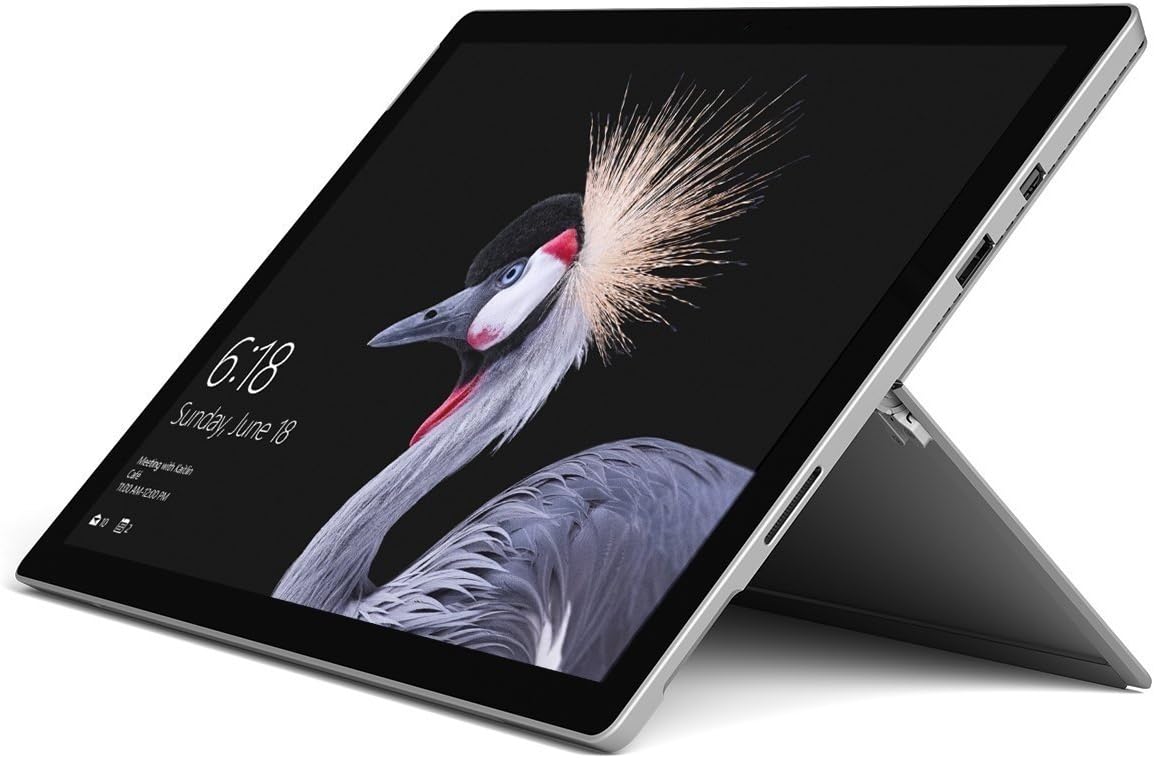
Image: Microsoft Surface Pro 2017 in laptop mode with its kickstand extended, showcasing the device's display.
Kickstand колдонуу
The integrated kickstand allows you to position your Surface Pro at various angles for comfortable viewing, typing, or drawing. Gently pull the kickstand out from the back of the device until it reaches your desired angle.
Power Management
- Уйку режими: Briefly press the power button to put the Surface Pro into sleep mode. Press it again to wake the device.
- Өчүрүү: барыңыз Баштоо > Күч > Өчүрүү.
- Кайра баштоо: барыңыз Баштоо > Күч > Кайра баштоо.
Перифериялык түзүлүштөрдү туташтыруу
The Surface Pro 2017 includes various ports for connecting external devices:
- USB 3.0 порт: For connecting USB drives, keyboards, mice, and other compatible accessories.
- Mini DisplayPort: Тышкы мониторлорго же проекторлорго туташуу үчүн.
- microSD картаны окугуч: Сактагычты кеңейтүү же өткөрүп берүү үчүн fileэстутум карталарынан.
- Surface Connect Port: Электр кубаты жана Surface Dock аксессуарларына туташуу үчүн.
- 3.5 мм гарнитура уячасы: Аудио чыгаруу үчүн.
Bluetooth: Bluetooth түзмөктөрүн (мисалы, кулакчындар, чычкандар) туташтыруу үчүн, өтүңүз Баштоо > Орнотуулар > Түзмөктөр > Bluetooth жана башка түзмөктөр. Ensure Bluetooth is turned on, then select "Add Bluetooth or other device" and follow the pairing instructions.

Сүрөт: Side profile of the Microsoft Surface Pro 2017, highlighting the various ports available for connectivity.
Техникалык тейлөө
Cleaning Your Surface Pro
- Экран: Бир аз жумшак, түксүз кездемени колдонуңуз dampened with water or an approved screen cleaner. Avoid harsh chemicals or abrasive materials.
- Дене: Wipe the exterior with a soft, dry cloth. Do not allow liquids to enter openings.
- Порттор: Keep ports free of dust and debris. Use compressed air carefully if needed, holding the can upright.
Батареяга кам көрүү
- Ашыкча температурадан качыңыз, алар батареянын иштөө мөөнөтүн начарлатышы мүмкүн.
- Батареяны оптималдуу ден соолук үчүн, батареяны ырааттуу түрдө толугу менен зарядсыздандырбаңыз же аны узак убакыт бою 100% зарядда кармап туруңуз.
- Use only the official Microsoft AC power adapter or a compatible charger.
Программалык камсыздоо жаңыртуулары
Regularly update your Windows operating system and device drivers to ensure optimal performance, security, and compatibility. Go to Баштоо > Орнотуулар > Жаңыртуу & Коопсуздук > Windows жаңыртуу жаңыртууларды текшерүү жана орнотуу үчүн.
Проблемаларды чечүү
Бул бөлүмдө Surface Pro 2017 менен кездешиши мүмкүн болгон жалпы көйгөйлөр каралат.
Device Will Not Turn On
- Түзмөктүн заряддалганын текшериңиз. Кубат адаптерин туташтырып, күйгүзүүдөн мурун бир нече мүнөт күтө туруңуз.
- Эки баскыч менен өчүрүү: Үндү катуулатуу баскычын жана кубат баскычын бир убакта кеминде 15 секунд басып туруңуз, андан кийин экөөнү тең коё бериңиз. 10 секунд күтүп, андан кийин Surface'ти күйгүзүү үчүн кубат баскычын кайра басыңыз.
Screen Not Responding to Touch
- Аппаратты кайра иштетиңиз.
- Экран таза жана таштандылардан таза экенин текшериңиз.
- Check for available Windows updates, as driver updates can resolve touch issues.
Wi-Fi туташуу маселелери
- Ensure Wi-Fi is enabled in Орнотуулар > Тармак жана Интернет > Wi-Fi.
- Restart your Surface Pro and your Wi-Fi router.
- Тармакты унутуп, кайра туташыңыз: Барыңыз Орнотуулар > Тармак жана Интернет > Wi-Fi, click on your network, then Унутуу. Reconnect and enter the password.
Техникалык шарттар
| Өзгөчөлүк | Спецификация |
|---|---|
| Модель аты | Surface Pro 2017 |
| Элемент моделинин номери | 7Y30 |
| Screen Size | 12.3 дюйм |
| Screen Resolution | 2736 x 1824 пиксель |
| Процессор | Intel Core m3-7Y30 (1 GHz Intel_Mobile_CPU) |
| RAM | 4 ГБ DDR4 SDRAM |
| Сактагыч | 128 ГБ SSD |
| Графикалык карта | Integrated (Intel) |
| Операция системасы | Windows |
| Зымсыз түрү | 802.11abg |
| Элемент Салмагы | 1.89 фунт |
| Продукциянын өлчөмдөрү | 11.5 x 7.9 x 0.3 дюйм |
| Түс | Silver |
Кепилдик жана колдоо
For detailed warranty information, please refer to the warranty card included with your purchase or visit the official Microsoft support webсайт. Кепилдиктин шарттары жана шарттары аймакка жана сатуучуга жараша өзгөрүшү мүмкүн.
Техникалык колдоо, драйверлерди жүктөп алуу жана кошумча ресурстар үчүн расмий Microsoft колдоо кызматына баш багыңыз webсайт: support.microsoft.com/surface


