1. Киришүү
This manual provides comprehensive instructions for the setup, operation, and maintenance of your Mobile Pixels Trio 13.3-inch Portable Monitor. Please read this guide thoroughly to ensure proper usage and to maximize your device's functionality.
The Mobile Pixels Trio monitor is designed to expand your workspace, offering a 13.3-inch Full HD IPS display for enhanced productivity and versatility across various devices and operating systems.
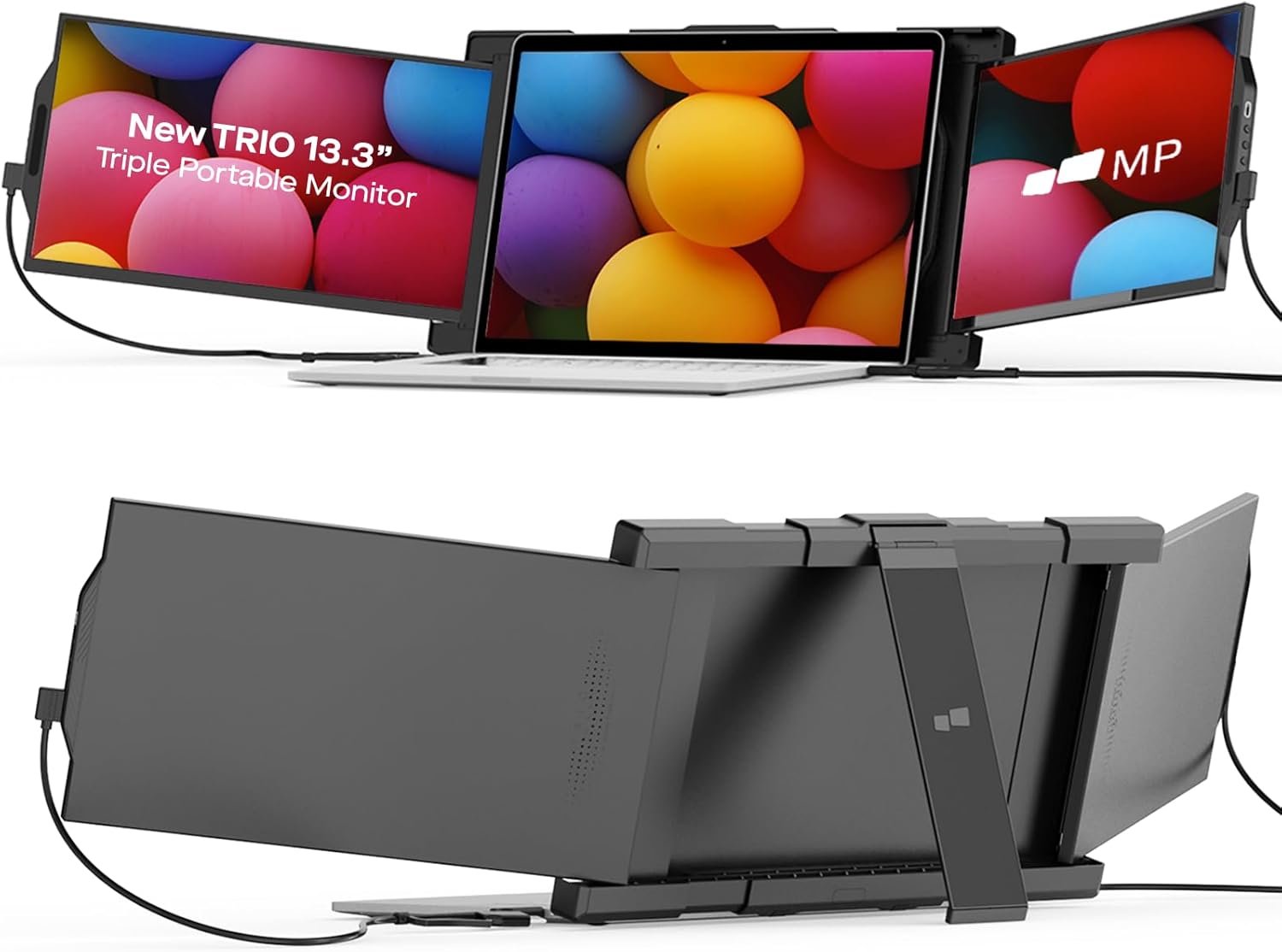
Image: The Mobile Pixels Trio monitor in a triple-screen configuration with a laptop.
2. Коопсуздук маалыматы
Түзмөктүн коопсуз иштешин камсыз кылуу жана анын бузулушун же жаракат алуусун алдын алуу үчүн төмөнкүлөрдү сактаңыз:
- Do not expose the monitor to extreme temperatures, direct sunlight, or high humidity.
- Аппаратты түшүрүүдөн же катуу таасирлерден сактаныңыз.
- Берилген кабелдерди жана аксессуарларды гана колдонуңуз.
- Keep the device away from liquids. In case of liquid contact, disconnect immediately and seek professional assistance.
- Do not attempt to disassemble or repair the device yourself. This may void the warranty.
3. Пакеттин мазмуну
Пакетте бардык буюмдар бар экенин текшериңиз:
- TRIO Portable Monitor (1 unit)
- Type C-Type C / Type C-USB A cable (2 units, for output & power supply)
- Metal adhesive plate (4 units, for laptops)
- Колдонмо (1 бирдик)
- Тез жол көрсөткүч (1 бирдик)
4. Орнотуу нускамалары
The Mobile Pixels Trio monitor offers flexible attachment options: a built-in kickstand for a magnet-free setup or optional magnets for direct laptop attachment.
4.1. Мониторду орнотуу
The monitor can be attached to your laptop using either the integrated kickstand or the provided metal adhesive plates and magnets.
Option A: Built-in Kickstand
For a magnet-free setup, extend the built-in kickstand from the back of the monitor. Position the monitor alongside your laptop on a flat surface, using the kickstand for support.
Option B: Magnetic Attachment (Optional)
- Clean the back of your laptop screen thoroughly to ensure optimal adhesion.
- Peel the protective film from the metal adhesive plates.
- Carefully align and press the metal plates onto the back of your laptop screen, ensuring they are evenly spaced and secure. Allow sufficient time for the adhesive to bond.
- Once the metal plates are securely attached, align the Trio monitor with the plates on your laptop. The magnets within the Trio monitor will snap into place, securing it to your laptop.

Image: Various attachment methods for the Trio monitor, including the built-in kickstand and magnetic options.
4.2. Мониторду туташтыруу
The Trio monitor supports both USB-C and USB-A connections for video and power. Two cables are provided for various configurations.
- For USB-C to USB-C connection: Use the provided USB-C to USB-C cable. Connect one end to the USB-C port on the Trio monitor and the other end to a compatible USB-C port on your laptop.
- For USB-C to USB-A connection: Use the provided USB-C to USB-A cable. Connect the USB-C end to the Trio monitor and the USB-A end to a USB-A port on your laptop. Note: Driver download may be required for USB-A connections.

Image: Connection options for the Trio monitor using USB-C and USB-A cables.
4.3. Driver Installation (if required)
For optimal performance, especially with USB-A connections, ensure the necessary drivers are installed. Drivers are typically plug-and-play for most modern operating systems (macOS, Windows, Android). If the monitor does not display automatically, visit the Mobile Pixels support website for driver downloads specific to your operating system.
4.4. Video Guide: Installation and Setup
Video: A step-by-step guide demonstrating the installation and setup process for the Mobile Pixels Trio monitor.
5. Иштөө нускамалары
The Mobile Pixels Trio monitor offers various display modes and compatibility to suit your workflow.
5.1. Дисплей режимдери
The monitor supports multiple display configurations:
- Кеңейтилген режим: Expands your desktop across the laptop and Trio monitor, providing more screen real estate.
- Mirrored Mode: Duplicates your laptop's display on the Trio monitor, ideal for presentations.
- Портрет режими: Rotate the monitor 90 degrees for vertical viewing, useful for coding, reading documents, or long web барактар.
- Collaboration Mode: Rotate the monitor up to 270 degrees to share your screen with others easily.

Image: Illustration of various display modes including three-screen, collaboration, presentation, and portrait.
5.2. Көп түзмөктүн шайкештиги
The Trio monitor is compatible with a wide range of devices and operating systems:
- macOS
- Windows
- Android смартфондору
- Nintendo Switch

Image: The Trio monitor demonstrating wide compatibility with various operating systems and devices.
5.3. Жарыкты жөндөө
The monitor's brightness is adjustable up to 300 nits. Use the physical buttons on the monitor (refer to the Quick Guide for exact button locations) to adjust the brightness to your preferred level.
5.4. Video Guide: Multi-Display Modes and Compatibility
Video: Demonstration of the various multi-display modes and device compatibility features of the Trio monitor.
6. Техникалык тейлөө
Proper care and maintenance will extend the life of your Mobile Pixels Trio monitor.
- Тазалоо: Бир аз жумшак, түксүз кездемени колдонуңуз dampened with water or a screen cleaner to wipe the display. Avoid harsh chemicals or abrasive materials.
- Сактагыч: When not in use, slide the monitor back into its compact position. Store it in a cool, dry place, away from direct sunlight.
- Кабельге кам көрүү: Avoid bending or twisting cables excessively to prevent internal damage.
7. Кыйынчылыктарды
If you encounter issues with your Trio monitor, refer to the following common solutions:
- Дисплей/сигнал жок:
- Ensure all cables are securely connected to both the monitor and your device.
- Try using a different USB-C or USB-A port on your laptop.
- Verify that your laptop's display settings are configured to detect and extend to an external monitor.
- If using a USB-A connection, confirm that the necessary drivers are installed.
- Экрандын жымыңдашы/туруксуз дисплей:
- Кабель туташтыргычтарынын боштугун же бузулгандыгын текшериңиз.
- Reduce the display resolution or refresh rate on your laptop.
- Ноутбугуңуздун графикалык драйверлери жаңыртылганын текшериңиз.
- Laptop Keyboard/Trackpad Unresponsive (when using magnetic attachment):
- Some laptops, particularly those with convertible or touchscreen features, may have internal 'hall sensors' that can be triggered by strong magnets. This can cause the laptop to enter tablet mode or disable the keyboard/trackpad.
- If this occurs, try repositioning the metal adhesive plates further away from the laptop's top edge, or consider using the built-in kickstand instead of magnetic attachment.
- Monitor Not Sliding Smoothly:
- Ensure no debris is obstructing the sliding mechanism.
- Apply gentle, even pressure when sliding the monitor.
For further assistance, please contact Mobile Pixels customer support.
8. Техникалык шарттар
| Өзгөчөлүк | Деталь |
|---|---|
| Продукциянын өлчөмдөрү | 12.91 x 9.06 x 0.51 дюйм |
| Элемент Салмагы | 1.7 фунт |
| Өндүрүүчү | Мобилдик пикселдер |
| Элемент моделинин номери | Trio (Tri-screen) 2.0 |
| Туруктуу экран дисплей өлчөмү | 12.5 Inches (Note: Product title states 13.3'') |
| Аспект катышы | 16:9 |
| Тtage | 5 вольт |
| Резолюция | 1920 x 1080 (FHD 1080p) |
| Сүрөттүн жарыктыгы | 250 nits (Adjustable up to 300 nits as per A+ content) |
| Жалпы USB порттору | 2 |
| Screen Surface Description | Жылтырак |
| Айлануу бурч | 270 градус |
9. Кепилдик жана колдоо
Mobile Pixels provides after-sales support for your Trio monitor. If you encounter any issues or require assistance, please refer to the contact information provided in your Quick Guide or visit the official Mobile Pixels website for expert support and troubleshooting resources.
For warranty details, please consult the documentation included in your product package or the official Mobile Pixels webсайт.


