1. Киришүү
This manual provides detailed instructions for the setup, operation, maintenance, and troubleshooting of your ONIKUMA K1B PRO Stereo Gaming Headset. Designed for immersive audio experiences, this headset is compatible with various gaming platforms and mobile devices.

Image 1.1: The ONIKUMA K1B PRO Stereo Gaming Headset, showcasing its design and integrated microphone.
2. Пакеттин мазмуну
Төмөндө тизмеленген нерселердин баары пакетиңизге камтылганын текшериңиз:
- 1 x ONIKUMA K1B PRO Stereo Gaming Headset
- 1 x PC Adapter (3.5mm audio/mic splitter cable)
- 1 х Колдонуучунун колдонмосу (бул документ)

Image 2.1: Contents of the ONIKUMA K1B PRO package, including the headset, PC adapter, and user manual.
3. Орнотуу нускамалары
Follow these steps to connect your ONIKUMA K1B PRO headset to your device.
3.1 Компьютерге/ноутбукка туташуу
- For desktop PCs with separate audio and microphone jacks, use the included PC Adapter. Connect the headset's single 3.5mm jack into the adapter.
- Plug the green jack from the PC Adapter into your computer's audio output (headphone) port.
- Plug the red jack from the PC Adapter into your computer's microphone input port.
- For laptops with a single 3.5mm combo jack, plug the headset's single 3.5mm jack directly into the laptop's audio port. The PC Adapter is not required in this scenario.
- Connect the USB plug to a USB port on your PC or laptop to power the LED lights on the headset.
3.2 Connecting to PS4/PS5
- Plug the headset's single 3.5mm jack directly into the controller's 3.5mm port.
- Go to System Settings > Devices > Audio Devices.
- "Кулакчага чыгаруу" параметрин "Бардык аудио" деп коюңуз.
- Adjust microphone input level as needed.
- Connect the USB plug to a USB port on your console to power the LED lights.
3.3 Connecting to Xbox One/Xbox Series X|S
- For newer Xbox One controllers with a 3.5mm jack, plug the headset's single 3.5mm jack directly into the controller's port.
- For older Xbox One controllers without a 3.5mm jack, a Microsoft adapter (not included) is required. Plug the headset into the adapter, then plug the adapter into the controller.
- Connect the USB plug to a USB port on your console to power the LED lights.
3.4 Connecting to Mobile Devices/Tablets
- Plug the headset's single 3.5mm jack directly into your mobile device's 3.5mm audio port.
- The USB connection is only for LED lighting and is not required for audio functionality on mobile devices.

Image 3.1: Diagram illustrating the compatibility of the ONIKUMA K1B PRO headset with various devices, including PC, PS4, Xbox One, and mobile phones.
4. Иштөө нускамалары
Understand the features and controls of your ONIKUMA K1B PRO headset.
4.1 Аудио башкаруу
- Көлөм дөңгөлөгү: Located on the inline control unit, rotate the wheel up or down to adjust the audio volume.
- Стерео айлана-чөйрөнүн үнү: The 50mm drivers deliver clear audio with distinct bass and treble for an immersive experience.

Image 4.1: Visual representation of the headset's 50mm drivers and 3D surround sound capabilities for enhanced audio.
4.2 Микрофонду колдонуу
- Жөнгө салынуучу микрофон: The omnidirectional microphone can be adjusted to your preferred position for optimal voice pickup. It features noise-canceling technology for clear communication.
- Mic Mute Switch: A dedicated switch on the inline control unit allows you to quickly mute or unmute the microphone.
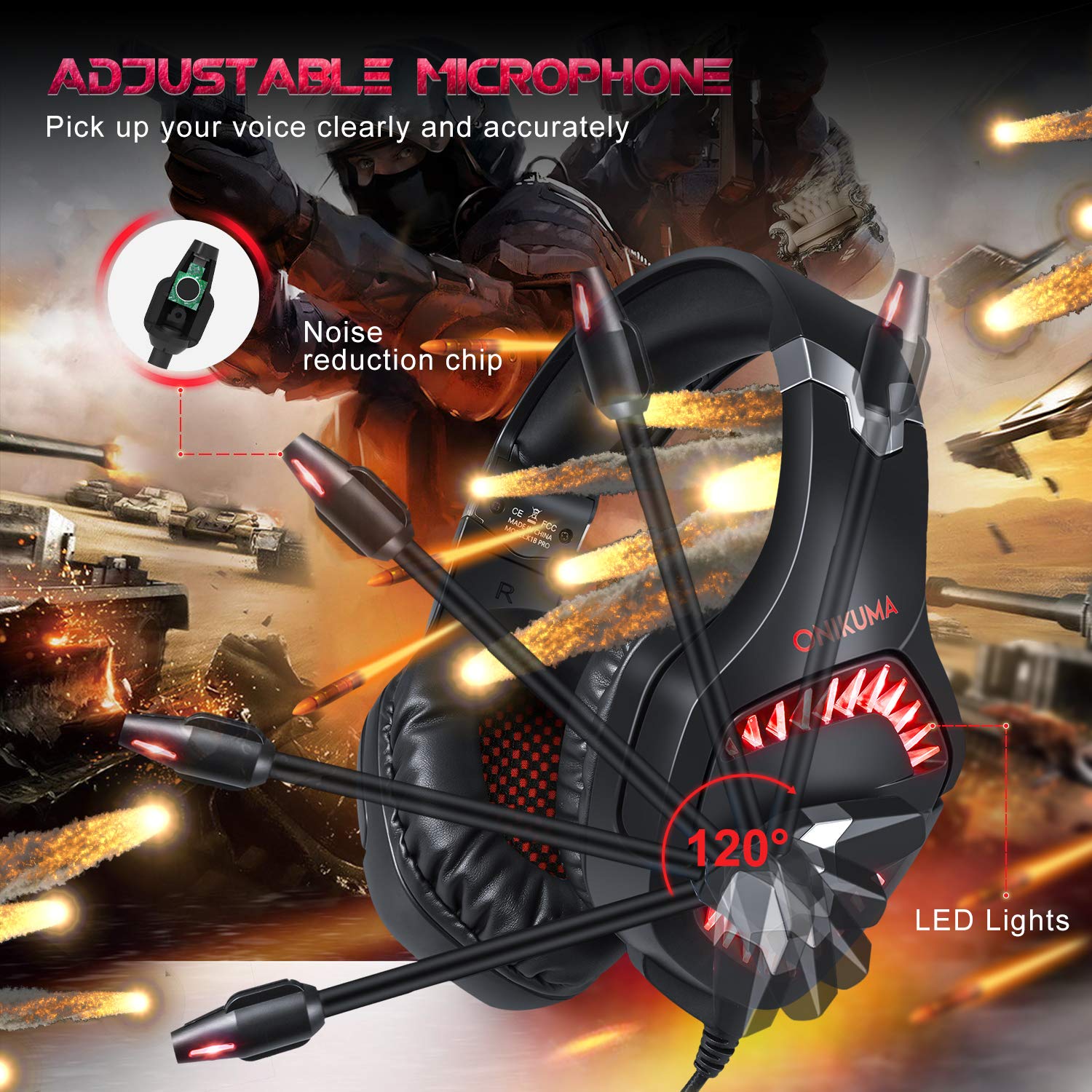
Image 4.2: The adjustable microphone of the ONIKUMA K1B PRO headset, highlighting its flexibility and noise reduction features.
4.3 LED жарыктандыруу
- The headset features LED lights that are powered via the USB connection. Ensure the USB plug is connected to an active USB port for the lights to function.
4.4 Ыңгайлуулук жана эргономика
- Soft Headband: The headband is designed for comfort during extended use.
- Adjustable Ear Cushions: The ear cushions are designed to reduce pressure and sweating, providing long-lasting comfort. The earcups can adjust up to 20 degrees.
- Туруктуу курулуш: The headset features a strong structure and steel beam for durability and flexibility.
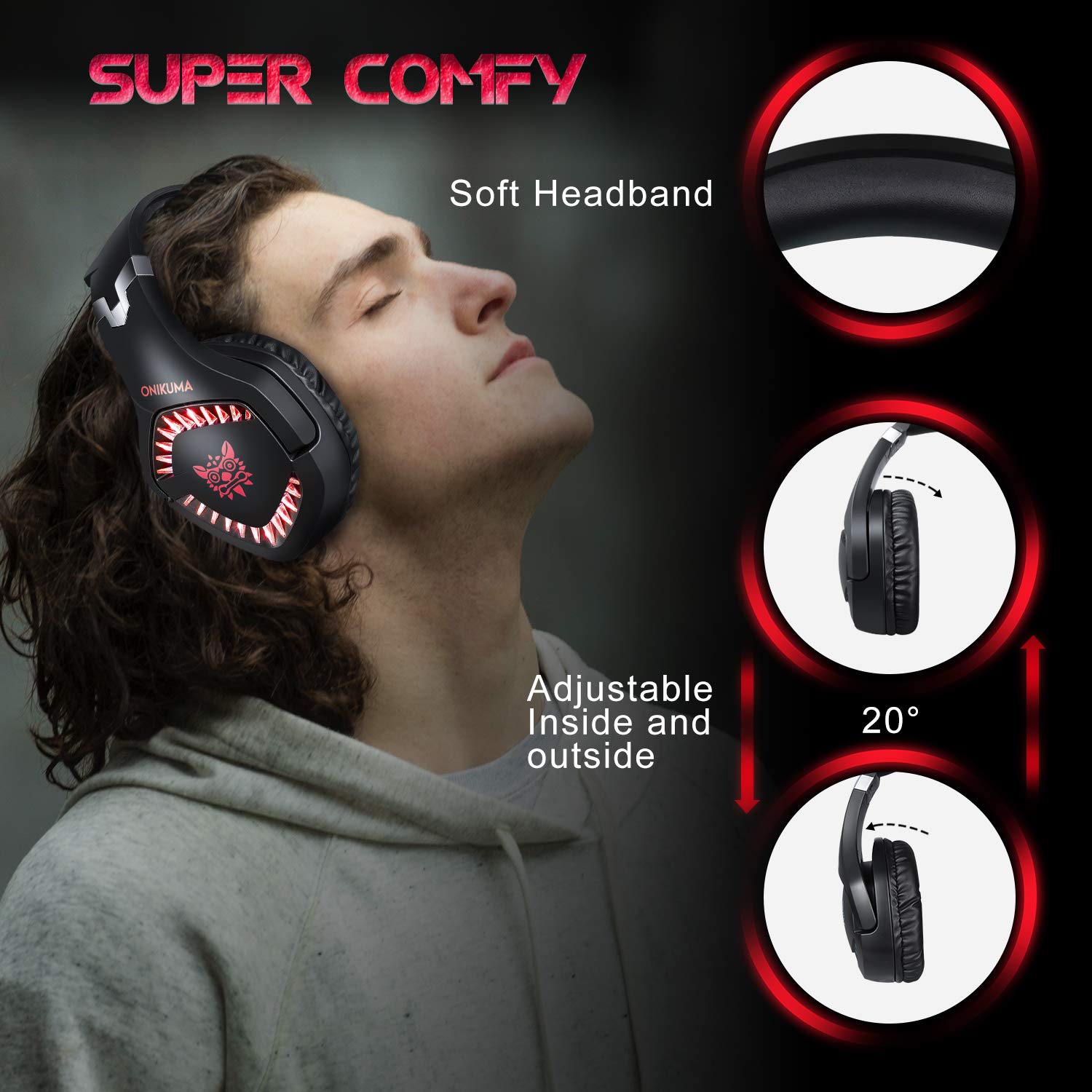
Image 4.3: Details on the headset's comfort features, including the soft headband and adjustable earcups.

Image 4.4: Illustration of the headset's ergonomic and durable design, featuring a steel beam and robust construction.
5. Техникалык тейлөө
Тийиштүү кам көрүү гарнитураңыздын иштөө мөөнөтүн узартат.
- Тазалоо: Use a soft, dry cloth to wipe the headset. For ear cushions, a slightly damp кездемени колдонсо болот, бирок нымдуулуктун динамик торчолоруна кирбегенин текшериңиз. Катуу химиялык заттардан же абразивдүү тазалоочу каражаттардан алыс болуңуз.
- Сактагыч: Гарнитураны күн нурунан жана экстремалдык температурадан алыс салкын, кургак жерде сактаңыз. Гарнитурага оор нерселерди коюудан алыс болуңуз.
- Кабельге кам көрүү: Do not pull on the cables forcefully. Always grasp the plug when disconnecting. Avoid sharp bends or kinks in the cable.
6. Кыйынчылыктарды
Гарнитураңызга байланыштуу көйгөйлөргө туш болсоңуз, төмөнкү жалпы чечимдерди караңыз:
6.1 Гарнитурадан үн чыкпайт
- Байланыштарды текшерүү: Ensure the 3.5mm audio jack is fully inserted into the correct port on your device or PC adapter.
- Үн деңгээли: Verify that the volume wheel on the inline control is turned up and that your device's volume is not muted or set too low.
- Түзмөктүн жөндөөлөрү: For PCs, check your sound settings to ensure the headset is selected as the default playback device. For consoles, verify audio output settings (e.g., "Output to Headphones" set to "All Audio" on PS4/PS5).
- Башка түзмөктө сыноо: Connect the headset to a different device (e.g., a smartphone) to determine if the issue is with the headset or the original device.
6.2 Микрофон иштебейт
- Check Mute Switch: Ensure the microphone mute switch on the inline control is in the "unmuted" position.
- Байланыштарды текшерүү: For PCs, ensure the microphone jack (red) from the PC adapter is correctly plugged into the microphone input port. For consoles/laptops with combo jacks, ensure the single 3.5mm jack is fully inserted.
- Түзмөктүн жөндөөлөрү: Verify that the headset microphone is selected as the default recording device in your computer's sound settings or console's audio settings. Adjust microphone input levels as necessary.
- Колдонмо орнотуулары: Check microphone settings within the specific game or communication application you are using.
6.3 LED чырактары иштебей жатат
- USB туташуу: Ensure the USB plug is securely connected to an active USB port on your PC, console, or a USB power adapter. The LEDs require USB power to operate.
- Кубат булагы: Try connecting the USB to a different USB port or power source to rule out a faulty port.
7. Техникалык шарттар
| Диаметри | 50мм |
| Импеданс | 20 Ом ±15% |
| Сезимталдуулук | 117±3дБ |
| Жыштык диапазону | 20-20000 Гц |
| Микрофон сезгичтиги | -38dB ± 3dB |
| Mic Empedance | 2.2kohm |
| Директивдүү | Omni-багыттуу |
| LED Working Voltage | DC5V ±5% |
| Кабелдин узундугу | Болжол менен 2.2 м / 7.22 фут |
| Продукциянын өлчөмдөрү (LxWxH) | 21.3 x 8 x 21.5 см |
| Элемент Салмагы | 300 г |
8. Кепилдик маалыматы
The ONIKUMA K1B PRO Stereo Gaming Headset comes with a 1 жылдык Чектелген Кепилдик сатып алынган күндөн тартып. Бул кепилдик кадимки колдонуудагы өндүрүштүк кемчиликтерди жана чеберчиликти камтыйт. Туура эмес колдонуудан, кырсыктардан, уруксатсыз өзгөртүүлөрдөн же кадимки эскирүүдөн келип чыккан зыянды камтыбайт. Кепилдик дооматтары үчүн сатып алганыңызды тастыктаган документти сактап коюңуз.
9. Колдоо
For technical assistance, warranty claims, or any other inquiries regarding your ONIKUMA K1B PRO headset, please contact the manufacturer's support team:
- Телефон: 022 40224087
- Электрондук почта: service@originmarketing.in
- Өндүрүүчү: ONIKUMA (via Origin Marketing Private Limited)


