Introduction
This manual provides essential information for setting up, operating, maintaining, and troubleshooting your Dell Inspiron 3593 laptop. Please read this guide thoroughly to ensure proper use and to maximize the performance and longevity of your device.

1-сүрөт: жогорудан ылдыйга view of the Dell Inspiron 3593 laptop, displaying the keyboard, touchpad, and the Windows 10 operating system interface on the screen.
Жайгашуу
1. Баштапкы күйгүзүү
- Кубат адаптерин туташтыруу: Plug the power adapter into a wall outlet and then into the power port on your laptop.
- Дисплейди ачуу: Carefully lift the display panel.
- Күйгүзүү: Press the power button located on the top-right of the keyboard. The laptop will begin the initial setup process.
2. Windows 10 орнотуу
Follow the on-screen instructions to complete the Windows 10 setup. This includes selecting your region, language, accepting the license agreement, and creating a user account. Your laptop comes with Windows 10 in S Mode, which is optimized for security and performance by exclusively using apps from the Microsoft Store. You have the option to switch out of S Mode to regular Windows 10 if you require applications not available in the Microsoft Store.
3. Тармакка кошулуу
During the Windows setup, you will be prompted to connect to a Wi-Fi network. Select your network from the list and enter the password if required. The laptop supports 802.11ac wireless connectivity.
Ноутбугуңузду иштетүү
1. Баскычтоп жана сенсордук такта
The Dell Inspiron 3593 features a full-size keyboard and a precision touchpad for navigation. The keyboard is backlit, allowing for comfortable typing in low-light conditions. Use the function keys (F1-F12) for quick access to system controls such as volume, brightness, and keyboard backlight toggle.
2. Сенсордук дисплей
Your laptop is equipped with a 15.6-inch HD touchscreen display. You can interact directly with the screen using touch gestures, similar to a tablet or smartphone. This includes tapping, swiping, pinching to zoom, and scrolling.
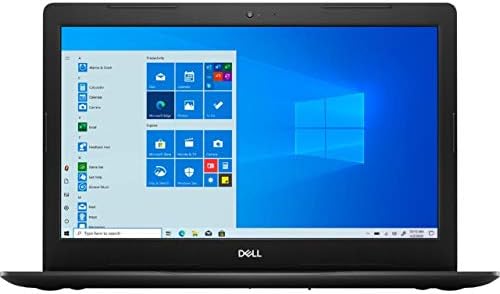
Сүрөт 2: Алдыңкы view of the Dell Inspiron 3593 laptop with the screen active, showing the Windows 10 desktop environment.
3. Порттор жана туташтыргычтар
Familiarize yourself with the various ports on your laptop:
- USB 3.0 порттору (x2): Тышкы катуу дисктерди, флэш-дисктерди жана перифериялык түзүлүштөрдү сыяктуу жогорку ылдамдыктагы USB түзмөктөрүн туташтыруу үчүн.
- USB 2.0 порту (x1): Стандарттык USB түзмөктөрүн туташтыруу үчүн.
- HDMI порту (x1): Тышкы дисплейлерге же проекторлорго туташуу үчүн.
- Combination Audio Jack (x1): Наушниктерди же микрофон менен гарнитураны туташтыруу үчүн.
- 3-in-1 Media Card Reader (SD/SDHC/SDXC): Камералар жана башка түзмөктөрдөн эстутум карталарын окуу үчүн.

Figure 3: Left side of the laptop, typically featuring the power input, HDMI, and USB ports.

Figure 4: Right side of the laptop, typically featuring the SD card reader, USB ports, and audio jack.
4. Интеграцияланган Webcam
The laptop includes an integrated Widescreen HD 720P Webcam, suitable for video calls and online meetings.
Техникалык тейлөө
1. Ноутбугуңузду тазалоо
- Экран: Жумшак, түксүз кездемени жеңил колдонуңуз dampсуу же экран тазалоочу менен бүттү. Катуу химиялык заттардан алыс болуңуз.
- Баскычтоп жана шасси: Use a soft cloth. For dust, a can of compressed air can be used to clean between keys.
- Порттор: Ensure ports are free of dust and debris to maintain proper connectivity.
2. Программалык камсыздоону жаңыртуу
Regularly check for and install Windows updates and Dell driver updates to ensure optimal performance, security, and compatibility. You can find Windows updates in the Settings app under "Update & Security." Dell updates can typically be found through the Dell SupportAssist application or Dell's official webсайт.
3. Батареяга кам көрүү
To prolong battery life, avoid extreme temperatures and fully discharging the battery frequently. For long-term storage, ensure the battery is charged to about 50%.
Проблемаларды чечүү
This section addresses common issues you might encounter with your Dell Inspiron 3593.
- Ноутбук күйбөйт:
- Кубат адаптери ноутбукка да, иштеп жаткан электр розеткасына да бекем туташып турганын текшериңиз.
- Башка аспапка сайып, розетка иштеп жатканын текшериңиз.
- Катуу баштапкы абалга келтирүү үчүн кубат баскычын 15-20 секунд басып туруңуз.
- Screen is Blank or Black:
- Connect an external monitor to the HDMI port to check if the display output is working.
- Функция баскычтары менен экрандын жарыктыгын тууралаңыз.
- Perform a hard reset as described above.
- Жай аткаруу:
- Фондо иштеп жаткан керексиз тиркемелерди жабыңыз.
- Күтүүдөгү Windows же драйвер жаңыртууларын текшерип, орнотуңуз.
- Ensure your SSD has sufficient free space (at least 15-20% free).
- Кесепеттүү программаларды же вирустарды текшерүү тутумун иштетиңиз.
- Wi-Fi туташуу маселелери:
- Ensure Wi-Fi is enabled (check function keys or Windows settings).
- Роутериңизди жана модемиңизди өчүрүп күйгүзүңүз.
- Зымсыз адаптер драйверлериңизди жаңыртыңыз.
- Тармакты унутуп, кайра туташыңыз.
For more complex issues or if troubleshooting steps do not resolve the problem, please refer to the Dell Support section.
Техникалык шарттар
| Өзгөчөлүк | Description |
|---|---|
| Модел | Dell Inspiron 3593 |
| Процессор | 10-муундагы Intel Core i7-1065G7 |
| RAM | 12 ГБ DDR4 (2666 МГц) |
| Сактагыч | 512 ГБ SSD |
| Дисплей | 15.6-inch HD (1366 x 768) IPS Touchscreen Truelife LED-Backlit Display |
| Графика | Intel UHD Graphics 620 жалпы графикалык эс тутуму менен |
| Операция системасы | Windows 10 S режиминде |
| Зымсыз байланыш | 802.11ac, Bluetooth 4.1 |
| Порттар | 2x USB 3.0, 1x USB 2.0, 1x HDMI, 1x Combination Audio Jack, 3-in-1 Media Card Reader |
| Webcam | Integrated Widescreen HD 720P Webcam |
| Аудио | Stereo speakers + MaxxAudio |
| Өлчөмдөрү (LxWxH) | 10.85 x 15.28 x 0.94 дюйм |
| Салмагы | 6.16 фунт |
Кепилдик жана колдоо
Your Dell Inspiron 3593 laptop is covered by Dell's standard warranty. For detailed information regarding warranty terms, service options, and technical support, please visit the official Dell support website. You will need your product's Service Tag, which is typically located on a sticker on the bottom of your laptop.
Dell колдоо Webсайт: www.dell.com/support
The Dell SupportAssist application pre-installed on your laptop can also help you with diagnostics, driver updates, and contacting support.


