Introduction
This manual provides essential instructions for setting up, operating, maintaining, and troubleshooting your Razer Hammerhead True Wireless Earbuds. Please read this guide thoroughly to ensure optimal performance and longevity of your device.

Image: The Razer Hammerhead True Wireless Earbuds shown with their charging case. The earbuds are white, and the case is also white with a green LED indicator.
Жайгашуу
1. Кутудан чыгаруу жана Пакеттин мазмуну
Carefully unpack your Razer Hammerhead True Wireless Earbuds. Ensure all components are present:
- Razer Hammerhead чыныгы зымсыз кулакчындар
- Заряддоо кутусу
- USB-C заряддоо кабели
- Silicone Earbud Sleeves (various sizes)
- Колдонуучунун Колдонмосу (бул документ)

Image: The white charging case for the Razer Hammerhead True Wireless Earbuds, with a black USB-C charging cable and two grey silicone earbud sleeves.
2. Баштапкы заряддоо
Биринчи колдонуудан мурун, кулакчындарды жана заряддоо кутучасын толук заряддаңыз. Кулакчындарды кубаттоочу кутуга салып, USB-C кабелин корпуска жана кубат булагына туташтырыңыз. Корпустун LED индикатору кубаттоо абалын көрсөтөт.

Image: A close-up of the Razer Hammerhead True Wireless Earbuds charging case with a USB-C cable plugged into its port, indicating the charging process.
3. Bluetooth Жупташтыруу
- Заряддоо кутучасын ачыңыз. Кулакчындар жупташтыруу режимине автоматтык түрдө кирет.
- Түзмөгүңүздө (смартфон, планшет ж.б.) Bluetooth иштетиңиз жана жеткиликтүү түзмөктөрдү издеңиз.
- Select "Razer Hammerhead True Wireless" from the list of devices.
- Once paired, the earbuds will automatically connect to the last paired device when removed from the case.

Image: The Razer Hammerhead True Wireless Earbuds and charging case, accompanied by the Bluetooth 5.0 logo, highlighting their wireless connectivity feature.
4. Razer Audio App Installation
For advanced customization and control, download the Razer Audio app from your device's app store. The app allows you to adjust equalizer settings, customize touch controls, and update firmware.
Иштөө нускамалары
1. Башкаруу элементтерине тийүү
Кулакчындар ар кандай функцияларды аткаруу үчүн интуитивдик сенсордук башкаруу элементтерине ээ:
- Ойнотуу/тындыруу: Кулакчындарды бир жолу таптаңыз.
- Кийинки трек: Оң кулакчынды эки жолу таптаңыз.
- Мурунку трек: Сол кулакчынды эки жолу таптаңыз.
- Чалууга жооп берүү/аяктоо: Кулакчындарды бир жолу таптаңыз.
- Чакырууну четке кагуу: Кулакчындардын бирин басып, кармап туруңуз.
- Үн Жардамчысын жандыруу: Кулакчындарды үч жолу таптаңыз.
- Үндү көзөмөлдөө: Customizable via the Razer Audio app.

Сүрөт: жакын план view of a single Razer Hammerhead True Wireless Earbud, highlighting its touch-enabled surface for convenient control.
2. Gaming Mode (Low Latency)
For an optimized gaming experience with minimal audio delay, activate Gaming Mode. This mode provides an ultra-low input latency of 60ms, ensuring audio is synchronized with your gameplay. This feature can typically be toggled via the Razer Audio app or specific touch gestures (refer to the app for details).
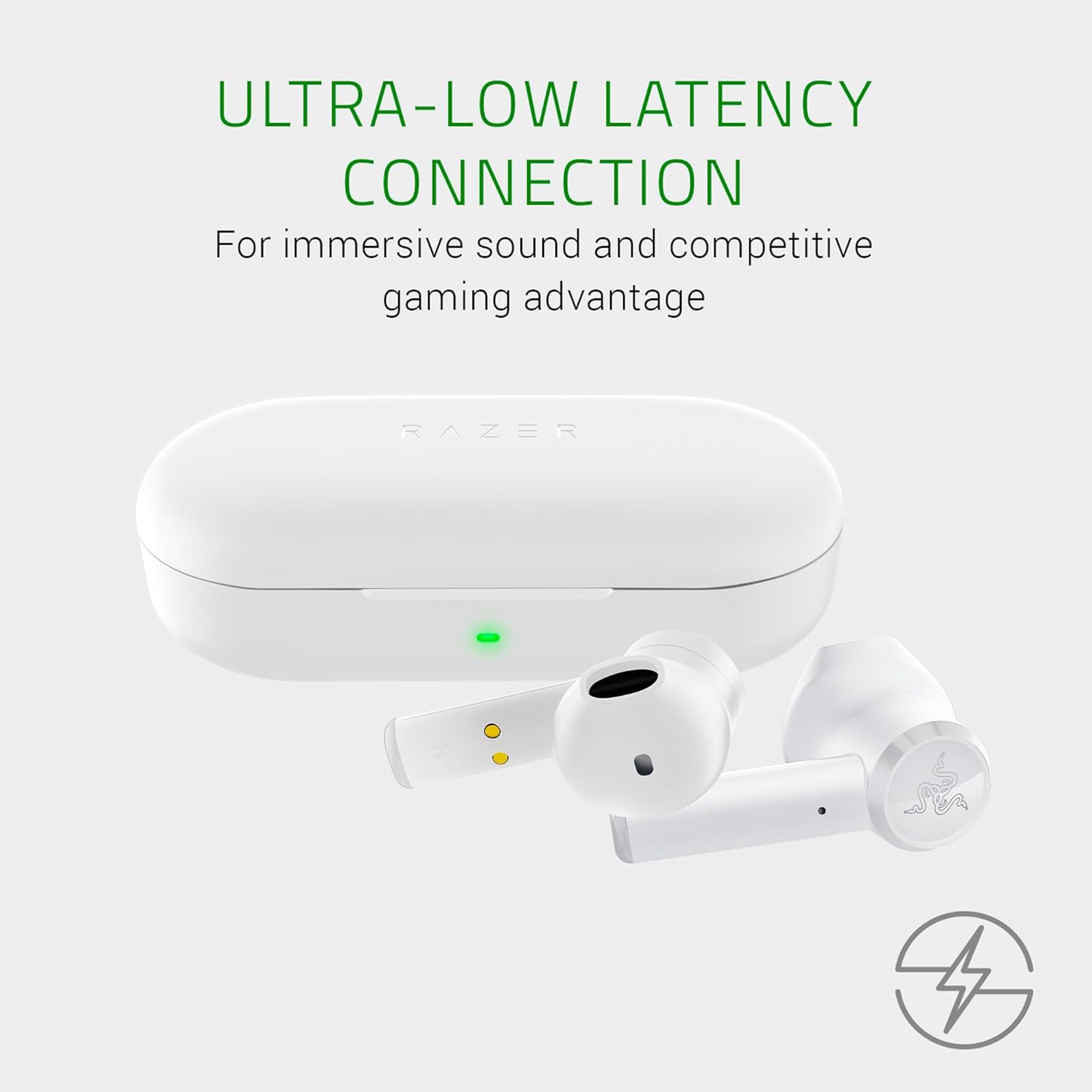
Image: The Razer Hammerhead True Wireless Earbuds and charging case, with text indicating "Ultra-Low Latency Connection" for immersive sound and competitive gaming.
3. Аудио аткаруу
The earbuds are equipped with custom-tuned 13mm dynamic drivers designed to deliver clear, balanced sound with deep bass, crisp highs, and rich mids. For personalized audio, use the Razer Audio app to adjust equalizer settings.

Image: An illustration showing three views of a Razer Hammerhead True Wireless Earbud with green sound waves emanating, emphasizing the custom-tuned 13mm drivers for clear, balanced sound.
4. Water-Resistant Design
The Razer Hammerhead True Wireless Earbuds feature a water-resistant design, allowing for use during various outdoor activities without concern for splashes or light rain. This design enhances durability for an active lifestyle.

Image: Two Razer Hammerhead True Wireless Earbuds displayed side-by-side, with text indicating "Water-Resistant Design" for an active lifestyle.

Image: A close-up of a single Razer Hammerhead True Wireless Earbud with water droplets on its surface, illustrating its water-resistant capability.
Техникалык тейлөө
1. Тазалоо
Regularly clean your earbuds and charging case to maintain optimal performance and hygiene:
- Кулакчындарды жана кутучаны сүртүү үчүн жумшак, кургак, түксүз чүпүрөктү колдонуңуз.
- For earbud tips, gently remove them and clean with a mild soap solution if necessary, then rinse and dry completely before reattaching.
- Абразивдүү материалдарды же катуу химиялык заттарды колдонуудан алыс болуңуз.
2. Заряддоо
To ensure consistent power, charge your earbuds and case regularly. The charging case provides additional battery life, extending total usage time up to 15 hours. Always use the provided USB-C cable for charging.
The LED indicator on the charging case displays the battery status:
- Жашыл: Fully charged or high battery.
- Эмбер: Орточо кубаттуулуктагы батарея.
- Кызыл: Low battery, requires charging.
3. Сактоо
Колдонулбай турган учурда, кулакчындарды коргоо жана кубаттоо үчүн кубаттоочу кутучасында сактаңыз. Кутучаны салкын, кургак жерде, күндүн нуру түз тийбеген жана өтө жогорку температурадан алыс сактаңыз.
Проблемаларды чечүү
1. Earbuds Not Pairing or Connecting
- Эки кулакчындын тең кубатталганын текшериңиз.
- Эки кулакчынды тең кубаттоочу кутуга кайра салып, капкагын жаап, бир нече секунд күтүп, андан кийин жупташтыруу режимин кайра баштоо үчүн кайра ачыңыз.
- On your device, forget or remove the "Razer Hammerhead True Wireless" from your Bluetooth device list, then attempt to pair again.
- Түзмөккө тиешелүү маселелерди болтурбоо үчүн башка түзмөк менен жупташып көрүңүз.
2. One Earbud Not Working or Charging
- Check the charging contacts on both the earbud and inside the case for any debris or obstruction. Clean gently if necessary.
- Ensure the earbud is seated correctly in the charging case.
- Fully charge the case and earbuds. If one earbud consistently shows low battery or fails to charge, it may indicate a hardware issue.
- Perform a factory reset (refer to the Razer Audio app or Razer support webконкреттүү көрсөтмөлөр үчүн сайт).
3. Microphone Issues (e.g., with Discord)
Some users may experience microphone conflicts when using the earbuds with certain applications like Discord on PC. If you encounter issues where you cannot speak or be heard:
- On your PC, go to Sound Settings.
- Under "Input" (for microphone) and "Output" (for playback), disable any entries related to the "Razer Hammerhead True Wireless Hands-Free AG Audio" or similar hands-free profiles.
- Ensure only the "Razer Hammerhead True Wireless Stereo" is enabled for playback.
- You may need to use an alternative microphone for voice chat if the stereo profile does not support simultaneous high-quality audio and microphone input.
4. Үн сапаты маселелери
- Ensure the earbud sleeves are correctly sized and provide a good seal in your ear canal.
- Adjust equalizer settings via the Razer Audio app.
- Check for firmware updates through the Razer Audio app.
Техникалык шарттар
| Өзгөчөлүк | Деталь |
|---|---|
| Модель аты | Hammerhead True Wireless |
| Модель номери | RZ12-02970500-R3M1 |
| Байланыш технологиясы | Bluetooth 5.0 |
| Айдоочунун өлчөмү | 13мм динамикалык айдоочулар |
| Сууга туруктуулук деңгээли | Water-resistant (Étanche) |
| Микрофон технологиясы | Көп багыттуу |
| Башкаруу түрү | Тийип, Колдонмону башкаруу |
| Батарея түрү | Литий-полимер |
| Батареянын жалпы иштөө мөөнөтү (корпус менен) | 15 саатка чейин |
| Кулакчынын салмагы | 12 грамм |
| Импеданс | 32 Ом |
| Frequency Response | 20 Гц - 20 кГц |
Кепилдик маалымат
The Razer Hammerhead True Wireless Earbuds come with a manufacturer's warranty of 24 ай сатып алынган күндөн тартып. Бул кепилдик нормалдуу колдонуудагы материалдардагы жана жасалгадагы кемчиликтерди камтыйт. Кепилдик дооматтары үчүн сатып алганыңыздын далилин сактап коюңуз.
For detailed warranty terms and conditions, please visit the official Razer support webсайт.
Колдоо
If you encounter any issues not covered in this manual or require further assistance, please contact Razer Customer Support:
- Онлайн колдоо: расмий сапар Razer колдоо Webсайт.
- Razer Audio App: Колдонмо колдонмодогу колдоону же көйгөйлөрдү чечүү боюнча көрсөтмөлөрдү сунуштай алат.
Before contacting support, please have your product model number (RZ12-02970500-R3M1) and proof of purchase ready.


