Introduction
This manual provides detailed instructions for the proper setup, operation, and maintenance of your Supvan TP76E Black & White Label Printer. Please read this manual thoroughly before using the device to ensure optimal performance and longevity. The Supvan TP76E is designed for efficient label printing, offering monochrome output at speeds up to 25 labels per minute.
Пакеттин мазмуну
Баштоодон мурун, пакетте бардык элементтер бар экенин текшериңиз:
- Supvan TP76E Label Printer
- Кубаттуу адаптер
- USB кабели
- Sample Label Roll
- Колдонуучунун Колдонмосу (бул документ)
Жайгашуу
1. Пакеттен чыгаруу жана жайгаштыруу
Carefully remove the printer from its packaging. Place the printer on a stable, flat surface with adequate ventilation. Ensure there is enough space around the printer for easy access to ports and for label output.

Figure 1: Supvan TP76E Label Printer (Side View)
This image displays the Supvan TP76E label printer from a side angle, highlighting its integrated keyboard, the transparent cover over the label compartment, and the overall compact design. The handle on the right side is also visible.
2. Power Connection
- Connect the power adapter to the power input port on the printer.
- Кубат адаптеринин экинчи учун стандарттуу электр розеткасына сайыңыз.
- Press the power button to turn on the printer. The display should illuminate.
3. Loading Label Roll
The TP76E uses thermal label rolls. Follow these steps to load a new roll:
- Open the transparent cover of the label compartment located at the top of the printer.
- Place the label roll onto the spindle, ensuring the labels feed from the bottom of the roll towards the print head.
- Feed the leading edge of the label through the guide until it is positioned under the print head.
- Тунук капкакты бекем жабыңыз.
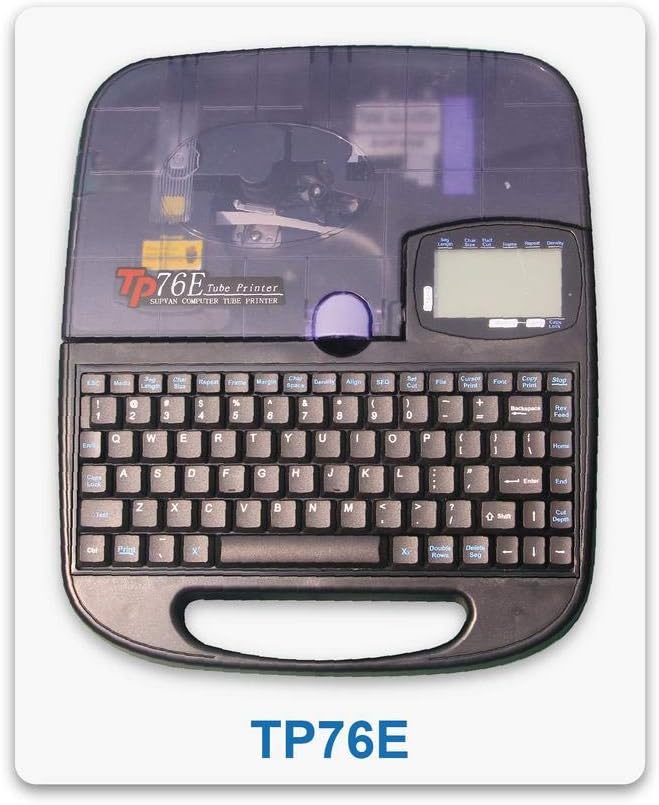
Figure 2: Supvan TP76E Label Printer (Top View)
Бул сүрөт жогорудан ылдый карай берет view of the Supvan TP76E, clearly showing the full QWERTY keyboard layout, the LCD display, and the transparent cover of the label roll compartment. This perspective is useful for understanding the user interface.
4. Connecting to a Computer (Optional)
The TP76E supports USB connectivity for printing from a computer.
- Connect one end of the provided USB cable to the USB port on the printer.
- USB кабелинин экинчи учун компьютериңиздеги жеткиликтүү USB портуна туташтырыңыз.
- Install the necessary drivers and software from the official Supvan website or the included installation media (if applicable).
Иштөө нускамалары
1. Негизги энбелгилерди түзүү
- Принтерди күйгүзүңүз.
- Use the integrated QWERTY keyboard to type your desired text. The text will appear on the LCD display.
- Utilize the navigation keys to move the cursor and edit text.
- басыңыз Басып чыгаруу button to print the label.
2. Formatting Options
The TP76E offers various formatting options accessible via dedicated keys or menu functions:
- Ариптин өлчөмү: Adjust the size of the text to fit your label requirements.
- Bold/Italic: Apply bold or italic styling to your text for emphasis.
- Астын сыз Add an underline to text.
- кадр: Add decorative frames around your text.
- Тегиздөө: Choose left, center, or right alignment for your text.
3. Saving and Recalling Labels
The printer allows you to save frequently used label designs for quick recall:
- After creating a label, navigate to the Сактоо function (refer to the display menu).
- Select an empty memory slot to store the label.
- To recall a saved label, navigate to the Эскертүү or Open function and select the desired label from the list.
Техникалык тейлөө
1. Басып чыгаруу башын тазалоо
Regular cleaning of the print head ensures clear and consistent print quality. Clean the print head if you notice faded or incomplete prints.
- Принтерди өчүрүп, кубат адаптерин сууруп алыңыз.
- Этикетка бөлүмүнүн капкагын ачыңыз.
- Басып чыгаруу башынын бетин кебез таякча менен акырын сүртүңүзampизопропил спирти менен эритилген. Сууну же абразивдүү тазалоочу каражаттарды колдонбоңуз.
- Капкакты жаап, кубатту кайра туташтырардан мурун басып чыгаруу башынын толук кургашына жол бериңиз.
2. Replacing Label Rolls
When the label roll is depleted, replace it as follows:
- Этикетка бөлүмүнүн капкагын ачыңыз.
- Remove the empty label roll core.
- Insert a new label roll as described in the Жайгашуу бөлүм.
- Капкакты жабыңыз.
Проблемаларды чечүү
This section addresses common issues you might encounter with your Supvan TP76E printer.
| Көйгөй | Мүмкүн себеп | Чечим |
|---|---|---|
| Принтер күйбөйт | No power supply; Power adapter faulty | Ensure power adapter is securely connected to printer and outlet. Try a different outlet. |
| No labels are printing | Label roll empty; Labels incorrectly loaded; Print head dirty | Replace label roll. Re-load labels correctly. Clean the print head as per maintenance instructions. |
| Print quality is poor/faded | Print head dirty; Low quality labels | Clean the print head. Ensure you are using high-quality thermal labels. |
| Принтер компьютер тарабынан таанылган жок | USB cable faulty; Drivers not installed or outdated | Try a different USB cable or port. Install or update printer drivers from the Supvan webсайт. |
Техникалык шарттар
Key technical specifications for the Supvan TP76E Label Printer:
- Модель номери: Supvan TP76E
- Принтердин чыгышы: Монохром (кара жана ак)
- Басып чыгаруу технологиясы: Термикалык
- Байланыш: USB
- Басма маалымат каражаттары: Энбелгилер
- Киргизүү барагынын максималдуу сыйымдуулугу: 25 (labels per minute)
- Эки тараптуу басып чыгаруу: Жок
- Батареялар талап кылынат: Жок
Кепилдик жана колдоо
For warranty information, technical support, or to purchase accessories and replacement parts, please contact Supvan customer service or visit their official webсайт.
Көбүрөөк маалыматты жана колдоо булактарын расмий сайттан таба аласыз Amazon'догу SUPVAN дүкөнү.
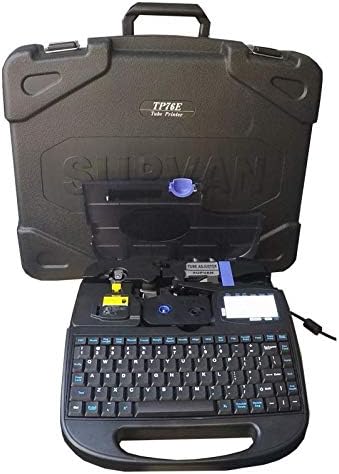
Figure 3: Supvan TP76E Label Printer in Carrying Case
This image shows the Supvan TP76E label printer neatly stored within its custom-fitted protective carrying case, emphasizing its portability and secure storage solution.


