Introduction
This manual provides essential information for the proper setup, operation, and maintenance of your MikroTik RB2011UiAS-2HnD-IN Router. Please read through these instructions carefully to ensure optimal performance and longevity of your device. This router is designed for versatile networking applications, featuring a combination of Gigabit and Fast Ethernet ports, an SFP port, and integrated wireless capabilities.
Продукт бүттүview
The MikroTik RB2011UiAS-2HnD-IN is a versatile router designed for various networking environments. It combines robust routing capabilities with integrated wireless functionality. Key features include:
- Ethernet порттору: 5x Gigabit Ethernet ports (Eth1-Eth5) and 5x Fast Ethernet ports (Eth6-Eth10).
- SFP порту: One SFP port for fiber connectivity.
- Зымсыз: Integrated 802.11b/g/n wireless with two external antennas.
- USB порт: One USB port for additional storage or 3G/4G modem connectivity.
- Ethernet аркылуу күч (PoE): PoE output on Eth10, allowing power to be supplied to another PoE-compatible device.
- Операция системасы: RouterOS, offering extensive configuration options.

Сүрөт 1: Алдыңкы view of the MikroTik RB2011UiAS-2HnD-IN Router. It features five Gigabit Ethernet ports (Eth1-Eth5), five Fast Ethernet ports (Eth6-Eth10), one SFP port, one USB port, and two external antennas for wireless connectivity. LED indicators for port activity are also visible.
Жайгашуу
1. Баштапкы байланыш
- Кубат туташуу: Connect the provided power adapter to the DC jack on the router and plug it into a power outlet.
- Интернет байланышы: Connect your internet service provider's modem or main network cable to the WAN port (typically Eth1 or a designated WAN port).
- Local Network Devices: Connect your computers or other network devices to any of the available Ethernet ports (Eth1-Eth10).
- Зымсыз антенналар: Ensure the two external antennas are securely attached and positioned for optimal signal coverage.
2. First-Time Configuration
- Access RouterOS: ачуу а web browser on a computer connected to the router and navigate to the default IP address (usually http://192.168.88.1).
- Кирүү: The default username is 'admin' with no password. It is highly recommended to set a strong password immediately after logging in.
- Ыкчам орнотуу: Use the "Quick Set" interface for basic configuration, including setting up your internet connection, wireless network name (SSID), and password.
- Өркүндөтүлгөн Конфигурация: For advanced settings, refer to the RouterOS documentation available on the MikroTik webсайт.

2-сүрөт: бурчтуу view of the MikroTik RB2011UiAS-2HnD-IN Router, highlighting its compact design and the placement of its various ports and antennas.
Иштөө нускамалары
1. Wireless Network Usage
- Түзмөктөрдү туташтыруу: Издөө your configured wireless network (SSID) on your devices and connect using the password you set during setup.
- Сигналдарды оптималдаштыруу: Position the router in a central location, away from obstructions and interference sources, for the best wireless signal.
2. Ethernet портунун функционалдуулугу
- Gigabit Ports (Eth1-Eth5): Use these ports for devices requiring high-speed connections, such as servers, network-attached storage (NAS), or high-performance workstations.
- Fast Ethernet Ports (Eth6-Eth10): Suitable for general network devices like printers, older computers, or devices that do not require Gigabit speeds.
- PoE Out (Eth10): Eth10 can provide power to another PoE-compatible device. Ensure the connected device supports passive PoE and the power requirements are met.
- SFP порту: The SFP port allows for fiber optic connections, providing high-speed and long-distance network links. Insert a compatible SFP module as needed.
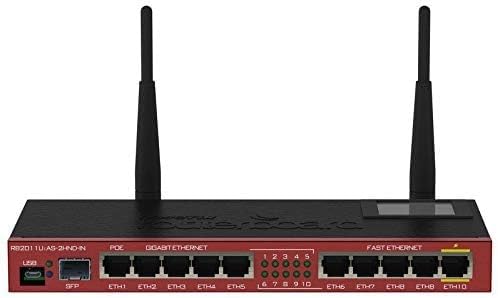
Figure 3: A top-down perspective of the router, providing a clear view of the port numbering, LED indicators, and the overall layout of the device's front panel.
Техникалык тейлөө
- Программалык камсыздоонун жаңыртуулары: MikroTikти үзгүлтүксүз текшерип туруңуз website for RouterOS updates. Keeping your firmware up-to-date ensures security and performance improvements. Follow the official update procedures carefully.
- Тазалоо: Keep the router clean and free from dust. Use a soft, dry cloth for cleaning. Do not use liquid cleaners or aerosols. Ensure ventilation slots are unobstructed.
- Экологиялык шарттар: Operate the router within its specified temperature and humidity ranges to prevent damage and ensure stable operation.
Проблемаларды чечүү
- Кубат жок: Check the power adapter connection and the power outlet. Ensure the power LED on the router is illuminated.
- Интернет байланышы жок: Verify that your modem is working correctly. Check the WAN port connection on the router. Ensure your internet service provider is not experiencing outages.
- Wireless Issues: Confirm your wireless network is enabled and broadcasting. Check the wireless password. Try restarting the router. Ensure no strong interference sources are nearby.
- Жай тармак ылдамдыгы: Check cable connections for damage. Ensure devices are connected to appropriate speed ports (Gigabit for high-speed). Monitor network traffic for congestion.
- Заводдун баштапкы абалга келтирүү: If you encounter persistent issues or forget your password, you can perform a factory reset. Locate the reset button (usually a small pinhole) and press it for 5-10 seconds while the device is powered on. This will revert all settings to default.
Техникалык шарттар
| Өзгөчөлүк | Деталь |
|---|---|
| Модель аты | RB2011UiAS-2HnD-IN |
| Продукциянын өлчөмдөрү | 3.54 x 9.06 x 0.98 дюйм |
| Элемент Салмагы | 8.1 унция |
| Ethernet порттору | 5x Gigabit, 5x Fast Ethernet |
| SFP порту | 1x SFP |
| Зымсыз стандарт | 802.11b/g/n |
| Жыштык тилкесинин классы | Бир тилкелүү (2.4 ГГц) |
| Антенна түрү | Internal (with external connectors for included antennas) |
| USB порту | 1x USB |
| PoE Out | Yes, on Eth10 |
| Өндүрүүчү | Микротик |
| Дата биринчи жеткиликтүү | 20-январь, 2020-жыл |
Кепилдик жана колдоо
Кепилдик жөнүндө маалымат жана техникалык колдоо алуу үчүн, расмий MikroTik компаниясына кайрылыңыз. webсайтына кириңиз же ыйгарым укуктуу сатуучуга кайрылыңыз. Кепилдик талаптары үчүн сатып алуунун далили катары сатып алуу дүмүрчөгүңүздү сактап коюңуз.


