Introduction
The myGEKOgear Orbit 960 is a 4K UHD dash camera designed to record your journeys with high clarity. Featuring a Sony STARVIS sensor for enhanced low-light performance, built-in Wi-Fi for mobile app connectivity, and GPS logging for location and speed data, this device provides comprehensive recording capabilities. It also includes advanced driver assistance systems (ADAS) such as Forward Collision Warning System (FCWS) and Lane Departure Warning System (LDWS) to promote safer driving habits.
Кутуда эмне бар
- Dash камерасы
- 12 Volt Power Cable
- Жабыштыруучу тоо
- Сорох кубогын таһыгар
- 16 GB Micro SD Card & Card Reader
- User Manual
- Кепилдик картасы
Продукт бүттүview

Сүрөт 1: Алдыңкы View of the Dash Cam

2-сүрөт: Арткы View with Screen and Controls
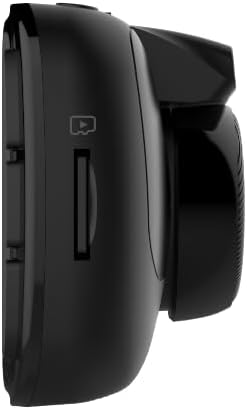
3-сүрөт: Каптал View with MicroSD Card Slot

4-сүрөт: Жогорку View порттор менен
Жайгашуу
1. Камераны орнотуу
Алдыңкы айнегиңизге, адатта арткы айнегиңиздин артына, ылайыктуу жерди тандаңызview тоскоолдуксуз камсыз кылуу үчүн күзгү view of the road. Clean the area thoroughly before applying the mount.
- Сорулуучу чөйчөк орнотуу: Attach the suction cup to the cleaned windshield and press firmly while engaging the locking mechanism to secure it.
- Жабышкак орнотуу: Peel off the protective film from the adhesive pad and firmly press the mount onto the cleaned windshield for at least 30 seconds. Allow 24 hours for the adhesive to fully cure before attaching the dash cam.
Once the mount is secure, slide the dash cam onto the mount until it clicks into place.

Figure 5: Dash Cam Mounted in Vehicle
2. MicroSD картасын салуу
Insert the provided 16GB MicroSD card (or your own, up to 512GB) into the MicroSD card slot on the side of the dash cam until it clicks. Ensure the card is inserted correctly to avoid damage.
3. Аппаратты кубаттоо
Connect the 12 Volt Power Cable to the dash cam's USB port and plug the other end into your vehicle's cigarette lighter socket. The dash cam will automatically power on and begin recording when your vehicle starts.
4. Баштапкы күйгүзүү жана негизги жөндөөлөр
Upon first power-on, the dash cam may prompt you to set the date and time. Use the control buttons on the side of the device to navigate the menu and adjust settings. It is recommended to format the MicroSD card through the dash cam's settings menu before first use.
5. Mobile App Connection (Wi-Fi)
Download the GEKO DVR app from your smartphone's app store. Enable Wi-Fi on your dash cam via the settings menu. On your smartphone, connect to the dash cam's Wi-Fi network (SSID typically starts with 'Orbit_960-'). The default password is '12345678'. Once connected, you can view жаша фооtage, adjust settings, and transfer recordings directly to your phone.
Иштөө нускамалары
1. Жазуу режимдери
- Цикл жаздыруу: The dash cam continuously records video in segments (e.g., 1, 3, or 5 minutes). When the MicroSD card is full, the oldest fileнын үстүнө жаңы жазуулар жазылат.
- Өзгөчө кырдаалдарда жаздыруу (G-сенсор): In the event of a sudden impact or collision, the built-in G-Sensor automatically detects the event and locks the current video segment, preventing it from being overwritten.
2. Using the Mobile App
The GEKO DVR app allows for convenient control and management of your dash cam. After connecting via Wi-Fi, you can:
- View жандуу видео канал.
- Access and download recorded videos and photos.
- Adjust various settings, including resolution, loop recording duration, and driver assistance features.
3. Driver Assist Features
The Orbit 960 includes several driver assistance features to enhance safety:
- Алдыга кагылышуу жөнүндө эскертүү системасы (FCWS): Унаага өтө тез жакындап калганыңызда эскертет.
- Тилкеден чыгып кетүү жөнүндө эскертүү системасы (LDWS): Унааңыз сигнал бербей туруп тилкеден чыгып кетсе, сизге кабарлайт.
- Headlight Reminder: Prompts you to turn on your headlights in low-light conditions.
- Driver Fatigue Alarm: Provides alerts to prevent drowsy driving during long trips.
These features can be enabled or disabled through the dash cam's settings menu or the mobile app.
4. GPS Logging
The built-in GPS module records your vehicle's speed and location data, which is embedded in the video fileс. Бул маалымат болушу мүмкүн viewed during playback using compatible software or the mobile app, providing crucial context for recorded events.
5. Паркинг режими
When enabled, parking mode allows the dash cam to monitor your vehicle while parked. If an impact is detected (via the G-Sensor), the dash cam will automatically record a short video segment. For continuous parking surveillance, the dash cam requires a constant power supply (e.g., hardwired installation).
Негизги өзгөчөлүктөрү
- 4K UHD Video & Sony STARVIS Sensor: Records videos at 3840 x 2160p at 30 fps, offering high clarity even in low-light conditions.
- 140° кең бурчтуу объектив: Кеңири чагылдырат view of the road, minimizing blind spots.
- 2.7" LCD дисплей: Provides a clear interface for viewing live footage and navigating settings.
- Wi-Fi иштетилген: Колдонуучуларга мүмкүнчүлүк берет view and transfer footage to a smartphone via the GEKO DVR app.
- GPS журналы: Records accurate speed and location information, vital for incident analysis.
- G-сенсор: Automatically detects impacts and locks video files to prevent overwriting.
- Кыймылды аныктоо: Initiates recording when motion is detected in front of the vehicle, useful for parking surveillance.
- Driver Assist Features: Includes Speed Limit Alert, Lane Departure Warning System (LDWS), and Front Collision Warning System (FCWS) to promote safer driving.
- MicroSD картаны колдоо: Supports up to 512GB, with a 16GB card included for immediate use.
Видео 1: Бүттүview of myGEKOgear Orbit 960 4K Dash Cam features, including Wi-Fi and GPS logging.
Техникалык шарттар
| Өзгөчөлүк | Деталь |
|---|---|
| Продукциянын өлчөмдөрү | 7 x 5 x 3 дюйм |
| Элемент Салмагы | 3.5 унция |
| Элемент моделинин номери | GO96016G |
| Батареялар | 1 литий-иондук батарейкалар талап кылынат (кошулган) |
| Connectivity Technologies | Wi-Fi |
| GPS | GPS Built-In; Location Capture |
| Өзгөчөлүктөр | 4K Resolution, Auto Incident Recording, Built-in GPS logging, Night Vision, WiFi - Instant File Мүмкүнчүлүк |
| Түс | Кара |
| Өндүрүүчү | myGEKOgear |
| Модель аты | Орбита 960 |
| Видео тартуунун резолюциясы | 2160p |
| Монтаж түрү | Camera Mount (Suction Cup, Adhesive) |
| Field Of View | 140 градус |
Техникалык тейлөө
- SD картаны форматтоо: Regularly format your MicroSD card (at least once a month) to ensure optimal performance and prevent data corruption. This can typically be done through the dash cam's settings menu or the mobile app.
- Тазалоо: Keep the dash cam lens and screen clean using a soft, dry cloth. Avoid abrasive materials or harsh chemicals.
- Программалык камсыздоонун жаңыртуулары: Check the myGEKOgear website or the GEKO DVR app periodically for available firmware updates. Keeping your device updated ensures access to the latest features and performance improvements.
Проблемаларды чечүү
- Dash Cam күйбөй жатат: Ensure the power cable is securely connected to both the dash cam and the vehicle's 12V socket. Check if the vehicle's 12V socket is receiving power.
- SD карта катасы: Format the MicroSD card. If the issue persists, try a different, high-quality MicroSD card (Class 10 or higher recommended).
- Wi-Fi туташуу маселелери: Ensure Wi-Fi is enabled on the dash cam and your smartphone is connected to the correct dash cam network. Verify the Wi-Fi password.
- App Not Connecting/Functioning: Ensure location permissions are granted to the app on your smartphone. Restart both the dash cam and the app. Check for app updates.
- Видеонун сапаты начар: Ensure the lens is clean and free from obstructions. Check the resolution settings in the dash cam or app.
For further assistance, refer to the detailed user manual included in the box or contact myGEKOgear customer support.
Кепилдик жана колдоо
The myGEKOgear Orbit 960 Dash Cam comes with a manufacturer's warranty. Please refer to the Warranty Card included in your product packaging for specific terms and conditions. For technical support, product inquiries, or warranty claims, please visit the official myGEKOgear website or contact their customer service department. Keep your purchase receipt as proof of purchase for warranty services.


