1. Киришүү
This manual provides detailed instructions for the installation, operation, and maintenance of your D-Link DCS-8627LH Full HD Outdoor Wi-Fi Camera with Spotlight. Please read this manual thoroughly before using the device to ensure proper setup and functionality. Keep this manual for future reference.
2. Продукт бүтүп калдыview
The D-Link DCS-8627LH is an outdoor Wi-Fi camera designed for security monitoring, featuring Full HD 1080p resolution, a built-in spotlight, and advanced detection capabilities. It integrates with the mydlink app for remote access and smart home ecosystems like Google Assistant and Amazon Alexa.
2.1 Пакеттин мазмуну
- D-Link DCS-8627LH Full HD тышкы Wi-Fi камерасы
- Орнотуу комплекти (бурамалар, дубалга бекиткичтер)
- Кубаттуу адаптер
- Ыкчам орнотуу колдонмосу
2.2 Камеранын өзгөчөлүктөрү
- Full HD 1080p токтому: Секундасына 30 кадр жыштыгында так видео тартат.
- Интегралдык Spotlight: Enhances color night vision and acts as a deterrent.
- Инфракызыл түнкү көрүнүш: Provides clear video up to 7 meters in low light conditions.
- Эки тараптуу аудио: Байланыш үчүн орнотулган микрофон жана динамик.
- Кыймылды жана үндү аныктоо: Triggers recording and sends notifications.
- Wi-Fi туташуусу: Easy wireless setup and access.
- Жергиликтүү сактагыч: Supports microSD card for video recording.
- Аба ырайына чыдамдуу дизайн: Сыртта орнотуу үчүн ылайыктуу.
- Smart Home интеграциясы: Compatible with mydlink app, Google Assistant, Amazon Alexa, and IFTTT.
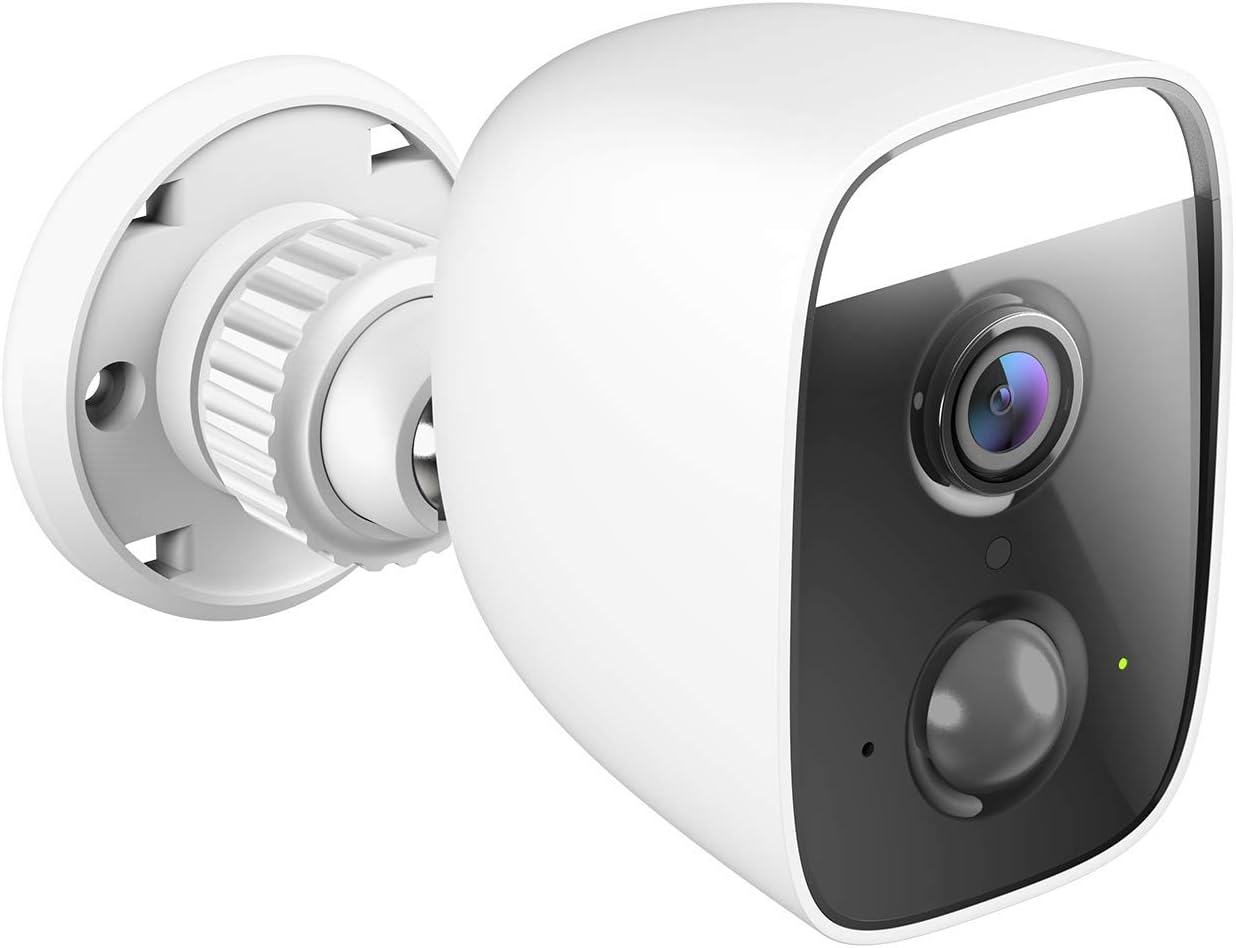
1-сүрөт: Бурчтуу view of the D-Link DCS-8627LH camera, showcasing its compact design and integrated spotlight.

2-сүрөт: Фронт view of the D-Link DCS-8627LH camera, highlighting the lens, motion sensor, and spotlight.
3. Орнотуу
3.1 Баштоодон мурун
- Ensure your Wi-Fi network is active and you have the Wi-Fi password.
- Have your smartphone or tablet ready.
- Choose a suitable outdoor location for installation, ensuring Wi-Fi signal strength and access to a power outlet.
3.2 mydlink App Installation
- Download the free mydlink app from the App Store (iOS) or Google Play (Android).
- Launch the mydlink app and create a new account or log in with an existing one.
3.3 Adding the Camera to mydlink
- Plug the camera into a power outlet near your Wi-Fi router for initial setup.
- Wait for the camera's LED indicator to flash orange, indicating it's ready for setup.
- In the mydlink app, tap the menu icon (☰) and select "Add a Device."
- Scan the setup QR code located on the camera or its packaging.
- Камераны Wi-Fi тармагына туташтыруу үчүн колдонмодогу экрандагы нускамаларды аткарыңыз.
- Once connected, the LED indicator will turn solid green.
3.4 Физикалык орнотуу
The DCS-8627LH camera is designed for wall or pole mounting. Ensure the chosen location provides a clear view and is within range of your Wi-Fi signal and a power source.
- Use the provided mounting template to mark screw holes on the wall or pole.
- Drill pilot holes and insert wall plugs if mounting on masonry.
- Secure the mounting bracket to the surface using the screws.
- Камераны орнотуучу кронштейнге бекитип, зарылчылыкка жараша бурчту тууралаңыз.
- Connect the power adapter to the camera and plug it into a weather-protected outdoor power outlet.

3-сүрөт: Бурчтуу view of the D-Link DCS-8627LH camera, showing the adjustable mounting base.

4-сүрөт: Арткы view of the camera, indicating the location of the microSD card slot and reset button.
4. Иштөө нускамалары
The D-Link DCS-8627LH camera is primarily operated through the mydlink app.
4.1 Using the mydlink App
- Live View: Tap on your camera in the app to view жандуу видео каналы.
- Жаздыруу: Manually record video or configure event-based recording (motion/sound detection).
- Ойнотуу: Access recorded videos stored on the microSD card or mydlink cloud (if subscribed).
- Эскертмелер: Receive push notifications on your smartphone when motion or sound is detected.
- Эки тараптуу аудио: Use the microphone icon in the live view камеранын динамиги аркылуу сүйлөө.
- Spotlight Control: Manually turn the spotlight on/off or configure it to activate upon motion detection.

5-сүрөт: A smartphone screen showing a mydlink app notification for motion detection, with options for live view or contacting security.
4.2 Кыймылды жана үндү аныктоо
Configure detection zones and sensitivity levels within the mydlink app settings for your camera. This allows you to customize when the camera triggers recordings and sends alerts.
4.3 Smart Home интеграциясы
The DCS-8627LH supports integration with:
- Google Жардамчысы: Бул үчүн үн буйруктарын колдонуңуз view your camera feed on compatible devices.
- Amazon Alexa: Камераны башкарыңыз жана view its feed using Alexa-enabled devices.
- IFTTT (Эгер бул анда): Create custom automation rules with other smart devices and services.
Refer to the respective platform's documentation or the mydlink app for detailed setup instructions for these integrations.
5. Техникалык тейлөө
5.1 Камераны тазалоо
Мезгил-мезгили менен камеранын линзасын жана корпусун жумшак, гamp кездеме. Линзага же каптамага зыян келтириши мүмкүн болгон катуу химиялык заттарды же абразивдүү материалдарды колдонуудан алыс болуңуз.
5.2 Микропрограмма жаңыртуулары
D-Link regularly releases firmware updates to improve performance and add new features. Check for and install updates via the mydlink app to ensure your camera has the latest enhancements and security patches.
5.3 MicroSD картасын башкаруу
If using a microSD card for local storage, ensure it is properly inserted and formatted through the mydlink app. Regularly check the card's status and consider replacing it if errors occur or its performance degrades.
6. Кыйынчылыктарды
This section addresses common issues you might encounter with your D-Link DCS-8627LH camera.
6.1 Байланыш маселелери
- Байланыш жок: Ensure the camera is powered on and within Wi-Fi range. Check your router's internet connection.
- Wi-Fi сигналы начар: Relocate the camera closer to your router or consider using a Wi-Fi extender.
- Орнотуудагы ката: Try resetting the camera and repeating the setup process in the mydlink app.
6.2 Сүрөттүн сапатындагы көйгөйлөр
- бүдөмүк сүрөт: Камера линзасын тазалаңыз. Линзанын алдында эч кандай тоскоолдуктар жок экенин текшериңиз.
- Түнкү көрүү начар: Ensure the infrared LEDs are not obstructed. Check for reflective surfaces close to the camera.
6.3 Notifications Not Received
- Check mydlink app settings to ensure notifications are enabled for your camera.
- Verify your smartphone's notification settings for the mydlink app.
- Adjust motion/sound detection sensitivity and zones in the app.
6.4 Камераны баштапкы абалга келтирүү
To perform a factory reset, locate the reset button (refer to Figure 4). With the camera powered on, use a paperclip to press and hold the reset button for approximately 10 seconds until the LED changes color. Release the button and wait for the camera to restart. You will then need to set up the camera again through the mydlink app.
7. Техникалык шарттар
| Өзгөчөлүк | Спецификация |
|---|---|
| Модель номери | DCS-8627LH |
| Video Resolution | 1080p Толук HD (1920x1080) |
| Frame Rate | секундасына 30 кадр |
| Viewбурч | 123.8 градус |
| Түнкү көрүү диапазону | 7 метрге чейин (Инфракызыл) |
| Зымсыз байланыш | Wi-Fi (2.4 GHz), Bluetooth (for setup) |
| Power Source | Electric cable (12 Volts) |
| Суу каршылык | Суу өткөрбөйт |
| Иштөө температурасы | Up to 45 degrees Celsius |
| Өлчөмдөрү (L x W x Y) | 12.6 x 6 x 8.4 см |
| Салмагы | 237 грамм |
| Жергиликтүү сактагыч | MicroSD карта уячасы |
| Шайкеш түзмөктөр | Smartphone (mydlink app), Google Assistant, Amazon Alexa |
8. Кепилдик жана колдоо
8.1 Өндүрүүчүнүн кепилдиги
The D-Link DCS-8627LH camera comes with a 2 жылдык өндүрүүчүнүн кепилдиги сатып алынган күндөн тартып. Бул кепилдик нормалдуу колдонуудагы материалдардагы жана жасалгадагы кемчиликтерди камтыйт. Кепилдик дооматтары үчүн сатып алганыңыздын далилин сактап коюңуз.
8.2 Запастык бөлүктөрдүн болушу
Бул продуктунун запастык бөлүктөрү белгилүү бир мөөнөткө жеткиликтүү 2 жыл сатып алынган күндөн тартып.
8.3 Техникалык колдоо
For technical assistance, troubleshooting beyond this manual, or warranty inquiries, please visit the official D-Link support website or contact their customer service. Contact information can typically be found on the D-Link webсиздин аймак үчүн сайт.


