1. Киришүү
Thank you for choosing the Glorious Model O- (Minus) Gaming Mouse. This manual provides essential information for setting up, operating, and maintaining your new gaming mouse. The Model O- (Minus) is engineered for competitive e-sports, featuring an ultralight design, a flexible Ascended Cord, and customizable RGB lighting to enhance your gaming experience.
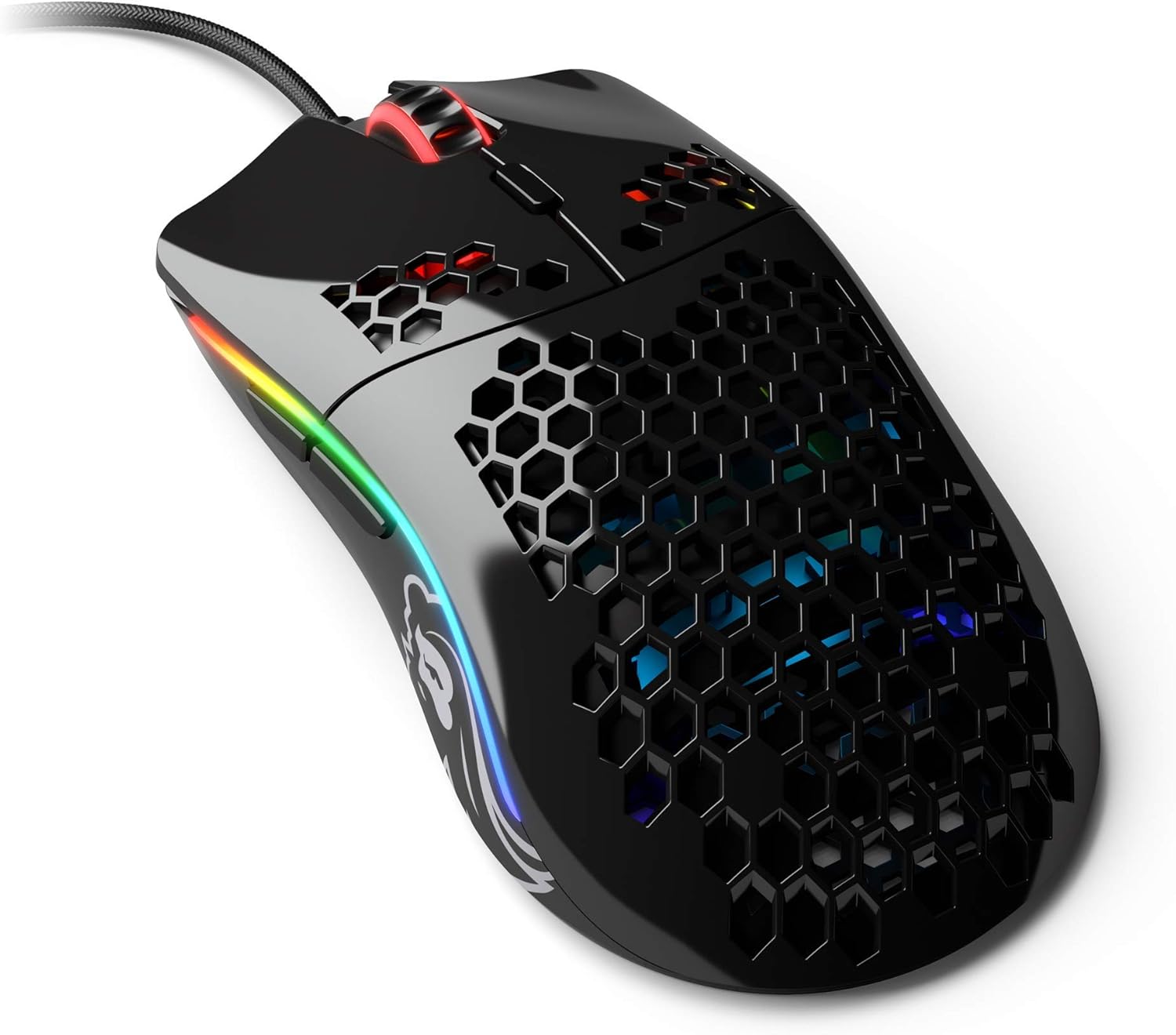
Image: The Glorious Model O- (Minus) Gaming Mouse in Glossy Black, showcasing анын бал кабыгынын дизайны жана RGB жарыгы.
2. Орнотуу
2.1 Пакеттин мазмуну
Улантуудан мурун, бардык компоненттердин бар экенин текшериңиз:
- Glorious Model O- (Minus) Gaming Mouse
- Ascended Cord (attached)
- Ыкчам баштоо колдонмосу (бул документ)
2.2 Чычканды туташтыруу
- Компьютериңизден жеткиликтүү USB портун табыңыз.
- Plug the USB connector of the Glorious Model O- (Minus) into the USB port.
- The mouse is plug-and-play and should be recognized automatically by your operating system.

Image: The Glorious Ascended Cord, a lightweight and flexible USB cable designed to minimize drag.
2.3 Software Installation (Glorious Core)
For advanced customization of DPI settings, button assignments, and RGB lighting, download the Glorious Core software from the official Glorious webсайт (www.gloriousgaming.com/pages/glorious-core). Орнотуу үчүн экрандагы нускамаларды аткарыңыз.

Image: Screenshot of the Glorious Core software interface, demonstrating options for lighting and key binding customization for the mouse.
3. Иштөө нускамалары
3.1 Чычкандын негизги функциялары
- Сол чыкылдатуу: Негизги аракет баскычы.
- Оң чыкылдатуу: Көбүнчө контексттик менюлар үчүн кошумча аракет баскычы.
- Жылдыруу дөңгөлөгү: Scrolls content up/down. Can also be clicked for middle-click functionality.
- Каптал баскычтары: Programmable buttons, typically for forward/back navigation in browsers or in-game actions.
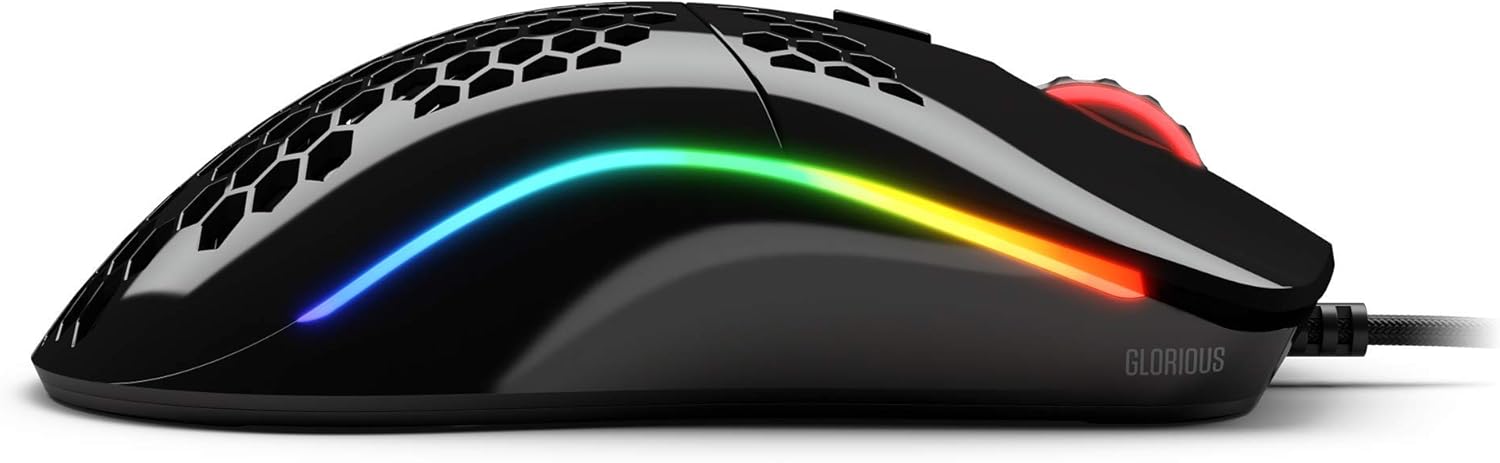
Сүрөт: каптал view of the Glorious Model O- (Minus) mouse, highlighting the two programmable side buttons and the vibrant RGB lighting strip.
3.2 DPI жөндөө
The Model O- (Minus) features a dedicated DPI button on the underside of the mouse. Press this button to cycle through pre-set DPI stages. The default DPI stages can be customized using the Glorious Core software.
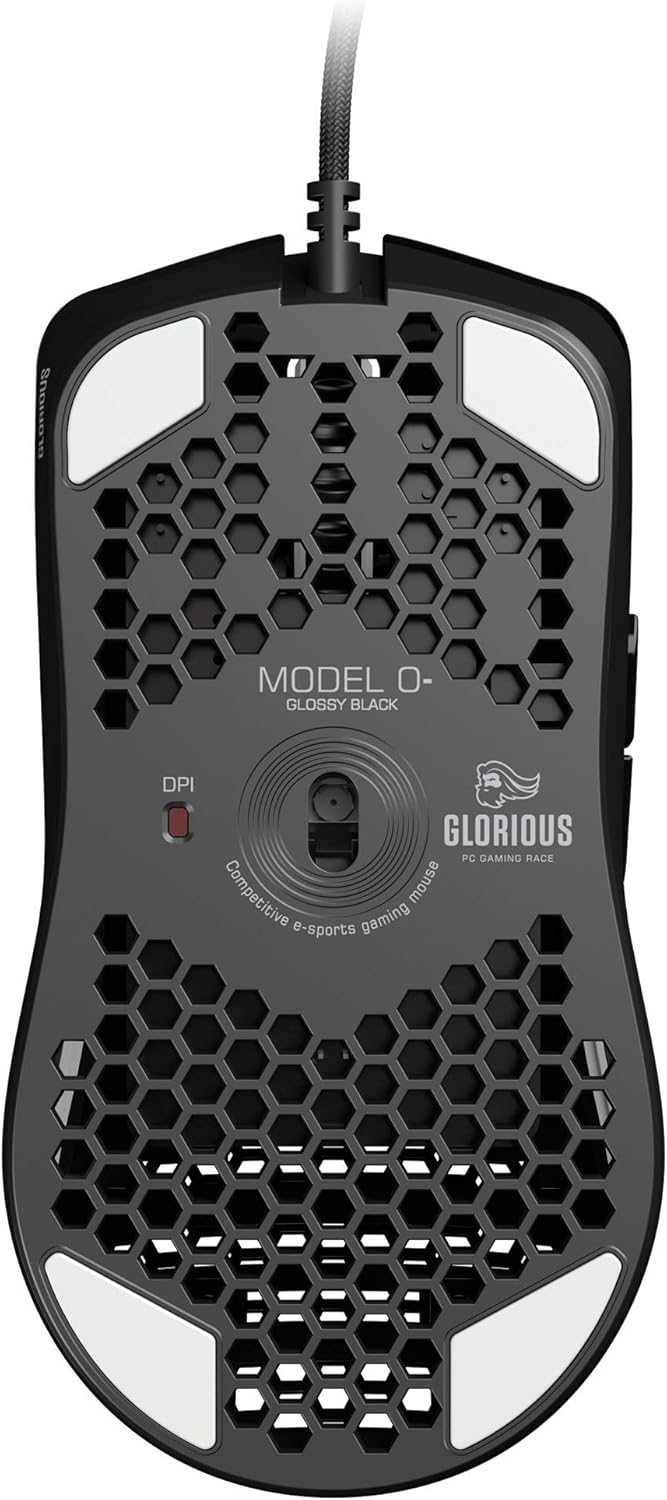
Image: The underside of the Glorious Model O- (Minus) mouse, clearly showing the DPI switch button and the optical sensor.
3.3 RGB Lighting Настройка
The RGB lighting on your Glorious Model O- (Minus) can be fully customized using the Glorious Core software. You can select from various effects, colors, and brightness levels to match your setup or mood.
4. Техникалык тейлөө
4.1 Чычканды тазалоо
- Тазалоодон мурун чычкан компьютериңизден ажыратылганын текшериңиз.
- Жумшак, түксүз кездемени жеңил колдонуңуз dampчычкандын бетин сүртүү үчүн суу же жумшак тазалоо эритмеси менен иштетилген.
- Оптикалык сенсор үчүн кебезди жеңил колдонуңуз dampened with isopropyl alcohol to gently clean the lens. Avoid excessive moisture.
- Do not use harsh chemicals or abrasive materials, as these can damage the mouse's finish or internal components.
4.2 Кабельге кам көрүү
The Ascended Cord is designed to be lightweight and flexible. Avoid sharp bends or excessive pulling on the cable to prevent damage. Use a cable tie or management system to keep the cable tidy and prevent tangles.
5. Кыйынчылыктарды
5.1 Чычкан жооп бербейт
- USB кабели компьютериңиздеги иштеген USB портуна бекем сайылганын текшериңиз.
- Чычканды башка USB портуна сайып көрүңүз.
- Компьютериңизди өчүрүп күйгүзүңүз.
- Test the mouse on another computer to determine if the issue is with the mouse or your system.
5.2 Inconsistent Tracking or Cursor Movement
- Оптикалык сенсорду "Техникалык тейлөө" бөлүмүндө сүрөттөлгөндөй тазалаңыз.
- Чычканды таза, бирдей бетте (мисалы, чычкан жаздыкчасында) колдонуп жатканыңызды текшериңиз. Өтө жарык чагылдыруучу же тунук беттерден алыс болуңуз.
- Check DPI settings using the DPI button or Glorious Core software.
- Update your mouse drivers or Glorious Core software to the latest version.
5.3 RGB Lighting Not Working Correctly
- Ensure Glorious Core software is installed and up to date.
- Check the lighting settings within Glorious Core to ensure RGB is enabled and configured as desired.
- Компьютериңизди өчүрүп күйгүзүңүз.
6. Техникалык шарттар
| Өзгөчөлүк | Деталь |
|---|---|
| Продукциянын өлчөмдөрү | 4.72 x 2.48 x 1.42 дюйм |
| Элемент Салмагы | 2.08 унция |
| Байланыш технологиясы | USB (Зымдуу) |
| Кыймылды аныктоо технологиясы | Оптикалык |
| Түс | Glossy Black |
| Өзгөчө өзгөчөлүк | Амбидекстрдик дизайн |
| Өндүрүүчү | Glorious PC Gaming Race |
7. Кепилдик жана колдоо
7.1 Кепилдик маалыматы
The Glorious Model O- (Minus) Gaming Mouse comes with a 2 жылдык кепилдикБул кепилдик өндүрүштөгү кемчиликтерди камтыйт жана бардык Glorious электрондук түзмөктөрүн кыйынчылыксыз кайтарып берүүнү жана алмаштырууну камсыздайт. Кепилдик дооматтары үчүн сатып алганыңызды тастыктаган документти сактап коюңуз.
7.2 Кардарларды колдоо
If you encounter any issues not covered in this manual or require further assistance, please contact Glorious customer support through their official webсайт:
- Webсайт: www.gloriousgaming.com/pages/support
- Our dedicated support team is available to assist with any questions or concerns you may have.


