1. Киришүү
This manual provides detailed instructions for the PRITOM L10 10-inch Android Tablet. It covers essential information regarding device setup, operation, maintenance, and troubleshooting to ensure optimal performance and user experience. Please read this manual thoroughly before using your tablet.
2. Түзмөк бүттүview
The PRITOM L10 tablet is designed for portability and performance, featuring a 10-inch display and the Android 10.0 operating system.

Figure 2.1: The PRITOM L10 tablet's home screen, showing the Android interface with pre-installed applications like Google, YouTube, Netflix, Instagram жана Facebook.
2.1 Негизги өзгөчөлүктөрү
- Операция системасы: Android 10.0
- Процессор: Octa-core, up to 1.6 GHz
- Эстутум: 3GB RAM, 32GB Internal Storage (ROM)
- Дисплей: 10-inch HD IPS (1280 x 800 pixels)
- Камералар: Алдыңкы жагы 5 МП, арткы жагы 8 МП
- Батарея: 6000 мАч Литий-полимер
- Байланыш: Dual-band Wi-Fi (2.4G/5G), Bluetooth, GPS
- Кеңейтүүчү сактагыч: Micro SD картанын уячасы (128 ГБ чейин)
- Аудио: Dual BOX speakers

Figure 2.2: An illustration highlighting the tablet's 3GB RAM, 32GB internal storage (ROM), and the capability to expand storage up to 128GB via a Micro SD card.
3. Орнотуу
3.1 Баштапкы күйгүзүү
- Планшетти заряддоо: Before first use, fully charge the tablet using the provided USB-C cable and power adapter. The charging port is typically located on the side or bottom edge of the device.
- Күйгүзүү: Press and hold the Power button (usually on the side) for a few seconds until the PRITOM logo appears on the screen.
- Баштапкы орнотуу устасы: Follow the on-screen instructions to select your language, connect to a Wi-Fi network, set up your Google account, and configure basic settings.
3.2 Wi-Fi туташуусу
Wi-Fi тармагына туташуу үчүн:
- барыңыз Орнотуулар > Тармак жана интернет > Wi-Fi.
- Toggle the Wi-Fi switch to the On позиция.
- Жеткиликтүү тармактардын тизмесинен каалаган тармакты тандаңыз.
- Эгер суралса, тармактын сырсөзүн киргизип, таптаңыз Туташуу.

Figure 3.1: This image illustrates the tablet's support for both 2.4G and 5G Wi-Fi bands, indicating faster and more stable internet connectivity.
4. Планшетти иштетүү
4.1 Навигация
- Башкы экран: Tap the home button (circle icon) to return to the main screen.
- Артка: Tap the back button (triangle icon) to go back to the previous screen.
- Акыркы колдонмолор: Чарчы сүрөтчөсүн таптап, view жана жакында ачылган колдонмолордун ортосунда которулуу.
- Эскертмелер: Эскертмелерге жана тез жөндөөлөргө жетүү үчүн экрандын өйдө жагынан ылдый сүрүңүз.
4.2 Колдонмолорду орнотуу жана башкаруу
The PRITOM L10 tablet is Google Certified, allowing access to the Google Play Store for downloading applications.
- Колдонмолорду жүктөп алуу: ачыңыз Play Store app, search for your desired application, and tap Орнотуу.
- Колдонмолорду чыгарып салуу: барыңыз Орнотуулар > Колдонмолор жана эскертмелер, колдонмону тандап, таптаңыз Чыгаруу.
4.3 Камераны колдонуу
Планшеттин алдыңкы камерасы 5 МП жана арткы камерасы 8 МП.
- ачыңыз Камера колдонмо.
- Сүрөткө тартуу үчүн жапкычты басыңыз.
- Камераны которуштуруу сүрөтчөсүн колдонуп, алдыңкы жана арткы камераларды которуштуруу.
- Видеолорду жаздыруу үчүн видео режимин тандаңыз.
5. Батареяны башкаруу
The PRITOM L10 tablet is equipped with a 6000 mAh lithium-polymer battery.

Figure 5.1: A visual showing the tablet's 6000mAh battery, with estimated usage times: 9 hours for video playback, 11 hours for mixed use, and 15 hours for reading.
5.1 Заряддоо
- Use only the original charger and USB-C cable provided with the tablet.
- Ашыкча температурада заряддоодон алыс болуңуз.
5.2 Батареянын иштөө мөөнөтүн оптималдаштыруу
- Экран жарыктыгын азайтыңыз.
- Колдонулбаган учурда Wi-Fi, Bluetooth жана GPSти өчүрүңүз.
- Фондук колдонмолорду жабуу.
- Батареяны үнөмдөө режимин иштетүү Орнотуулар > Батарея.
6. Сактагычты башкаруу
The tablet comes with 32GB of internal storage, which can be expanded.
6.1 Сактагычты кеңейтүү
You can expand the tablet's storage up to 128GB using a Micro SD card.
- Locate the Micro SD card slot on the tablet (refer to the device diagram if available).
- Micro SD картаны ордуна чыкылдаганча этияттык менен уячага салыңыз.
- Планшет жаңы сактагычты аныктайт. Түзмөк менен оптималдуу колдонуу үчүн сизден картаны форматтоо суралышы мүмкүн.
6.2 Managing Internal Storage
To check and manage storage usage:
- барыңыз Орнотуулар > Сактагыч.
- Бул жерден сиз колдонмолор, сүрөттөр, видеолор жана башкалар канча орун ээлегенин көрө аласыз files.
- You can clear cached data or uninstall unused apps to free up space.
7. Дисплей орнотуулары
The PRITOM L10 features a 10-inch HD IPS display with a resolution of 1280 x 800 pixels.

7.1-сүрөт: деталдуу view of the tablet's 10-inch HD IPS display, emphasizing its clear resolution and vibrant color reproduction.
7.1 Adjusting Brightness and Eye Health Mode
- барыңыз Орнотуулар > Дисплей.
- Adjust the brightness slider to your preference.
- Look for an option like 'Eye Comfort Shield' or 'Reading Mode' to reduce blue light emission, which can be beneficial for eye health during prolonged use.
8. Техникалык тейлөө
8.1 Планшетти тазалоо
- Power off the tablet before cleaning.
- Экранды жана корпусту сүртүү үчүн жумшак, түксүз чүпүрөктү колдонуңуз.
- өжөр белгилери үчүн, бир аз гampчүпүрөккө суу же экран тазалоочу каражат. Катуу химиялык заттардан алыс болуңуз.
8.2 Жалпы кам көрүү
- Avoid dropping the tablet or exposing it to strong impacts.
- Таблетканы өтө жогорку температурадан, түз күн нурунан жана нымдуулуктан алыс кармаңыз.
- Do not attempt to disassemble the tablet, as this will void the warranty.
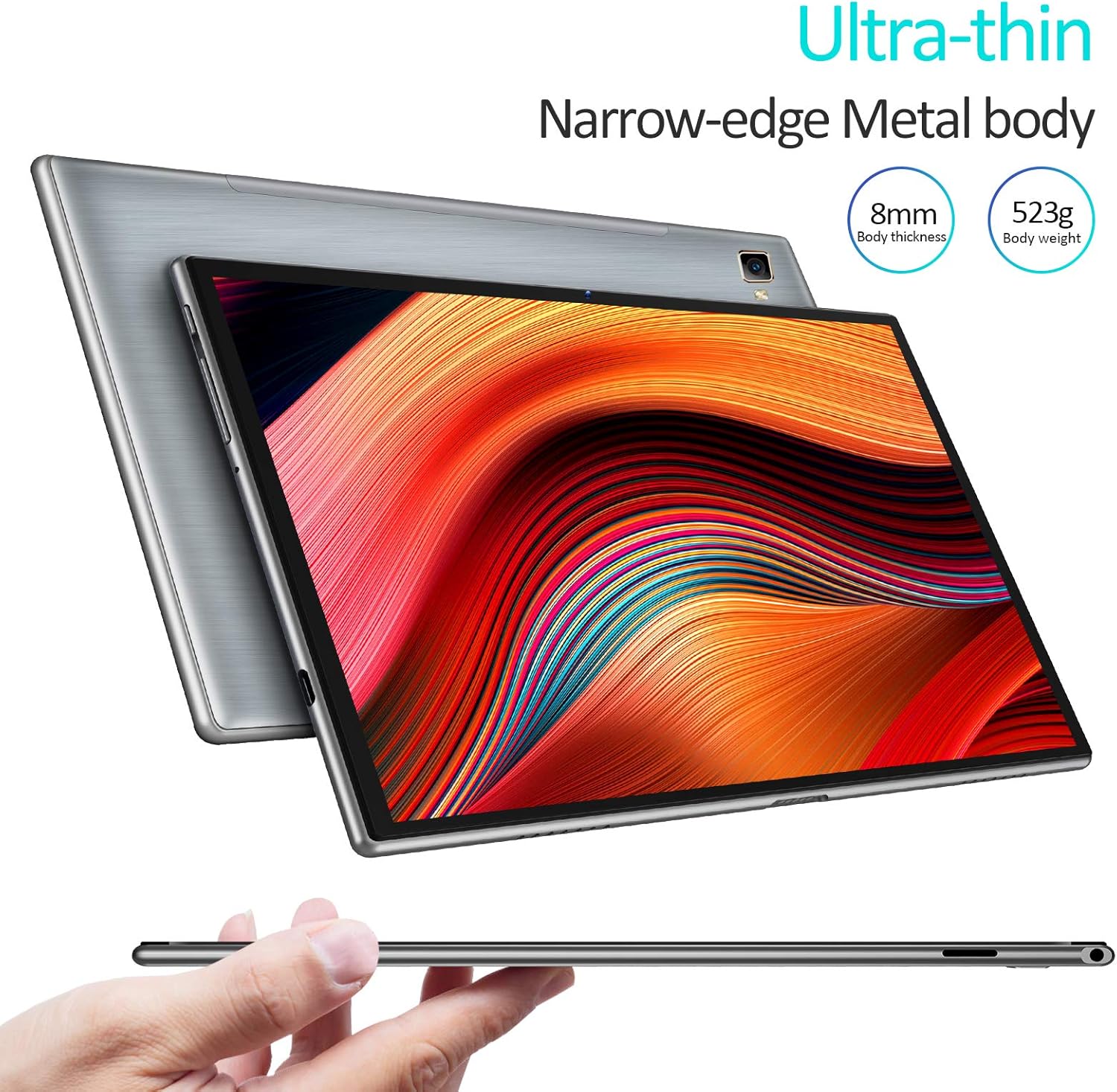
Figure 8.1: This image showcases the tablet's slim profile (8mm thickness) and lightweight metal body (523g), highlighting its portable design.
9. Кыйынчылыктарды
9.1 Жалпы маселелер жана чечимдер
- Планшет күйбөй жатат: Батарея заряддалганын текшериңиз. Заряддагычты туташтырыңыз жана кайра күйгүзүү аракетинен мурун бир нече мүнөт күтүңүз.
- Экран тоңуп калды: Кайра күйгүзүүгө мажбурлоо үчүн кубат баскычын 10-15 секунд басып туруңуз.
- Wi-Fi туташуу көйгөйлөрү: Жөндөөлөрдө Wi-Fi иштетилгенин текшериңиз. Роутериңизди жана планшетиңизди өчүрүп-күйгүзүңүз. Тармакты унутуп, кайра туташыңыз.
- Колдонмолор бузулуп жатат: Clear the app's cache (Settings > Apps & notifications > [App Name] > Storage & cache > Clear cache). If the issue persists, uninstall and reinstall the app.
- Жай аткаруу: Close unused apps, clear unnecessary files, and consider performing a factory reset if the issue is severe (back up your data first).
10. Техникалык шарттар
| Өзгөчөлүк | Спецификация |
|---|---|
| Бренд | PRITOM |
| Модель номери | L10 |
| Операция системасы | Android 10.0 |
| Процессор | Octa-core Unisoc, 1.6 GHz |
| RAM | 3 ГБ |
| Ички сактагыч (ROM) | 32 ГБ |
| Кеңейтүүчү сактагыч | Micro SD 128 ГБ чейин |
| Screen Size | 10 дюйм |
| Screen Resolution | 1280 x 800 пиксел (HD IPS) |
| Алдыңкы камера | 5 депутат |
| Арткы камера | 8 депутат |
| Батарея | 6000 мАч Литий-полимер |
| Wi-Fi | Dual-band (2.4G & 5G) |
| Bluetooth | Ооба |
| GPS | Ооба |
| Өлчөмдөрү (L x W x Y) | 24.3 x 16.2 x 8.9 см |
| Салмагы | 520 грамм |
| Өзгөчөлүктөр | Stereo speakers, Metal body |
11. Коопсуздук маалыматы
- Do not use the tablet in environments with extreme temperatures or high humidity.
- Avoid exposing the tablet to water or other liquids.
- Keep the tablet away from strong magnetic fields.
- Do not use damaged accessories, such as chargers or cables.
- Планшетти жана анын батареясын жергиликтүү эрежелерге ылайык таштаңыз.
12. Кепилдик жана колдоо
The PRITOM L10 tablet typically comes with a manufacturer's warranty. Please refer to the warranty card included in your product packaging for specific terms and conditions, including the warranty period and coverage details.
For technical support, troubleshooting assistance, or warranty claims, please contact PRITOM customer service through their official website or the contact information provided with your purchase. When contacting support, please have your tablet's model number (L10) and purchase details ready.


