1. Продукт бүтүп калдыview
The Phomemo M110 is a versatile thermal label printer designed for both smartphone and PC use. It supports various label types for applications such as mailing addresses, price tags, food labeling, package shipping, DIY projects, and organization. This compact and portable device offers efficient printing for both personal and business needs.
1.1 Пакеттин мазмуну
Пакетиңизде бардык буюмдар бар экенин текшериңиз:
- Phomemo M110 Printer Unit
- 40*30mm Sample Label Roll
- C түрүндөгү кубаттоочу кабель
- Колдонуучунун Колдонмосу (бул документ)

Image: Phomemo M110 printer, sample label roll, and charging cable.
1.2 Продукт компоненттери
Familiarize yourself with the different parts of your Phomemo M110 printer:
- Жогорку мукабасы: Protects the label compartment.
- Дисплей: Shows printer status and information.
- Кубат/Меню баскычы: Turns the printer on/off and navigates menus.
- Paper Feed/Select Button: Feeds labels or confirms selections.
- Этикетканы чыгаруу уячасы: Басылган этикеткалар чыккан жер.
- Type-C Cable Connection Port: Заряддоо жана компьютерди туташтыруу үчүн.
- Тешикти баштапкы абалга келтирүү: For factory reset (use a pin).

Сүрөт: деталдуу view of the Phomemo M110 printer with labels indicating its various parts.
2. Орнотуу
2.1 Алгачкы даярдоо
- Remove any protective films from the printer.
- Press and hold the Power button for 3 seconds until the display lights up.
- Принтер азыр колдонууга даяр.
2.2 этикеткаларды жүктөө
The M110 printer supports die-cut labels with widths ranging from 20mm to 50mm. Ensure the labels are thermal-sensitive and have a protective coating for water, oil, and durability.
- Принтердин үстүнкү капкагын ачыңыз.
- Place the label roll into the paper cassette, ensuring the printing side faces upwards.
- Жогорку капкакты жабыңыз.
- Press the paper feed button to automatically position the label.

Image: The Phomemo M110 printer with the top cover open, showing how to insert a label roll.
2.3 Mobile App Installation (Print Master)
The 'Print Master' app is required for smartphone and tablet operation. It offers various frames, fonts, templates, and icons for label customization.
- Издөө 'Print Master' on the App Store (iOS) or Google Play (Android).
- Тиркемени жүктөп алып, орнотуңуз.
- "Басып чыгаруу мастери" колдонмосун ачыңыз.
- Tap 'Auto Connect' and allow necessary permissions. The app will automatically search for and connect to your M110 printer.
Video: Phomemo M110 Quick Start Guide, demonstrating initial setup and mobile app connection.
2.4 PC Software Installation (Labelife)
For PC connectivity, the M110 supports Mac OS and Windows 10 via USB. (Note: Linux and Chromebook systems are not supported).
- Расмий Phomemo сайтына кириңиз website, navigate to 'Support' -> 'Download Center', and select M110 to download the driver. Alternatively, visit labelife.net.
- Download the appropriate 'Labelife' software for your operating system (Windows or Mac).
- Экрандагы нускамаларды аткаруу менен программаны орнотуңуз.
Video: Guide on downloading and installing the PC application for the Phomemo M110 printer.
3. Иштөө нускамалары
3.1 Connecting to a Smartphone/Tablet (Bluetooth)
- Смартфонуңузда же планшетиңизде Bluetooth иштетилгенин текшериңиз.
- "Басып чыгаруу мастери" колдонмосун ачыңыз.
- The app will automatically detect and connect to your M110 printer. If not, tap 'Auto Connect' or manually select your printer from the device list.

Image: Visual guide for connecting the M110 printer to a smartphone or tablet via Bluetooth.
3.2 Connecting to a PC (USB)
- Connect the M110 printer to your PC using the provided Type-C USB cable.
- Open the 'Labelife' software on your PC.
- The software should automatically detect and connect to the printer. If not, follow the software's prompts to add a printer.

Image: Visual guide for connecting the M110 printer to a PC via USB cable.
3.3 Creating and Printing Labels
Both the 'Print Master' app and 'Labelife' software offer extensive customization options for your labels, including text, QR codes, barcodes, images, and various templates.
- Select your desired label size within the app/software.
- Design your label using the available tools (text, icons, barcodes, etc.).
- Preview your label to ensure accuracy.
- Click the 'Print' button to send the label to the printer.
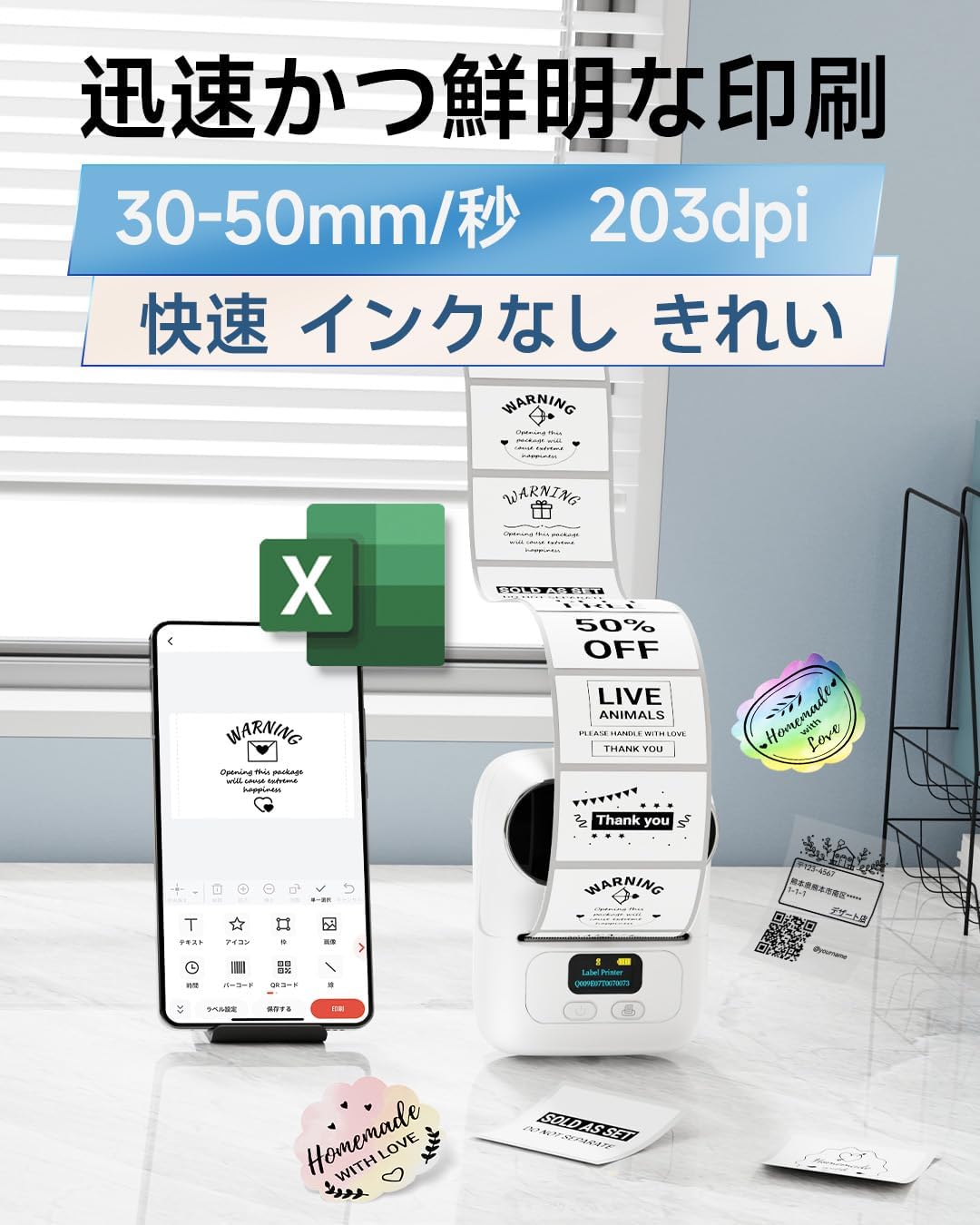
Image: A smartphone displaying the 'Print Master' app interface for designing labels.

Сүрөт: бүттүview of additional app functions including voice-to-text, barcode/QR code recognition, OCR, and PDF/Excel printing.
4. Техникалык тейлөө
To ensure optimal performance and longevity of your Phomemo M110 printer, regular maintenance is recommended.
- Басып чыгаруу башын тазалоо: Жумшак, түксүз кездемени жеңил колдонуңуз dampбасып чыгаруучу башты акырын сүртүү үчүн изопропил спирти менен эритип коюңуз. Тазалоодон мурун принтер өчүрүлүп, муздаганын текшериңиз.
- Тышкы тазалоо: Принтердин сыртын жумшак, кургак чүпүрөк менен сүртүңүз. Катуу химиялык заттарды же абразивдүү материалдарды колдонуудан алыс болуңуз.
- Сактагыч: Store the printer in a cool, dry place away from direct sunlight and extreme temperatures. Remove the label roll if storing for an extended period.
- Батареяга кам көрүү: For optimal battery life, avoid fully discharging the battery frequently. Charge the printer regularly, even if not in use, to maintain battery health.
5. Кыйынчылыктарды
If you encounter issues with your Phomemo M110 printer, refer to the following common troubleshooting steps:
| Көйгөй | Мүмкүн себеп | Чечим |
|---|---|---|
| Принтер күйбөйт | Аз батарея; Кубат баскычы жетишерлик көпкө басылган жок | Charge the printer; Press and hold the Power button for 3 seconds. |
| Bluetooth аркылуу туташуу мүмкүн эмес | Bluetooth off on device; Printer not discoverable; App permissions denied | Ensure Bluetooth is on; Restart printer; Grant app location/Bluetooth permissions. |
| Басып чыгаруу сапаты начар | Басып чыгаруу башы кир; Туура эмес этикетка түрү; Батареянын кубаты аз | Clean print head; Use genuine Phomemo thermal labels; Charge printer. |
| Энбелгилер туура эмес азыктандырылган | Label roll incorrectly inserted; Labels jammed | Re-insert label roll correctly; Clear any jammed labels. |
If the issue persists after trying these steps, please contact Phomemo customer support.
6. Техникалык шарттар
| Өзгөчөлүк | Спецификация |
|---|---|
| Продукциянын өлчөмдөрү | 11.4 x 6.3 x 8.7 см (тереңдик x туурасы x бийиктик) |
| Макс. Медиа (кагаз) өлчөмү | 50мм |
| Камтылган компоненттер | 40*30mm Sample Label Roll, Type-C Charging Cable, M110 Printer Unit, User Manual |
| Басма маалымат каражаттары | Энбелгилер |
| Сканер түрү | Portable |
| Макс барактын сыйымдуулугу | 100 |
| Макс. көчүрүү ылдамдыгы (кара-ак) | 45 бет/мүнөт |
| Шайкеш түзмөктөр | Smartphones, Tablets, Desktop PCs, Laptops |
| Барактын өлчөмү | 20~50мм |
| Максималдуу басып чыгаруу чечилиши (монохромдуу) | 300 dpi |
| Дуплекстүү басып чыгаруу | Жок |
| Батареялар | 1 литий-иондук батарейка (кошулган) |
| Түс | Ак |
| Форма фактору | Принтер |
| Байланыш технологиясы | Bluetooth, USB |
| OS | Android, iOS |
| Литий Батареясынын Энергия Мазмуну | 8.88 Ватт саат |
| Литий батареясынын таңгагы | Жабдуулардагы батареялар |
| Lithium Ion Cell Count | 2 |
| Элемент Салмагы | 228 г |
7. Кепилдик жана колдоо
Phomemo products are designed for reliability and performance. For warranty information and customer support, please refer to the following:
- Кепилдик: Please consult the warranty card included in your product packaging for specific terms and conditions.
- Кардарларды колдоо: For technical assistance, troubleshooting, or any product-related inquiries, please visit the official Phomemo webсайтында www.phomemo.com or contact their customer service team directly.


