1. Киришүү
This manual provides essential information for the safe and efficient operation of your NEBULA by Anker Solar Portable 1080p Projector. Please read it thoroughly before using the device and retain it for future reference.

Сүрөт 1: Алдыңкы view of the NEBULA Solar Portable 1080p Projector.
2. Кутуда эмне бар
Төмөндө тизмеленген нерселердин баары пакетиңизге камтылганын текшериңиз:
- NEBULA Solar Portable Projector
- Алыстан башкаруу
- Quick Start Guide
- PD Charger (65W, output 20V/3.25A)
- USB-C - USB-C кабели
3. Продукт бүтүп калдыview
The NEBULA Solar Portable Projector is designed for versatile entertainment, offering a Full HD 1080p image with 400 ANSI lumens brightness. It supports 4K content and features autofocus and keystone correction for easy setup. The device runs on Android TV 9.0, providing access to over 5,000 applications.
Негизги өзгөчөлүктөрү:
- Дисплей технологиясы: 1080p DLP форматында 0.23DMD
- Чечим: 1920x1080 (Full HD)
- Жарыктык: 400 ANSI люмени
- Автофокус: 3-second autofocus for clear images.
- Негизги ташты оңдоо: Auto (vertical ±40°) and Manual (horizontal ±40°, Quadrilateral ±40°).
- Операция системасы: Android TV 9.0 with Google Play Store access.
- Аудио: Dual 3W speakers with Dolby Digital Plus support. Can function as a portable Bluetooth speaker.
- Байланыш: HDMI, USB-A, Type-C (Power Delivery charging), Wi-Fi (2.4/5GHz), Bluetooth 4.2.
- Батареянын иштөө мөөнөтү: Up to 3 hours of video playtime (in battery mode).
- Интегралдык стенд: Adjustable up to 13 degrees for optimal viewбурчтар.

Figure 2: Visual representation of the projector's 1080p image clarity at 400 ANSI lumens.
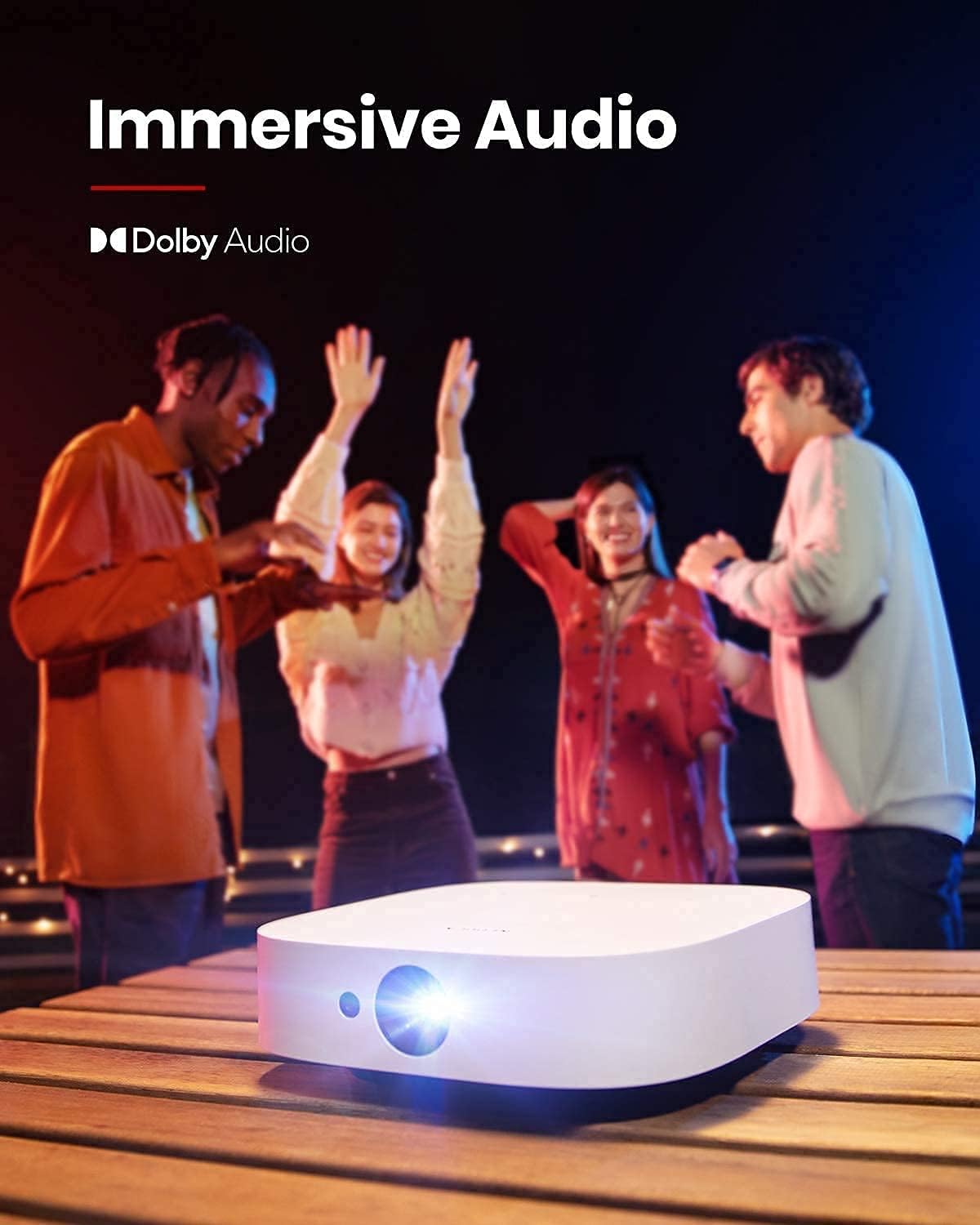
Figure 3: The projector in use for outdoor group viewing, highlighting its portability and battery life.
4. Орнотуу
4.1 Баштапкы күйгүзүү жана заряддоо
- Connect the provided PD charger to the Type-C port on the projector.
- Plug the charger into a power outlet. The projector can be used while charging.
- Аны күйгүзүү үчүн проектордогу же пульттагы кубат баскычын басып, кармап туруңуз.
Video 1: A short video demonstrating the charging process and initial power-on of the projector.
4.2 Adjusting Projection Angle
The projector features an integrated stand on its base, allowing for angle adjustments up to 13 degrees. Simply adjust the stand to achieve your desired projection height and angle.
Figure 4: The adjustable stand on the bottom of the projector for angle customization.
4.3 Байланыш порттору
The rear of the projector provides various ports for connecting external devices:
- HDMI: Ноутбуктарга, оюн консолдоруна же башка HDMI менен иштетилген түзмөктөргө туташыңыз.
- USB-A: For connecting USB flash drives or other USB accessories.
- C түрү: Primarily for Power Delivery charging.

Figure 5: ашыкview of the projector's input/output ports.
5. Иштөө нускамалары
5.1 Android TV 9.0 and App Access
The projector runs on Android TV 9.0, providing access to the Google Play Store. You can download and install a wide range of streaming applications and games directly onto the device.
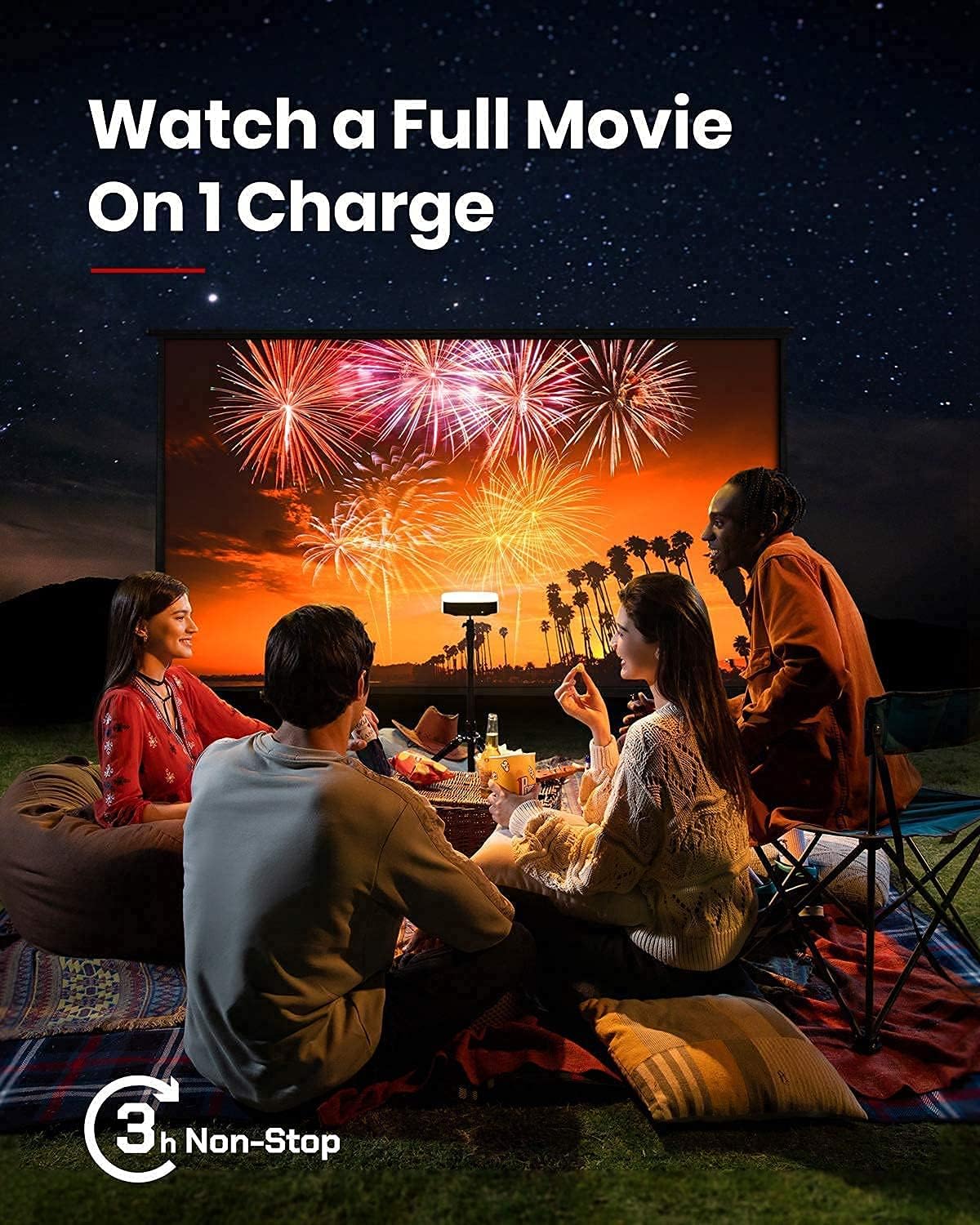
Figure 6: The Android TV 9.0 interface with access to various applications.
5.2 Installing Netflix
To install Netflix, navigate to the Google Play Store and install the "Nebula Manager" app. Within "Nebula Manager", you can then install Netflix. It is recommended to use the "Nebula Connect" app on your phone in mouse mode to control Netflix, as the remote control may have limited functionality with the mobile version of the Netflix app.
Video 2: Instructions on how to install and use Netflix on the projector.
5.3 Screen Mirroring (iOS Devices)
For iOS devices (iPhone, iPad, MacBook), install the "AirScreen" app from the Google Play Store on your projector. Ensure both your projector and iOS device are connected to the same Wi-Fi network. Then, use the "Screen Mirroring" function on your iOS device to connect to the projector.
Video 3: A guide on how to screen mirror and cast content from an iPhone to the projector.
5.4 USB Flash Drive Playback
To play movies or media from a USB flash drive, install a file management app (e.g., File Explorer, File Manager) and a video player from the Google Play Store. Insert your USB flash drive into the USB-A port and use the file manager to access and play your content.
5.5 Autofocus and Keystone Correction
The projector features 3-second autofocus. To trigger autofocus, slightly move the device or press the dedicated "focus" button on the remote. For keystone correction, the device supports auto vertical (±40°) and manual horizontal (±40°) and quadrilateral (±40°) adjustments. If the image is tilted, disable auto keystone correction via "Settings > Projector Settings > Keystone Correction" and manually adjust both vertical and horizontal keystone correction.

Figure 7: The autofocus feature ensures a clear image automatically.

Figure 8: Keystone correction allows for adjusting the image shape to be rectangular.
6. Техникалык тейлөө
Проекторуңуздун узак мөөнөттүү жана оптималдуу иштешин камсыз кылуу үчүн, төмөнкү техникалык тейлөө көрсөтмөлөрүн аткарыңыз:
- Тазалоо: Проектордун сыртын тазалоо үчүн жумшак, кургак чүпүрөктү колдонуңуз. Линза үчүн атайын линза тазалоочу чүпүрөктү жана эритмени колдонуңуз. Абразивдүү тазалоочу каражаттардан алыс болуңуз.
- Сактагыч: Store the projector in a cool, dry place away from direct sunlight and extreme temperatures. If storing for extended periods, ensure the battery is partially charged (around 50%) to maintain battery health.
- Вентиляция: Ensure the ventilation grilles are not obstructed during operation to prevent overheating.
7. Кыйынчылыктарды
This section addresses common issues you might encounter with your NEBULA Solar Portable Projector.
- Netflix App Control Issues: If the remote control has limited functionality with Netflix, use the "Nebula Connect" app on your smartphone in mouse mode for better navigation.
- iOS Screen Mirroring Failure: Ensure both the projector (with "AirScreen" installed) and your iOS device are connected to the same Wi-Fi network. Some protected content may not mirror due to DRM restrictions.
- Image Tilted/Distorted: If the projected image is tilted, turn off auto keystone correction via "Settings > Projector Settings > Keystone Correction" and manually adjust both vertical and horizontal keystone correction.
- Батарея бат эле түгөнөт: The projector offers different brightness modes. "Battery Mode" (80% volume, Wi-Fi off) provides up to 3 hours. "Standard Mode" offers 2 hours. Ensure the device is fully shut down (hold power button and select "Shut down") rather than just standby to prevent battery drain.
- Желдетүүчү ызы-чуу: In "Normal Brightness Mode," the fan may be noticeable. For quieter operation, use the less-bright "Battery Mode."
- Колдонмонун шайкештиги/аткаруулугу: Some apps may experience issues due to the Android TV 9.0 version. Ensure apps are updated to their latest versions.
8. Техникалык шарттар
| Өзгөчөлүк | Деталь |
|---|---|
| Продукциянын өлчөмдөрү | 7.56 x 7.57 x 2.15 дюйм |
| Элемент Салмагы | 2.77 фунт |
| Элемент моделинин номери | D2131 |
| Батареялар | 1 литий-иондук батарейка (кошулган) |
| Дисплей технологиясы | 1080p DLP форматында 0.23DMD |
| Резолюция | 1920x1080 |
| Жарыктык | 400 ANSI люмени |
| LED Life | 30,000 саат |
| Ыргытуу катышы | 1.2 |
| Фокусту тууралоо | 3 секунддук автофокус |
| Keystone Correction | Auto (vertical ±40°), Manual (horizontal ±40°, Quadrilateral ±40°) |
| HDMI | x 1 |
| USB-A | x 1 |
| Type-C | x 1 (Power Delivery charging) |
| RAM | 2 ГБ DDR |
| ROM | 8 ГБ eMMC |
| Батарея | 20,000mAh / 3.7v |
| Баяндамачы | 2×3 Вт |
| Wi-Fi | Dual Frequency 2.4/5GHz |
| Bluetooth | BT4.2 |
| Fan Noise | <30дБ |
| OS | Android TV 9.0 |
| Chromecast | Колдоого алынган |
| Иштөө режимдери | Projector Mode, Bluetooth Speaker Mode |
| App Store | Google Play |
| Video Playtime | 3 hours (battery mode); 2 hours (standard mode) |
| Заряддоо убактысы | 3 hours with Power Delivery 20V-3.25A |
| Аудио чечмелөө | Dolby supported |
| Видеону чечмелөө | HDR10 |
9. Кепилдик жана колдоо
Your NEBULA Solar Portable Projector is covered by a manufacturer's warranty. For detailed warranty information, technical support, or service inquiries, please visit the official NEBULA brand store or contact customer support.
Official NEBULA Store: https://www.amazon.com/stores/Nebula/page/A836DB9B-3AD4-4696-A071-A0A11B4E59A2


