1. Киришүү
This manual provides essential instructions for the safe and efficient operation of your CAIWEI Android TV Projector 4K, Model 900DAB-05F. Please read this manual thoroughly before using the projector and retain it for future reference. This projector features Android 9.0 OS, native 1080P resolution with 4K support, dual-band WiFi, Bluetooth connectivity, and advanced keystone correction.
2. Пакеттин мазмуну
Пакетте бардык буюмдар бар экенин текшериңиз:
- CAIWEI Android TV Projector
- Алыстан башкаруу (батареялар камтылган эмес)
- Электр кабели
- HDMI кабели
- AV Cable
- User Manual
3. Коопсуздук нускамалары
- Do not block the ventilation openings of the projector. Ensure adequate airflow to prevent overheating.
- Проектордун линзасынын жарыгына түз тийүүдөн алыс болуңуз.
- Проекторду туруксуз беттерге койбоңуз.
- Проекторду суудан же башка суюктуктардан алыс кармаңыз.
- Проектор менен келген кубат адаптерин гана колдонуңуз.
- Чагылган бороондордо же көпкө колдонулбаганда проекторду электр розеткасынан ажыратыңыз.
4. Продукт бүтүп калдыview
Familiarize yourself with the main components and ports of your CAIWEI projector.
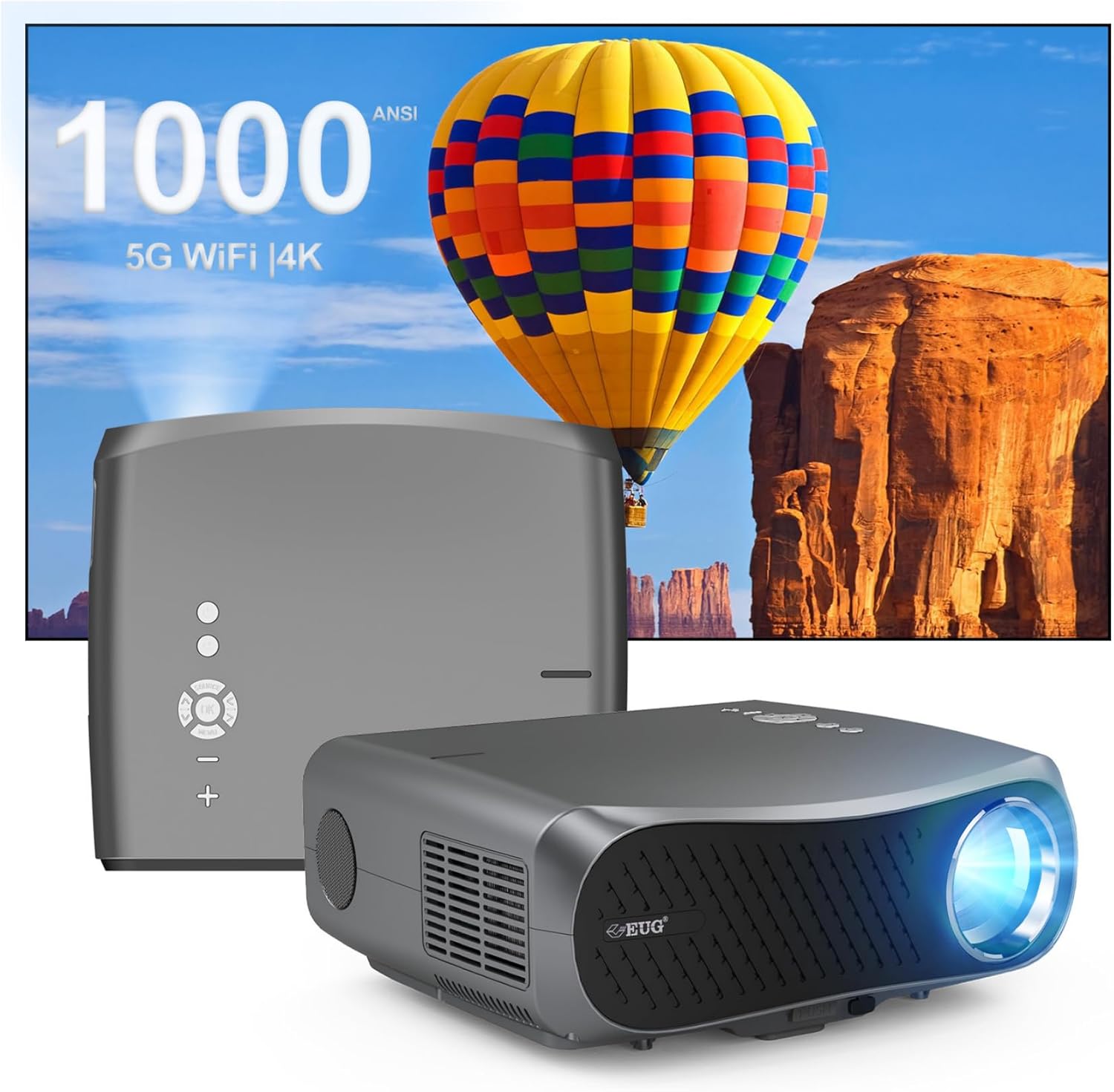
Сүрөт 1: Алдыңкы жана арткы view of the CAIWEI Android TV Projector, highlighting its compact design and control panel.
The projector features a lens at the front, control buttons on the top, and various input/output ports on the rear and sides, including HDMI, USB, VGA, and AV ports for versatile connectivity.
5. Орнотуу
5.1 Орнотуу
Position the projector on a flat, stable surface or mount it to a ceiling or tripod. Ensure the lens is perpendicular to the projection surface for optimal image geometry. The projector supports various installation methods including front, rear, ceiling front, and ceiling rear projection.

Image 2: Illustration of flexible projector placement options, including ceiling mount, tripod table, and desktop setup, for various viewчөйрөлөр.
5.2 Кубат туташтыруу
Кубат кабелин проектордун кубат киргизүү булагына, андан кийин розеткага туташтырыңыз.
5.3 Баштапкы күйгүзүү
Press the power button on the projector or the remote control to turn on the device. The projector will boot into the Android TV interface.
5.4 Фокусту жана Keystone жөндөөсүн
Adjust the focus ring on the projector lens until the image is clear. Use the digital keystone correction feature to correct trapezoidal distortion if the projector is not perfectly aligned with the screen. The projector supports D ±50° keystone correction and 40% digital zoom.

Image 3: Visual representation of the projector's screen adjustment capabilities, including Auto Keystone, Digital Zoom (100%-60%), and Electronic 4D/4P Keystone Correction for optimal image display.
6. Иштөө нускамалары
6.1 Android 9.0 OS Navigation
Use the remote control to navigate the Android 9.0 operating system. The home screen provides access to pre-installed applications and settings. You can download additional applications from the integrated app store.

Image 4: The projector's interface powered by Android TV 9.0, showcasing a wide array of streaming and entertainment applications available.
6.2 Wi-Fi туташуусу
Зымсыз тармакка туташуу үчүн:
- барыңыз Орнотуулар үй экранында.
- Тандоо Тармак жана Интернет.
- Күйгүзүү Wi-Fi and select your desired network from the list.
- Суралган болсо, сырсөздү киргизип, туташыңыз.
The projector supports dual-band 5G WiFi for faster and more stable connections.
6.3 Bluetooth байланышы
To connect Bluetooth devices (e.g., speakers, headphones):
- барыңыз Орнотуулар.
- Тандоо Туташкан түзмөктөр or Bluetooth.
- Күйгүзүү Bluetooth жана жеткиликтүү түзмөктөрдү издөө.
- Жупташтыруу үчүн тизмеден түзмөгүңүздү тандаңыз.
6.4 Тышкы түзмөктөрдү туташтыруу
The projector offers multiple input options:
- HDMI: Connect Blu-ray players, game consoles, laptops, etc.
- USB: Медиа ойнотуу files түздөн-түз USB дисктеринен.
- VGA: Connect older computers.
- OF: Connect legacy video devices.
Select the appropriate input source from the projector's menu.
6.5 Screen Mirroring/Casting
Utilize the 5G WiFi connectivity to mirror content from your smartphone or laptop to the projector screen. Refer to your device's casting instructions for specific steps.

Image 5: The projector demonstrating connectivity with a smartphone via 5G WiFi for screen mirroring and a Bluetooth speaker for enhanced audio, illustrating its versatile wireless capabilities.
7. Техникалык тейлөө
- Линзаны тазалоо: Оптикалык линзалар үчүн атайын жасалган жумшак, түксүз кездемени колдонуңуз. Абразивдүү тазалагычтарды колдонбоңуз.
- Тазалоо Casing: Проектордун сыртын жумшак, кургак чүпүрөк менен сүртүңүз.
- Вентиляция: Regularly check that the ventilation openings are clear of dust and debris. Use compressed air if necessary.
- Сактагыч: When not in use, store the projector in a cool, dry place, protected from dust and extreme temperatures.
8. Кыйынчылыктарды
Проекторуңузда көйгөйлөргө туш болсоңуз, төмөнкү жалпы көйгөйлөрдү жана чечимдерди караңыз:
- Кубат жок:
• Ensure the power cable is securely connected to both the projector and the power outlet.
• Check if the power outlet is functional. - Сүрөт/сигнал жок:
• Verify that the correct input source is selected on the projector.
• Check the HDMI/VGA/AV cable connections to the external device and the projector.
• Ensure the external device is powered on and outputting a signal. - Сүрөт бүдөмүк:
• Adjust the focus ring on the projector lens.
• Ensure the projection surface is flat and the projector is at an appropriate distance. - Сүрөт бурмаланган (трапеция формасы):
• Use the digital keystone correction feature in the projector settings to adjust the image geometry. - Ашыкча ысып кетүү жана автоматтык түрдө өчүрүү:
• Ensure the projector's ventilation openings are not blocked. Provide ample space around the projector for airflow.
• Operate the projector in a well-ventilated room with a suitable ambient temperature. - Wi-Fi/Bluetooth туташуу маселелери:
• Ensure the Wi-Fi network is active and within range. Re-enter the password if necessary.
• For Bluetooth, ensure the device is in pairing mode and within range.
• Restart the projector and the external device. - Үн жок:
• Check the volume settings on both the projector and the connected source device.
• If using external speakers, ensure they are properly connected and powered on.
• If connecting via HDMI, ensure the source device is sending audio. - HDMI ARC/HDCP Compatibility:
• Note that this projector may not fully support HDMI ARC (Audio Return Channel) or certain HDCP (High-bandwidth Digital Content Protection) versions (e.g., HDCP 2.2) with some receivers. If connecting via a receiver, try connecting devices directly to the projector or using alternative audio output methods.
9. Техникалык шарттар
| Өзгөчөлүк | Деталь |
|---|---|
| Бренд | CAIWEI |
| Модель номери | 900DAB-05F |
| Операция системасы | Android 9.0 OS |
| Display Resolution | Native 1920 x 1080 (Supports 4K decoding) |
| Байланыш технологиясы | Bluetooth, Dual-Band WiFi (2.4G/5G), HDMI, USB, VGA, AV, Audio Out |
| Өзгөчөлүктөр | Built-In Speaker, Digital Keystone Correction (D ±50°), 40% Digital Zoom |
| Продукциянын өлчөмдөрү | 12.4 x 9.33 x 5.31 дюйм |
| Элемент Салмагы | 9.98 фунт |
| Түс | Sliver Gray |
| Сунушталган Колдонуулар | Home Entertainment, Gaming, Presentations |
10. Кепилдик жана колдоо
Your CAIWEI projector comes with a standard manufacturer's warranty. Please refer to the warranty card included in your package for specific terms and conditions. For technical support, troubleshooting assistance, or warranty claims, please contact CAIWEI customer service through the contact information provided with your purchase or on the official CAIWEI webсайт.


