Introduction
This manual provides instructions for the proper setup, operation, and maintenance of your ELECOM EX-G Left Handed Trackball Mouse, model M-XT4DRBK-G. This wireless trackball mouse is designed for left-handed users, featuring ergonomic design, thumb control, and programmable buttons for enhanced productivity and comfort.

Image: The ELECOM EX-G Left Handed Trackball Mouse, showcasing its ergonomic design and red trackball.
Жайгашуу
1. Пакеттин мазмуну
Пакетте бардык буюмдар бар экенин текшериңиз:
- ELECOM EX-G Left Handed Trackball Mouse
- USB зымсыз кабыл алгыч
- AA батареясы (1)
- Көрсөтмө (бул документ)

Image: The trackball mouse, a single AA battery, and the USB receiver, representing the items included in the box.
2. Батареяны орнотуу
- Чычкандын астыңкы жагындагы батарея бөлүкчөсүн табыңыз.
- Батарея уясынын капкагын ачыңыз.
- Берилген AA батарейканы туура уюлдуулукту (+/-) камсыз кылуу менен салыңыз.
- Батарея уясынын капкагын бекем жабыңыз.

Image: A diagram showing the battery installation process for the trackball mouse.
3. USB Receiver Connection
- USB кабыл алгычты чычкандын астыңкы жагындагы сактоо уячасынан чыгарыңыз.
- USB ресиверди компьютериңиздеги жеткиликтүү USB портуна сайыңыз.
- Компьютериңиз түзмөктү автоматтык түрдө аныкташы керек.

Image: A diagram illustrating how to insert the USB receiver into a computer's USB port.
4. Күйгүзүү
Locate the power switch on the underside of the mouse and slide it to the "ON" position. The mouse is now ready for use.

Image: A diagram showing the power switch on the underside of the trackball mouse in the "ON" position.
5. Software Installation (ELECOM Mouse Assistant)
To customize the 6 programmable buttons and other settings, download and install the "ELECOM Mouse Assistant" software from the official ELECOM website. This software allows you to assign various functions to each button.

Image: Screenshot of the ELECOM website showing the download links for the Mouse Assistant software for Windows and Mac.

Image: Screenshot of the ELECOM Mouse Assistant software interface, showing button customization options and DPI settings.
Иштөө нускамалары
1. Basic Trackball Operation
Control the cursor by rolling the red trackball with your thumb. The optical tracking technology provides precise movement.

Image: A left hand operating the trackball mouse, demonstrating thumb control of the red trackball.
Video: Official product video demonstrating the ELECOM Left-Handed Wireless Thumb-Operated Trackball Mouse (M-XT4DRBK-G) in use, highlighting its features and ergonomic design.
2. DPI тууралоо
The DPI button allows you to switch between two cursor speeds: 750 DPI (Low) and 1500 DPI (High). Press the DPI button located near the scroll wheel to toggle between these settings.

Image: Close-up of the trackball mouse showing the DPI switch button, labeled "HIGH", located above the trackball.
3. Баскыч функциялары
The mouse features 6 physical buttons, which can be customized using the ELECOM Mouse Assistant software. Default functions include:
- Сол чыкылдатуу: Негизги тандоо.
- Оң чыкылдатуу: Контексттик меню.
- Сыдыруу дөңгөлөгүн чыкылдатыңыз: Middle click or auto-scrolling.
- Артка баскычы: Кайра кирүүгө багыт алат web браузерлер же file изилдөөчүлөр.
- Алга баскычы: Алга карай жылдырат web браузерлер же file изилдөөчүлөр.
- Функция баскычы: программалык камсыздоо аркылуу өзгөчөлөштүрүү.
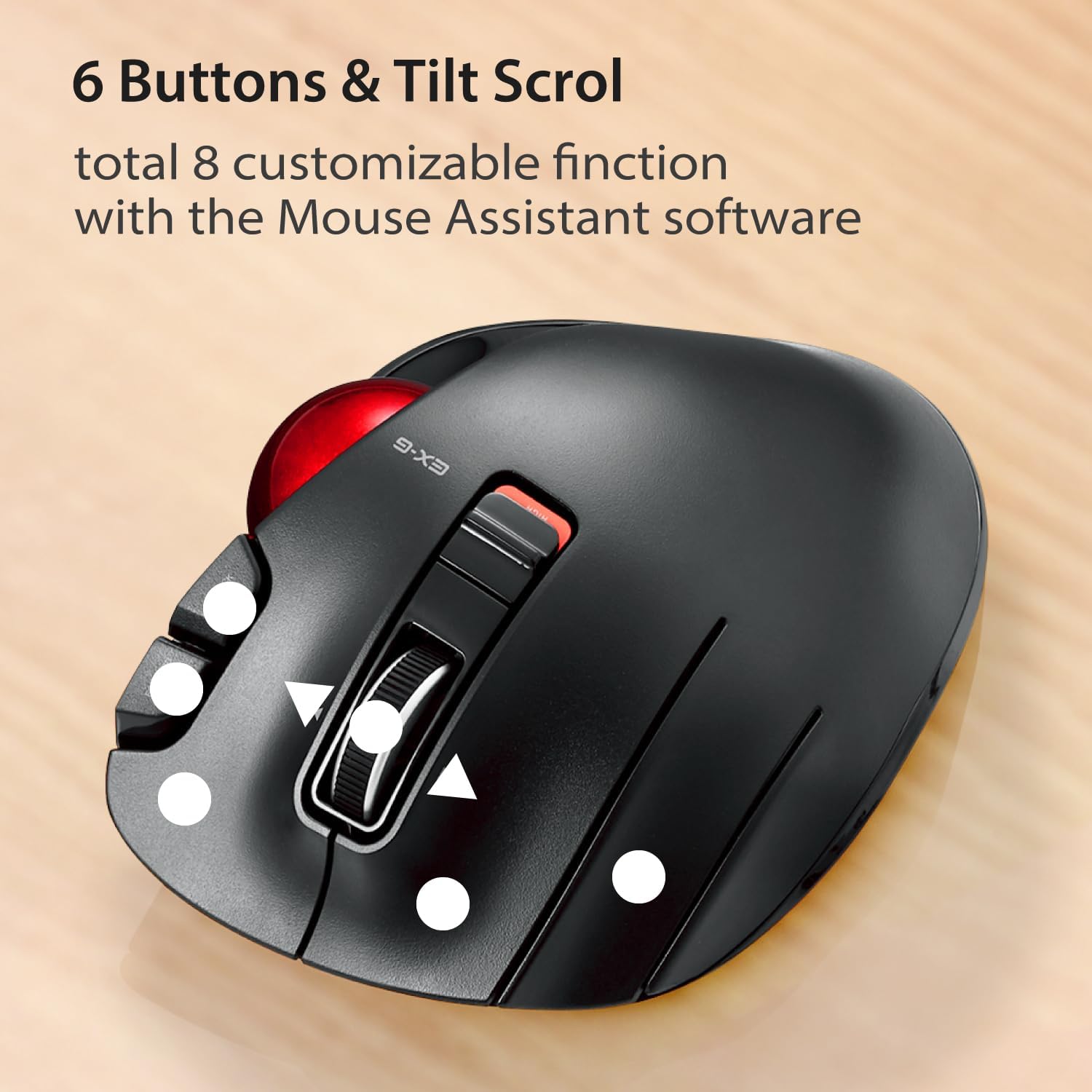
Сүрөт: жогорудан төмөнгө view of the trackball mouse highlighting the positions of its 6 buttons and tilt scroll wheel.

Image: Detailed diagram labeling the tilt wheel, function button, back/forward buttons, DPI switch, 34mm ball, ball removal hole, power switch, low power indicator, high speed indicator, and USB receiver storage.
4. Tilt Scroll
The scroll wheel can be tilted left or right to enable horizontal scrolling, useful for navigating wide documents or spreadsheets. This function may not be supported on all operating systems (e.g., Windows RT8.1).
5. Эргономикалык дизайн
The mouse is designed to support the left hand in a natural, angled position, promoting comfort during extended use and reducing strain.
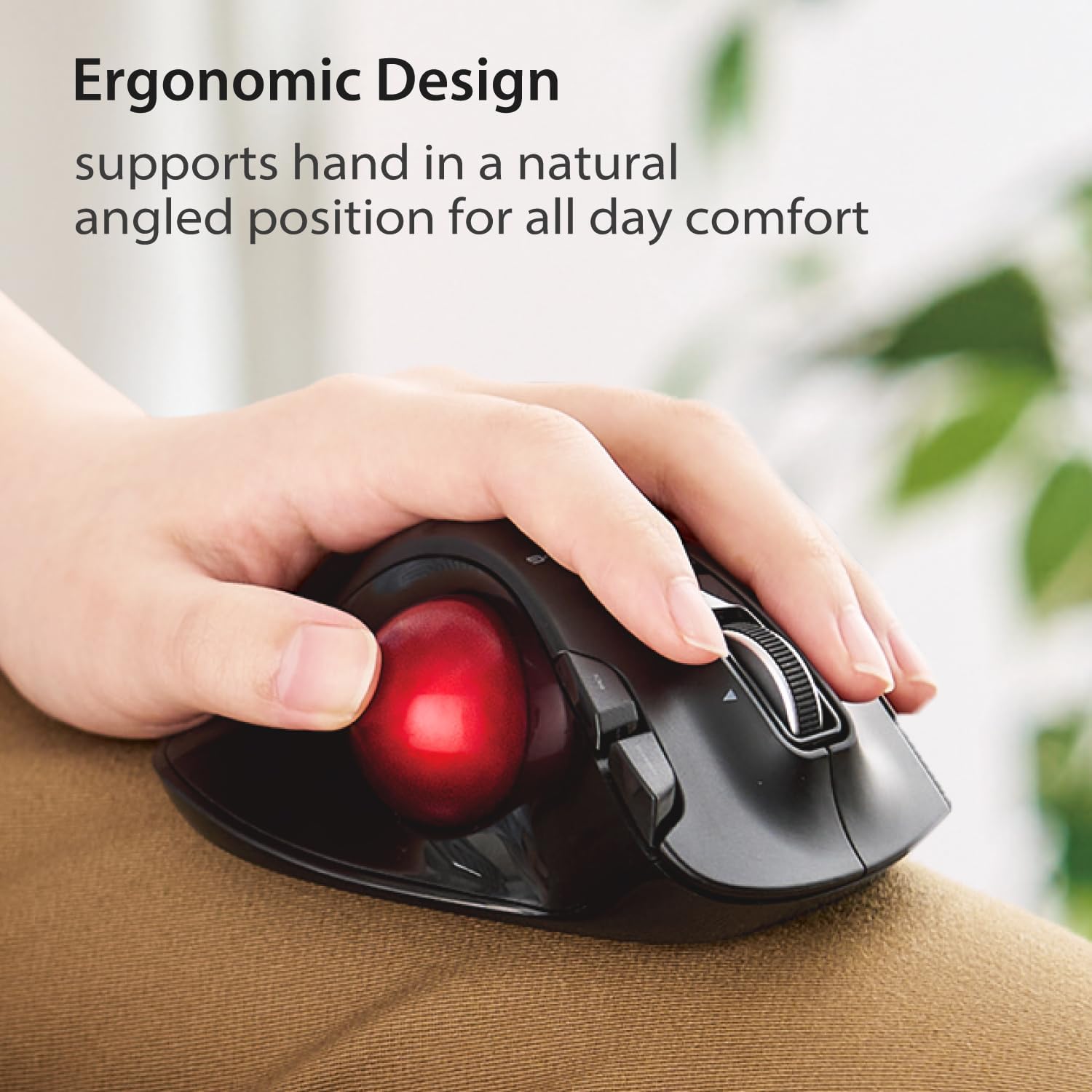
Image: A left hand resting comfortably on the trackball mouse, illustrating its ergonomic shape.
Техникалык тейлөө
1. Трекболду тазалоо
Убакыттын өтүшү менен трекболдун айланасында чаң жана таштандылар топтолуп, анын үзгүлтүксүз иштешине таасир этиши мүмкүн. Тазалоо үчүн:
- Чычканды өчүрүңүз.
- Locate the trackball removal hole on the underside of the mouse.
- Трэкболду астыңкы жагынан түртүп чыгаруу үчүн калем же ушул сыяктуу мокок нерсени колдонуңуз.
- Clean the trackball and the inside of the trackball housing with a soft, lint-free cloth.
- Reinsert the trackball until it clicks into place.
Image: Diagram showing the location of the trackball removal hole on the underside of the mouse, indicating where to push to remove the trackball for cleaning.
2. Батареяны алмаштыруу
When the battery remaining light lamp indicates low power, replace the AA battery following the installation steps in the Setup section.
Проблемаларды чечүү
| Көйгөй | Мүмкүн себеп | Чечим |
|---|---|---|
| Cursor does not move or moves erratically. |
|
|
| Buttons are not responding as expected. |
|
|
| Horizontal scrolling not working. |
|
|
Техникалык шарттар
| Өзгөчөлүк | Деталь |
|---|---|
| Модель номери | M-XT4DRBK-G |
| Өлчөмдөрү (L x W x Y) | 4.9 x 3.73 x 1.89 дюйм (124.4 x 94.7 x 47.9 мм) |
| Салмагы (батареясыз) | 4.5 унция (болжол менен 127.6 г) |
| Байланыш | 2.4 ГГц зымсыз (USB кабыл алуучу) |
| DPI деңгээли | 750 / 1500 count (switchable) |
| Buttons | 6 (Programmable) + Tilt Scroll |
| Көз салуу технологиясы | Optical (Red Ball) |
| Power Source | 1 x AA батареясы (кошулган) |
| Системалык талаптар | Windows Vista, 7, 8, 10 or later; macOS 10.10 or later |

Image: Diagram showing the length, width, and height dimensions of the trackball mouse.
Кепилдик маалымат
ELECOM products are typically covered by a limited manufacturer's warranty. For specific details regarding the warranty period and terms for your M-XT4DRBK-G trackball mouse, please refer to the warranty card included with your product or visit the official ELECOM webсайт.
Колдоо
For further assistance, technical support, or to download the latest version of the ELECOM Mouse Assistant software, please visit the official ELECOM-USA webсайт:
You can also find additional product information and FAQs on the ELECOM brand store on Amazon.