1. Киришүү
This manual provides essential information for the setup, operation, maintenance, and troubleshooting of your new Fusion5 FWIN232 Plus S2 10-inch Windows Tablet PC. Please read this manual thoroughly to ensure proper use and to maximize the device's performance and longevity.
2. Продукт бүтүп калдыview жана Негизги өзгөчөлүктөрү
The Fusion5 FWIN232 Plus S2 is a versatile 10-inch Windows tablet designed for various daily computing needs. It combines portability with the functionality of a Windows PC.
Негизги өзгөчөлүктөрү:
- Операция системасы: Pre-installed with Windows 10 Professional for a familiar and user-friendly experience.
- Аткаруу: Equipped with 6GB DDR4 RAM and an N3450 quad-core CPU for efficient multitasking and daily tasks.
- Дисплей: 10.1-inch Full HD IPS screen (1920x1200 pixels) for clear and vibrant visuals.
- Сактагыч: 64GB internal storage, expandable via Micro SD card.
- Байланыш: Features USB 3.0 port, Micro HDMI, and 802.11ac wireless connectivity.
- Камера: Front-facing 2MP single camera for video calls.
- Тез кубаттоо: FusionCharge FastCharge technology allows for rapid battery replenishment.

Сүрөт 2.1: Алдыңкы view of the Fusion5 FWIN232 Plus S2 Tablet PC, showcasing its 10.1-inch Full HD IPS display.

Figure 2.2: Diagram illustrating the various ports and buttons on the Fusion5 FWIN232 Plus S2 Tablet PC, including power, volume, headphone jack, Micro HDMI, USB 3.0, and charging ports.
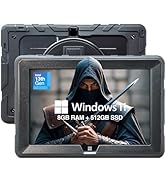
Figure 2.3: Visual summary of key features including 10.1" IPS Display, Windows 10 Professional, Intel Quad Core CPU, 6GB RAM, 64GB Storage, and Dual-Band WiFi.
3. Орнотуу
3.1 Кутуда эмне бар
- Fusion5 FWIN232+ S2 Windows Tablet
- FusionCharge Fast Charger
- Колдонуучунун Колдонмосу (бул документ)
3.2 Алгачкы заряддоо
Before first use, connect the FusionCharge Fast Charger to the tablet and a power outlet. It is recommended to fully charge the device. FusionCharge technology allows for 80% charge in approximately 45-50 minutes and a full charge in 70-80 minutes.
3.3 Powering On and Initial Windows Setup
- Планшеттин капталында жайгашкан кубат баскычын экран жарык болгонго чейин басып, кармап туруңуз.
- Follow the on-screen prompts to complete the Windows 10 Professional setup. This includes selecting your language, region, and connecting to a Wi-Fi network.
- Create a user account and set up any desired security features.
4. Иштөө нускамалары
4.1 Негизги навигация
- Сенсордук экран: Navigate the Windows interface by tapping, swiping, and pinching on the 10.1-inch Full HD IPS display.
- Optional Keyboard: If using a compatible docking keyboard (ASIN B08HJK5QCR), attach it to the tablet for a laptop-like experience with physical keys and a trackpad.
4.2 Перифериялык түзүлүштөрдү туташтыруу
- USB 3.0: Connect USB devices such as external hard drives, flash drives, or mice to the USB 3.0 port for fast data transfer.
- Микро HDMI: Use a Micro HDMI cable to connect your tablet to an external display or TV.
- Micro SD картасы: Insert a Micro SD card into the dedicated slot to expand storage capacity. The tablet supports up to 256GB (as per customer reviews, manual states 128KB max, but 256GB cards have been reported to work).
- Гарнитура уячасы: Connect headphones or external speakers via the 3.5mm audio jack.
4.3 Камераны колдонуу
The tablet features a front-facing 2MP single camera. This camera is suitable for video conferencing and online classes. Access the camera application from the Windows Start Menu to use it.
5. Техникалык тейлөө
- Тазалоо: Use a soft, lint-free cloth to clean the screen and exterior of the tablet. Avoid abrasive cleaners or solvents.
- Программалык камсыздоо жаңыртуулары: Оптималдуу иштөөнү, коопсуздукту жана эң акыркы функцияларга жетүүнү камсыз кылуу үчүн Windows жаңыртууларын үзгүлтүксүз текшерип жана орнотуп туруңуз. Орнотуулар > Жаңыртуу жана Коопсуздук > Windows Жаңыртуу.
- Сактагычты башкаруу: Мезгил-мезгили менен кайраview жана керексиз жок кылуу files or applications to free up storage space. Utilize the Micro SD card slot for additional storage of media and documents.
- Батареяга кам көрүү: To prolong battery life, avoid extreme temperatures and do not leave the tablet fully discharged for extended periods.
6. Кыйынчылыктарды
6.1 Жалпы маселелер жана чечимдер
- Планшет күйбөйт: Ensure the tablet is fully charged. Connect the FusionCharge Fast Charger and wait a few minutes before attempting to power on again.
- Жай аткаруу: Close unnecessary applications running in the background. Check for available Windows updates. Ensure sufficient free storage space.
- Wi-Fi туташуу маселелери: Verify that Wi-Fi is enabled in Windows settings. Restart your Wi-Fi router and the tablet.
- Батарея заряддалбай жатат: Ensure the charger is securely connected to both the tablet and a working power outlet. Try a different power outlet.
Эгерде сизде тынымсыз көйгөйлөр жаралса, жардам алуу үчүн Кепилдик жана колдоо бөлүмүн караңыз.
7. Техникалык шарттар
| Дисплей өлчөмү | 10.1 дюйм |
| Screen Resolution | 1920 x 1200 пиксел (Full HD IPS) |
| Процессор | 2.2 GHz Intel Celeron N3450 (Quad-core) |
| RAM | 6 ГБ DDR4 SDRAM |
| Катуу диск | 64 ГБ |
| Графикалык сопроцессор | Intel HD Graphics 500 |
| Зымсыз түрү | 802.11ac |
| Операция системасы | Windows 10 Professional |
| Элемент Салмагы | 1.3 фунт |
| Продукциянын өлчөмдөрү | 9.72 x 6.5 x 0.31 дюйм |
| Арткы Webcam Resolution | 5 депутат |
| Фронт Webcam Resolution | 2 депутат |
| Батареялар | 1 Литий Полимердик батарейка (кошулган) |
8. Кепилдик жана колдоо
Your Fusion5 FWIN232 Plus S2 Tablet PC comes with a 12-month full USA warranty. For any warranty claims, technical support, or inquiries, please contact our USA service center.
Колдоо кызматы менен байланышуу: For assistance, please email feedback@fusion5store.com.


