1. Продукт бүтүп калдыview
The Logicool M575S is a wireless trackball mouse designed for comfortable and precise cursor control. It features an ergonomic shape, smooth thumb-controlled trackball, and versatile connectivity options including Logicool's proprietary Unifying USB receiver and Bluetooth. This mouse is engineered to reduce wrist and arm fatigue during extended use, making it suitable for both office and remote work environments.
Негизги өзгөчөлүктөр төмөнкүлөрдү камтыйт:
- Fixed mouse position with trackball for cursor operation, saving desk space.
- Ergonomic design with an angled scroll wheel for natural finger positioning and comfort, fitting a wide range of hand sizes.
- Smooth and precise ball control with 2000 DPI tracking accuracy.
- Dual connectivity: Logicool Unifying USB receiver and Bluetooth.
- Long battery life: up to 24 months with Unifying USB, up to 20 months with Bluetooth.
- Compatible with Windows, macOS, iPadOS, and ChromeOS.
2. Пакеттин мазмуну
Төмөндө тизмеленген нерселердин баары пакетиңизде бар экенин текшериңиз:
- Logicool M575S Wireless Trackball Mouse
- AA Батарея (алдын ала орнотулган же камтылган)
- Logicool Unifying USB Receiver

Image: The package contents of the Logicool M575S, including the trackball mouse, a single AA battery, and the compact Unifying USB receiver.
3. Орнотуу
3.1. Күйгүзүү
The M575S trackball mouse uses one AA battery. The battery compartment is located on the underside of the mouse. Ensure the battery is correctly inserted with the positive (+) and negative (-) terminals aligned as indicated. Turn on the mouse using the ON/OFF switch located on the bottom of the device.

Image: The underside of the M575S, illustrating the battery compartment and the storage slot for the Unifying USB receiver. The image also shows the receiver being plugged into a laptop's USB port.
3.2. Чычканыңызды туташтыруу
The M575S offers two connection methods: Logicool Unifying USB Receiver and Bluetooth.
3.2.1. USB кабыл алгычын бириктирүү
- Locate the Unifying USB receiver, typically stored inside the battery compartment of the mouse.
- Plug the Unifying USB receiver into an available USB port on your computer.
- The mouse should automatically connect. If not, press the connection button on the underside of the mouse (if available) or use the Logicool Options software to pair.
3.2.2. Bluetooth туташуусу
- Ensure Bluetooth is enabled on your device (Windows, macOS, iPadOS, ChromeOS).
- Press and hold the Bluetooth connection button on the underside of the mouse until the LED indicator starts blinking rapidly, indicating it's in pairing mode.
- On your device, go to Bluetooth settings and select "Logicool M575S" from the list of available devices to pair.
3.3. Software Installation (Logicool Options)
For enhanced functionality and customization, it is recommended to install the Logicool Options software. This free software allows you to customize button assignments, adjust pointer speed (DPI), and manage device connections.
- Download Logicool Options from the official Logicool webсайт: www.logicool.co.jp/ja-jp/software/options.html
- Программаны орнотуу үчүн экрандагы нускамаларды аткарыңыз.
- Ensure your Logicool Options software is updated to the latest version for optimal performance, especially when using with iPadOS or newer Windows versions.
4. Иштөө нускамалары
4.1. Trackball Operation
The M575S uses a trackball for cursor movement. Instead of moving the entire mouse, you control the cursor by rolling the blue trackball with your thumb.

Image: A close-up of a thumb precisely controlling the trackball on the M575S, highlighting the smooth and accurate movement.
This method allows for precise control and reduces arm and wrist movement, contributing to comfort during long work sessions.

Image: The M575S positioned on a desk, demonstrating how its stationary design saves space compared to traditional mice.
4.2. Баскыч функциялары
The M575S features five customizable buttons:
- Сол чыкылдатуу: Primary selection button.
- Оң чыкылдатуу: Secondary function button, typically for context menus.
- Жылдыруу дөңгөлөгү: Rolls for vertical scrolling, can be pressed for middle-click functionality. The scroll wheel also has an angled design for natural finger placement.
- Алга баскычы: Default function is to navigate forward in web браузерлер же file изилдөөчүлөр.
- Артка баскычы: Default function is to navigate backward in web браузерлер же file изилдөөчүлөр.
All buttons can be customized using the Logicool Options software to perform various functions, including application-specific shortcuts.
5. Техникалык тейлөө
Regular cleaning of your trackball mouse ensures smooth and precise operation. Dust and debris can accumulate around the trackball, affecting its movement.
5.1. Трекболду тазалоо
- Төмөнкү жагындагы КҮЙГҮЗҮҮ/ӨЧҮРҮҮ баскычын колдонуп, чычканды өчүрүңүз.
- Gently push the trackball from the underside of the mouse using your finger or a blunt object until it pops out.
- Clean the trackball itself with a soft, lint-free cloth.
- Inside the trackball cavity, you will see three small support points (bearings) and the optical sensor. Use a cotton swab or a cotton stick to carefully clean any dust or debris from these three support points and the sensor area.
- Once clean, reinsert the trackball into its cavity, ensuring it clicks securely into place.
- Чычканды кайра күйгүзүңүз.
6. Кыйынчылыктарды
6.1. Чычкан жооп бербейт
- Күчтү текшерүү: Ensure the mouse is turned ON and the battery has sufficient charge. Replace the AA battery if necessary.
- Байланышты текшерүү:
- For Unifying USB: Ensure the receiver is securely plugged into a working USB port. Try a different USB port.
- Bluetooth үчүн: Ensure Bluetooth is enabled on your device and the mouse is paired. Try unpairing and re-pairing the mouse in your device's Bluetooth settings.
- Интерференция: Move the mouse closer to the receiver or Bluetooth-enabled device. Avoid using the mouse near other wireless devices that might cause interference.
6.2. Trackball Movement Is Not Smooth or Jumpy
- This is typically caused by dust or debris accumulating around the trackball's support points or the optical sensor. Refer to the Maintenance section (5.1. Cleaning the Trackball) деталдуу тазалоо көрсөтмөлөрү үчүн.
6.3. Баскычтар туура иштебейт
- Ensure the Logicool Options software is installed and updated. Check button assignments within the software.
- If the issue persists, try reinstalling the Logicool Options software.
7. Техникалык шарттар
| Өзгөчөлүк | Description |
|---|---|
| Модель номери | M575S |
| Өлчөмдөрү (L x W x Y) | 13.4 x 10 x 4.8 см |
| Салмагы | 145 г |
| Байланыш | Bluetooth, Logicool Unifying USB |
| Sensor Technology | Оптикалык трекбол |
| DPI диапазону | 2000 XNUMX DPI чейин |
| Buttons | 5 (Left/Right click, Scroll wheel, Forward, Back) |
| Батарея түрү | 1 x AA Батарея |
| Батареянын иштөө мөөнөтү | Up to 24 months (Unifying USB), Up to 20 months (Bluetooth) |
| Зымсыз диапазон | 10 метрге чейин (33 фут) |
| Шайкеш OS | Windows 10, 11 or later; macOS 10.15 or later; iPadOS 14 or later; Chrome OS; Linux |

Image: Detailed dimensions of the M575S mouse, indicating its length (134mm), width (100mm), height (48mm), and weight (145g).
8. Кепилдик жана колдоо
8.1. Кепилдик маалыматы
The Logicool M575S Wireless Trackball Mouse comes with a 1-year limited hardware warranty from the date of purchase. This warranty covers defects in materials and workmanship under normal use. Please retain your proof of purchase for warranty claims.
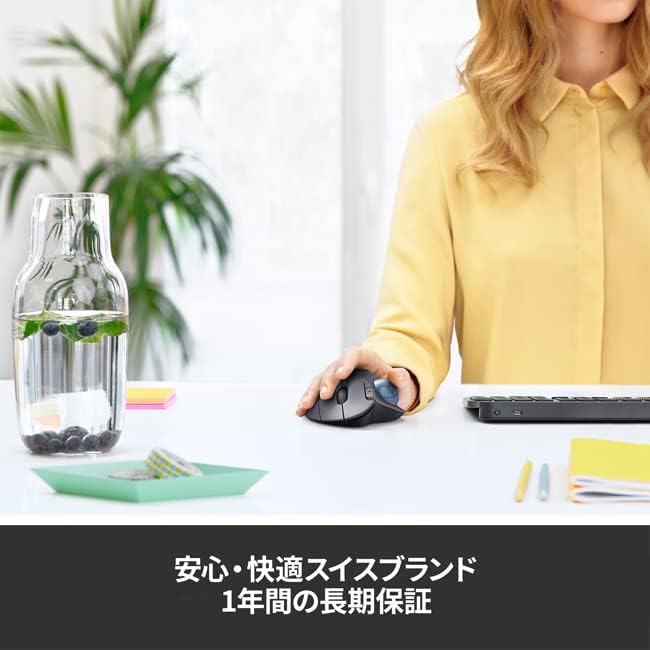
Image: The M575S in use, accompanied by text highlighting its 1-year long-term warranty, emphasizing reliability.
8.2. Кардарларды колдоо кызматы
For further assistance, technical support, or warranty claims, please visit the official Logicool support webсайт:
- Logicool Support: support.logicool.co.jp
You can also find FAQs, troubleshooting guides, and driver downloads on the support webсайт.


