Introduction
Бул окуу куралыңызды орнотуу, иштетүү, тейлөө жана көйгөйлөрдү чечүү боюнча толук нускамаларды камтыйт ViewSonic VP2768a 27-inch IPS 1440p Monitor. Please read this manual thoroughly before using your monitor to ensure proper functionality and to maximize your viewтажрыйбасы.
1. Орнотуу
1.1 Кутуда эмне бар
Таңгакта бардык компоненттер бар экенин текшериңиз:
- VP2768a Дисплей
- Электр кабели
- DP - DP кабели
- USB Type C кабели
- USB Type B Uplink Cable
- Quick Start Guide
- Заводдун калибрленген отчету

1-сүрөт: Мазмуну ViewSonic VP2768a monitor box. Includes the monitor, power cable, DisplayPort cable, USB-C cable, USB-B uplink cable, quick start guide, and factory calibration report.
Video 1: Unboxing the ViewSonic VP2768a 27-inch QHD Professional Display. This video demonstrates the unboxing process and highlights the included accessories.
1.2 Мониторду чогултуу
The monitor stand is designed for easy assembly. The stand column is pre-attached to the display. To attach the base:
- Carefully remove the monitor from its packaging, keeping the display protected.
- Locate the stand base and align it with the bottom of the stand column.
- Secure the base to the column, typically by tightening a captive screw on the underside of the base. This is a tool-less design, allowing for hand-tightening.
- Once assembled, carefully place the monitor on a stable, flat surface.
Video 2: Monitor assembly demonstration. This video shows how to attach the monitor base to the stand column.
1.3 Мониторуңузду туташтыруу
The VP2768a offers versatile connectivity options. Ensure your computer is powered off before making any connections.
- Кубат туташуу: Connect the provided power cable to the monitor's power input and then to a power outlet.
- USB-C туташуу: For a simplified setup, connect your laptop or device to the monitor using the supplied USB Type-C cable. This single cable can deliver video, audio, data, and up to 90W of power to charge your connected device.
- DisplayPort туташуу: Use the provided DisplayPort (DP to DP) cable to connect your computer's DisplayPort output to the monitor's DisplayPort input for high-resolution video.
- HDMI туташуу: Alternatively, connect your computer's HDMI output to the monitor's HDMI 1.4 input using an HDMI cable (not included).
- USB Type B Uplink: If not using USB-C, connect the USB Type B Uplink cable from your computer to the monitor to enable the monitor's integrated USB Type A ports.
- RJ45 Ethernet: Connect an Ethernet cable to the monitor's RJ45 port for a stable wired network connection, especially useful when using USB-C with a laptop.

2-сүрөт: Арткы view of the monitor highlighting the connectivity ports. This includes HDMI 1.4, DisplayPort In, DisplayPort Out (DaisyChain), 2x USB Type A, 1x USB Type B, 1x 65W Powered USB Type C, and 1x Ethernet LAN (RJ45).
2. Мониторуңузду иштетүү
2.1 Power On/Off and OSD Menu
To power on the monitor, press the power button, usually located on the backside or bottom edge. The On-Screen Display (OSD) menu allows you to adjust various settings such as brightness, contrast, color modes, and input sources. The OSD menu buttons are located on the backside of the monitor for a clean front bezel design.
2.2 Эргономикалык жөндөөлөр
The VP2768a features an advanced ergonomic stand for optimal viewсооронуч:
- Бийиктигин тууралоо: Дисплейди көз деңгээлине чейин көтөрүңүз же түшүрүңүз.
- Россия: Adjust the screen's vertical angle to reduce glare and improve viewing.
- Айлануучу: Rotate the screen horizontally to share content or adjust your viewбурч.
- Пивот: Rotate the screen 90 degrees for portrait mode, ideal for document viewing же web серептөө.
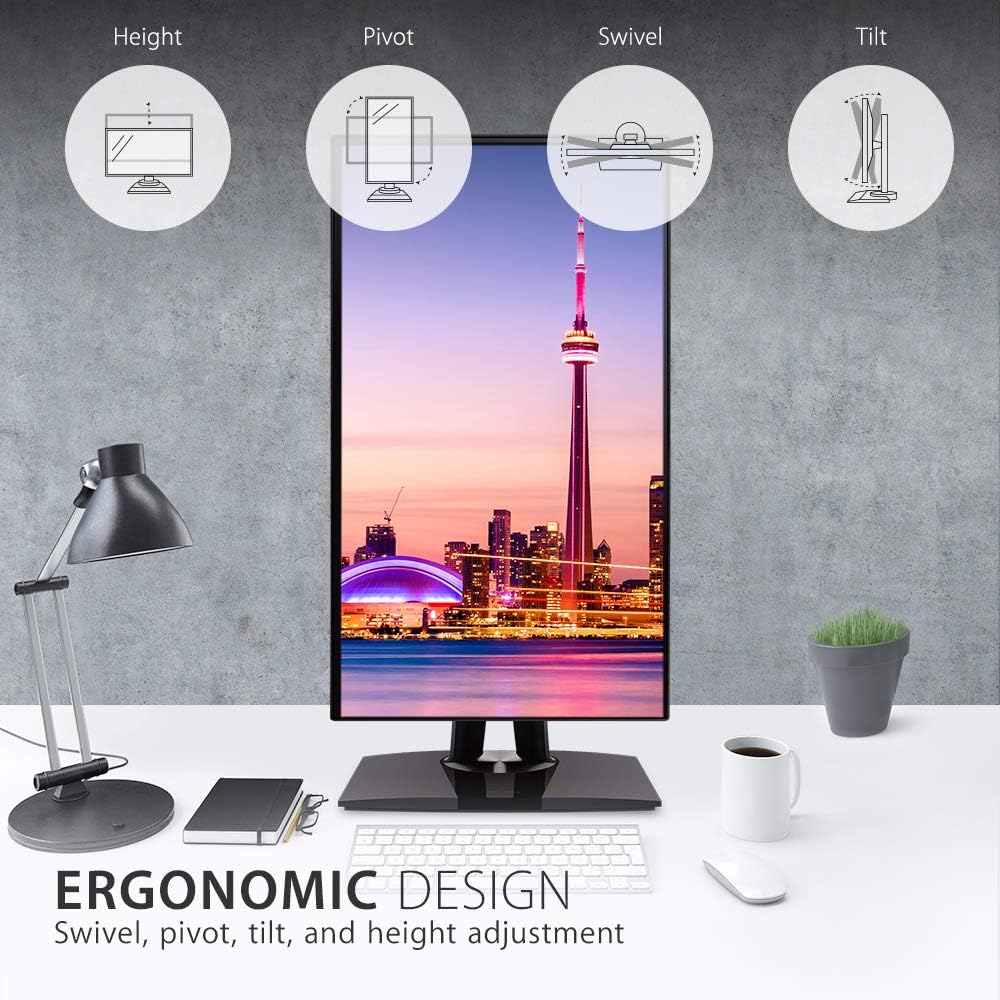
Figure 3: Ergonomic design features of the monitor, illustrating height, pivot, swivel, and tilt adjustments.
2.3 Түстөрдүн тактыгы жана калибрлөө
This monitor is designed for professional color-critical applications:
- Заводдук калибрлөө: Each monitor is factory calibrated to achieve an impressive Delta E<2 value, ensuring high color accuracy right out of the box.
- Color Spaces: Supports 100% sRGB, EBU, SMPTE-C, Rec. 709, and DICOM-SIM color spaces.
- 14-bit 3D LUT: A 14-bit 3D Look-Up Table generates a smooth palette of 4.39 trillion colors for precise color reproduction.
- 6-Axis Color Adjustment: Provides advanced control over color settings.
- Түс бирдейлиги: An integrated function ensures consistent chromaticity across the entire screen.
- Аппараттык калибрлөө: For the most precise color management, hardware calibration is available with the optional ViewSonic Colorbration Kit (sold separately).
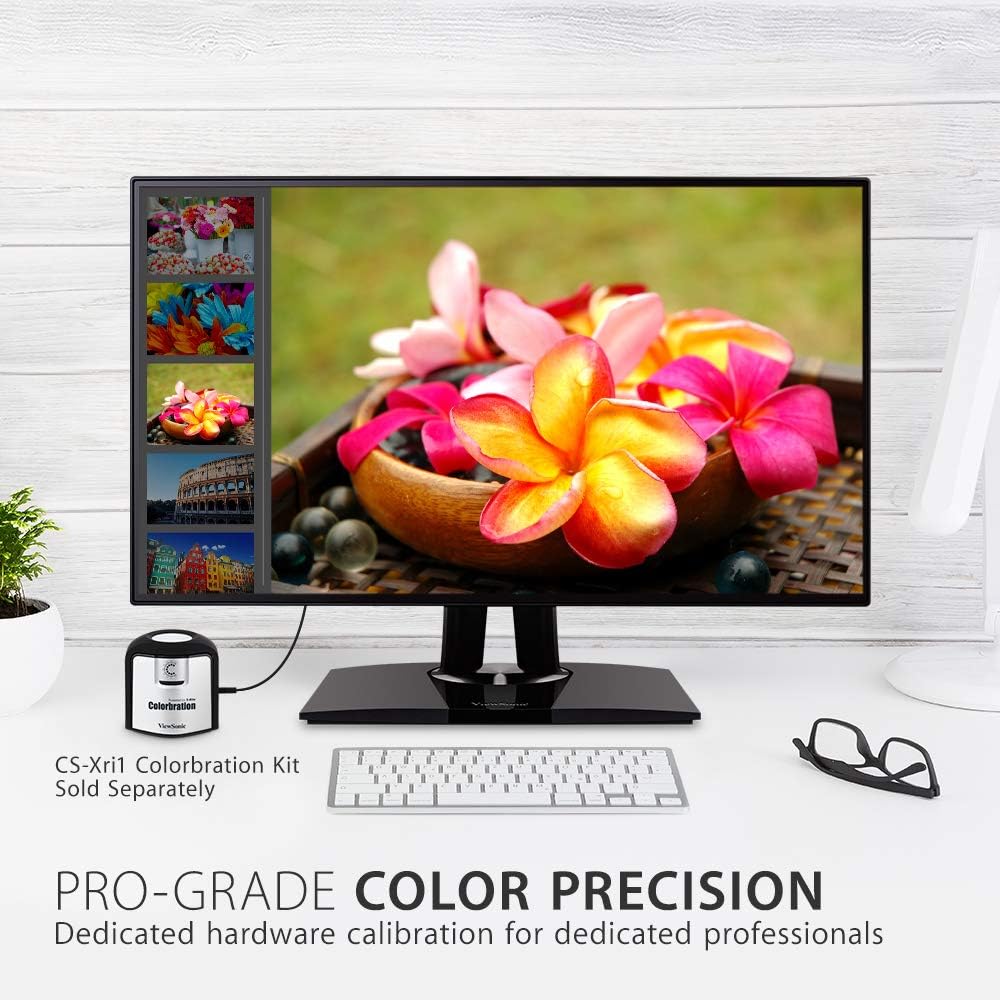
4-сүрөт: Монитордун көрсөтүүсүasing its color precision, with an optional Colorbration Kit for hardware calibration.
2.4 Көзгө кам көрүү технологиясы
The monitor incorporates Flicker-Free technology and a Blue Light Filter to minimize eye strain and fatigue during extended use.
2.5 Daisy Chaining
The DisplayPort out feature allows for seamless daisy-chaining of multiple monitors. Connect your primary monitor to your computer via DisplayPort, then connect the primary monitor's DisplayPort out to the DisplayPort in of a second monitor. This reduces cable clutter and simplifies multi-monitor setups.
2.6 USB-C док функциясы
The USB-C port on the VP2768a acts as a powerful docking station. A single USB-C cable from your laptop can provide:
- 90W кубаттуулугу: Charges your connected laptop or device.
- Видео сигналы: Transmits high-resolution video to the monitor.
- Аудио сигнал: Transmits audio.
- Маалыматтарды өткөрүү: Enables data transfer for connected USB peripherals.
- RJ45 Ethernet: Provides a stable wired network connection through the monitor's integrated Ethernet port.

Figure 5: USB-C connectivity for power, video, audio, and data, simplifying your workspace.
3. Техникалык тейлөө
To maintain the performance and appearance of your monitor:
- Экранды тазалоо: Экранды жумшак, түксүз чүпүрөк менен акырын сүртүңүз. өжөр белгилери үчүн, жеңил гampкездемени суу же атайын экран тазалагыч менен сүртүңүз. Катуу химиялык заттарды же абразивдүү материалдарды колдонуудан алыс болуңуз.
- Тазалоо Casing: Мониторду сүртүү үчүн жумшак, кургак чүпүрөктү колдонуңуз casing.
- Вентиляция: Ашыкча ысып кетүүнүн алдын алуу үчүн монитордогу желдетүү тешиктери жабылбаганын текшериңиз.
4. Кыйынчылыктарды
4.1 No Image or Intermittent Display
- Күчтү текшерүү: Кубат кабели мониторго да, розеткага да бекем туташтырылганын текшериңиз.
- Видео кабелдерди текшерүү: Verify that the video cable (USB-C, DisplayPort, or HDMI) is firmly connected to both the monitor and your computer.
- Киргизүү булагы: Монитордун OSD менюсунда туура киргизүү булагы тандалганын ырастаңыз.
- USB-C Connectivity Issues: Some users have reported intermittent display cut-outs or erratic behavior when using USB-C with other USB devices. If you experience this, try using a different USB-C cable, or connect via DisplayPort/HDMI and use a separate USB hub for peripherals.
4.2 Color or Brightness Issues
- OSD Орнотуулары: Жарыктык, контраст жана түс жөндөөлөрүн тууралоо үчүн OSD менюсуна кириңиз.
- Заводдун баштапкы абалга келтирүү: If color issues persist, consider performing a factory reset through the OSD menu.
- Калибрлөө: For professional use, ensure your monitor is properly calibrated using the factory calibration report or an optional hardware calibration kit.
5. Техникалык шарттар
| Өзгөчөлүк | Деталь |
|---|---|
| Screen Size | 27 дюйм |
| Резолюция | QHD кең 1440p (2560 x 1440 пиксел) |
| Панел түрү | IPS |
| Аспект катышы | 16:9 |
| Түс гаммасы | 100% sRGB, Rec. 709 |
| Түс тактыгы | Delta E<2 |
| Жарыктык | 350 нит (типтик) |
| Байланыш | 1x HDMI 1.4, 1x DisplayPort In, 1x DisplayPort Out (DaisyChain), 2x USB Type A, 1x USB Type B, 1x 90W USB Type C, 1x Ethernet LAN (RJ45) |
| Эргономика | Бийиктик, жантайтуу, айлануу, айлануу |
| Көзгө кам көрүү | Flicker-Free Technology, Blue Light Filter |
| Элемент Салмагы | 15.17 фунт |
| Продукциянын өлчөмдөрү | 16.1 x 8.5 x 24.1 дюйм |
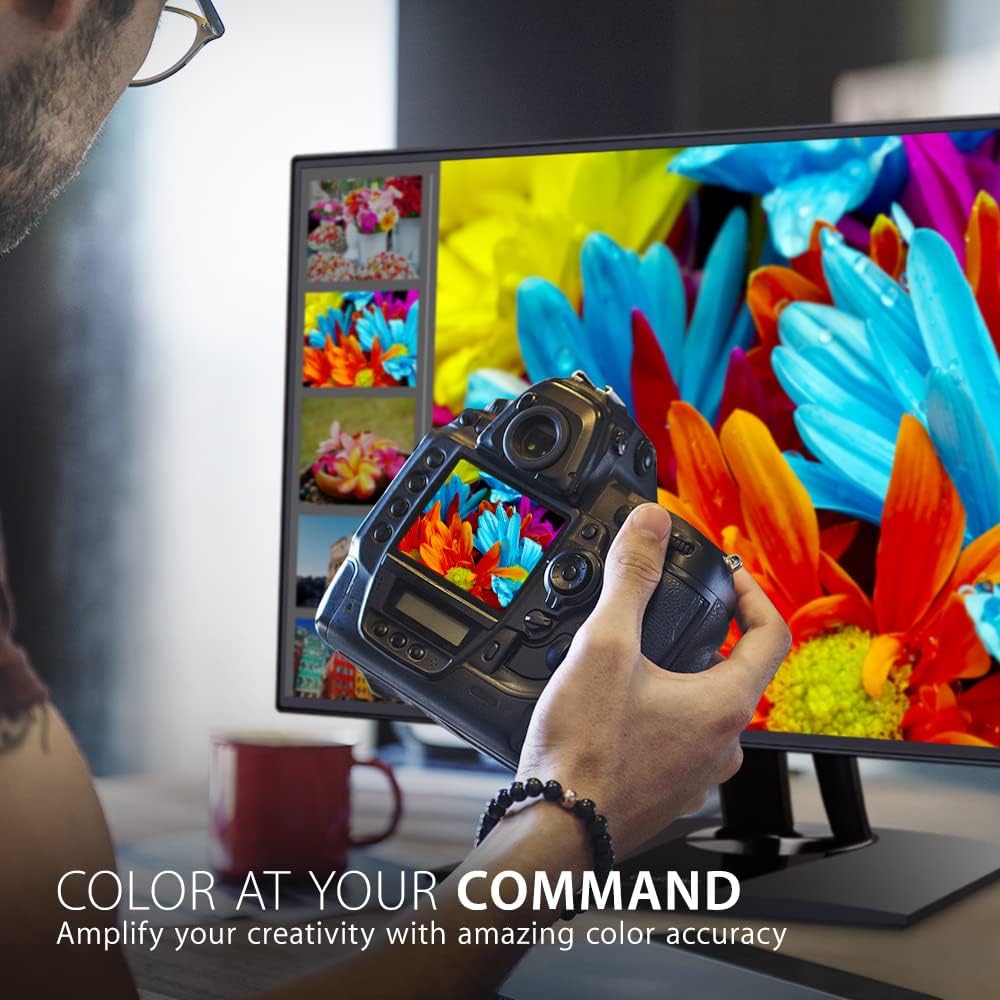
Figure 6: Key dimensions of the ViewSonic VP2768a monitor.
6. Кепилдик жана колдоо
Сиздин ViewSonic VP2768a monitor comes with a 3-year warranty. For technical assistance or warranty claims, please contact ViewSonic customer support. US-based customer support is available to assist you with any product-related inquiries.

Figure 7: ашыкview of ViewSonic's commitment to warranty, support, and product features.


