1. Киришүү
This manual provides detailed instructions for installing, configuring, and operating your TP-Link AC1900 Smart WiFi Router, model Archer A8. Please read this guide thoroughly to ensure proper setup and optimal performance of your device.
2. Пакеттин мазмуну
Пакетиңизде бардык буюмдар бар экенин текшериңиз:
- TP-Link AC1900 Smart WiFi Router (Archer A8)
- Кубаттуу адаптер
- RJ45 Ethernet кабели
- Ыкчам орнотуу колдонмосу
3. Физикалык бүтүрүүview
Роутердин компоненттери жана индикаторлору менен таанышып алыңыз.
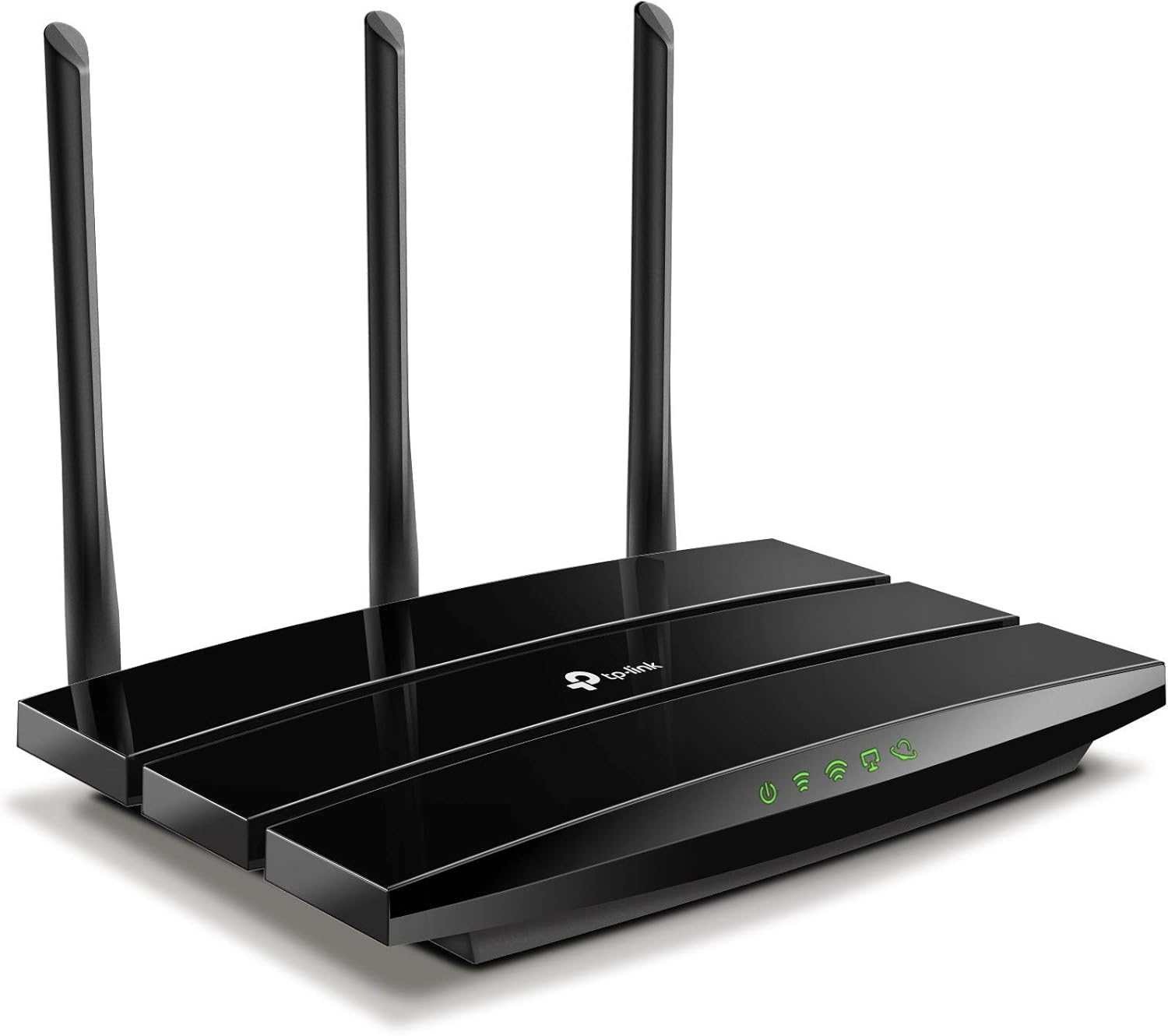
Сүрөт 3.1: Алдыңкы View of TP-Link Archer A8 Router. Бул сүрөт жогорудан төмөн карай көрсөтөт view of the TP-Link Archer A8 router, featuring its sleek black design and three external antennas. The front panel includes LED indicators for power, internet connectivity, Wi-Fi status, and Ethernet port activity.
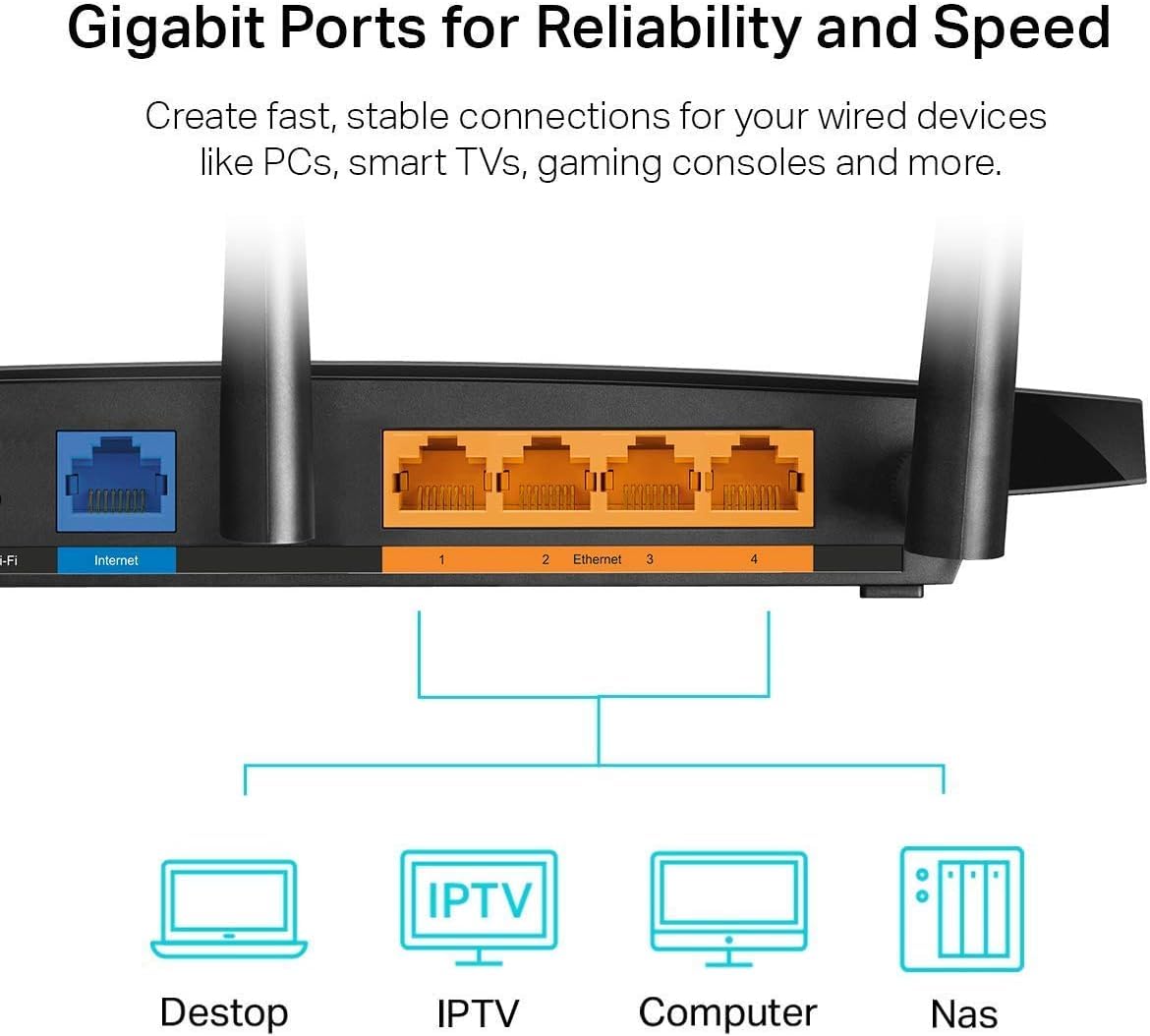
Figure 3.2: Rear Panel of TP-Link Archer A8 Router. This image shows the rear panel of the router, highlighting the Gigabit WAN port (blue) and four Gigabit LAN ports (orange). These ports are used for wired connections to your modem and other network devices.
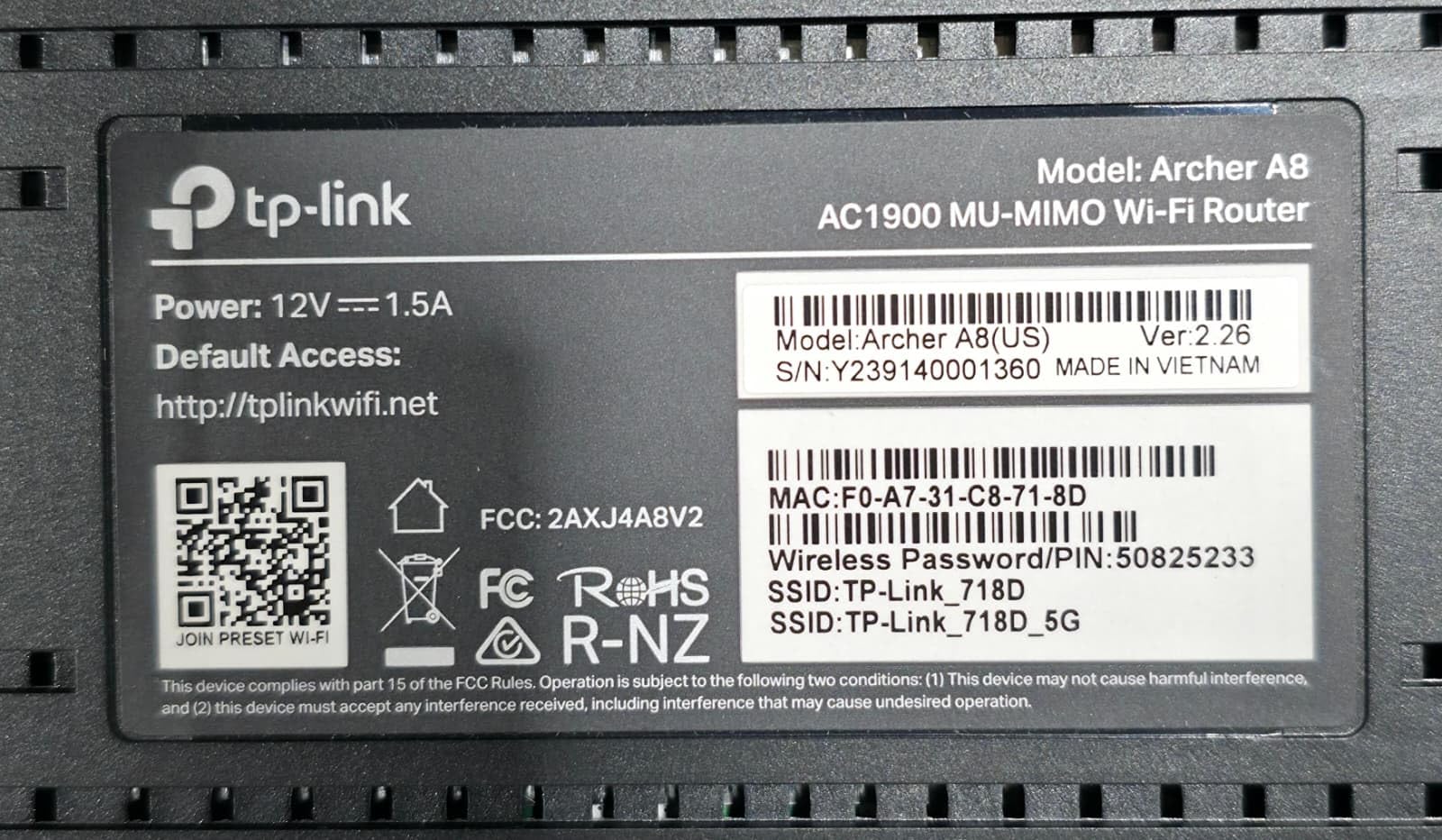
Figure 3.3: Router Bottom Label. This label provides essential information including the model (Archer A8, AC1900 MU-MIMO Wi-Fi Router), power specifications (12V===1.5A), default access URL (http://tplinkwifi.net), MAC address (F0:A7:31:C8:71:8D), serial number (Y239140001360), and default Wi-Fi network names (SSID: TP-Link_718D, TP-Link_718D_5G) with the default wireless password (50825233). It also includes FCC and RoHS compliance marks.
4. Орнотуу нускамалары
- Модемиңизди өчүрүү: Учурдагы модемиңизден электр кубатын ажыратыңыз.
- Роутерди туташтыруу:
- Модемиңиздин Ethernet кабелин туташтырыңыз WAN порт (blue) on the Archer A8 router.
- Кубат адаптерин роутерге туташтырыңыз жана аны розеткага сайыңыз.
- Модемиңизди күйгүзүңүз, андан кийин роутерди күйгүзүңүз. LED индикаторлору турукташканча күтө туруңуз.
- Роутерге туташуу:
- Зымсыз туташуу: Connect your computer or mobile device to the router's default Wi-Fi network. The default SSIDs (e.g., TP-Link_718D, TP-Link_718D_5G) and Wireless Password (e.g., 50825233) are printed on the router's bottom label (refer to Figure 3.3).
- Зымдуу туташуу: Connect your computer to one of the router's LAN порттору (orange) using an Ethernet cable.
- Маршрутизаторду конфигурациялаңыз:
- ачуу а web browser and enter the default access URL: http://tplinkwifi.net.
- Follow the on-screen instructions in the Quick Setup wizard to configure your internet connection and Wi-Fi settings. You will be prompted to create a new login password for the router.
- Alternatively, use the TP-Link Tether App for mobile-based setup.
5. Иштөө нускамалары
5.1. Түзмөктөрдү туташтыруу
Роутер орнотулгандан кийин, сиз түзмөктөрүңүздү туташтыра аласыз:
- Зымсыз түзмөктөр: Издөө түзмөгүңүздөгү Wi-Fi тармагынын аталышын (SSID) жана орнотуу учурунда конфигурациялаган сырсөзүңүздү киргизиңиз.
- Зымдуу түзмөктөр: Connect devices like PCs, Smart TVs, or gaming consoles to the router's Gigabit LAN ports using Ethernet cables.
5.2. Dual-Band Wi-Fi
The Archer A8 operates on two frequency bands:
- 2.4 ГГц диапазону: Provides wider coverage and better penetration through walls, ideal for general internet use and older devices. Offers speeds up to 600Mbps.
- 5 ГГц диапазону: Offers faster speeds (up to 1300Mbps) and lower latency, suitable for bandwidth-intensive activities like 4K streaming and online gaming. Has a shorter range and is more susceptible to obstacles.
The router supports Smart Connect, which automatically assigns devices to the best available band for optimal performance.
5.3. MU-MIMO технологиясы
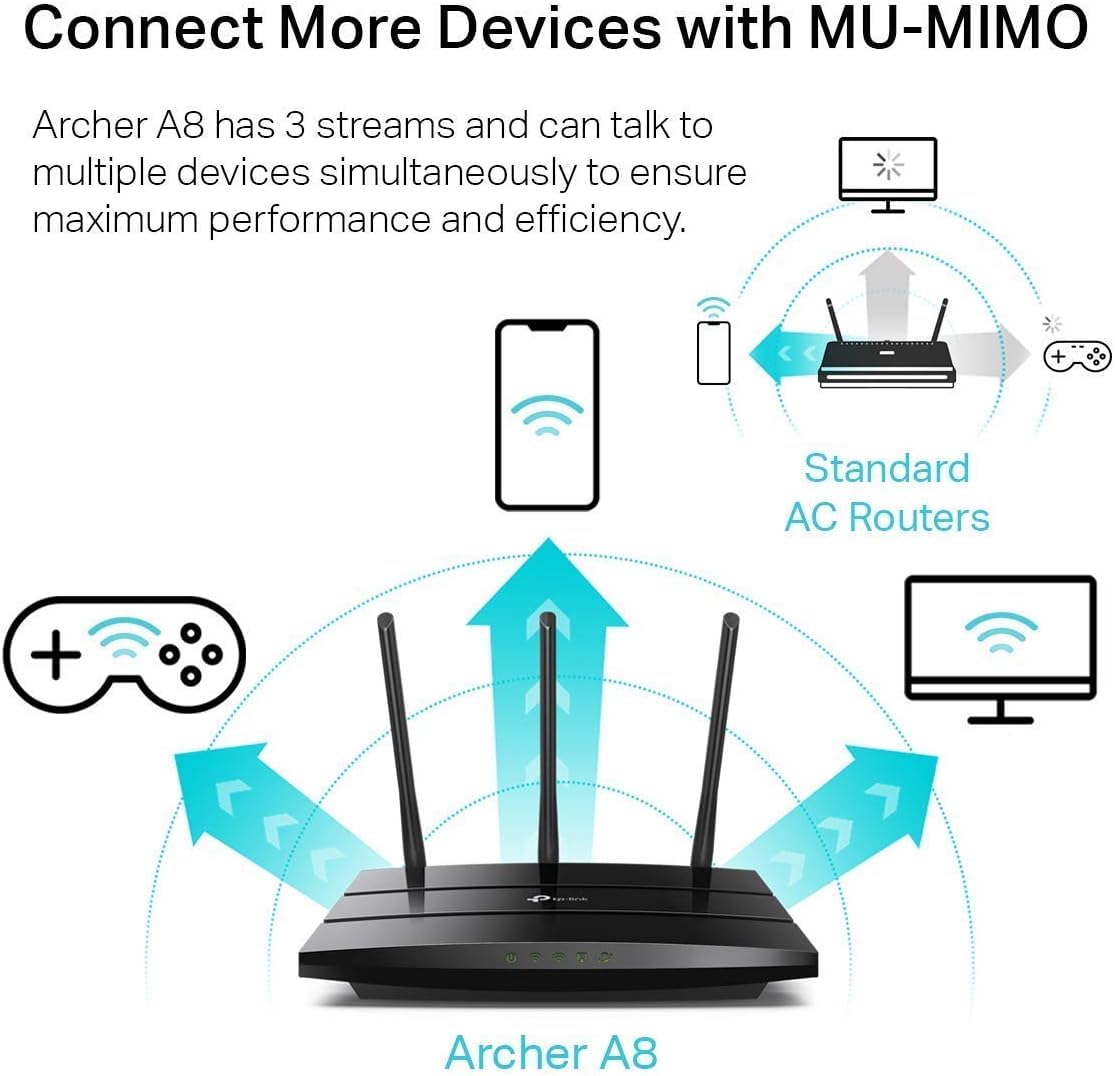
Figure 5.1: MU-MIMO Operation. This diagram illustrates how the Archer A8 router, equipped with MU-MIMO technology, can communicate with multiple devices simultaneously, unlike standard AC routers that communicate with one device at a time. This improves network efficiency and performance for all connected devices.
MU-MIMO (Multi-User, Multiple-Input, Multiple-Output) allows the Archer A8 to communicate with multiple devices simultaneously, rather than sequentially. This significantly improves network efficiency and throughput, especially in environments with many connected devices. For MU-MIMO to function, client devices must also support MU-MIMO.
5.4. Нур түзүү технологиясы
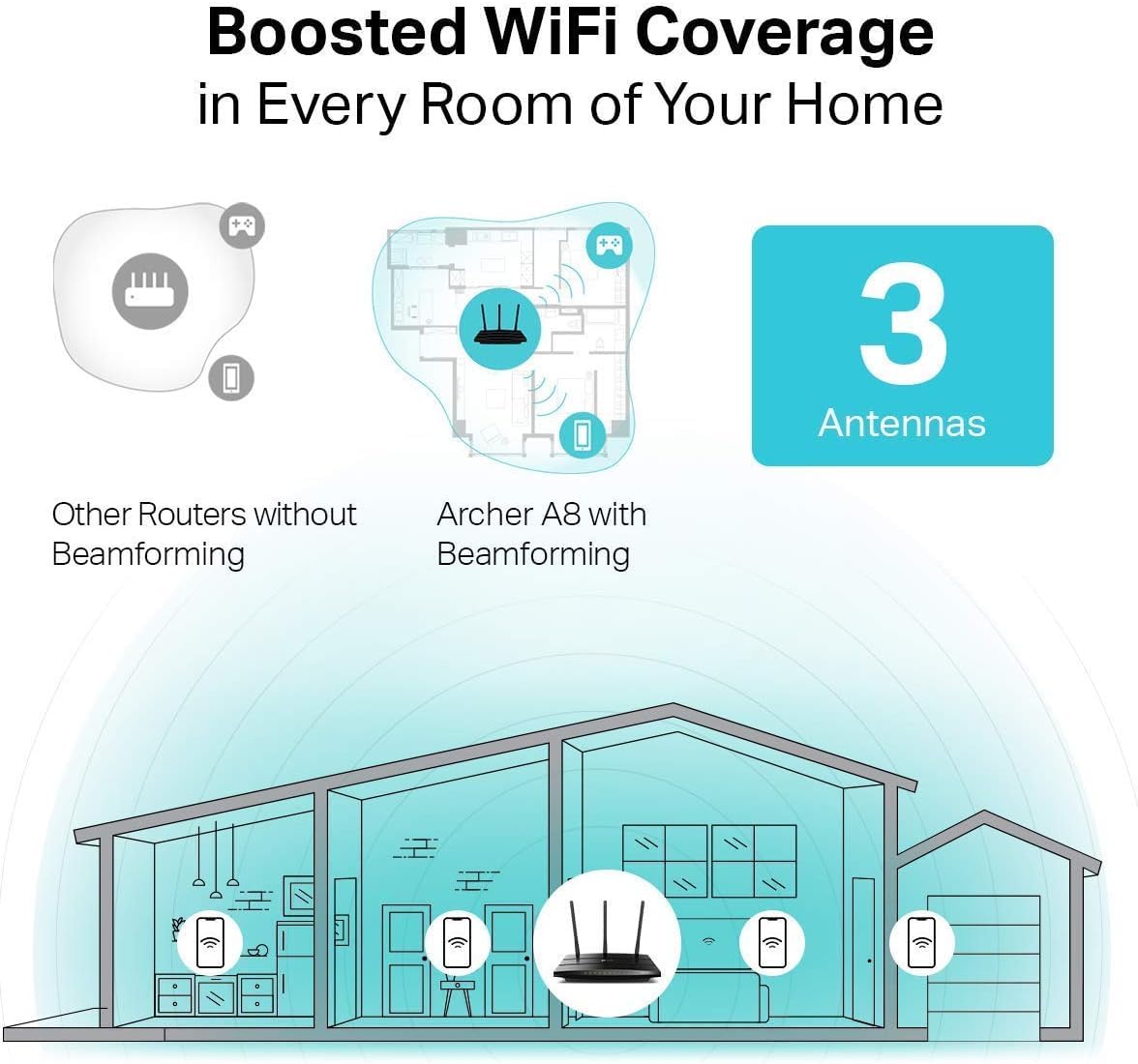
Figure 5.2: Beamforming Coverage. This image compares Wi-Fi coverage between a router without Beamforming and the Archer A8 with Beamforming. The Archer A8 directs stronger, more focused Wi-Fi signals towards connected devices, extending coverage and improving signal strength throughout your home.
Beamforming technology detects the location of your connected devices and concentrates the Wi-Fi signal directly towards them. This results in a more efficient and stronger wireless connection, extending Wi-Fi coverage and improving reliability, particularly for long-range connections.
5.5. Guest Wi-Fi Network
The router allows you to create a separate guest network, providing internet access to visitors without granting them access to your main network resources. This enhances security for your primary network.
5.6. Ата-энелик көзөмөл
Utilize the Parental Controls feature to manage internet access for children. You can block inappropriate content and set daily time limits for online activity.
6. Техникалык тейлөө
- Программалык камсыздоонун жаңыртуулары: Маршрутизатор аркылуу микропрограмма жаңыртууларын дайыма текшерип, орнотуп туруңуз web management interface or the TP-Link Tether App. Updates often include performance improvements, security patches, and new features.
- Маршрутизатордун жайгашуусу: Place the router in a central location, away from obstructions and devices that emit electromagnetic interference (e.g., microwaves, cordless phones) to maximize Wi-Fi coverage.
- Кайра жүктөлүүдө: Роутерди мезгил-мезгили менен өчүрүп-күйгүзүп туруңуз (кубат адаптерин сууруп, кайра сайыңыз), эс тутумун тазалап, тармактык туташууларды жаңыртып туруңуз, бул анча чоң эмес иштөө көйгөйлөрүн чечиши мүмкүн.
- Коопсуздук: Use strong, unique passwords for your Wi-Fi network and router administration. Enable WPA2/WPA3 encryption for your wireless network.
7. Кыйынчылыктарды
If you encounter issues with your router, consider the following steps:
- Интернетке кирүү жок:
- Модемиңиз туура иштеп жатканын текшериңиз.
- Ensure all cables are securely connected to the correct ports (WAN port to modem, LAN ports to devices).
- Модемди да, роутерди да өчүрүп күйгүзүңүз.
- Роутердеги интернет жөндөөлөрүңүздү текшериңиз web башкаруу интерфейси.
- Weak Wi-Fi Signal or Dropouts:
- Маршрутизаторду тоскоолдуктардан жана тоскоолдуктардан алысыраак борборго которуңуз.
- Оптималдуу сигнал багыты үчүн роутердин антенналарын тууралаңыз.
- Consider using a Wi-Fi analyzer app to identify channel interference and switch to a less congested channel.
- Маршрутизаторду башкаруу барагына кирүү мүмкүн эмес:
- Аспабыңыз роутердин тармагына (зымдуу же зымсыз) туташып турганын текшериңиз.
- Verify you are using the correct access URL (http://tplinkwifi.net) же IP дареги.
- Браузериңиздин кэшин тазалаңыз же башка браузерди колдонуп көрүңүз.
- Роутерге кирүү сырсөзүн унутуп калдым:
- Perform a factory reset on the router. This will revert all settings to default, including the login password (which you will then set up again via the Quick Setup wizard). To factory reset, press and hold the reset button on the router (usually a small pinhole button) for about 10 seconds while the router is powered on.
8. Техникалык шарттар
| Өзгөчөлүк | Деталь |
|---|---|
| Модель аты | TP-Link AC1900 (Archer A8) |
| Зымсыз стандарт | IEEE 802.11ac/n/a 5 ГГц, IEEE 802.11n/b/g 2.4 ГГц |
| Wi-Fi ылдамдыгы | AC1900 (5 ГГцде 1300 Мбит/сек, 2.4 ГГцде 600 Мбит/сек) |
| Антенналар | 3 туруктуу тышкы антенналар |
| Ethernet порттору | 1 гигабиттик WAN порту, 4 гигабиттик LAN порту |
| Өзгөчөлүктөр | MU-MIMO, Beamforming, Smart Connect, Guest Wi-Fi, Parental Controls, WPS |
| Өлчөмдөрү (W x D x H) | 9.57 x 6.32 x 1.28 дюйм |
| Элемент Салмагы | 14.6 унция |
| Power Input | 12V===1.5A |
| Шайкеш түзмөктөр | Оюн консолу, персоналдык компьютер, акылдуу телевизор |
Эскертүү: Maximum wireless transmission rates are physical rates derived from IEEE 802.11 specifications. Actual wireless data throughput and wireless coverage are not guaranteed and will vary due to network conditions, environmental factors, and client limitations. Use of MU-MIMO requires client devices to also support MU-MIMO.
9. Кепилдик жана колдоо
TP-Link provides an industry-leading 2-year warranty for this product. For technical assistance, please contact TP-Link's 24/7 technical support.
For the most up-to-date information, support resources, and contact details, please visit the official TP-Link webсайт.
Юридикалык баш тартуу:
1. Maximum wireless transmission rates are the physical rates derived from IEEE Standard 802.11 specifications. Range and coverage specifications are based upon test results under normal usage conditions. Actual wireless transmission rate and wireless coverage are not guaranteed and will vary as a result of 1) environmental factors, including building materials, physical objects, and obstacles, 2) network conditions, including local interference, volume and density of traffic, product location, network complexity, and network overhead and 3) client limitations, including rated performance, location, connection quality, and client condition. 2. Use of MU-MIMO requires clients to also support MU-MIMO.


