Introduction
This manual provides comprehensive instructions for the setup, operation, and maintenance of your Keychron K4 RGB Hot Swappable Mechanical Keyboard. Designed for productivity and a tactile typing experience, the K4 features a 96% layout with 100 keys, offering both Bluetooth wireless and USB wired connectivity. It is compatible with both Mac and Windows operating systems.
Пакеттин мазмуну
- Keychron K4 Mechanical Keyboard
- USB Type-C кабели
- Баскыч капкагын тарткыч
- Switch Puller
- Extra Keycaps for Windows and Mac operating systems
- Колдонуучунун Колдонмосу (бул документ)
Жайгашуу
1. Баштапкы заряддоо
Before first use, connect the keyboard to a USB power source using the provided USB Type-C cable. The keyboard features a 4000 mAh battery, providing up to 240 hours of usage with the backlight disabled.
2. Байланыш режимдери
The Keychron K4 supports both Bluetooth wireless and USB wired connections.

Image: The Keychron K4 keyboard is designed for broad compatibility, supporting both Mac and Windows operating systems, and connecting seamlessly with various devices including desktops, laptops, and smartphones/tablets.
2.1. Bluetooth туташуусу
- Ensure the keyboard's mode switch (located on the side) is set to "BT" (Bluetooth).
- басып, кармап туруңуз fn+1 (же fn+2 or fn+3) key combination for 4 seconds until the '1' (or '2' or '3') key flashes rapidly. This indicates the keyboard is in pairing mode.
- On your device (computer, smartphone, tablet), enable Bluetooth and search for "Keychron K4".
- Select "Keychron K4" from the list of available devices to complete the pairing process. The corresponding number key will stop flashing and remain solid when connected.
- The keyboard can connect with up to 3 devices and switch between them easily using fn+1, fn+2, же fn+3.
2.2. USB зымдуу туташуу
- Ensure the keyboard's mode switch is set to "Cable".
- Баскычтоптон чыккан USB Type-C кабелин компьютериңиздин USB портуна туташтырыңыз.
- Баскычтоп автоматтык түрдө таанылып, колдонууга даяр болот.
3. Операциялык системанын которгучу
The Keychron K4 has a dedicated switch for Mac and Windows layouts. Locate the OS switch on the side of the keyboard and set it to your desired operating system for optimal key mapping.

Image: The Keychron K4 keyboard seamlessly integrates with Apple devices, as shown here next to an iMac and Magic Mouse, highlighting its Mac compatibility.
Иштөө нускамалары
1. Негизги функциялар жана жайгашуу
The K4 features a 96% layout with 100 keys, including a number pad. It provides all necessary Mac function keys and is fully compatible with Windows. Extra keycaps for both operating systems are included for customization.

Сүрөт: комплекстүү view of the Keychron K4 keyboard, highlighting its compact 96% layout which includes a full numeric keypad, and its vibrant RGB backlighting.
2. Арткы жарыкты башкаруу
The K4 features enchanting RGB backlighting with over 15 types of flashing light modes. All backlight controls are managed directly from the keyboard without the need for software.
- Fn + Light Bulb Key (F5): Cycle through different RGB lighting effects.
- Fn + Сол жебе: Арткы жарыктын жарыктыгын азайтыңыз.
- Fn + Оңго жебе: Арткы жарыктын жарыктыгын жогорулатуу.
- Fn + Өйдө жебе: Increase backlight speed/effect.
- Fn + Төмөн жебе: Decrease backlight speed/effect.

Image: A detailed shot of the Keychron K4's RGB backlighting, showcasing the vibrant and customizable illumination beneath the keycaps.
3. N-Key оодарылып кетүү (NKRO)
The K4 supports N-key rollover (NKRO) in wired mode, allowing all keys to be registered simultaneously. In wireless mode, it supports 6-key rollover (6KRO).
Техникалык тейлөө
1. Баскычтопту тазалоо
Клавиатураңызды тазалоо үчүн, алгач аны бардык кубат булактарынан ажыратыңыз. Жумшак, түксүз чүпүрөктү бир аз сүртүңүз.ampened with water or a mild cleaning solution. Avoid spraying liquids directly onto the keyboard. For cleaning between keycaps, use compressed air or a small brush.
2. Ыкчам алмаштыруучу которгучтар
The K4 hot-swappable version allows you to personalize your typing experience by changing switches without soldering. This feature enables easy replacement of switches if they become faulty or if you wish to try different switch types (e.g., Gateron G Pro Brown, Red, Blue).
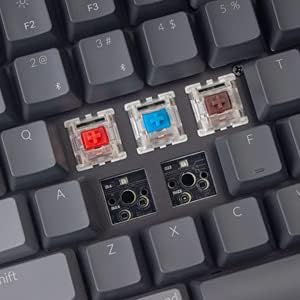
Image: This image demonstrates the hot-swappable capability of the Keychron K4, showing various Gateron switches detached from the keyboard's PCB, allowing for easy customization or replacement.
2.1. Коммутаторлорду алмаштыруу
- Каалаган клавиатураны акырын алып салуу үчүн берилген клавиатура тарткычын колдонуңуз.
- Use the provided switch puller to carefully grip the switch from its top and bottom clips. Pull straight up to remove the switch from the PCB.
- Жаңы өчүргүчтүн төөнөгүчтөрүн платадагы тешиктер менен тегиздеңиз. Төөнөгүчтөрдүн түз экенин текшериңиз.
- Gently push the new switch into place until it clicks securely. Do not force it.
- Баскыч капкагын алмаштырыңыз.
3. Баскыч капкагын алмаштыруу
Keycaps can be removed and replaced using the keycap puller. This is useful for cleaning or for installing custom keycap sets. Ensure proper alignment when replacing keycaps.
Проблемаларды чечүү
- Баскычтоп Bluetooth аркылуу туташпай жатат:
- Ensure the keyboard's mode switch is set to "BT".
- Verify the keyboard is in pairing mode (Fn + 1/2/3 key flashing).
- Түзмөгүңүздүн Bluetooth жөндөөлөрүн текшерип, Bluetooth иштетилгенин текшериңиз.
- Түзмөктү компьютериңизде/телефонуңузда унутуп, кайра жупташтырып көрүңүз.
- Баскычтоп жетиштүү заряддалганын текшериңиз.
- Bluetooth connection lag or disconnection:
- Интерференцияны азайтуу үчүн клавиатураны түзмөгүңүзгө жакындатыңыз.
- Башка эч кандай күчтүү зымсыз сигналдар тоскоолдук кылбасын текшериңиз.
- Check battery level; low battery can affect wireless performance.
- Consider using the wired USB connection for critical tasks or gaming if wireless performance is inconsistent.
- Арткы жарык иштебей жатат же тыгылып калган:
- Ensure the backlight is not turned off (Fn + Light Bulb key).
- Adjust brightness using Fn + Left/Right Arrow keys.
- A full charge might resolve minor power-related issues.
- Ачкычтар жооп бербейт:
- If using wireless, check battery and connection.
- If using wired, ensure the USB cable is securely connected.
- For specific keys, consider the hot-swappable feature: remove the keycap and switch, inspect the switch pins for bending, straighten if necessary, and reinsert. If the switch is faulty, replace it.
- Keyboard not recognized by computer:
- Башка USB портун же кабелин колдонуп көрүңүз.
- Ensure the OS switch on the keyboard matches your computer's operating system.
- Компьютериңизди өчүрүп күйгүзүңүз.
Техникалык шарттар
| Өзгөчөлүк | Деталь |
|---|---|
| Бренд | Keychron |
| Модель номери | Keychron K4J3 |
| Макет | 96% (100 ачкычтуу) |
| Байланыш | Bluetooth 5.1 (up to 3 devices) & USB Type-C Wired |
| Которгучтар | Gateron G Pro Brown (Hot-Swappable) |
| Арткы жарык | RGB (15+ types of flashing light mode) |
| Батарея сыйымдуулугу | 4000 мАч |
| Батареянын иштөө мөөнөтү | Up to 240 hours (backlight disabled) |
| N-Key Rollover (NKRO) | Wired Mode: NKRO; Wireless Mode: 6KRO |
| Операциялык системанын шайкештиги | macOS, Windows |
| Өлчөмдөрү (LxWxH) | 14.8 x 5.08 x 1.5 дюйм |
| Элемент Салмагы | 2.05 фунт |
Кепилдик жана колдоо
Keychron products are designed for durability and performance. For specific warranty terms and conditions, please refer to the warranty information provided with your purchase or visit the official Keychron website. For technical support, troubleshooting assistance, or inquiries regarding your Keychron K4 keyboard, please contact Keychron customer service directly.
Расмий Keychron Webсайт: www.keychron.com


