1. Киришүү
Thank you for choosing the ONIKUMA K6 Stereo Gaming Headset. This manual provides comprehensive instructions for the proper setup, operation, and maintenance of your headset. Please read this manual carefully before use to ensure optimal performance and longevity of your device.
2. Пакеттин мазмуну
- ONIKUMA K6 оюн гарнитурасы
- 3.5mm Audio Splitter Cable (1-to-2 for separate audio/mic jacks)
- User Manual
3. Продукт бүтүп калдыview
The ONIKUMA K6 headset is designed for immersive gaming experiences, featuring high-quality stereo sound, a noise-cancelling microphone, and dynamic RGB lighting. Its ergonomic design ensures comfort during extended use.
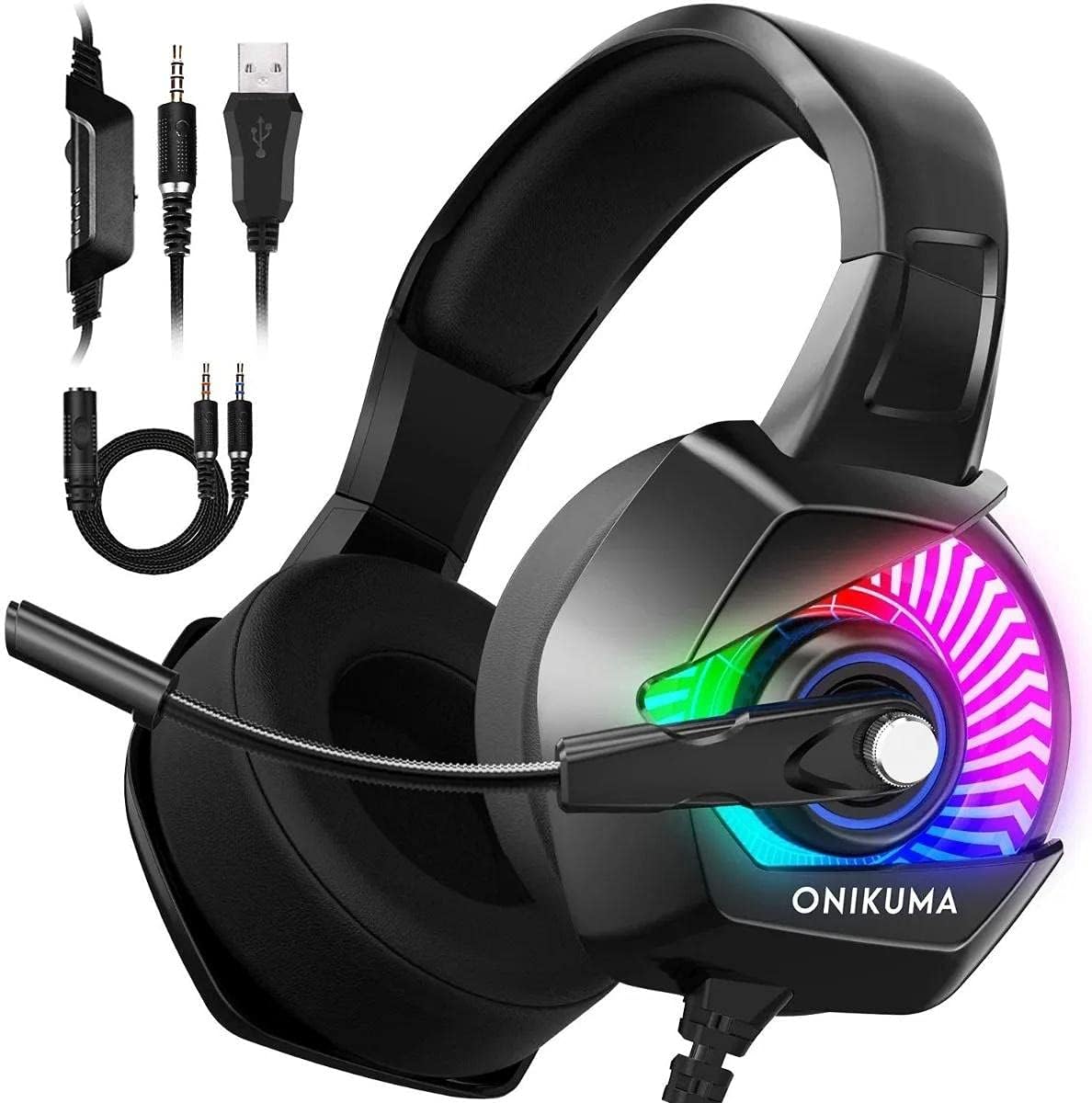
This image displays the ONIKUMA K6 Gaming Headset, highlighting its over-ear design, integrated microphone, and the various connection cables: a 3.5mm audio jack, a USB connector for RGB lighting, and a 3.5mm audio splitter cable.
Негизги өзгөчөлүктөрү:
- RGB жарыктандыруу: Dynamic LED lighting on earcups.
- Ызы-чууну жок кылуучу микрофон: Clear voice pickup, reduces background noise.
- Ыңгайлуу дизайн: Soft protein earpads, adjustable headband, and cozy head cushions.
- In-line Controls: Easy access to volume adjustment and microphone mute switch.

This image illustrates the ergonomic design elements of the ONIKUMA K6 headset, including soft protein earpads for comfort, an adjustable headband for a secure fit, and cozy head cushions for extended wear.

Detail of the ONIKUMA K6 headset's microphone, emphasizing its noise-cancelling capabilities, 360-degree rotation, and 120-degree vertical adjustment for optimal voice capture and clear communication.
4. Орнотуу жана орнотуу
The ONIKUMA K6 headset offers multi-platform compatibility. Follow the instructions below for your specific device.

This graphic demonstrates the ONIKUMA K6 headset's broad compatibility across multiple gaming platforms and devices, including PlayStation 4, Xbox One (requires adapter), Nintendo Switch, PC/Laptop, and smartphones/tablets, showing the necessary connections for each.
4.1 Компьютерге/ноутбукка туташуу
- If your PC/laptop has separate audio (green) and microphone (pink) jacks, use the included 3.5mm audio splitter cable. Connect the headset's single 3.5mm jack to the splitter, then connect the splitter's green plug to the audio output and the pink plug to the microphone input on your computer.
- If your PC/laptop has a single 3.5mm combo jack, connect the headset's single 3.5mm jack directly to the combo jack.
- Plug the USB connector into an available USB port on your PC/laptop to power the RGB lighting.
- Adjust sound settings in your operating system to select the headset as the default audio output and input device.
4.2 PlayStation 4 (PS4) менен туташуу
- Plug the headset's single 3.5mm jack into the controller's 3.5mm port.
- барыңыз Орнотуулар> Түзмөктөр> Аудио шаймандар.
- "Кулакчага чыгаруу" параметрин "Бардык аудио" деп коюңуз.
- "Үндү башкаруу (кулакчындар)" функциясын каалаган деңгээлге коюңуз.
- The USB connector is not required for audio on PS4, but can be connected to a console USB port for RGB lighting.
4.3 Xbox One'га туташуу
- For older Xbox One controllers without a 3.5mm jack, a Microsoft Stereo Headset Adapter (not included) is required. Plug the headset's 3.5mm jack into the adapter, then plug the adapter into the controller.
- For newer Xbox One controllers with a 3.5mm jack, plug the headset's single 3.5mm jack directly into the controller.
- Adjust audio settings via the Xbox Guide.
- The USB connector is not required for audio on Xbox One, but can be connected to a console USB port for RGB lighting.
4.4 Connecting to Nintendo Switch / Mobile Devices
- Plug the headset's single 3.5mm jack directly into the 3.5mm port on your Nintendo Switch or mobile device.
- Adjust volume using the device's controls.
- The USB connector is not used for these devices.
5. Иштөө нускамалары
5.1 Үндү башкаруу
Use the in-line rotary volume wheel located on the headset cable to adjust the audio output level. Rotate the wheel up to increase volume and down to decrease volume.
5.2 Микрофонду үнсүз кылуу
The in-line control unit includes a microphone mute switch. Slide the switch to the appropriate position to enable or disable the microphone.
5.3 RGB жарыктандыруу
The RGB lighting on the earcups is powered via the USB connector. Once the USB is plugged into a compatible port, the lighting will activate automatically, cycling through various colors.

Жакын план view of the ONIKUMA K6 headset's earcups, showcasing the dynamic RGB lighting system. The lighting cycles through various colors, providing an enhanced visual experience.
5.4 Микрофонду тууралоо
The flexible microphone can be rotated 360 degrees and adjusted up to 120 degrees vertically to position it optimally for clear voice capture. Ensure the microphone is positioned near your mouth for best performance.
6. Техникалык тейлөө жана кам көрүү
- Тазалоо: Гарнитураны тазалоо үчүн жумшак, кургак чүпүрөктү колдонуңуз. Катуу химиялык заттарды же абразивдүү материалдарды колдонбоңуз.
- Сактагыч: Гарнитураны күн нурунан жана экстремалдык температурадан алыс салкын, кургак жерде сактаңыз.
- Кабельге кам көрүү: Зыяндын алдын алуу үчүн кабелдерди өтө ийилип же бурмалоодон алыс болуңуз.
- Кулакчалар: The soft protein earpads are designed for comfort. Avoid sharp objects that could puncture or tear them.
7. Кыйынчылыктарды
7.1 Гарнитурадан үн чыкпайт
- 3.5 мм аудио уяча түзмөккө толугу менен сайылганын текшериңиз.
- Check the in-line volume control wheel and ensure it is turned up.
- Verify that the headset is selected as the default audio output device in your computer or console settings.
- Түзмөккө тиешелүү маселени болтурбоо үчүн гарнитураны башка түзмөктө сынап көрүңүз.
7.2 Микрофон иштебейт
- Ensure the in-line microphone mute switch is in the "unmuted" position.
- Verify that the microphone is selected as the default input device in your computer or console settings.
- For PC, ensure the 3.5mm audio splitter's pink plug is connected to the microphone input.
- Check if the microphone is properly positioned and not obstructed.
7.3 RGB жарыктандыруу иштебей жатат
- USB туташтыргычы кубатталган USB портуна бекем сайылганын текшериңиз.
- Test the USB connection with a different USB port or device.
8. Техникалык шарттар
| Өзгөчөлүк | Деталь |
|---|---|
| Бренд аты | Оникума |
| Модель аты | K6 |
| Байланыш технологиясы | Зымдуу |
| Наушник уясы | 3.5 мм Джек |
| Сезимталдуулук | 95 дБ |
| Frequency Response | 30-45 Hz (Note: Original data '3045' assumed to be 30-45 Hz) |
| Noise Control | Активдүү ызы-чууну жокко чыгаруу (микрофон) |
| Наушник форма фактору | Кулак үстүндө |
| Наушниктерди кулакка жайгаштыруу | Кулак үстүндө |
| Түс | Кара |
| Продукциянын өлчөмдөрү | 10 x 2 x 3 см |
| Элемент Салмагы | 50 г |
9. Кепилдик жана колдоо
For warranty information and customer support, please refer to the retailer where you purchased the ONIKUMA K6 headset or visit the official Onikuma webсайт. Кепилдик дооматтар үчүн сатып алганыңыздын далилин сактаңыз.


