1. Киришүү
This manual provides essential information for the safe and efficient use of your THOMSON NEO14 laptop. Please read this guide thoroughly before operating your device to ensure proper setup, operation, and maintenance. Keep this manual for future reference.

Image 1.1: The THOMSON NEO14 laptop displaying the Windows 10 desktop interface.
2. Орнотуу
2.1 Пакеттен чыгаруу
Ноутбукту жана бардык аксессуарларды таңгактан этияттык менен алып салыңыз. Төмөнкү нерселердин бар экенин текшериңиз:
- THOMSON NEO14 Laptop
- Кубаттуу адаптер
- Колдонуучунун Колдонмосу (бул документ)
2.2 Кубат адаптерин туташтыруу
Before initial use, fully charge the laptop battery. Connect the power adapter to the charging port on the laptop and then plug the adapter into a power outlet. The charging indicator light will illuminate.
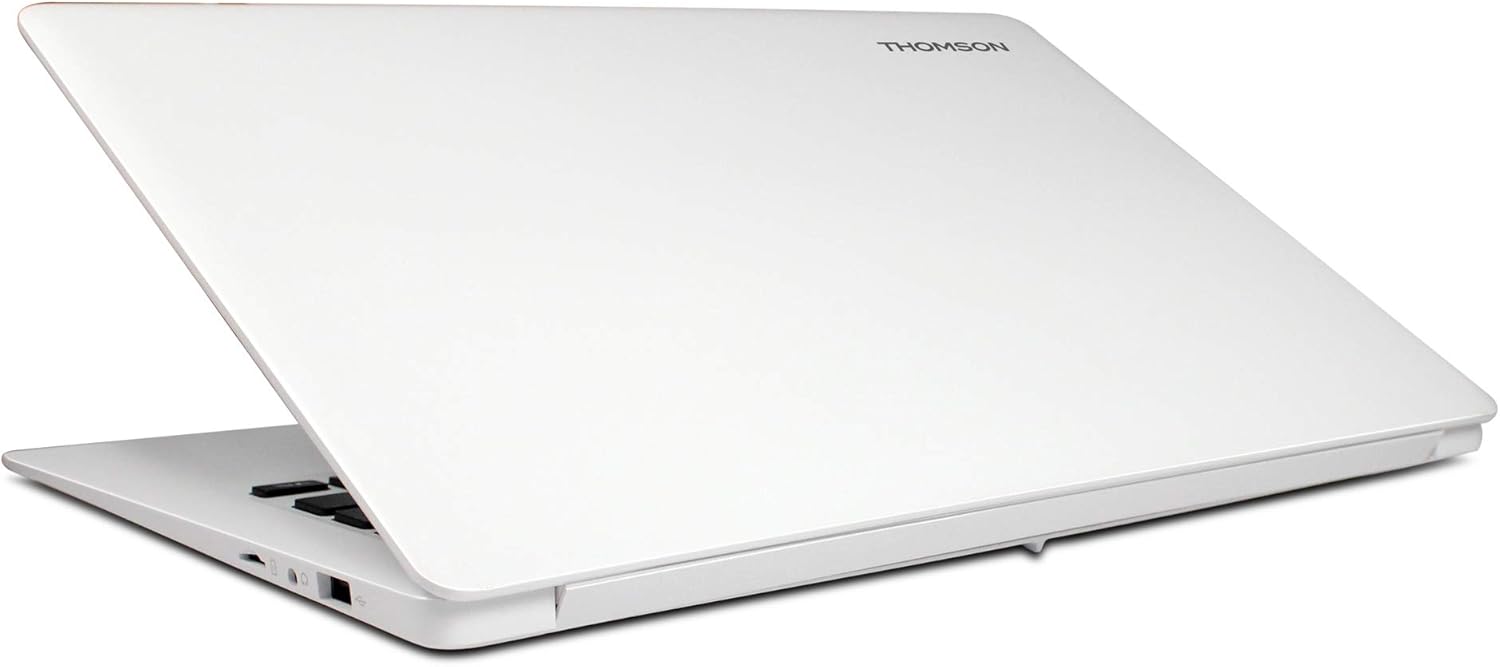
Сүрөт 2.1: Каптал view of the laptop, illustrating the location of various ports, including the power input.
2.3 Initial Boot-up and Windows 10 Setup
Press the power button to turn on the laptop. Follow the on-screen instructions to complete the Windows 10 initial setup, which includes selecting your region, language, creating a user account, and accepting the license agreement.
2.4 Wi-Fiга туташуу
During the Windows 10 setup or after logging in, you will be prompted to connect to a Wi-Fi network. Select your desired network from the list and enter the password if required. This laptop supports Wi-Fi 5 (802.11ac).
3. Иштөө нускамалары
3.1 Күйгүзүү/өчүрүү жана Уйку режими
- Күйгүзүү: Press the power button located on the top right of the keyboard.
- Өчүрүү: "Баштоо" баскычын, андан кийин "Күчүн" баскычын чыкылдатып, "Өчүрүүнү" тандаңыз.
- Уйку режими: Click the Start button, then Power, and select "Sleep," or close the laptop lid.
3.2 Баскычтопту жана сенсордук тактаны колдонуу
The laptop features a full-size keyboard and a multi-touch touchpad. The touchpad supports gestures for navigation, such as two-finger scrolling and pinch-to-zoom.

Image 3.1: The laptop open, highlighting the keyboard layout and the integrated touchpad.
3.3 Перифериялык түзүлүштөрдү туташтыруу
The NEO14A is equipped with various ports for connecting external devices:
- USB порттору: Чычкандар, баскычтоптор же тышкы сактагыч сыяктуу USB түзмөктөрүн туташтыруу үчүн.
- Мини HDMI порту: To extend your display to a larger screen or projector.
- MicroSD картасынын уячасы: Сактоо көлөмүн 128 ГБ чейин кеңейтүү үчүн.
- Аудио Jack: Наушник же тышкы динамиктер үчүн.
3.4 Сактагычты башкаруу
The laptop comes with 64GB eMMC storage. To expand storage, insert a MicroSD card into the dedicated slot. Ensure the card is properly formatted for use with Windows 10.
4. Техникалык тейлөө
4.1 Ноутбукту тазалоо
Экранды жана сырткы беттерди тазалоо үчүн жумшак, мамыксыз чүпүрөктү колдонуңуз. Өжөр тактар үчүн бир аз сүртүңүзampчүпүрөккө суу же экранды тазалоочу каражат. Катуу химиялык заттардан же абразивдүү материалдардан алыс болуңуз.
4.2 Батареяга кам көрүү
Батареянын иштөө мөөнөтүн узартуу үчүн:
- Ашыкча температурадан сактаныңыз.
- Батареяны бат-баттан толук зарядсыздандырбаңыз.
- Эгерде ноутбук көпкө чейин колдонулбаса, аны жарым-жартылай кубатталган абалда (болжол менен 50%) сактаңыз.
4.3 Программалык камсыздоо жаңыртуулары
Regularly check for and install Windows updates to ensure system stability, security, and optimal performance. Go to Орнотуулар > Жаңыртуу жана Коопсуздук > Windows Жаңыртуу.
5. Кыйынчылыктарды
5.1 Жалпы маселелер жана чечимдер
| Маселе | Мүмкүн чечим |
|---|---|
| Ноутбук күйбөйт | Ensure the power adapter is securely connected and the battery is charged. Try a different power outlet. |
| Жай аткаруу | Close unnecessary applications. Check for available storage space. Run a disk cleanup. Install Windows updates. |
| Wi-Fi туташуу көйгөйлөрү | Restart the laptop and your Wi-Fi router. Check Wi-Fi settings and ensure the correct password is entered. |
| Screen is blank or flickering | Restart the laptop. Ensure external displays are properly connected if in use. Update graphics drivers. |
If problems persist after attempting these solutions, please refer to the Support section.
6. Техникалык шарттар
| Өзгөчөлүк | Деталь |
|---|---|
| Модель аты | THOMSON NEO14 (NEO14A) |
| Screen Size | 14.1 дюйм |
| Screen Resolution | 1366 x 768 пиксель |
| Процессор | Intel Atom (1.44 GHz) |
| RAM | 4 ГБ DDR3 |
| Катуу диск | 64 ГБ eMMC (Катуу абалдагы) |
| Кеңейтүүчү сактагыч | MicroSD картасы аркылуу 128 ГБ чейин |
| Операция системасы | Windows 10 Home |
| Зымсыз байланыш | 802.11ac Wi-Fi, Bluetooth 4.0 |
| Порттар | USB, Mini HDMI, Audio Jack, MicroSD Card Slot |
| Батареянын орточо иштөө мөөнөтү | 6 саат |
| Элемент Салмагы | 2.87 фунт |
| Продукциянын өлчөмдөрү | 18.99 x 16.99 x 5.49 дюйм |
7. Кепилдик маалыматы
THOMSON products are covered by a limited warranty. For detailed information regarding the warranty period, terms, and conditions applicable to your NEO14A laptop, please refer to the warranty card included in your product packaging or visit the official THOMSON webсайт. Кепилдик дооматтар үчүн сатып алганыңыздын далилин сактаңыз.
8. Колдоо
For technical assistance, troubleshooting beyond this manual, or service inquiries, please contact THOMSON customer support. Contact information can typically be found on the official THOMSON website or on the product packaging. When contacting support, please have your laptop's model number (NEO14A) and serial number ready.