1. Киришүү
This manual provides instructions for the proper setup, operation, and maintenance of your Xtrike Me GH-509 Wired Stereo Gaming Headset. Please read this manual thoroughly before using the product to ensure optimal performance and longevity.
2. Продукт бүтүп калдыview
The Xtrike Me GH-509 is a wired stereo gaming headset designed for immersive audio experiences across multiple platforms. It features a comfortable design, integrated microphone, and RGB backlight.
2.1 Компоненттер
- Баш боосу: Self-adjusting for a comfortable fit.
- Кулакчындар: Soft cushioned leather earcups with closed on-ear design for sound isolation.
- Микрофон: Adjustable, omnidirectional microphone.
- Үндү көзөмөлдөө: Integrated on-ear volume control.
- Байланыш: 2x 3.5mm jack (audio/mic) and USB for LED power.

Figure 1: Xtrike Me GH-509 Gaming Headset. This image displays the overall design of the headset, including the earcups, microphone, and headband.

Figure 2: Integrated Volume Control. This image shows a close-up of the volume roller located on the earcup, allowing for easy audio adjustment.
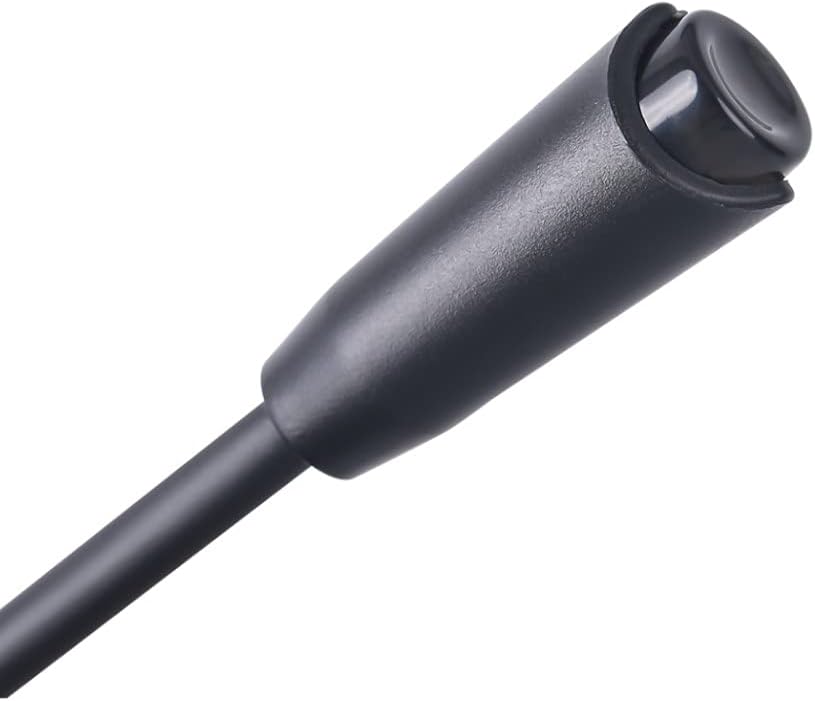
Figure 3: Adjustable Microphone. A detailed view of the flexible, omnidirectional microphone attached to the headset.
3. Орнотуу нускамалары
The GH-509 headset offers broad compatibility with various gaming platforms and devices.
3.1 Компьютерге туташуу
- туташтыруу green 3.5mm jack to your PC's audio output port (headphone jack).
- туташтыруу pink 3.5mm jack to your PC's microphone input port (mic jack).
- сайыңыз USB туташтыргычы into an available USB port on your PC to power the RGB backlight.
- Adjust audio settings in your operating system to ensure the headset is selected as the default playback and recording device.
3.2 Connecting to PS4 / Xbox One / Smartphone
- For devices with a single 3.5mm combo jack, use the included Y-splitter adapter (if provided) to combine the audio and microphone jacks into a single 3.5mm plug.
- сайыңыз 3.5 мм уяча (or combined jack) into the controller or device's audio port.
- The USB connector is only for RGB lighting and is not required for audio/microphone functionality on these devices.
- Adjust audio settings on your console or smartphone as needed.
4. Иштөө нускамалары
4.1 Үндү башкаруу
Use the integrated volume roller located on the left earcup to adjust the audio output level. Roll it up to increase volume and down to decrease volume.
4.2 Микрофонду колдонуу
The flexible microphone can be positioned closer to your mouth for clear voice capture. Ensure the microphone is enabled in your device's audio settings.
4.3 RGB арткы жарыгы
The headset features an RGB backlight on the earcups. This lighting is powered via the USB connection. There is no separate control for the RGB lighting; it activates automatically when the USB is connected.
5. Техникалык тейлөө
Proper care will extend the life of your headset.
- Тазалоо: Гарнитураны тазалоо үчүн жумшак, кургак чүпүрөктү колдонуңуз. Кулакчындар үчүн бир азamp кездеме колдонсо болот, бирок ашыкча нымдуулуктан алыс болуңуз. Катуу химиялык заттарды же абразивдүү тазалагычтарды колдонбоңуз.
- Сактагыч: Гарнитураны күн нурунан жана экстремалдык температурадан алыс салкын, кургак жерде сактаңыз.
- Кабельге кам көрүү: Зыяндын алдын алуу үчүн кабелди курч ийилүүдөн же ашыкча тартуудан качыңыз.
6. Кыйынчылыктарды
6.1 Гарнитурадан үн чыкпайт
- Ensure the 3.5mm audio jack is fully inserted into the correct port.
- Check the volume control on the headset and your device; ensure it is not muted or set to minimum.
- Verify that the headset is selected as the default audio output device in your computer's sound settings or console's audio options.
- Түзмөккө тиешелүү маселени болтурбоо үчүн гарнитураны башка түзмөктө сынап көрүңүз.
6.2 Микрофон иштебейт
- Ensure the 3.5mm microphone jack (pink) is fully inserted into the correct port.
- Check that the microphone is not muted in your device's settings or application.
- Verify that the headset microphone is selected as the default input device in your computer's sound settings or console's audio options.
- Test the microphone on another device.
6.3 RGB Backlight Not Illuminating
- USB туташтыргычы кубатталган USB портуна бекем сайылганын текшериңиз.
- Башка USB портун колдонуп көрүңүз.
7. Техникалык шарттар

Figure 4: Technical Specifications. This infographic provides a summary of the headset's key technical details.
| Өзгөчөлүк | Спецификация |
|---|---|
| Үн | Стерео |
| Frequency Response | 20 Гц - 20 КГц |
| Динамик өлчөмү | 50 мм |
| Спикер сезгичтиги | 109 дБ ± 3 дБ |
| Динамик импедансы | 21 Ом |
| Микрофон түрү | Көп багыттуу |
| Микрофондун көлөмү | 4.0 x 1.5 мм |
| Микрофондун сезгичтиги | -42 дБ ± 3 дБ |
| Арткы жарык | RGB |
| Туташтыргычтар | 2x 3.5 mm Jack, USB (for LED light) |
| Кабелдин узундугу | 2.1 м |
| OS колдоо | Windows 7 же жаңыраак |
| Салмагы | 300 грамм |
| Материал | Кожа (наушник) |
8. Кепилдик жана колдоо
For warranty information and technical support, please refer to the documentation included with your purchase or visit the official Xtrike Me webсайт. Кепилдик дооматтар үчүн сатып алганыңыздын далилин сактаңыз.


