1. Киришүү
This manual provides instructions for the IFYOO V911 2.4G Wireless PC Game Controller. This device is designed to enhance your gaming experience across multiple platforms with its wireless connectivity and ergonomic design.
1.1. Шайкештик
- PC Computer / Laptop Computer (Windows 10/8/7/XP), Steam. Drivers may be required for Windows XP.
- Android Mobile Phone/Tablet/TV/Box (version 4.0 or above). The Android device must support OTG function. An OTG adapter or cable is required for Android devices with Type-C or Micro-USB ports.
- PlayStation 3 (PS3).
Маанилүү шайкештик эскертүүлөрү:
- This device does not support Xbox 360 / Xbox One / Mac OS / PS4 / Nintendo Switch.
- DirectX 9.0c or above must be installed if the device is used in Windows 10 or above.
- If the device does not function on Windows systems, attempt to install the latest version of the Microsoft Xbox 360 Controller gamepad driver.
- The dual vibration motors are only active in PC games that support X-input, and vibration must be enabled within the game settings.

Image 1.1: The IFYOO V911 Wireless Game Controller and its 2.4GHz USB dongle.
2. Пакеттин мазмуну
Төмөндө тизмеленген нерселердин баары пакетиңизге камтылганын текшериңиз:
- 1x IFYOO ONE Pro Gaming Controller
- 1x 2.4Ghz Wireless Dongle
- 1x Type-C заряддоо кабели
- 1x Колдонуучунун колдонмосу (бул документ)
- 1x Кепилдик картасы
3. Орнотуу
3.1. Connecting to PC / PS3
- Locate the 2.4GHz Wireless Dongle included in the package.
- Plug the 2.4GHz dongle into an available USB port on your PC or PS3. For optimal wireless connectivity, it is recommended to plug the dongle into a front panel USB port on your PC and ensure there are no physical barriers between the dongle and the controller.
- The system should automatically detect and install the necessary drivers. If prompted, follow on-screen instructions. For Windows XP, manual driver installation may be required.
- Turn on the controller by pressing the central 'Home' button. The controller will automatically attempt to pair with the dongle. A stable indicator light on the controller signifies a successful connection.

Image 3.1: The controller supports 2.4GHz wireless connection for PC, PS3, and Android devices, offering up to 30 feet of wireless range.
3.2. Android түзмөктөрүнө туташуу
- Ensure your Android mobile phone, tablet, or TV box is running Android version 4.0 or above and supports the OTG (On-The-Go) function.
- Obtain an OTG adapter or cable suitable for your Android device's Type-C or Micro-USB port (not included in the package).
- Connect the 2.4GHz Wireless Dongle to the OTG adapter/cable, then connect the adapter/cable to your Android device.
- Turn on the controller by pressing the central 'Home' button. The controller will automatically attempt to pair with the dongle. A stable indicator light on the controller signifies a successful connection.

Image 3.2: For optimal wireless connection, plug the 2.4G dongle into a front PC port. An OTG adapter is required for Android devices.
4. Иштөө нускамалары
4.1. Multi-mode Functionality
The controller supports multiple input modes: Xinput, Dinput, Android, and PS3. The controller automatically detects the appropriate mode upon connection to a compatible device.
4.2. LED RGB Backlighting
The controller features LED RGB backlighting. This lighting can be cycled through 7 different colors or turned off. Refer to the controller's specific button layout for the backlight control button (often indicated by a light bulb icon).
4.3. JD-SWITCH Function
The JD-SWITCH function allows you to switch the input function between the D-pad and the Left Joystick. This feature is particularly useful for different game genres, such as fighting games where D-pad precision is preferred. Locate the 'T' button or similar indicator on your controller to activate this function.
4.4. ТУРБО функциясы
The TURBO function enables continuous rapid fire without needing to repeatedly press a button. This feature has adjustable speeds (Low, Normal, Fast) to suit various gaming scenarios. To activate, press the TURBO button simultaneously with the desired action button. To adjust speed, press the TURBO button and then move the right analog stick up or down.
4.5. Dual Vibration Feedback
The controller is equipped with dual vibration motors to provide immersive haptic feedback during gameplay. This feature is active in PC games that support X-input and have vibration enabled in their settings.

Image 4.1: Key features include JD Switch for D-pad/joystick function, LED Backlight, and precise aiming capabilities.

Image 4.2: The controller features dual rumble motors for immersive feedback and an adjustable speed Turbo function.
5. Техникалык тейлөө
5.1. Контроллерди заряддоо
The controller is equipped with a built-in 600mAh rechargeable battery. Use the provided Type-C charging cable to charge the device.
- Connect the Type-C end of the charging cable to the controller's charging port.
- Connect the USB-A end of the charging cable to a powered USB port (e.g., on a computer, wall adapter).
- Толук кубаттоо, адатта, болжол менен 2 саатты талап кылат.
- The controller provides approximately 10 hours of playtime on a full charge.
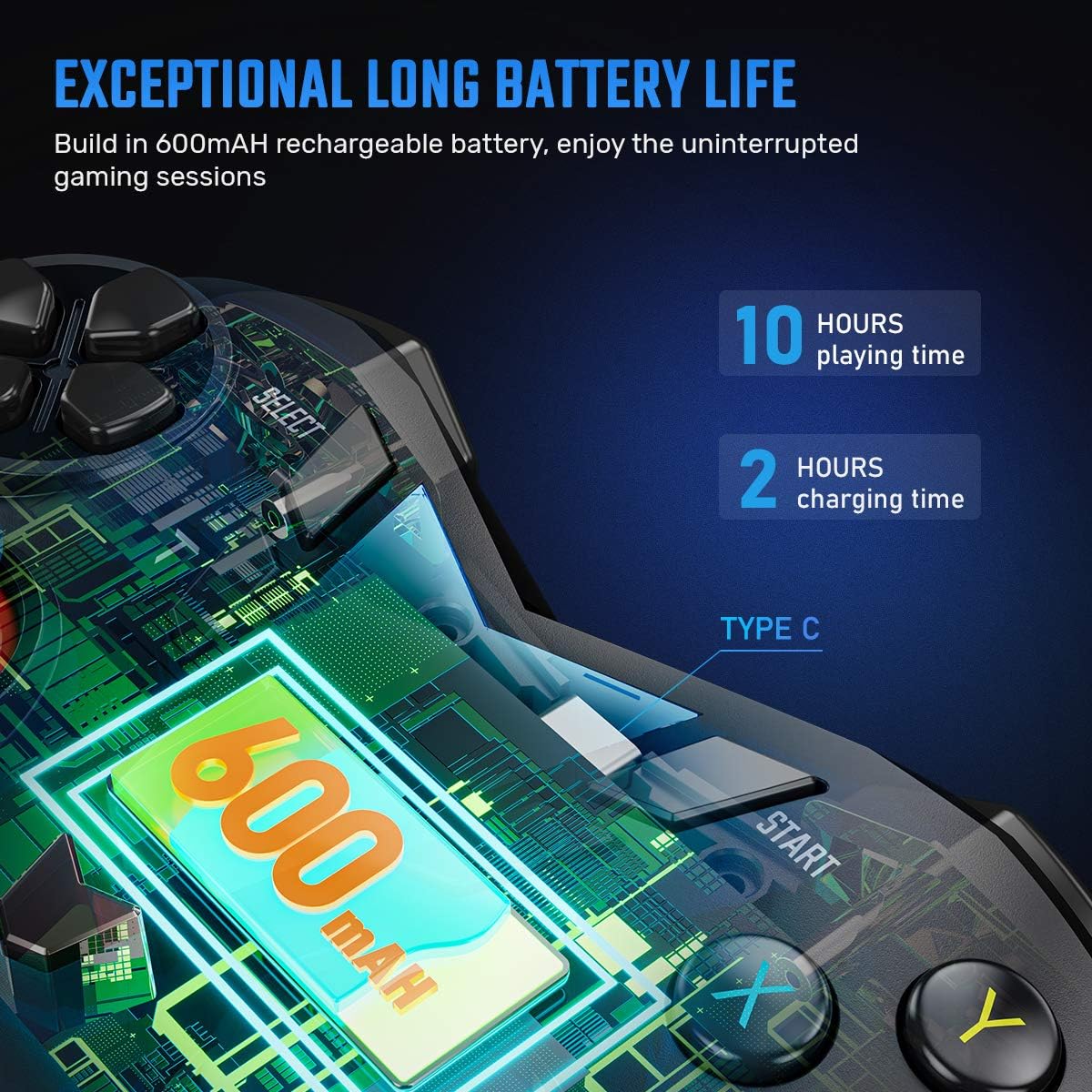
Image 5.1: The controller features a 600mAh rechargeable battery, offering 10 hours of playtime with a 2-hour charge via Type-C.
5.2. Жалпы кам көрүү
- Keep the controller dry and away from extreme temperatures.
- Clean the controller with a soft, dry cloth. Avoid using harsh chemicals or abrasive materials.
- Физикалык зыян келтирбөө үчүн контроллерди коопсуз жерде сактаңыз.
6. Кыйынчылыктарды
- Controller Not Connecting / Signal Loss: Ensure the 2.4GHz dongle is securely plugged into a USB port. For best results, use a front-panel USB port on your PC and minimize obstacles between the dongle and the controller.
- Вибрация иштебей жатат: Verify that the game you are playing supports X-input and that vibration feedback is enabled in the game's settings.
- Controller Not Recognized on Windows: For Windows 10 or above, ensure DirectX 9.0c or higher is installed. If issues persist, try installing the latest version of the Microsoft Xbox 360 Controller gamepad driver.
- Analog Stick Drift / Incorrect Input: If analog sticks exhibit unintended movement upon connection, perform a calibration through your operating system's gamepad settings. For Windows, this can typically be found in 'Devices and Printers' by right-clicking the controller and selecting 'Game Controller Settings' then 'Properties' and 'Calibrate'.
- Controller Turns Off Frequently (PC): Some users report the controller turning off after a short period of inactivity, even when plugged in. If this occurs, try unplugging and replugging the 2.4GHz dongle to re-establish a stable connection.
- Android туташуу көйгөйлөрү: Confirm your Android device supports OTG functionality and that you are using a compatible OTG adapter/cable.
7. Техникалык шарттар
| Өзгөчөлүк | Деталь |
|---|---|
| Продукциянын өлчөмдөрү | 160 x 102 x 65 мм |
| Продукт Салмагы | 272 ± 10g (approximately 13.1 ounces) |
| Туташуу ыкмасы | 2.4 ГГц зымсыз |
| Зымсыз диапазон | 10 метрге чейин (30 фут) |
| Заряддоо порту | Type-C |
| Батарея сыйымдуулугу | 600mAh кайра заряддалуучу |
| Оюн убактысы | Болжол менен 10 саат |
| Заряддоо убактысы | Болжол менен 2 саат |
| Түс | Black (2.4G-B) |
| Аппараттык платформа | Desktop, Gaming, Laptop, Tablet, Television |
| Операциялык системаны колдоо | Windows 10, Windows 8, Windows 7, Windows XP, Android 4.0+ |
8. Кепилдик жана колдоо
Your IFYOO V911 Wireless PC Game Controller comes with a Warranty Card included in the package. Please refer to the card for specific warranty terms and conditions.
For technical assistance, troubleshooting not covered in this manual, or warranty claims, please contact IFYOO customer support. Contact information can typically be found on the Warranty Card or the official IFYOO webсайт.
We are committed to providing support and assistance for your product.


