1. Киришүү
This manual provides comprehensive instructions for the setup, operation, and maintenance of your LG 27UK670-B 27-inch UHD (3840 x 2160) IPS Display. This monitor is designed to deliver a high-quality visual experience with its sRGB 99% Color Gamut, HDR10 support, and a 3-Side Virtually Borderless Design. It also offers flexible connectivity including USB Type-C with 40W Power Delivery and an adjustable stand for ergonomic comfort.

Сүрөт 1: Алдыңкы view of the LG 27UK670-B monitor.
2. Пакеттин мазмуну
Орнотууну улантуудан мурун пакетте бардык элементтер бар экенин текшериңиз.
- Монитор дисплей панели
- Монитор стенд (негизги жана моюн)
- Электр кабели
- USB Type-C кабели
- HDMI кабели
- DisplayPort кабели
- Колдонуучунун Колдонмосу (бул документ)
3. Орнотуу
3.1 Стендди чогултуу
- Carefully place the monitor display panel face down on a soft, clean surface to prevent scratches.
- Attach the stand neck to the back of the monitor panel. Ensure it clicks securely into place.
- Стенд негизин стенд мойнуна туташтырыңыз. Аны бекемдөө үчүн базанын астындагы буроону бекемдеңиз.
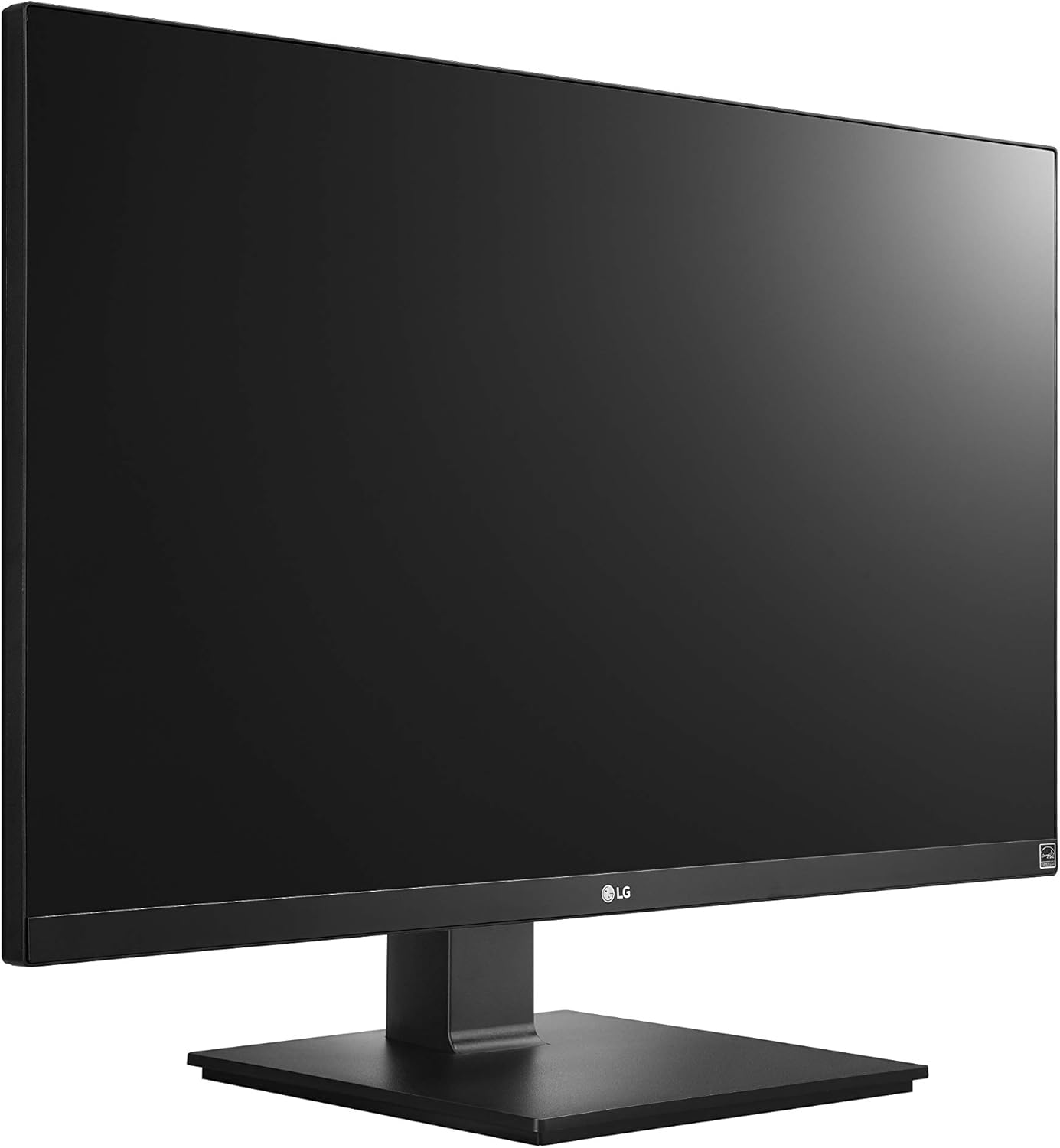
Figure 2: Assembled LG 27UK670-B monitor.
3.2 Компьютерге туташуу
The LG 27UK670-B monitor offers multiple connectivity options.
- USB Type-C туташуу: Connect one end of the USB Type-C cable to the USB-C port on the monitor and the other end to your computer's USB-C port. This connection supports video, data transfer, and power delivery (up to 40W) to your connected device.
- HDMI туташуу: Use an HDMI cable to connect the monitor to your computer's HDMI output.
- DisplayPort туташуу: Use a DisplayPort cable to connect the monitor to your computer's DisplayPort output.
- Кубат туташуу: Кубат шнурун монитордун кубат киресине, андан кийин розеткага туташтырыңыз.

3-сүрөт: Арткы view of the monitor with port connections.
3.3 Стендди тууралоо
Монитордун стенди ар кандай эргономикалык жөндөөлөрдү колдонууга мүмкүндүк берет:
- Бийиктигин тууралоо: Gently push or pull the monitor up or down to achieve your desired viewбийиктиги.
- Эңкейүүнү тууралоо: Tilt the monitor screen forward or backward to optimize your viewбурч.
- Пивотту тууралоо: Пейзаж жана портрет багыттарын которуу үчүн мониторду 90 градуска буруңуз.
- Айланууну жөндөө: Rotate the monitor left or right on its base to share your screen or adjust your viewпозиция.
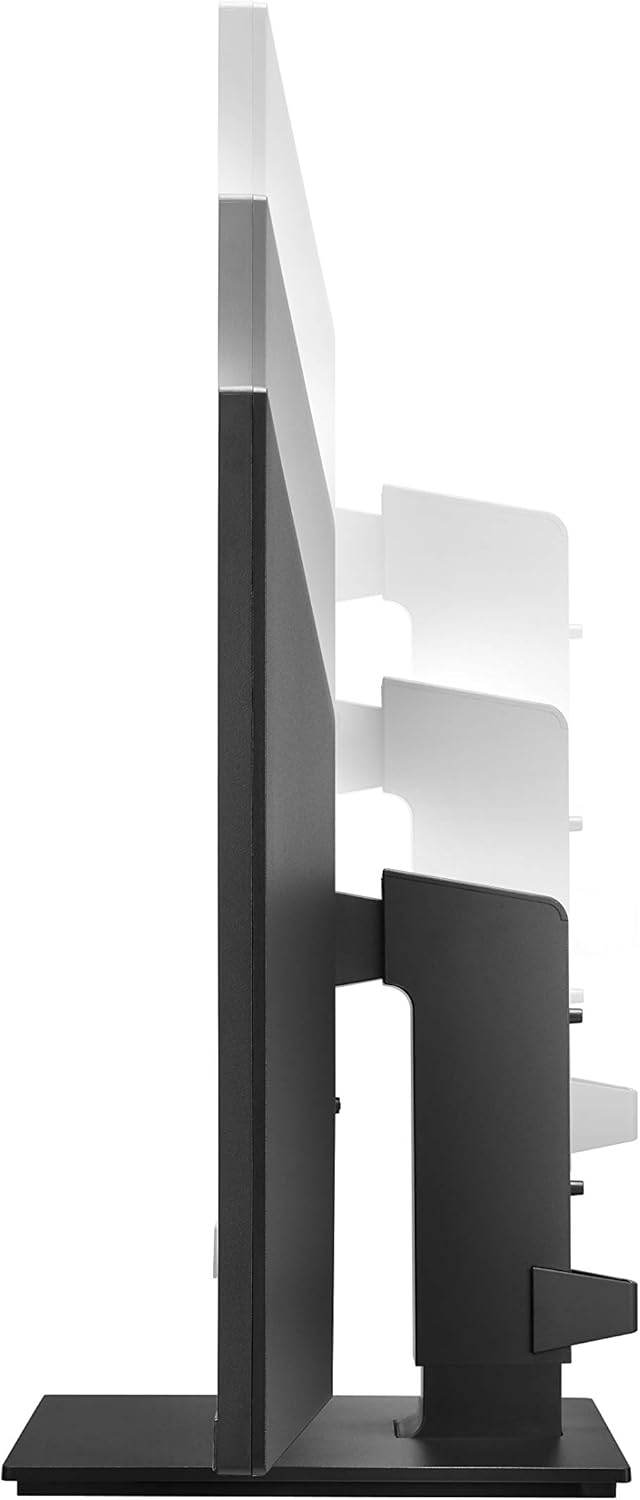
Figure 4: Monitor height adjustment.

Figure 5: Monitor in portrait orientation (pivot feature).
4. Мониторду иштетүү
4.1 Күйгүзүү/өчүрүү
Press the power button, usually located on the bottom center or rear of the monitor, to turn the display on or off.
4.2 Экрандагы дисплей (OSD) менюсу
The OSD menu allows you to adjust various display settings. Access it by pressing the joystick button (often located on the bottom center of the monitor). Navigate through the menu using the joystick to control brightness, contrast, color modes, input selection, and other advanced features.
4.3 Негизги өзгөчөлүктөрү
- UHD (3840 x 2160) Resolution: Provides sharp, detailed images.
- IPS дисплей: Кеңири сунуш кылат viewбурчтарды жана ырааттуу түстөрдү чыгаруу.
- sRGB 99% түстөр гаммасы: Ensures accurate and vibrant colors, suitable for creative professionals.
- HDR10: Enhances dynamic range for brighter whites and deeper blacks.
- AMD FreeSync технологиясы: Оюндарды жана видеолорду жылмакай ойнотуу үчүн экрандын айрылышын жана кекечтенүүсүн азайтат.
5. Техникалык тейлөө
5.1 Мониторду тазалоо
- Тазалоодон мурун ар дайым мониторду өчүрүп, электр шнурун сууруп коюңуз.
- Бир аз жумшак, түксүз кездемени колдонуңуз dampсуу же атайын экран тазалоочу менен бүткөрүлөт.
- Тазалоочу каражатты түз экранга чачпаңыз. Алгач аны кездемеге сүйкөңүз.
- Avoid using abrasive cleaners, waxes, or solvents as they can damage the screen surface.
5.2 Жалпы кам көрүү
- Мониторду күн нурунан, жылуулук булактарынан жана ашыкча чаңдан алыс кармаңыз.
- Ашыкча ысып кетүүнүн алдын алуу үчүн монитордун айланасында туура желдетүүнү камсыз кылыңыз.
- Монитор же анын кабелдерине оор нерселерди коюудан алыс болуңуз.
6. Кыйынчылыктарды
Мониторуңузда көйгөйлөргө туш болсоңуз, төмөнкү жалпы көйгөйлөрдү жана чечимдерди караңыз:
- Кубат жок:
- Электр шнурунун мониторго да, иштеп жаткан электр розеткасына да бекем туташтырылганын текшериңиз.
- Монитордогу кубат баскычы басылганын текшериңиз.
- Сигнал жок/Экран бош:
- Verify that the video cable (USB-C, HDMI, or DisplayPort) is securely connected to both the monitor and your computer.
- Монитордун OSD менюсунда туура киргизүү булагы тандалганын текшериңиз.
- Компьютериңиз күйгүзүлгөнүн жана уйку режиминде эмес экенин текшериңиз.
- Сүрөттүн сапаты маселелери (мисалы, бүдөмүк, бурмаланган):
- Компьютериңиздеги чечилиш жөндөөлөрүн монитордун баштапкы чечилишине (3840 x 2160) дал келтирип тууралаңыз.
- Reset the monitor's display settings to factory defaults via the OSD menu.
- Видео кабелдин бузулбагандыгын текшериңиз.
For further assistance, please consult the official LG support webсайтка же кардарларды тейлөөгө кайрылыңыз.
7. Техникалык шарттар
| Өзгөчөлүк | Деталь |
|---|---|
| Бренд | LG |
| Модель номери | 27UK670-B |
| Screen Size | 27 дюйм |
| Резолюция | UHD (3840 x 2160) |
| Панел түрү | IPS |
| Түс гаммасы | куйаара 99% |
| HDR колдоо | HDR10 |
| Байланыш | USB Type-C (with 40W PD), 2x HDMI, DisplayPort, 2x USB 3.0, 3x USB 2.0 |
| Stand өзгөрүүлөрдү | Tilt, Height, Pivot, Swivel |
| Элемент Салмагы | 15.4 фунт |
| Продукциянын өлчөмдөрү (LxWxH) | 24.1 x 9.9 x 20.4 дюйм |
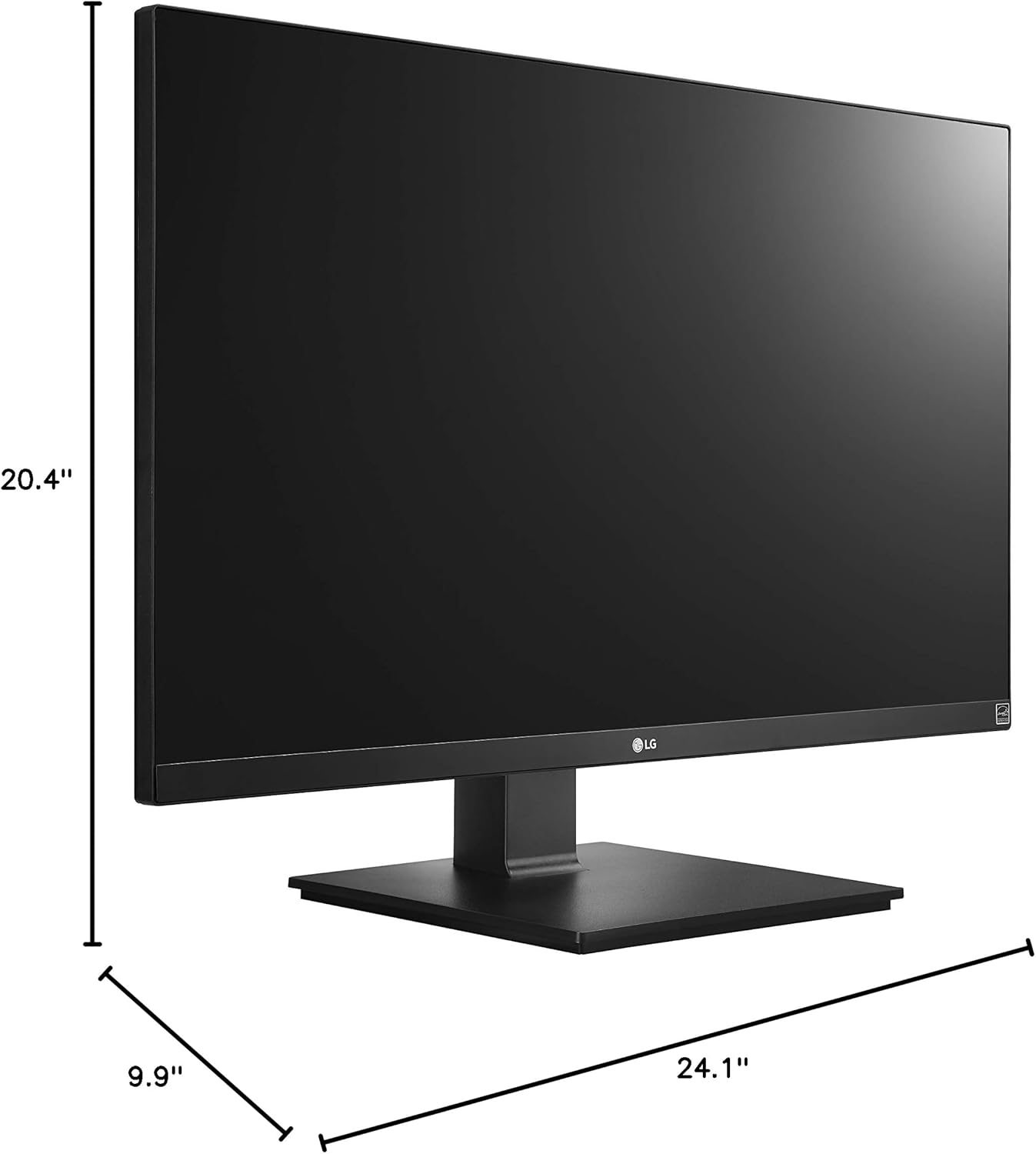
Сүрөт 6: Монитордун өлчөмдөрү.
8. Кепилдик жана колдоо
Your LG 27UK670-B monitor is covered by a manufacturer's warranty. For detailed information regarding warranty terms, conditions, and registration, please refer to the warranty card included in your product packaging or visit the official LG Electronics webсайт.
For technical support, service inquiries, or to download the latest drivers and software, please visit the LG support portal or contact LG customer service directly.
Онлайн колдоо: www.lg.com/us/support