Introduction
This manual provides comprehensive instructions for the setup, operation, and maintenance of your Plantronics Poly Studio P5 Webcam and Voyager 4220 UC Headset Kit. Please read this manual thoroughly before using the product to ensure optimal performance and longevity.
The kit includes a high-definition webcam designed for professional video conferencing and a stereo Bluetooth wireless headset for clear audio communication.
Пакеттин мазмуну
- Poly Studio Б5 Webcam
- Poly Voyager 4220 UC зымсыз гарнитура
- USB-A Adapter (for headset)
- USB кабели (үчүн webкамера)
- Quick Start Guide
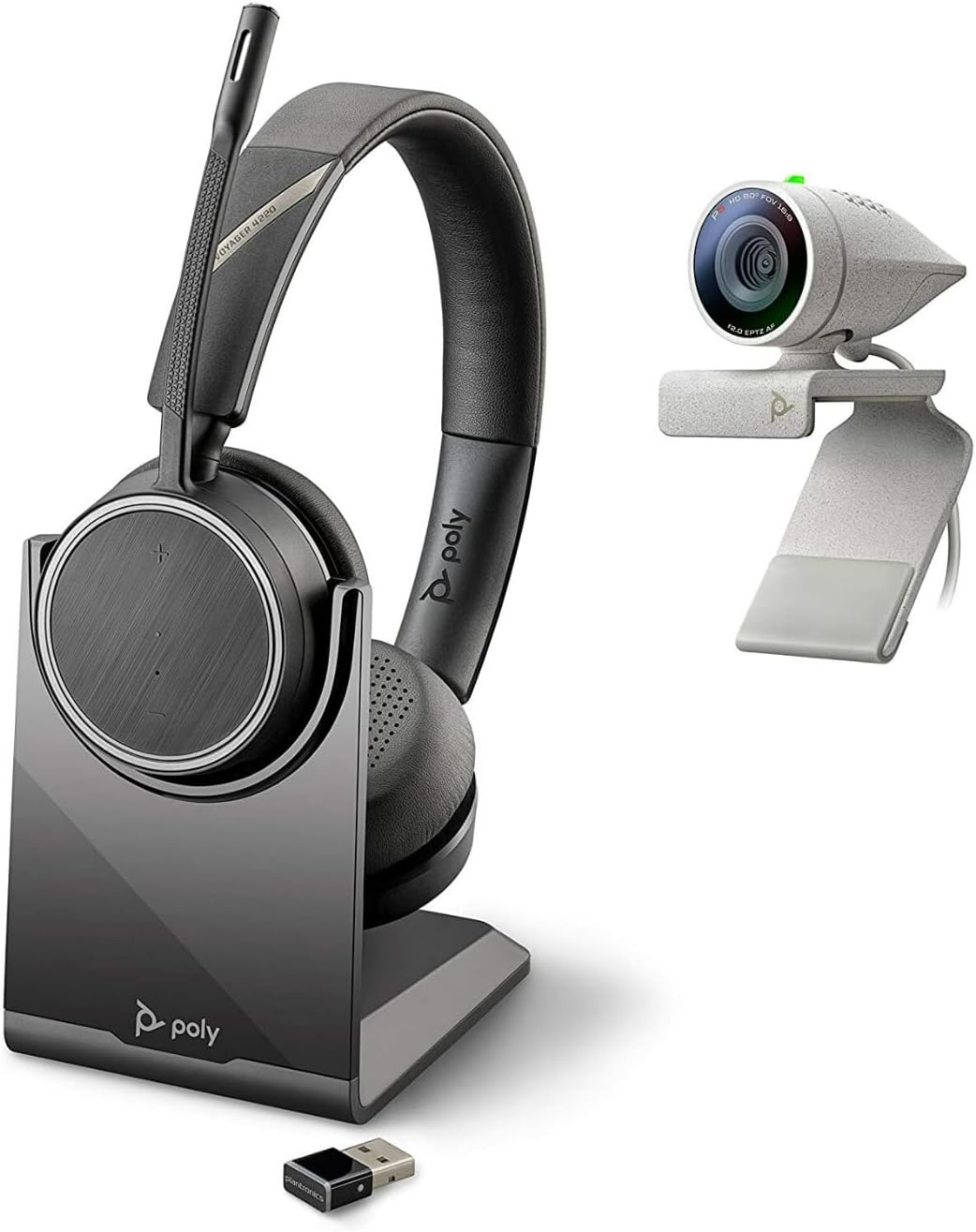
Image: Poly Studio P5 Webcam and Voyager 4220 UC Headset Kit, showing the webcam, headset, charging stand, and USB adapter.
Орнотуу нускамалары
1. Poly Studio P5 Webкамера орнотуу
- монтаждоо Webкамера:
кой webcam on top of your monitor or laptop screen. Adjust the clip to secure it firmly. The webcam can also be mounted on a tripod using the integrated tripod-ready design.

Image: Poly Studio P5 Webcam positioned on top of a laptop screen, showing its compact design and mounting clip.
- Компьютериңизге туташуу:
Кіріктірілген USB кабелин туташтырыңыз webcam to an available USB port on your PC or Mac. The device is plug-and-play; drivers will install automatically.
- Купуялык жапкыч:
The webcam features an integrated privacy shutter. Slide the shutter to cover the lens when not in use to enhance security and privacy.

Сүрөт: алдыңкы view of the Poly Studio P5 Webcam, highlighting the lens and the integrated privacy shutter mechanism.
2. Voyager 4220 UC Headset Setup
- Гарнитураны кубаттоо:
Before first use, fully charge the headset. Connect the charging cable to the headset and a USB power source. A full charge provides approximately 12 hours of talk time or 15 hours of listening time.
- Connecting the USB-A Adapter:
Insert the USB-A adapter into an available USB port on your PC or Mac. The adapter will automatically pair with the Voyager 4220 UC headset.
- Гарнитураны тагынуу:
Adjust the headband for a comfortable fit. Position the microphone boom approximately two finger-widths from the corner of your mouth for optimal voice pickup.
Иштөө нускамалары
1. Using the Poly Studio P5 Webcam
- Видеоконференция: The webcam is compatible with Zoom, Microsoft Teams, and other video conferencing services. Select "Poly Studio P5" as your camera and microphone input within your chosen application's settings.
- Automatic Low-Light Compensation: The webcam automatically adjusts to maintain proper light exposure, ensuring clear visibility even in darker environments.
- Digital Zoom: The camera supports up to 4x digital zoom. This feature can typically be controlled through your video conferencing software or the Poly Lens Desktop app.

Image: A person wearing the Voyager 4220 UC Headset and using the Poly Studio P5 Webcam with a laptop, demonstrating a typical video conferencing setup.
2. Using the Voyager 4220 UC Headset
- Күйгүзүү/өчүрүү: Slide the power switch to turn the headset on or off.
- Үндү көзөмөлдөө: Use the volume up (+) and volume down (-) buttons on the earcup to adjust audio levels.
- Үнсүз/Ачуу: Press the mute button on the microphone boom or earcup to mute or unmute your microphone.
- Чалууларды көзөмөлдөө: Press the call button to answer or end calls in supported applications.
- Noise-Cancelling Microphones: The headset features dual noise-cancelling microphones to reduce background noise for clear voice transmission.
3. Poly Lens Desktop App
The Poly Lens Desktop app allows you to customize settings, receive firmware updates, and access practical tips for your devices. Download the app from the official Poly webсайт.
- Тууралоо webcam settings (e.g., brightness, contrast, zoom).
- Configure headset audio preferences.
- Receive health and wellness reminders.
Техникалык тейлөө
- Тазалоо:
сүртүңүз webcam lens and headset surfaces with a soft, dry, lint-free cloth. Do not use liquid cleaners or abrasive materials.
- Сактагыч:
Колдонулбаган учурда шаймандарды салкын, кургак жерде, күндүн түз тийген нурларынан жана өтө жогорку температурадан алыс сактаңыз.
- Программалык камсыздоонун жаңыртуулары:
Regularly check for firmware updates via the Poly Lens Desktop app to ensure optimal performance and access to new features.
Проблемаларды чечүү
| Көйгөй | Мүмкүн себеп | Чечим |
|---|---|---|
| Webкамера табылган жок | Loose USB connection, incorrect software settings, driver issue. |
|
| Гарнитурадан аудио жок | Headset not powered on, not paired, volume too low, incorrect audio output selected. |
|
| Микрофон иштебей жатат | Microphone muted, incorrect audio input selected, boom not positioned correctly. |
|
| Видеонун сапаты начар | Low light conditions, dirty lens, internet bandwidth issues. |
|
Техникалык шарттар
Poly Studio Б5 Webcam
- Макс экрандын чечилиши: FHD (1080p)
- Видео тартуу токтому: 1080p
- Фото сенсор технологиясы: CMOS
- Арткы Webкамеранын чечими: 5 депутат
- Максималдуу фокус узундугу: 4
- Maximum Көзөнөк: f/2.0
- Байланыш технологиясы: USB
- Аппараттык платформа: PC, Mac
- Өзгөчөлүктөр: Integrated privacy shutter, automatic low-light compensation, tripod-ready design.
- Продукциянын өлчөмдөрү: 14.1 x 8.3 x 4.5 inches (Kit dimensions)
- Элемент Салмагы: 2.09 pounds (Kit weight)
Poly Voyager 4220 UC Headset
- Зымсыз түрү: Bluetooth
- Сүйлөшүү убактысы: 12 саатка чейин
- Угуу убактысы: 15 саатка чейин
- Микрофондор: Dual noise-cancelling
- Байланыш: USB-A адаптери
- Колдоого алынган аудио форматы: AAC, MP3
- Батареялар: 1 Литий Полимердик батарейка (кошулган)
Кепилдик маалымат
For detailed warranty information, please refer to the warranty card included with your product or visit the official Poly webсайт. Стандарттык кепилдик шарттары, адатта, сатып алынган күндөн тартып белгилүү бир мөөнөткө өндүрүштүк кемчиликтерди камтыйт.
Колдоо жана Байланыш
For technical support, product registration, or to download the latest software and drivers, please visit the official Poly support webсайт:
Webсайт: www.poly.com/support
Ошондой эле колдоо баракчасынан көп берилүүчү суроолорду жана коомдук форумдарды таба аласыз.


