1. Киришүү
This manual provides detailed instructions for setting up, configuring, and maintaining your Totolink N600R 600Mbps Wireless N Broadband Router. The N600R is designed to provide high-speed wireless connectivity for home and small office environments, supporting the IEEE 802.11n/g/b standards for 2.4GHz Wireless LAN with data rates up to 600Mbps.
2. Продукт бүтүп калдыview
2.1 Негизги өзгөчөлүктөрү
- Up to 600Mbps Wireless N speed for fast data transfer.
- Advanced MIMO technology for enhanced throughput and wireless coverage.
- One Turbo slide switch for quick Wi-Fi coverage extension.
- Supports multiple broadband functions: DHCP, Static IP, PPPoE, PPTP, and L2TP.
- Comprehensive security protocols: 64/128-bit WEP, WPA, WPA2, and WPA-Mixed.
- Easy and fast secure network connection using WPS (Wi-Fi Protected Setup).
- Supports IP, Port, MAC, URL filtering, and Port Forwarding.
- QoS (Quality of Service) for bandwidth control based on IP.
- Multi-SSID feature for creating multiple wireless networks.
- Universal repeater and WDS function for extending Wi-Fi range.
- Parental Control features for managing internet access.
2.2 Пакеттин мазмуну
- Totolink N600R Wireless N Broadband Router
- Кубаттуу адаптер
- Ethernet кабели
- Ыкчам орнотуу көрсөтмөсү (деталдуу нускамалар үчүн бул колдонмону караңыз)
2.3 Router Components

Сүрөт 1: Алдыңкы View. This image displays the front of the Totolink N600R router, featuring its sleek white casing and four prominent external antennas, two on each side, designed for optimal wireless signal coverage.

2-сүрөт: Жогорку View. This image shows the top surface of the Totolink N600R router, highlighting the Totolink brand logo centrally placed on its white, curved chassis.

3-сүрөт: Арткы View. This image illustrates the rear panel of the Totolink N600R router, clearly showing the yellow WAN port, four orange LAN ports, and the power input jack, along with ventilation slots.
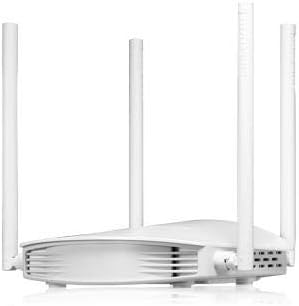
4-сүрөт: Каптал View. Бул сүрөт бир тарапты көрсөтөтfile of the Totolink N600R router, emphasizing its curved design and the arrangement of its external antennas.
3. Орнотуу колдонмосу
3.1 Физикалык байланыш
- Кубат туташуу: Connect the provided power adapter to the router's power input jack and then plug it into a power outlet.
- WAN туташуу: Connect one end of an Ethernet cable to the WAN port (usually labeled and colored differently, e.g., yellow) on the router and the other end to your modem or internet service provider's (ISP) device.
- LAN туташуу (кошумча): For wired devices, connect one end of an Ethernet cable to any of the LAN ports (usually orange) on the router and the other end to your computer or other network device.
- Күйгүзүү: Wait for the router to power on and for the indicator lights to stabilize, indicating a successful connection.
3.2 Баштапкы конфигурация (Web Интерфейс)
- Роутерге туташуу:
- текст: Компьютериңиз роутердин LAN портторунун бирине туташкандыгын текшериңиз.
- Зымсыз: Зымсыз түзмөгүңүздү (ноутбук, смартфон) роутердин демейки Wi-Fi тармагына туташтырыңыз. Демейки SSID (тармактын аталышы) жана сырсөз, адатта, роутердин астыңкы жагындагы этикеткада басылып чыгат.
- Мүмкүнчүлүк Web Браузер: ачуу а web туташкан түзмөгүңүздө браузер (мисалы, Chrome, Firefox, Edge).
- IP дарегин киргизиңиз: In the address bar, type the default IP address of the router, which is usually 192.168.1.1 or 192.168.0.1, жана Enter басыңыз.
- Кирүү: A login window will appear. Enter the default username and password. These are commonly админ for both username and password, or they may be printed on the router's label.
- Орнотуу устасын аткарыңыз: Upon successful login, you will likely be guided through a Quick Setup Wizard to configure your internet connection type (DHCP, Static IP, PPPoE, etc.) and basic wireless settings (SSID, password).
- Демейки эсептик дайындарды өзгөртүү: For security, it is highly recommended to change the default login password for the router's web интерфейс.
4. Иштөө нускамалары
Once the initial setup is complete, you can further customize your network settings through the router's web интерфейс.
4.1 Зымсыз орнотуулар
- SSID (тармактын аталышы): Navigate to the Wireless Settings section to change your Wi-Fi network name.
- Коопсуздук режими: Select a strong security mode like WPA2-PSK (AES) for optimal security.
- Зымсыз сырсөз: Set a strong, unique password for your Wi-Fi network.
- Turbo Switch: Utilize the physical Turbo slide switch on the router to quickly extend Wi-Fi coverage when needed.
- Multi-SSID: Create separate wireless networks for guests or specific devices by configuring multiple SSIDs.
4.2 Тармактын коопсуздугу
- WPS (Wi-Fi менен корголгон орнотуу): Use the WPS button on the router or the WPS function in the web interface to quickly connect WPS-compatible devices without entering the password manually.
- Firewall: The router includes a built-in firewall. Configure IP, Port, MAC, and URL filtering to control network access.
- Портту багыттоо: Set up port forwarding rules if you need to access specific services or devices on your local network from the internet (e.g., gaming servers, security cameras).
4.3 Өркүндөтүлгөн функциялар
- QoS (Кызматтын сапаты): Prioritize network traffic for specific applications or devices to ensure smooth performance for critical tasks like video streaming or online gaming. This is typically based on IP addresses.
- Ата-энелик көзөмөл: Manage and restrict internet access for specific devices or users based on time schedules or website filtering.
- Universal Repeater / WDS: Extend your existing Wi-Fi network's coverage by configuring the N600R as a universal repeater or using WDS (Wireless Distribution System) with other compatible routers.
5. Техникалык тейлөө
- Программалык камсыздоонун жаңыртуулары: Regularly check the Totolink official webмикропрограммалык камсыздоону жаңыртуу сайты. Микропрограмманы жаңыртуу иштин натыйжалуулугун жакшыртып, жаңы функцияларды кошуп, коопсуздукту жогорулатат.
- Кайра жүктөлүүдө: Эгер сиз тармак көйгөйлөрүнө туш болсоңуз, кубат адаптерин 10 секундга сууруп, андан кийин кайра сайып, роутерди өчүрүп-күйгүзүп көрүңүз.
- Заводдун баштапкы абалга келтирүү: In case of severe configuration issues, you can perform a factory reset. This will revert all settings to their default values. Refer to the router's physical reset button or the web interface for this option.
- Жайгашкан жери: Place the router in a central location, away from obstructions and interference sources (e.g., microwaves, cordless phones) for optimal wireless coverage.
6. Кыйынчылыктарды
6.1 Интернетке кирүү жок
- WAN порт кабели роутерге да, модемге да туташтырылганын текшериңиз.
- Модемиңиз туура иштеп жатканын жана активдүү интернет байланышы бар экенин текшериңиз.
- Модемди да, роутерди да өчүрүп күйгүзүңүз.
- Ensure your internet connection settings (DHCP, PPPoE, etc.) are correctly configured in the router's web интерфейс.
6.2 Weak Wi-Fi Signal or Disconnections
- Маршрутизаторду дубалдардан жана чоң металл буюмдардан алысыраак борбордук жерге көчүрүңүз.
- Башка электрондук шаймандардын кийлигишүүсүн текшериңиз.
- Оптималдуу сигнал алуу үчүн роутердин антенналары тигинен жайгаштырылганын текшериңиз.
- Коңшу тармактардын тоскоолдуктарынан качуу үчүн роутердин жөндөөлөрүнөн зымсыз каналды өзгөртүп көрүңүз.
- Consider using the Turbo switch to extend coverage.
6.3 Маршрутизаторго кирүү мүмкүн эмес Web Интерфейс
- Түзмөгүңүз роутерге (зымдуу же зымсыз) туташкандыгын текшериңиз.
- Verify that you are using the correct IP address (e.g., 192.168.1.1).
- Браузериңиздин кэшин жана cookie файлдарын тазалаңыз же башка браузерди колдонуп көрүңүз.
- If you forgot the login password, you may need to perform a factory reset.
7. Техникалык шарттар
| Өзгөчөлүк | Деталь |
|---|---|
| Бренд аты | Totolink |
| Модель аты | N600R |
| Байланыш технологиясы | Wi-Fi |
| Жыштык тилкесинин классы | Бир тилкелүү (2.4 ГГц) |
| Зымсыз ылдамдык | 600 Мбит/сек чейин |
| Коопсуздук протоколу | WEP, WPA, WPA2, WPA-Mixed |
| Өзгөчөлүктөр | QoS, WPS, Turbo Switch, Parental Control, Multi-SSID, Universal Repeater, WDS |
| Шайкеш түзмөктөр | Ноутбук, персоналдык компьютер, Smart телевизор, планшет |
| Сунушталган Колдонуулар | Home, Small Office, Family |
| Камтылган компоненттер | Маршрутизатор |
| Пакеттин өлчөмдөрү | 22.4 x 14.4 x 6.7 см |
| Салмагы | 456 г |
8. Кепилдик жана колдоо
For warranty information, technical support, or further assistance, please refer to the warranty card included with your product or visit the official Totolink website. You can also find updated drivers and firmware on their support pages.
Totolink Official Webсайт: www.totolink.net