1. Киришүү
This instruction manual provides essential information for the safe and effective installation, operation, and maintenance of your AMD Ryzen™ 5 5600G 6-Core 12-Thread Desktop Processor with Radeon™ Graphics. Please read this manual thoroughly before proceeding with any installation or operation.
The AMD Ryzen™ 5 5600G is designed for gamers, creators, and general PC users seeking enthusiast-class performance with integrated graphics, eliminating the immediate need for a discrete graphics card. It features 6 cores and 12 processing threads, a 4.6 GHz Max Boost clock, and supports DDR4-3200 memory on the advanced Socket AM4 platform.
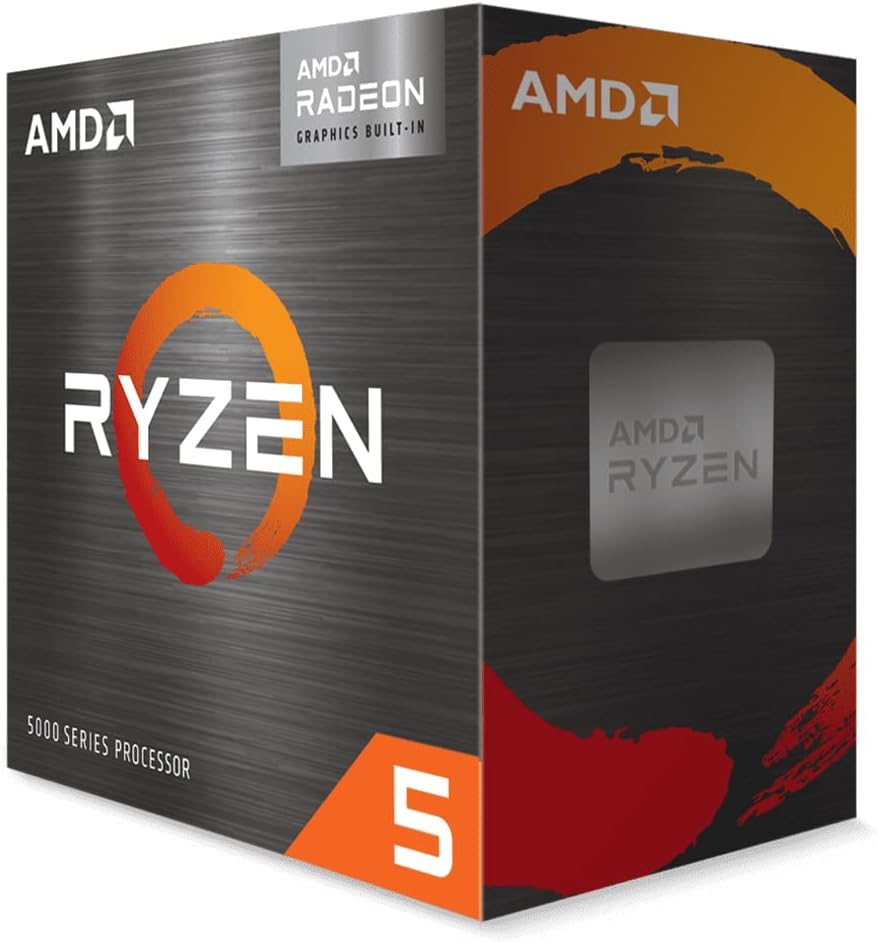
Figure 1: Front of AMD Ryzen 5 5600G Retail Packaging. This image displays the front of the AMD Ryzen 5 5600G retail packaging, featuring the prominent Ryzen logo and indicating the presence of Radeon Graphics.

2-сүрөт: Бурчтуу View of AMD Ryzen 5 5600G Retail Packaging with Cooler. This image shows an angled view of the AMD Ryzen 5 5600G retail box, emphasizing that it includes an AMD Wraith thermal solution for cooling.
2. Коопсуздук чаралары
To prevent damage to your processor and other components, observe the following safety guidelines:
- Электростатикалык разряддын (ESD) алдын алуу: Electronic components are sensitive to static electricity. Always ground yourself before handling the processor or motherboard.
- Иш чөйрөсү: Perform installation on a hard, non-conductive surface (e.g., a wooden table) to minimize static buildup. Avoid carpets or rugs.
- Этияттык менен мамиле кылуу: Avoid touching the gold pins or contacts on the processor. Hold the processor by its edges.
- Өчүрүү: Ensure your computer's power supply is turned off and unplugged from the wall outlet before beginning installation.
3. Орнотуу
Before installing your AMD Ryzen™ processor, ensure you have the following:
- Compatible AM4 motherboard (e.g., B550 chipset).
- DDR4 RAM (DDR4-3200 recommended for optimal performance).
- Computer case with adequate ventilation.
- Электр менен жабдуу бирдиги (PSU).
- Screwdriver (Phillips head).
- Anti-static wrist strap (highly recommended).
- Isopropyl alcohol and lint-free cloth (for thermal paste removal, if needed).
- Aftermarket thermal compound (if not using the pre-applied paste on the included cooler, or if reapplying).
4. Орнотуу
Follow these steps carefully to install your AMD Ryzen™ 5 5600G processor:
4.1. Grounding Yourself
Before handling any components, it is crucial to discharge any static electricity from your body. Attach an anti-static wrist strap to your wrist and clip the other end to an unpainted metal part of your computer case or power supply unit (ensure the PSU is switched off and unplugged from the wall). This will safely dissipate any static charge.
4.2. Процессорду орнотуу
- CPU розеткасын ачыңыз: On your AM4 motherboard, locate the CPU socket. Lift the small metal arm next to the socket to unlock it.
- Багыты аныктоо: Carefully remove the AMD Ryzen™ 5 5600G processor from its packaging. Observe the small golden triangle on one corner of the processor. This triangle must align with a corresponding triangle mark on the CPU socket of your motherboard.
- Процессорду жайгаштырыңыз: Gently lower the processor straight down into the socket, aligning the triangles. The processor should drop in effortlessly without any force. If it does not, do not force it. Re-check the orientation and ensure the metal arm is fully lifted.
- Процессорду коргоо: Once the processor is properly seated, lower the metal arm back down to secure it in place.
4.3. Applying Thermal Compound (if needed)
AMD Ryzen™ processors typically come with a Wraith cooler that has thermal compound pre-applied. If you are using this cooler and it's new, you can skip this step. If you are reusing a cooler, or using an aftermarket cooler without pre-applied paste, you will need to apply thermal compound:
- Clean the CPU surface and heatsink base with isopropyl alcohol and a lint-free cloth to remove any old thermal paste or debris.
- Apply a small, pea-sized dot of thermal compound to the center of the CPU's integrated heat spreader (IHS). Alternatively, some users prefer an "X" pattern with thin beads.
- Do not spread the thermal paste manually. The pressure from installing the heatsink will evenly spread the compound.
4.4. Радиаторду орнотуу
The AMD Ryzen™ 5 5600G typically includes an AMD Wraith Stealth cooler. Follow the specific instructions provided with your cooler for installation. Generally, the process involves:
- Муздаткычты жайгаштырыңыз: Align the heatsink over the installed processor, ensuring the mounting brackets align with the motherboard's retention clips or screw holes.
- Муздаткычты камсыз кылуу: Depending on your cooler type, either clip it into the retention brackets or screw it down evenly. Apply firm, even pressure to ensure good contact between the heatsink and the CPU.
- Фан кабелин туташтыруу: Connect the cooler's fan power cable to the "CPU_FAN" header on your motherboard.
Watch the Official AMD Installation Guide:
Video: How to Install AMD Ryzen Processors. This official AMD video provides a step-by-step guide on how to safely and securely install AMD Ryzen processors, including handling electrostatic discharge, correctly seating the CPU, and applying thermal compound for optimal cooling.
5. Иштөө
Once the processor and cooler are installed, you can proceed with assembling the rest of your PC components (RAM, storage, graphics card if applicable, etc.). After assembly, connect your peripherals and power on the system.
- BIOS/UEFI Орнотуу: Access your motherboard's BIOS/UEFI settings to verify that the CPU is recognized and operating at its correct specifications. Ensure XMP/DOCP is enabled for your RAM to run at its advertised speed.
- Драйверди орнотуу: Install the latest chipset drivers from the AMD website for your motherboard. For the integrated Radeon™ Graphics, download and install the latest graphics drivers from AMD's official support page.
- Системанын мониторинги: Use software tools (e.g., AMD Ryzen Master, HWMonitor) to monitor CPU temperatures and performance to ensure stable operation.
6. Техникалык тейлөө
Proper maintenance ensures the longevity and optimal performance of your AMD Ryzen™ processor:
- Чаңды тазалоо: Regularly clean dust from the CPU cooler and case fans using compressed air. Dust buildup can impede airflow and lead to higher temperatures.
- Термикалык пастаны кайра колдонуу: Over time, thermal paste can dry out and become less effective. Consider reapplying thermal paste every 2-3 years, or if you notice consistently higher temperatures.
- Драйвер жаңыртуулары: Иштин натыйжалуулугун жогорулатуу жана каталарды оңдоо үчүн чипсет жана графикалык драйверлериңизди жаңыртып туруңуз.
7. Кыйынчылыктарды
Көйгөйгө туш болсоңуз, көйгөйлөрдү чечүүнүн төмөнкү жалпы кадамдарын карап көрүңүз:
| Көйгөй | Мүмкүн себеп | Чечим |
|---|---|---|
| System not booting / No display | Incorrect CPU seating, RAM issues, power connections. | Verify CPU is correctly seated and secured. Check RAM modules are fully inserted. Ensure all power cables are connected. |
| Жогорку CPU температурасы | Improper heatsink installation, insufficient thermal paste, poor airflow. | Re-seat heatsink, reapply thermal paste. Improve case airflow. |
| Системанын туруксуздугу / бузулуулары | Outdated drivers, unstable overclock, faulty components. | Update chipset and graphics drivers. Reset BIOS to default. Test components individually. |
| Integrated graphics not working | Incorrect BIOS settings, missing drivers. | Ensure integrated graphics are enabled in BIOS. Install latest Radeon™ Graphics drivers. |
8. Техникалык шарттар
| Өзгөчөлүк | Деталь |
|---|---|
| Процессор Cores | 6 өзөк |
| Processor Threads | 12 Threads |
| Max Boost сааты | 4.4 ГГц чейин |
| Негизги саат | 3.9 ГГц |
| Интегралдык графика | Radeon™ Graphics |
| Графикалык негизги саны | 7 |
| Графикалык жыштык | 1900 МГц |
| Демейки TDP | 65 Вт |
| CPU розетка | AM4 |
| PCIe® Version | PCIe 3.0 |
| Memory Support | DDR4-3200 |
9. Кепилдик жана колдоо
Кепилдик жана техникалык колдоо боюнча толук маалымат алуу үчүн, расмий AMD компаниясына кайрылыңыз website or the documentation included with your product. You can also find additional resources and FAQs on the AMD support pages.
For the official installation manual in PDF format, please visit: AMD Installation Manual (PDF)


