Introduction
Welcome to the user manual for your White Shark Shinobi 60% Mechanical Keyboard. This guide provides essential information for setting up, operating, maintaining, and troubleshooting your new gaming keyboard. Please read this manual thoroughly to ensure optimal performance and longevity of your device.
Пакеттин мазмуну
Улантуудан мурун, пакетиңизде бардык нерселер бар экенин текшериңиз:
- White Shark Shinobi 60% Mechanical Keyboard
- USB-C - USB-A кабели
- Колдонуучунун Колдонмосу (бул документ)
Жайгашуу
Follow these steps to set up your White Shark Shinobi 60% Mechanical Keyboard:
- Баскычтопту туташтыруу: Locate the USB-C port on the back or side of the keyboard. Insert the smaller end of the provided USB-C to USB-A cable into this port.
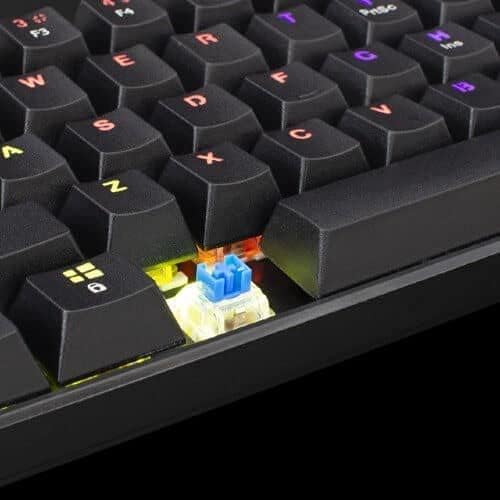
Image: Connecting the USB-C cable to the keyboard's port.
- Компьютерге туташуу: Кабелдин чоңураак USB-A учун компьютериңиздеги жеткиликтүү USB портуна сайыңыз.
- Драйверди орнотуу: The keyboard is plug-and-play. Your operating system (Windows, macOS, Linux) should automatically detect and install the necessary drivers. No manual driver installation is typically required.
- Баштапкы күйгүзүү: Once connected, the keyboard's backlight should illuminate, indicating it is powered on and ready for use.
Иштөө нускамалары
The White Shark Shinobi 60% Mechanical Keyboard features a compact layout. Many functions are accessed via function (Fn) key combinations.
Негизги жайгашуу жана функциялар

Сүрөт: бүттүview of the Shinobi 60% keyboard layout.
The 60% layout means some standard keys are accessed through a secondary function layer, typically by holding the Fn ачкыч.
Арткы жарыкты башкаруу
Баскычтопто RGB арткы жарыгы ыңгайлаштырылуучу функция бар.
- Жарыктандыруу режимин өзгөртүү: Колдонуу Fn + \ | to cycle through various lighting effects.
- Жарыктыкты жөндөө: Колдонуу Fn + ] } (көбөйүү) жана Fn + [ { (азайтуу) арткы жарыктын жарыктыгын тууралоо үчүн.
- Ылдамдыкты жөндөө: Колдонуу Fn + ; : (көбөйүү) жана Fn + ' " (decrease) to adjust the speed of dynamic lighting effects.
- Түсү өзгөртүү: Колдонуу Fn + Enter to change the color of static lighting modes.
Мультимедиа жана Функция баскычтары
Access multimedia controls and other functions using the Fn key in combination with other keys. Refer to the keycaps for secondary legends.
| Ачкыч айкалышы | Функция |
|---|---|
| fn + A | Ойнотуу/Тыныгуу |
| Fn + S | Мурунку трек |
| Fn + D | Кийинки трек |
| Fn + F | Үндү төмөндөтүү |
| Fn + G | Үндү көтөрүү |
| Fn + H | Үнсүз |
| Fn + J | Менин компьютерим |
| Fn + K | Браузер |
| Fn + L | |
| Fn + W | WASD жана жебе баскычтарын алмаштырыңыз |
| Fn + Боштук | Lock/Unlock Fn key (for continuous access to secondary functions) |
Техникалык тейлөө
Proper maintenance ensures the longevity and performance of your mechanical keyboard.
Баскычтопту тазалоо
- Чаңды тазалоо: Баскычтардын ортосундагы чаңды жана таштандыларды үйлөп чыгаруу үчүн кысылган абаны колдонуңуз.
- Бетти тазалоо: Gently wipe the keycaps and keyboard surface with a soft, lint-free cloth slightly dampсуу же жумшак, абразивдүү эмес тазалоо эритмеси менен. Ашыкча нымдуулуктан сактаныңыз.
- Терең тазалоо (клавиатура): For a deeper clean, keycaps can be carefully removed using a keycap puller (not included). Wash them with mild soap and water, rinse thoroughly, and ensure they are completely dry before reattaching.

Image: Detail of a mechanical switch under a keycap.
Сактагыч
Узак мөөнөткө колдонулбаганда, клавиатураны салкын, кургак жерде, тике күндүн нурунан жана өтө температурадан алыс сактаңыз.
Проблемаларды чечүү
If you encounter issues with your White Shark Shinobi keyboard, refer to the following common solutions:
Баскычтоп жооп бербейт
- Кабель туташуусун текшерүү: Ensure the USB-C cable is securely plugged into both the keyboard and the computer. Try unplugging and re-plugging it.
- Башка USB портун колдонуп көрүңүз: Connect the keyboard to a different USB port on your computer.
- Компьютерди кайра иштетүү: A simple computer restart can often resolve connectivity issues.
- Башка компьютерде сыноо: If possible, test the keyboard on another computer to determine if the issue is with the keyboard or your original computer's setup.
Backlight Not Working or Incorrect
- Жарыктыкты текшерүү: Ensure the brightness is not set to the lowest level using Fn + ] }.
- Цикл режимдери: Try cycling through lighting modes using Fn + \ |.
- Заводдун баштапкы абалга келтирүү: Some keyboards have a factory reset combination (e.g., Fn + Esc for 3-5 seconds). Refer to specific product documentation if available, or try this common combination.
Ачкычтар катталбайт же эки жолу терилбейт
- Баскычтоптун астындагы капкактарды тазалоо: Dust or debris under the keycap or switch can cause issues. Refer to the "Maintenance" section for cleaning instructions.
- Программалык камсыздоонун кийлигишүүсү: Ensure no conflicting software (e.g., macro programs, other keyboard drivers) is running.
Техникалык шарттар
Key technical specifications for the White Shark Shinobi 60% Mechanical Keyboard:
| Өзгөчөлүк | Деталь |
|---|---|
| Модель аты | Shinobi 60% |
| Бренд | Ак акула |
| Байланыш технологиясы | Зымдуу USB |
| Keyboard Description | Оюн-зоок, механикалык |
| Өзгөчө өзгөчөлүк | Арткы жарык (RGB) |
| Ачкычтардын саны | 61 |
| Которуу түрү | Tactile (Blue Switches) |
| Шайкеш түзмөктөр | Ноутбук, рабочий компьютер |
| ASIN | B093C63NSG |

Image: Product packaging indicating blue switches.
Кепилдик маалымат
Specific warranty terms and conditions for the White Shark Shinobi 60% Mechanical Keyboard may vary by region and retailer. Please retain your proof of purchase for warranty claims. For detailed warranty information, refer to the official White Shark webсайтка же сатып алган жериңизге кайрылыңыз.
Колдоо
For further assistance, technical support, or frequently asked questions, please visit the official White Shark support webсайт.
Официалдуу Webсайт: While a direct link is not provided, search for "White Shark Gaming" to find their official support page.


