Introduction
This manual provides comprehensive instructions for the Keychron K8 87-Key Tenkeyless Wireless Bluetooth Mechanical Keyboard. It covers setup, operation, maintenance, and troubleshooting to ensure optimal performance and longevity of your device. The Keychron K8 is designed for both Mac and Windows users, offering versatile connectivity and a comfortable typing experience.
Продукт бүттүview
The Keychron K8 is an 87-key tenkeyless mechanical keyboard featuring a durable aluminum frame and Keychron Mechanical Brown Switches. It supports both wireless Bluetooth 5.1 and wired USB Type-C connections, allowing seamless switching between up to three devices.
Негизги өзгөчөлүктөрү
- Tenkeyless Layout (87 Keys): Compact design without the numeric keypad, ideal for saving desk space.
- Зымсыз жана зымдуу байланыш: Connect via Bluetooth 5.1 or USB Type-C cable.
- Көп түзмөктү колдоо: Pair with up to 3 devices and switch between them easily.
- Mac & Windows Compatibility: Includes extra keycaps for both operating systems.
- Keychron Mechanical Brown Switches: Provide a tactile typing experience with a lifespan of up to 50 million keystrokes.
- 4000 мАч Батарея: Offers extended usage time.
- Эки деңгээлдүү жөнгө салынуучу буттар: Ergonomic design for comfortable typing angles (6°/9°).
- Double-Shot ABS Keycaps: Durable keycaps for long-lasting legends.
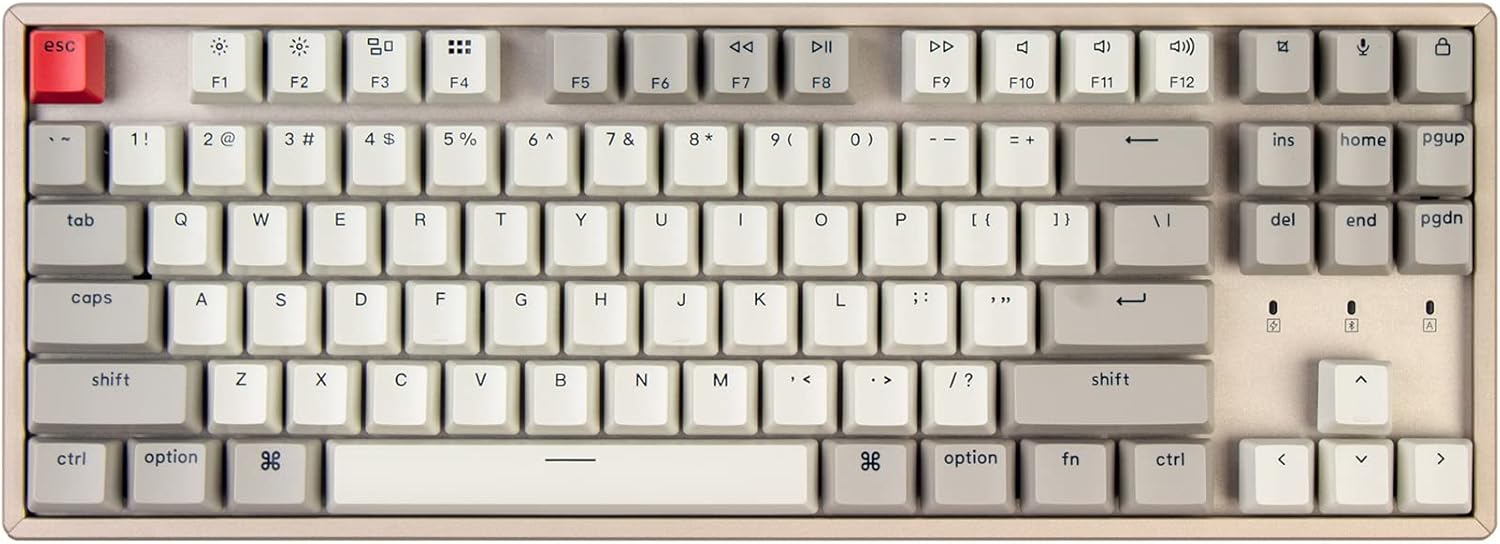
1-сүрөт: жогорудан ылдыйга view Keychron K8 клавиатурасынын, көрсөтүүasing its 87-key tenkeyless layout and keycap design.

2-сүрөт: Детальдуу view of a Keychron Mechanical Brown Switch, highlighting its tactile behavior and specifications such as operating force, pre-travel, travel distance, sound level, and lifespan.

Figure 3: Illustration demonstrating the Keychron K8's ability to connect to up to three devices across Mac and Windows operating systems.

4-сүрөт: Side profile of the keyboard, detailing the USB Type-C port, the Win/Android-Mac/iOS toggle switch, and the BT-Off-Cable connection mode switch.

Figure 5: Dimensions of the K8 87-Key Tenkeyless Mechanical Keyboard, showing its length, width, and height.

Figure 6: Visual representation highlighting the 4000mAh battery capacity of the Keychron K8 keyboard.
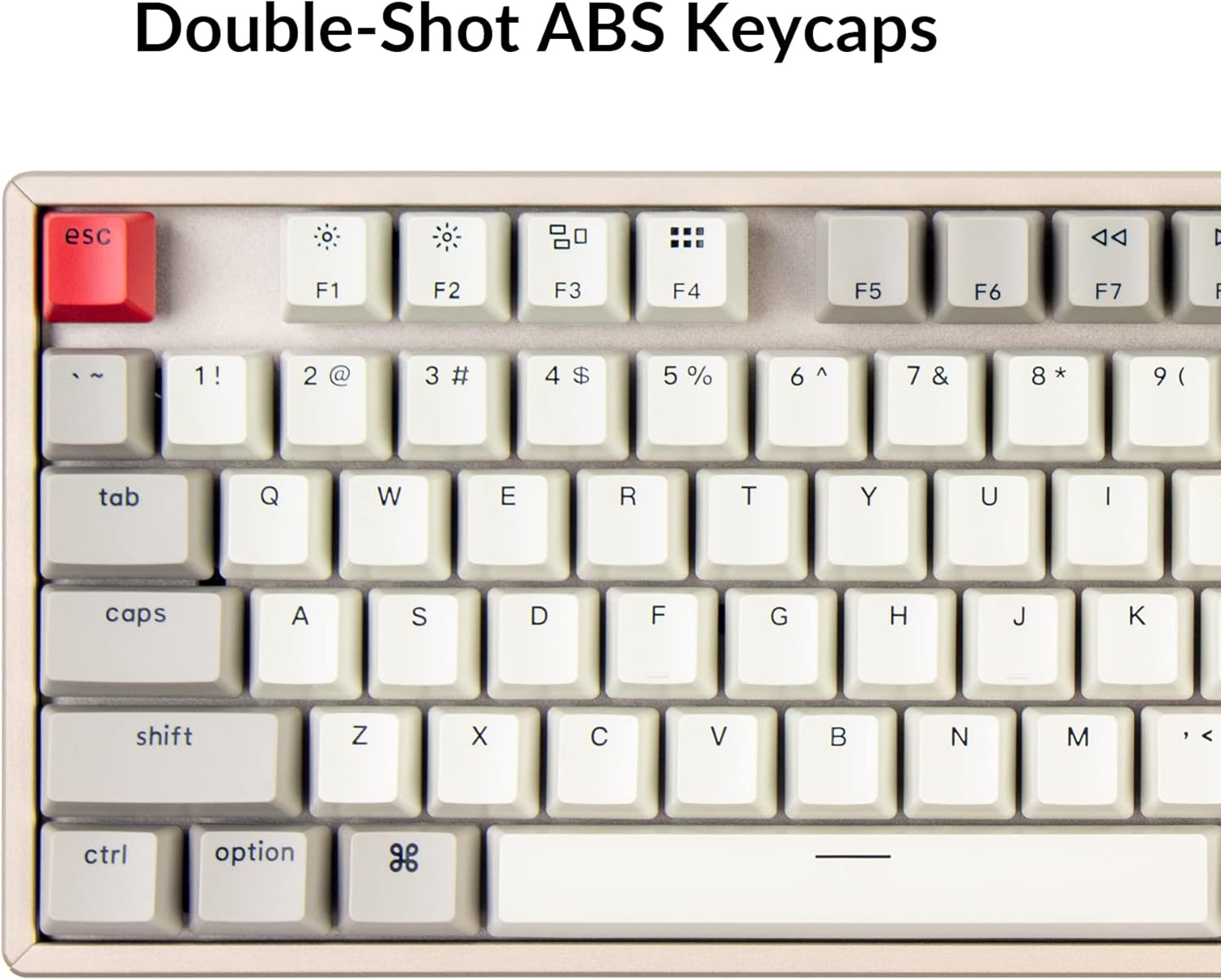
Сүрөт 7: Жакын пландан view of the keyboard's keycaps, indicating they are Double-Shot ABS for enhanced durability and legend clarity.
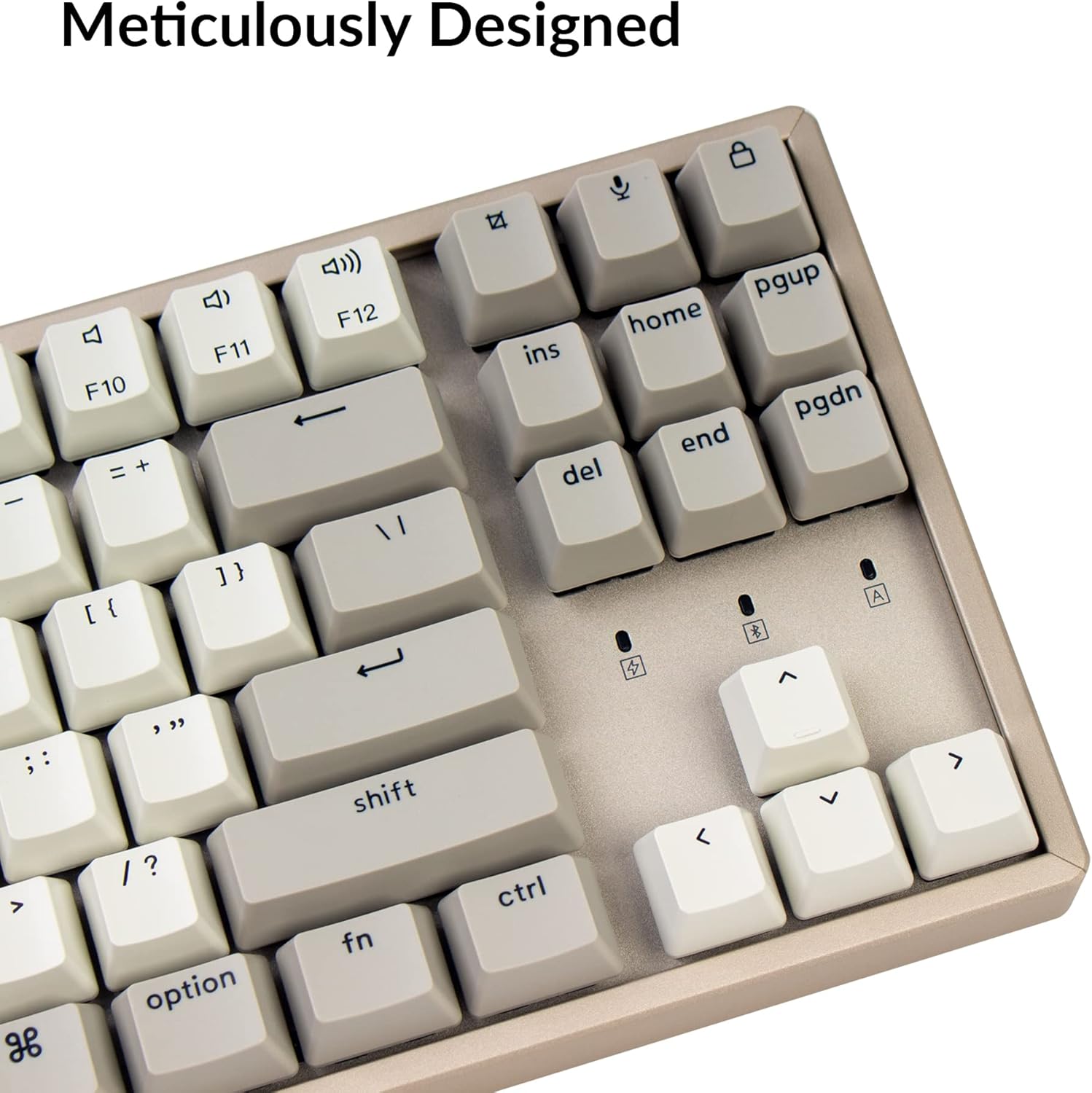
8-сүрөт: Детальдуу view of the meticulously designed right side of the keyboard, including the arrow keys and navigation keys (Ins, Home, PgUp, Del, End, PgDn).

9-сүрөт: Каптал view illustrating the two-level adjustable feet, allowing users to set the keyboard at 6° or 9° angles for ergonomic comfort.

Figure 10: ашыкview of Keychron K8 features, including its tenkeyless layout, dual connectivity, multi-OS support, Keychron switches, battery life, multi-device pairing, and USB-C charging.
Жайгашуу
1. Операциялык системанын которгучу
Locate the operating system toggle switch on the side of the keyboard (refer to Figure 4). Slide the switch to the appropriate position for your system: "Win/Android" for Windows or Android devices, and "Mac/iOS" for macOS or iOS devices. This ensures correct key mapping and functionality.
2. Connection Mode Switch
Next to the OS switch, you will find the connection mode switch (refer to Figure 4). Choose your desired connection method:
- "BT" (Bluetooth): Зымсыз байланыш үчүн.
- "Cable": For wired USB Type-C connection.
- "Off": To turn off the keyboard and conserve battery.
3. Bluetooth аркылуу туташуу
- Ensure the OS switch is set correctly for your device.
- Slide the connection mode switch to "BT".
- Жупташтыруу режимине өтүү үчүн басып, кармап туруңуз "Fn" + "1" (or "Fn" + "2", "Fn" + "3" for other profiles) keys for 4 seconds until the F1 (or F2, F3) key starts flashing rapidly. This indicates the keyboard is ready to pair.
- On your computer or mobile device, open Bluetooth settings and search for new devices.
- Тандоо "Keychron K8" жеткиликтүү түзмөктөрдүн тизмесинен.
- Follow any on-screen prompts to complete the pairing process. The F1 (or F2, F3) key will stop flashing once successfully connected.
4. Connecting via Wired (USB Type-C)
- Ensure the OS switch is set correctly for your device.
- Slide the connection mode switch to "Cable".
- Connect the provided USB Type-C cable to the keyboard's port (refer to Figure 4) and the other end to your computer's USB port.
- Баскычтоп автоматтык түрдө таанылып, колдонууга даяр болот.
Иштөө нускамалары
Switching Between Devices (Bluetooth)
Once paired with multiple devices (up to 3), you can switch between them by pressing "Fn" + "1", "Fn" + "2", же "Fn" + "3". The corresponding F key will light up briefly to indicate the active device.
Функция баскычтары (F1-F12)
The F1-F12 keys have dual functions. By default, they act as multimedia or system control keys (e.g., brightness, media playback). To access the standard F1-F12 functions, press "Fn" along with the desired F key.
- Fn+F1: Экран жарыктыгын азайтыңыз
- Fn+F2: Экран жарыктыгын жогорулатуу
- Fn+F3: Миссияны башкаруу (Mac) / Тапшырма View (Windows)
- Fn+F4: Launchpad (Mac) / Action Center (Windows)
- Fn+F5: Баскычтоптун жарыгынын жарыгы төмөндөйт
- Fn+F6: Баскычтоптун арткы жарыгынын жарыктыгын жогорулатуу
- Fn+F7: Мурунку трек
- Fn+F8: Ойнотуу/Тыныгуу
- Fn+F9: Кийинки трек
- Fn+F10: Үнсүз
- Fn+F11: Үндү азайтуу
- Fn+F12: Үнүн көтөрүү
Арткы жарыкты башкаруу
The Keychron K8 features adjustable backlighting. Use the following key combinations to control it:
- Fn+F5: Арткы жарыктын жарыктыгын азайтыңыз.
- Fn+F6: Арткы жарыктын жарыктыгын жогорулатыңыз.
- Light Bulb Key (top right): Cycle through different backlight effects.
Баскычтопту заряддоо
Connect the USB Type-C cable to the keyboard and a USB power source (e.g., computer USB port, wall adapter). The charging indicator light will show the charging status. A full charge typically takes a few hours.
Техникалык тейлөө
- Тазалоо: Use a soft, lint-free cloth to wipe the keyboard surface. For deeper cleaning, you can use a can of compressed air to remove dust and debris from between the keycaps. For stubborn dirt, a slightly damp клавиатурага суюктук кирбеши үчүн жумшак самын менен кездеме колдонсо болот.
- Клавиатураны алып салуу: If you need to clean under the keycaps or replace them, use a keycap puller (often included with the keyboard) to gently remove them. Pull straight up to avoid damaging the switch stem.
- Сактагыч: When not in use for extended periods, store the keyboard in a dry, cool place. Ensure the power switch is set to "Off" to preserve battery life.
- Батареяга кам көрүү: To maximize battery lifespan, avoid fully discharging the battery frequently. Charge the keyboard when the battery indicator is low.
Проблемаларды чечүү
| Көйгөй | Мүмкүн чечим |
|---|---|
| Баскычтоп Bluetooth аркылуу туташпай жатат. |
|
| Keys are not responding in wired mode. |
|
| Backlight is not working or dim. |
|
| Баскычтоп бат-баттан ажыратылат. |
|
Техникалык шарттар
| Өзгөчөлүк | Деталь |
|---|---|
| Модел | K8L3 |
| Ачкычтардын саны | 87 |
| Макет | Tenkeyless |
| Которгучтар | Keychron Mechanical Brown Switch |
| Байланыш | Bluetooth 5.1 жана USB Type-C |
| Батарея сыйымдуулугу | 4000mAh |
| Материал | Алюминий Frame |
| Продукциянын өлчөмдөрү | 14.13 x 4.84 x 1.37 дюйм (35.89 x 12.29 x 3.48 см) |
| Элемент Салмагы | 2.88 фунт (1.31 кг) |
| Шайкеш түзмөктөр | Mac, Windows, iOS, Android, Gaming Console |
Кепилдик жана колдоо
Keychron өнүмдөрү, адатта, чектелген кепилдик менен келет. Кепилдик жөнүндө толук маалымат, шарттар жана эрежелер үчүн расмий Keychron сайтына кайрылыңыз. website or the warranty card included with your product. For technical support, troubleshooting assistance, or to inquire about replacement parts, please visit the official Keychron support page or contact their customer service directly.
Кошумча ресурстар:


