1. Киришүү
Сатып алганыңыз үчүн рахматasing the Rapoo N300 Optical Wired Gaming Mouse. This manual provides detailed instructions for setting up, operating, and maintaining your new mouse. Please read this manual thoroughly before use to ensure optimal performance and longevity of the product.
2. Продукт бүтүп калдыview
2.1 Негизги өзгөчөлүктөрү
- Жогорку тактыктагы оптикалык көзөмөлдөө: Equipped with a 2000 DPI tracking engine for accurate and responsive cursor control.
- 6 Баскычтар: Includes left, right, scroll wheel, DPI switch, and two side buttons for enhanced functionality.
- 2D Anti-Slip Scroll Wheel: Provides precise scrolling and tactile feedback.
- Эки тараптуу дизайн: Ergonomically designed for comfortable use by both left and right-handed users.
- Wired USB Connectivity: Ensures a stable and lag-free connection.
2.2 Пакеттин мазмуну
- Rapoo N300 Optical Wired Gaming Mouse
- Колдонуучунун Колдонмосу (бул документ)
2.3 Продукт диаграммасы

1-сүрөт: Жогорку view of the Rapoo N300 mouse, showing the left and right click buttons, scroll wheel, and DPI switch button. The Rapoo logo is visible at the base.

2-сүрөт: Side view of the Rapoo N300 mouse, highlighting the two side buttons and the textured grip area for improved handling.
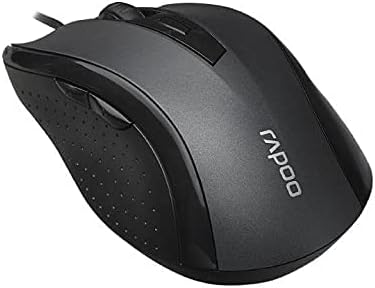
3-сүрөт: Бурчтуу view of the Rapoo N300 mouse, showcasing its ergonomic contour and the placement of the scroll wheel and side buttons.

4-сүрөт: Төмөнкү view of the Rapoo N300 mouse, displaying the optical sensor, product model number (N300), interface type (USB), and regulatory compliance markings.
3. Орнотуу нускамалары
- Чычканды туташтыруу: Locate an available USB port on your computer (desktop or laptop). Insert the USB connector of the Rapoo N300 mouse firmly into the USB port.
- Драйверди орнотуу: The Rapoo N300 mouse is a plug-and-play device. Your operating system (Windows XP, Windows 7, Linux, or newer versions) will automatically detect and install the necessary drivers. This process may take a few moments.
- Текшерүү: Once the drivers are installed, the mouse cursor should become responsive. Move the mouse to confirm functionality.
No additional software installation is typically required for basic functionality.
4. Иштөө нускамалары
4.1 Негизги функциялар
- Сол чыкылдатуу: Primary action, selection, opening items.
- Оң чыкылдатуу: Контексттик менюларды ачат.
- Жылдыруу дөңгөлөгү: Scrolls documents and web pages vertically. Can also be pressed for middle-click functionality (application-dependent).
4.2 DPI жөндөө
The Rapoo N300 features a dedicated DPI switch button, usually located behind the scroll wheel. Press this button to cycle through different DPI (Dots Per Inch) sensitivity settings. Each press will change the cursor speed, allowing you to adjust it to your preference for various tasks, from precise editing to fast-paced gaming.
4.3 Каптал баскычтары
The two side buttons typically function as "Forward" and "Backward" in web браузерлер жана file explorers. Their functionality may be customizable through operating system settings or third-party software, if available.
5. Техникалык тейлөө
- Тазалоо: Чычкандын бетин сүртүү үчүн жумшак, кургак чүпүрөктү колдонуңуз. өжөр кир үчүн, бир аз гampчүпүрөктү суу же жумшак тазалоо эритмеси менен жууп салыңыз. Катуу химиялык заттарды же абразивдүү материалдарды колдонуудан алыс болуңуз.
- Оптикалык сенсор: Ensure the optical sensor on the bottom of the mouse remains clean and free of dust or debris for optimal tracking performance. Do not attempt to disassemble the mouse.
- Кабельге кам көрүү: Зыяндын алдын алуу үчүн USB кабелин курч ийилүүдөн же ашыкча тартуудан алыс болуңуз.
6. Кыйынчылыктарды
| Көйгөй | Мүмкүн чечим |
|---|---|
| Чычкан жооп бербей жатат |
|
| Курсордун кыймылы туруксуз же секирик |
|
| DPI баскычы сезгичтикти өзгөртпөйт |
|
7. Техникалык шарттар
| Өзгөчөлүк | Деталь |
|---|---|
| Модел | N300 |
| Tracking Engine | Оптикалык |
| DPI | 2000 XNUMX DPI чейин |
| баскычтардын саны | 6 (Left, Right, Scroll Wheel, DPI, Side Button 1, Side Button 2) |
| Scroll Wheel | 2D Anti-Slip |
| Колдун багыты | Эки тараптуу |
| Interface Type | Зымдуу USB |
| Операциялык системанын шайкештиги | Windows XP, Windows 7, Linux, and newer versions |
| Түс | Кара |
| Элемент Салмагы | Болжол менен 100 г |
| Өлчөмдөрү (пакет) | 15.4 x 8.4 x 4.2 см |
8. Кепилдик жана колдоо
Rapoo products are designed for reliability and performance. For specific warranty information and support details, please refer to the warranty card included with your product or visit the official Rapoo webсайт. Сатып алуу квитанциясын кепилдик дооматтары үчүн сатып алуунун далили катары сактаңыз.
For technical assistance or further inquiries, please contact Rapoo customer support through their official channels.


